
TL;DR
- Disable all difficulty assists in Gameplay settings for authentic old-school challenge
- Turn off On-Board Helpers except Prevent Low Air Spins during transition period
- Configure quick-drop ramp permissions to prevent unwanted multiplayer interference
- Customize audio settings including narrator volume for personalized experience
- Master foot traversal with Off-Board Helpers while maintaining skating purity
Discover how to transform EA’s latest Skate installment into the challenging, authentic experience that defined the original trilogy. This comprehensive guide reveals the essential configuration changes that bridge the gap between modern accessibility and classic skateboarding simulation.
Following an extensive development cycle spanning over a decade, Electronic Arts has reintroduced their beloved skateboarding franchise through a free-to-play model. Currently in early access, the game presents a streamlined interface while incorporating live-service elements that have generated significant debate within the dedicated fan community. Despite these discussions, one aspect receives universal praise: the developers have successfully captured the distinctive physics and responsive controls that made the earlier titles so memorable.
However, the default configuration includes several assistance features that may dilute the authentic challenge veterans expect. These automated helpers provide a more forgiving skating environment, but adjusting them properly can restore the precise mechanical depth that defined the series’ golden era.
Access the Settings menu, select Gameplay, and navigate to the Assists tab to begin your customization journey. For players seeking the genuine, uncompromising Skate experience, reduce every option in the difficulty settings category to their minimum values. Many experienced skaters opt to maintain Allow Fall Height at the intermediate setting (level 1) to preserve the possibility of executing spectacular aerial maneuvers without excessive punishment.
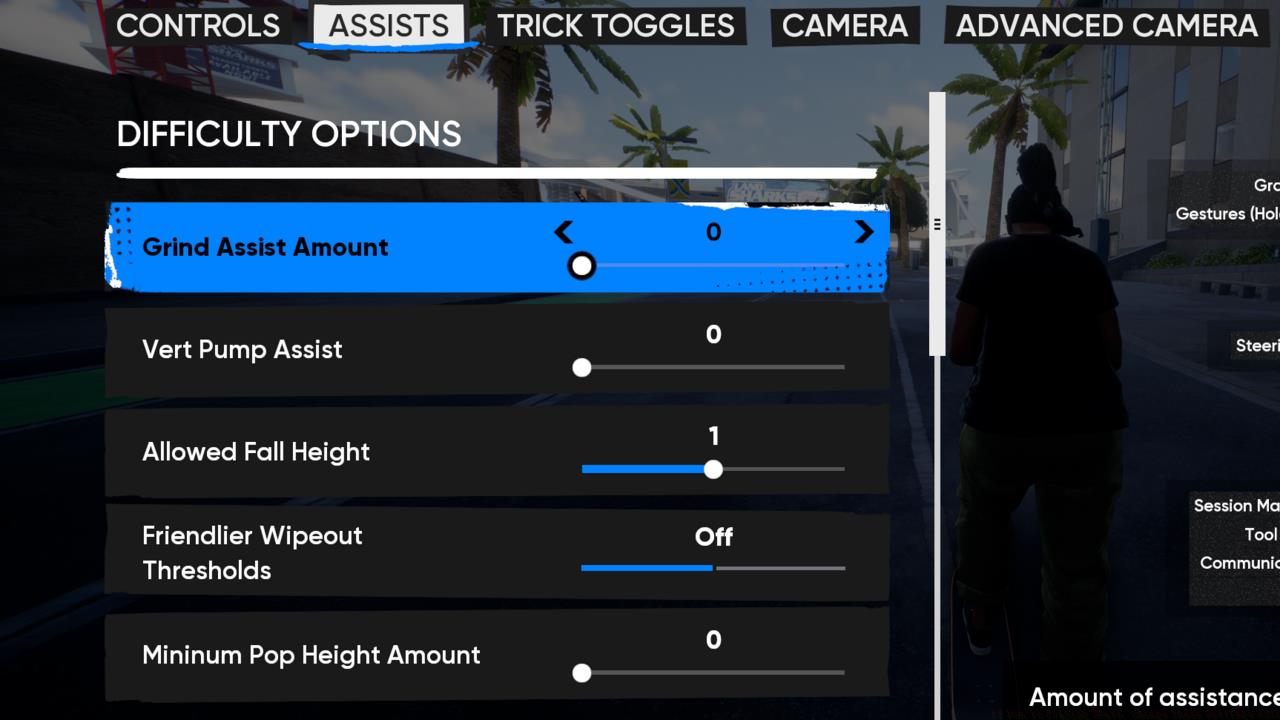
For the truly unforgiving old Skate experience, turn all these options all the way to the left.
The customization continues with On-Board Helpers located beneath the primary difficulty settings. Apply the same philosophy here: disable these automated assists for maximum control authenticity. During your adjustment period, consider retaining Prevent Low Air Spins active, as this feature assists with stability management during high-velocity maneuvers by limiting rotation during minor aerial adjustments. However, advanced players should eventually deactivate this option as well to achieve complete mastery over their skating technique.
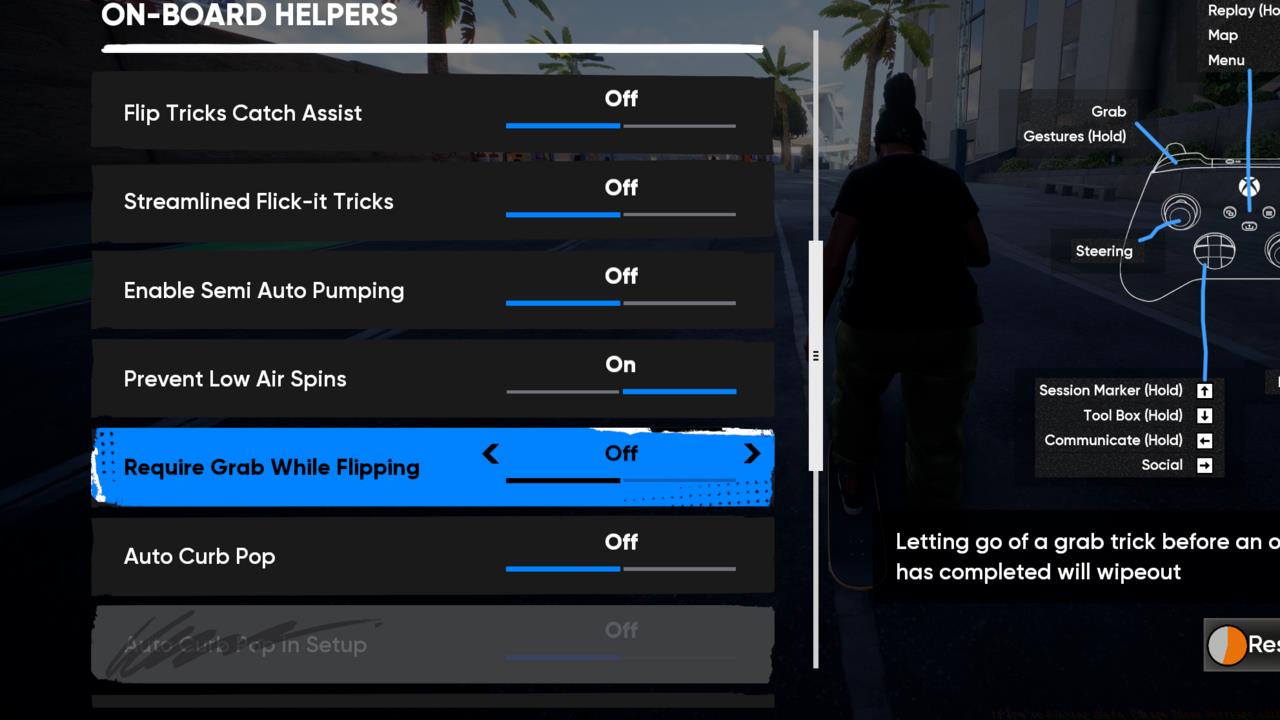
These On-Board Helpers can make your skating time easier if that’s what you’re into.
The Off-Board Helpers section at the menu’s bottom offers greater flexibility, as these settings primarily enhance pedestrian navigation. Given the expanded on-foot capabilities—including building scaling and environmental interaction—most players benefit from enabling these options to minimize traversal time and return to skating action more efficiently.
Congratulations on restoring the demanding, skill-based challenge that characterized the original Skate games. However, several additional configuration options warrant your attention to complete the experience.
The newest installment revitalizes and enhances one of Skate 3’s most celebrated mechanics: instantaneous ramp and object placement anywhere in the game world. The persistent online environment introduces a significant consideration—other participants possess identical customization privileges, potentially leading to disruptive placement scenarios that interfere with your skating flow.
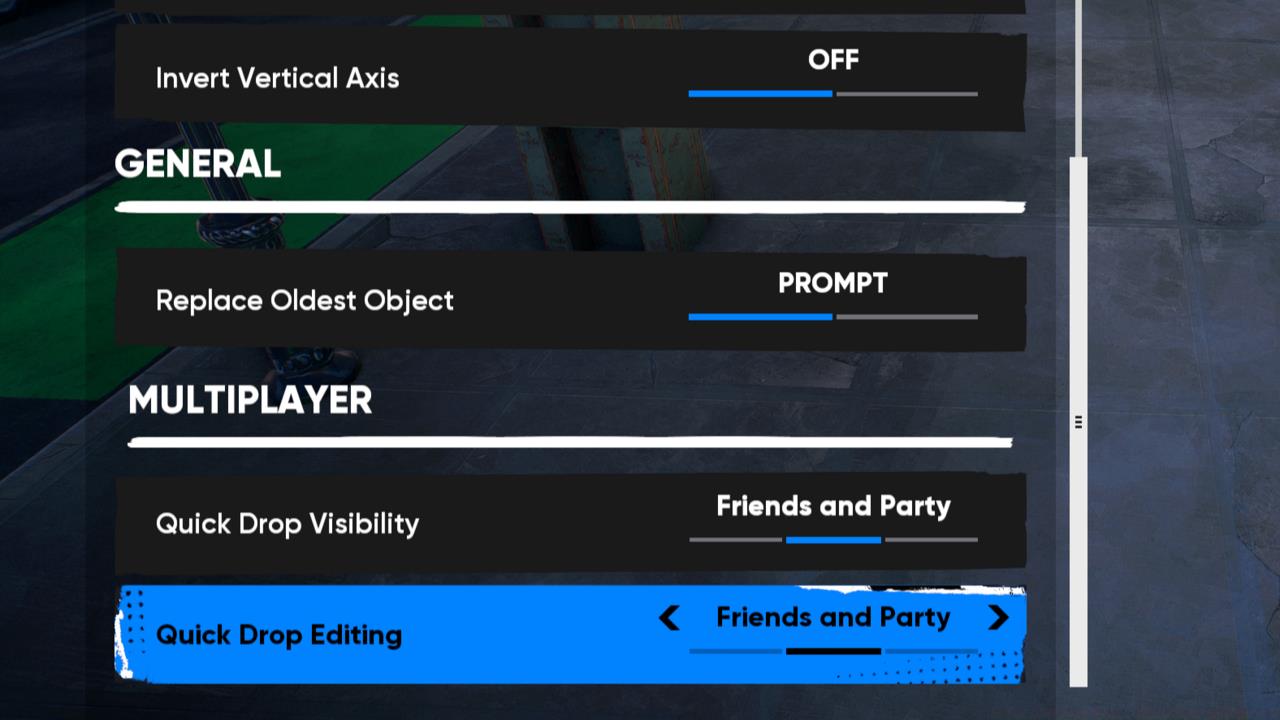
Free yourself from the tyranny of random people’s ramps.
Navigate to the Social or Multiplayer settings section to locate quick-drop ramp permissions. Adjust these options to limit or disable other players’ ability to place objects in your immediate vicinity. This precaution prevents unexpected obstacles during complex line execution and maintains the purity of your skating sessions.
Beyond gameplay mechanics, audio configuration significantly impacts your long-term enjoyment. Locate the Audio settings menu and identify the narrator volume control. Many players find reducing or completely disabling this feature enhances immersion and reduces repetitive audio cues during extended play sessions.
Consider balancing other audio elements such as environmental sounds, skateboard effects, and background music to create your ideal acoustic environment. Proper audio customization complements your gameplay adjustments, resulting in a cohesive, personalized Skate experience that honors the series’ legacy while embracing modern customization possibilities.
For players transitioning from earlier titles, these settings adjustments typically require 2-3 hours of adaptation before muscle memory fully adjusts to the pure control scheme. This initial investment pays dividends through enhanced satisfaction and technical mastery.
Action Checklist
- Access Settings → Gameplay → Assists and disable all difficulty options
- Turn off On-Board Helpers, keeping Prevent Low Air Spins temporarily if needed
- Configure quick-drop ramp permissions in Social settings
- Adjust narrator volume and audio balance in Audio settings
- Practice with new settings for 2-3 hours to build muscle memory
No reproduction without permission:SeeYouSoon Game Club » If You’re Playing Skate, Change These Settings ASAP Transform the new Skate into a classic experience with these essential settings adjustments and customization tips