
TL;DR
- Team Builder returns with improved functionality but persistent browser compatibility issues requiring specific optimization
- Chrome users must enable graphics acceleration while alternative browsers like Firefox provide more reliable access
- Custom team creation involves comprehensive branding, uniform design, and strategic roster development
- Advanced techniques include balancing team ratings and integrating recruiting strategies for competitive play
- Proper browser configuration and systematic approach eliminate common frustration points during team building
The highly anticipated Team Builder functionality makes its triumphant return in College Football 26, providing players with comprehensive tools to construct their ultimate collegiate football program from the ground up. This feature represents EA’s commitment to delivering deep customization options that transform how fans engage with the college football experience.
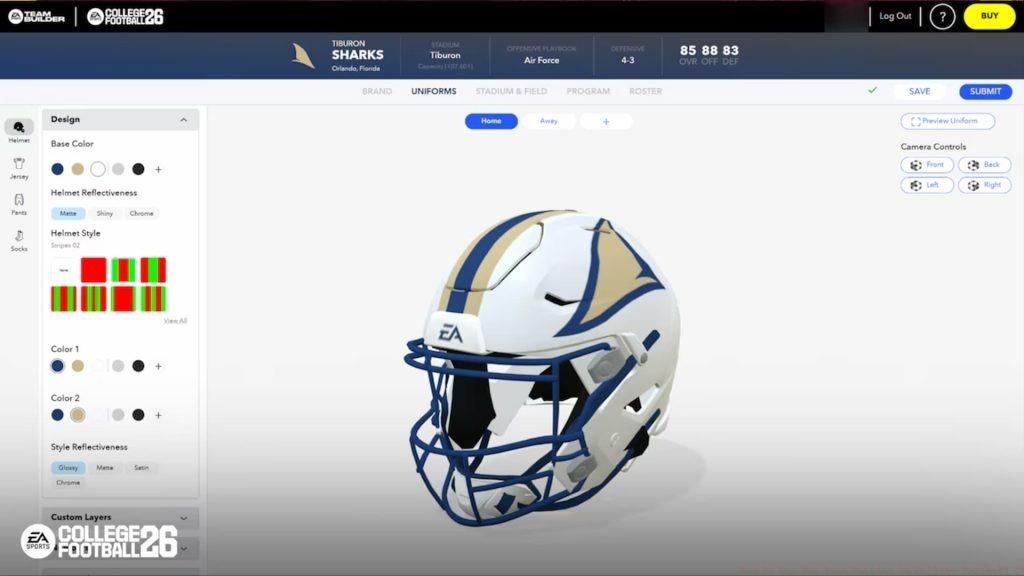
Using the Team Builder website to craft a custom team
Following its problematic debut in CFB 25, the revamped Team Builder system addresses previous technical limitations while expanding creative possibilities. Players can either develop entirely original institutions or import community-created teams, offering flexibility for different playstyles and preferences. The web-based platform serves as the centralized hub for all customization activities, separating the creative process from in-game execution for optimized performance.
Understanding the distinction between building from scratch versus utilizing pre-made teams is crucial. Original creation demands significant time investment but yields complete creative control, while imported teams provide immediate gameplay variety with minimal setup requirements. This strategic choice significantly impacts your initial experience and long-term satisfaction.
Despite EA’s optimization claims, the Team Builder portal continues presenting accessibility challenges, particularly for Chrome users who encounter frequent loading failures. These persistent issues mirror the frustrations CFB 25 players experienced throughout the previous season, suggesting underlying architectural limitations rather than simple bugs.
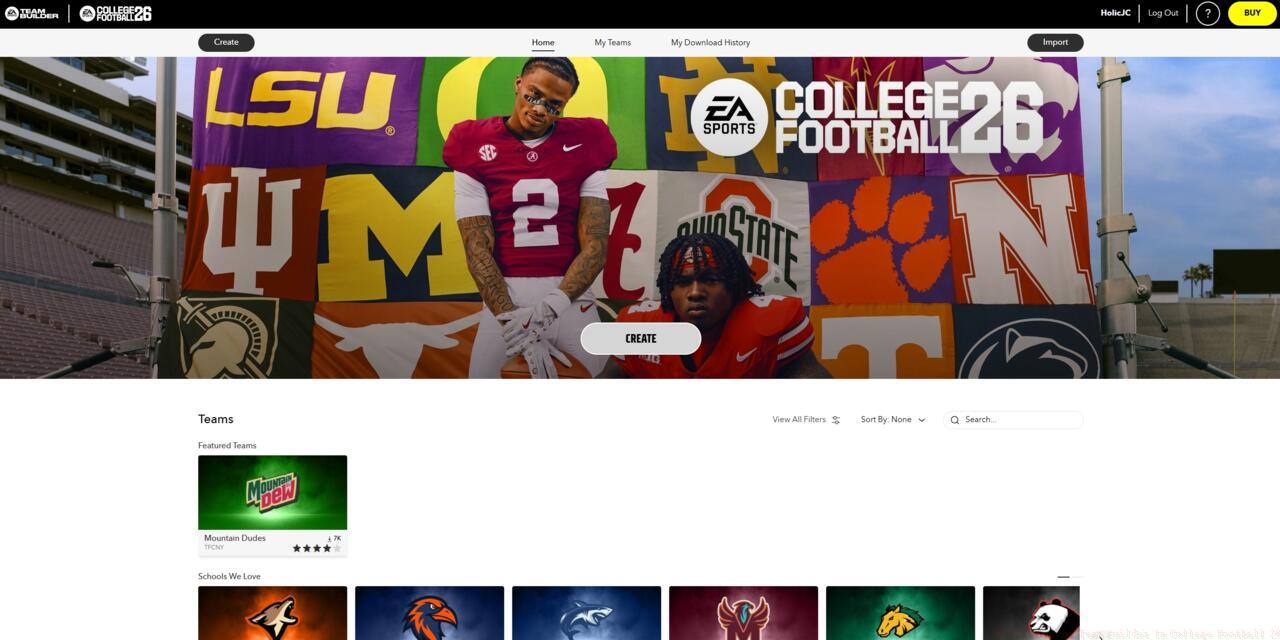
The Team Builder homepage
For determined Chrome users, activating graphics acceleration remains the primary troubleshooting step. This configuration adjustment forces the browser to utilize GPU resources for rendering complex web applications, potentially resolving the loading problems that prevent Team Builder initialization.
Chrome Graphics Acceleration Configuration:
- Navigate to the three-dot menu positioned in your browser’s upper-right corner
- Locate and enable the “Use graphics acceleration when available” option within advanced settings
- Restart the browser completely to ensure changes take effect
Players seeking more consistent performance should strongly consider alternative browsers. Firefox typically delivers superior stability with complex web applications, while Opera GX includes gaming-specific optimization features. Microsoft Edge, despite sharing Chromium foundations with Chrome, often handles the Team Builder interface more reliably due to different resource allocation strategies.
Pro Tip: Clear your browser cache and cookies before accessing Team Builder, as accumulated data can conflict with the application’s initialization sequence. Additionally, disable ad-blockers and privacy extensions temporarily, as these sometimes interfere with the customization tools’ functionality.
With browser configuration optimized, the actual team building process begins with foundational decisions that establish your program’s identity. Initial steps involve selecting geographic location, establishing school colors, and designing primary logos—choices that influence recruiting appeal and fan engagement within Dynasty mode.
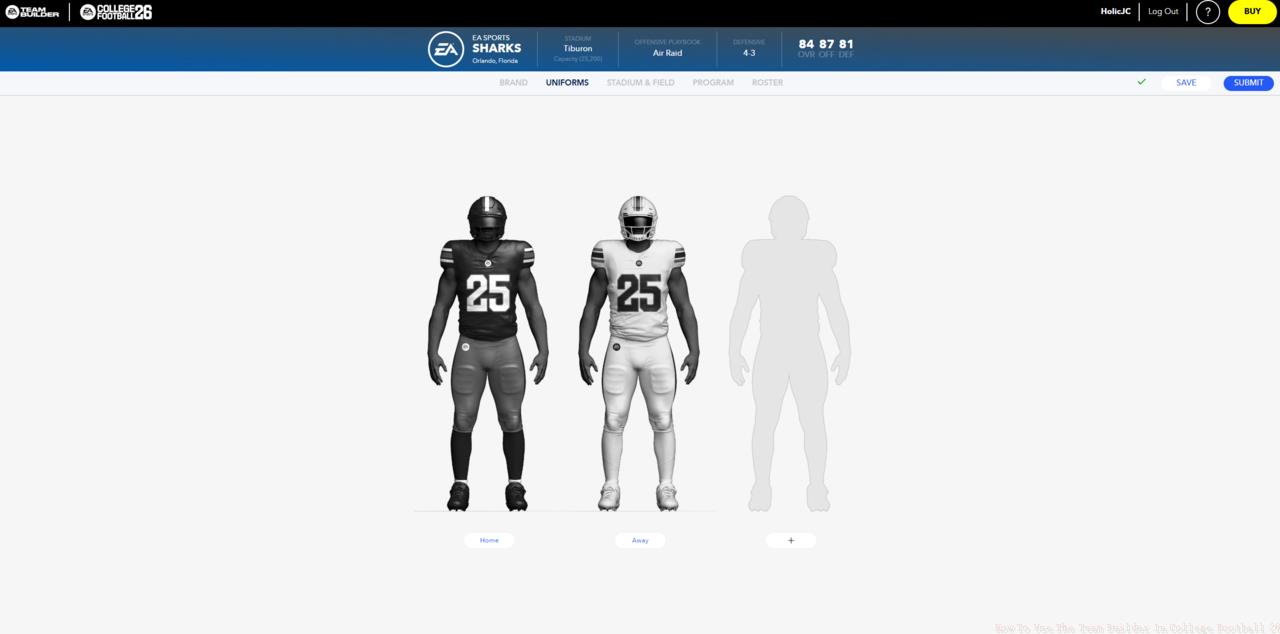
The uniform section of Team Builder
Uniform customization represents one of Team Builder’s most detailed aspects, allowing creation of home, away, and alternate kits with extensive design elements. Players can customize helmet designs, jersey patterns, pant styles, and sock combinations while incorporating custom logos and text elements for truly unique appearances.
Roster Development Strategy: Beyond aesthetic customization, Team Builder enables comprehensive roster construction. You’ll assign player ratings across multiple attributes, balancing your team’s strengths and weaknesses to create competitive but realistic squads. Avoid the temptation to maximize all ratings, as balanced teams with specific identity (run-heavy offense, defensive specialists) provide more engaging long-term gameplay experiences.
Advanced creators should consider how their custom team integrates with existing conferences and recruiting dynamics. Creating a program that fits logically within the college football ecosystem enhances immersion and creates more meaningful rivalry development throughout multiple seasons.
Common Mistake: Many players overlook stadium customization options, which significantly impact home-field advantage and program prestige. Allocate time to design your facility’s appearance, capacity, and amenities to complete the comprehensive team identity.
For experienced players seeking competitive advantages, Team Builder offers sophisticated customization techniques that transcend basic team creation. Understanding rating distribution mechanics enables construction of teams that develop naturally within Dynasty mode rather than appearing overpowered from inception.
Team Balance Formula: Distribute attribute points to emphasize 2-3 core strengths while maintaining believable weaknesses. For example, creating a dominant passing offense with below-average rushing capabilities feels authentic and creates strategic gameplay requirements.
Recruiting integration represents another advanced consideration. Custom teams with logical geographic positioning and specialized academic focuses (engineering school, agricultural college) attract appropriate recruit profiles, enhancing long-term program development realism.
Progression Planning: Design your team with future development in mind. Leave room for improvement across multiple seasons rather than creating a finished product, as progression provides significant satisfaction in Dynasty mode. Consider how your team will evolve through recruiting classes and player development over 3-5 seasons.
Successful Team Builder creations seamlessly integrate into the broader College Football 26 ecosystem. Reference our Complete Guide for additional strategic insights that complement custom team development.
Remember that well-crafted custom teams should feel like they belong in the college football landscape rather than standing out as obvious creations. This approach maximizes immersion and ensures your team provides engaging gameplay across multiple seasons.
Action Checklist
- Configure browser graphics acceleration or switch to Firefox/Edge
- Establish foundational team identity (location, colors, mascot)
- Design comprehensive uniform sets with helmet and accessory variations
- Balance roster attributes with defined strengths and weaknesses
- Integrate custom team into appropriate conference structure
- Test team performance in exhibition mode before committing to Dynasty
No reproduction without permission:SeeYouSoon Game Club » How To Use The Team Builder In College Football 26 Master College Football 26's Team Builder website with expert browser optimization and customization strategies