
TL;DR
- Requires iPhone with Live Link Face app and same Wi-Fi network as PC
- Complete in-game setup before configuring mobile app settings
- Critical to exit settings menu for device detection to work properly
- Facial expressions translate in real-time with proper lighting setup
- Troubleshoot connection issues by verifying IP address and permissions
Before diving into InZoi’s facial capture system, ensure you meet several essential technical requirements. This feature transforms your real-world expressions into your Zoi’s digital persona, but requires specific hardware and network conditions to function optimally.
Your setup demands an iPhone running the latest iOS version, as Android compatibility remains unavailable currently. The Live Link Face application serves as the bridge between your mobile device and gaming PC, capturing facial movements with precision. Network synchronization proves crucial—both devices must connect to identical Wi-Fi networks with stable internet connectivity.
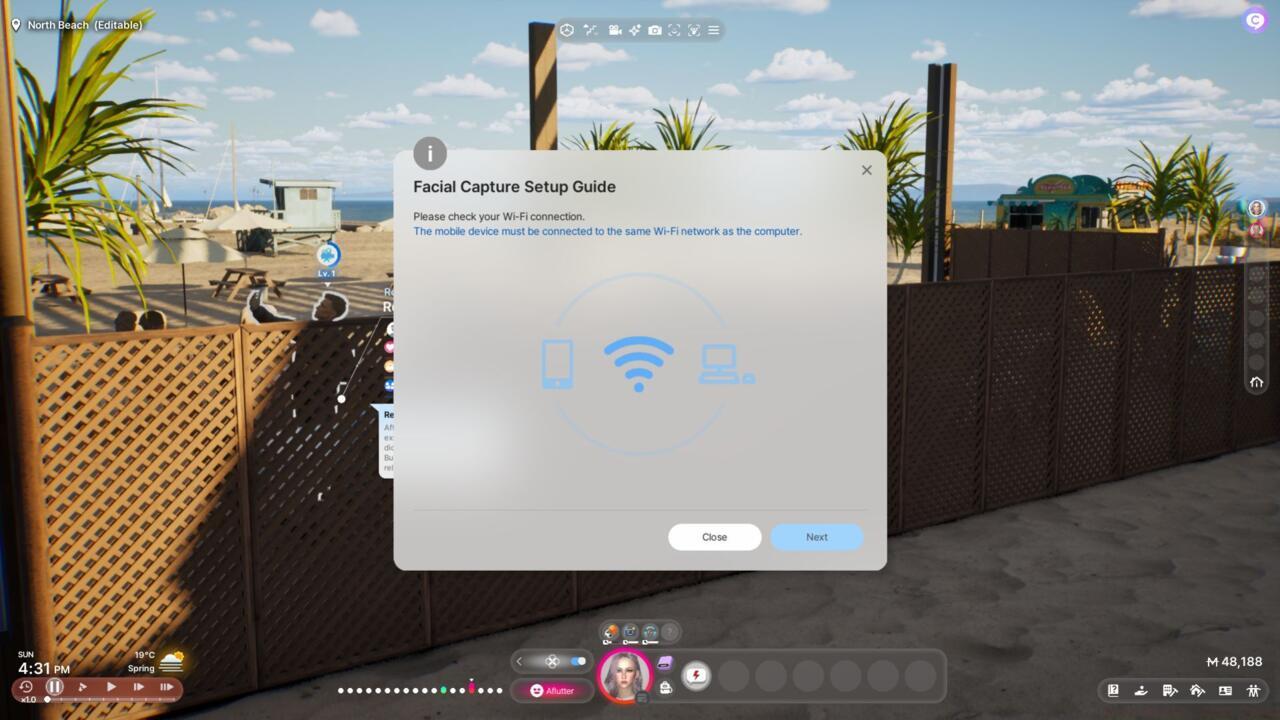
Proper facial capture setup enhances character immersion significantly
Bandwidth considerations often get overlooked—ensure your network handles simultaneous data transmission without latency. For optimal performance, position yourself in well-lit environments where your facial features remain clearly visible to your iPhone’s front camera.
Initiate the configuration by locating the facial capture button within InZoi’s interface—typically positioned centrally in the top toolbar area. Selecting this option triggers a setup wizard that guides you through the connection process systematically.
Following the initial prompts reveals a scannable QR code that directs you to download the Live Link Face application. During installation, grant necessary camera and microphone permissions when requested. Within the app, prioritize the Live Link functionality over MetaHuman Animator for InZoi compatibility.
Configuration continues within the mobile application’s settings menu. Navigate to the streaming section and activate Live Link mode, then proceed to add your gaming PC as a connection target. The IP address entry represents a critical step—utilize InZoi’s built-in IP detection feature rather than external tools for accuracy.
Network permission management becomes essential at this stage. Your iPhone will likely request local network discovery rights—approve this to enable device communication. Exit the settings interface completely before returning to InZoi, as active settings menus prevent proper device recognition.
Connection establishment requires careful attention to detail. Advance through InZoi’s setup screens until reaching the device selection interface. Your configured iPhone should appear listed—typically identified by its device name or simply as “iPhone” if unnamed.
Common obstacles include incorrect IP address entry and firewall restrictions. Double-check that your PC’s IP matches exactly what you entered in the Live Link Face app. Port numbers should remain at default values unless you possess advanced networking knowledge.
.jpg)
Facial capture results can vary based on lighting and expression intensity
Performance optimization involves managing background applications on both devices. Close unnecessary programs on your PC and iPhone to allocate maximum resources to the facial capture process. Consider using a dedicated gaming router or Quality of Service (QoS) settings to prioritize InZoi’s network traffic.
Latency issues often stem from network congestion. If experiencing delayed expression translation, try connecting during off-peak hours or upgrade your internet plan for better bandwidth allocation.
Once successfully connected, zoom closely on your Zoi’s facial features to observe real-time expression mirroring. The translation accuracy depends on multiple factors including lighting conditions, camera quality, and expression clarity.
Expression calibration proves valuable for personalized results. Practice exaggerated facial movements initially to establish baseline recognition, then refine to subtle expressions for nuanced character animation.
Environmental factors significantly impact capture quality. Position yourself facing natural light sources when possible, avoiding backlighting that obscures facial details. Maintain consistent distance from your iPhone’s camera—approximately 12-18 inches works optimally.
Advanced users can experiment with different expression intensities and speaking patterns to discover their Zoi’s unique personality range. The system captures brow movements, eye squints, smile variations, and even subtle lip movements during speech.
For those interested in broader game mechanics, our Complete Guide covers essential strategies that complement character customization features.
Action Checklist
- Verify iPhone and PC share same Wi-Fi network
- Download Live Link Face app via QR code scan
- Configure app settings and add PC IP address
- Exit settings menu completely for device detection
- Select connected device in InZoi interface
- Calibrate expressions in well-lit environment
No reproduction without permission:SeeYouSoon Game Club » How To Use InZoi Facial Capture Complete guide to setting up InZoi facial capture with troubleshooting tips and optimization strategies