
TL;DR
- InZoi requires switching between Selection Tool for objects and Room Selection Tool for structural changes
- All customization happens after placement, including AI-generated textures and user uploads
- Complex elements like staircases present unique challenges requiring creative solutions
- The interface offers deeper customization than The Sims but demands different workflow habits
- Mastering tool selection and post-placement editing is crucial for efficient building
Veteran Sims players transitioning to InZoi’s construction mechanics will immediately notice the fundamental shift in object manipulation philosophy. Unlike the intuitive click-and-drag system familiar to life simulation enthusiasts, InZoi implements a deliberate tool-based approach that demands conscious mode selection before any editing action.
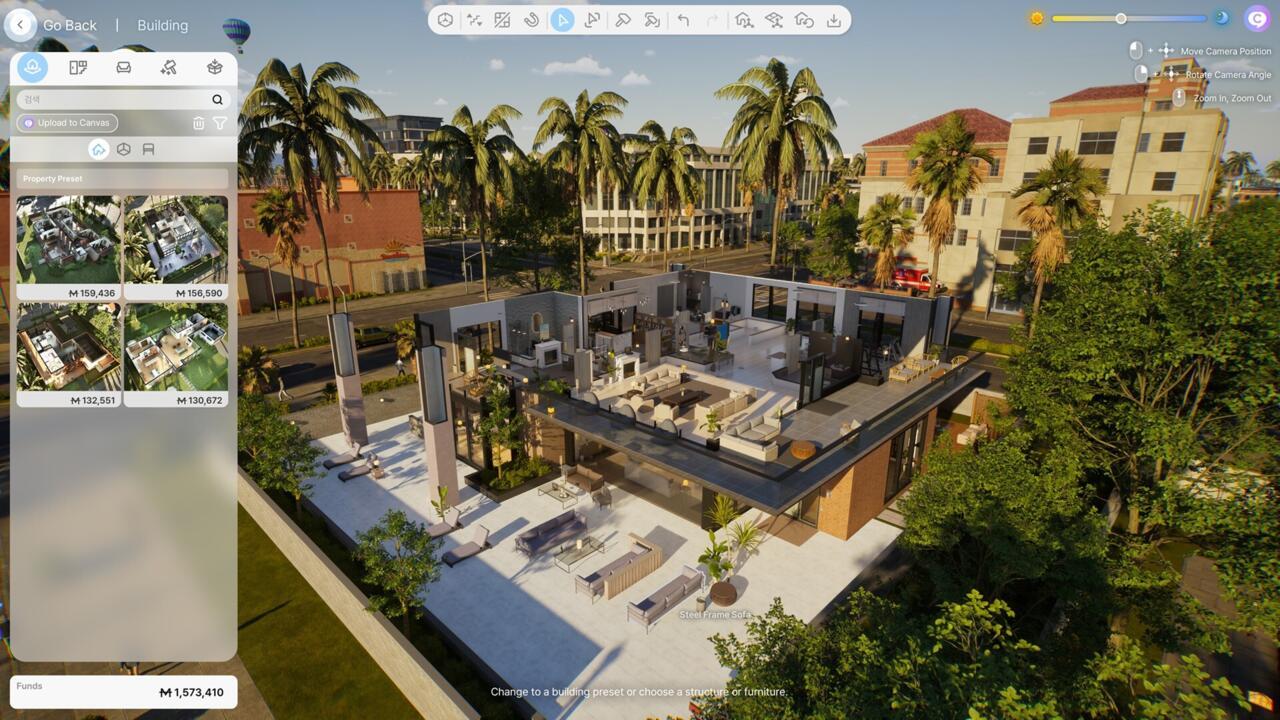
InZoi’s build mode will be familiar to Sims fans, but it has several unique aspects to it.
The cornerstone of InZoi’s building interface is its dual-tool system, which separates object manipulation from structural modifications. Your default cursor operates in Selection Tool mode, designed for interacting with individual placed items like seating, appliances, and decorative elements. This tool allows precise positioning and rotation of standalone objects but behaves unexpectedly when applied to architectural elements.
When attempting to modify room dimensions or expand your dwelling’s footprint, you must actively switch to the Room Selection Tool located immediately adjacent on the top toolbar. Failure to use the correct tool can lead to frustrating scenarios where walls detach from their rooms rather than expanding the enclosed space.
This separation creates a deliberate building process that prevents accidental structural damage but requires developing new muscle memory. Seasoned builders recommend establishing a rhythmic workflow of assessing whether you’re modifying objects or architecture before each action.
InZoi revolutionizes furniture and appliance personalization through its post-placement customization model, which unlocks extensive modification options only after items are positioned in your living space. This represents a significant departure from The Sims’ pre-placement customization approach and offers both creative freedom and procedural challenges.
The customization sequence follows a specific workflow: first select your desired item from the build catalog, position it within your home, then activate the customization interface by clicking the placed object. This reveals an extensive suite of material, texture, and color options that transform basic furnishings into personalized statements.
Beyond standard palette selections, InZoi provides two advanced personalization avenues. You can import custom texture files from your device to apply unique patterns or photographs, or leverage the integrated AI texture generator to create completely original surfaces through descriptive prompts.
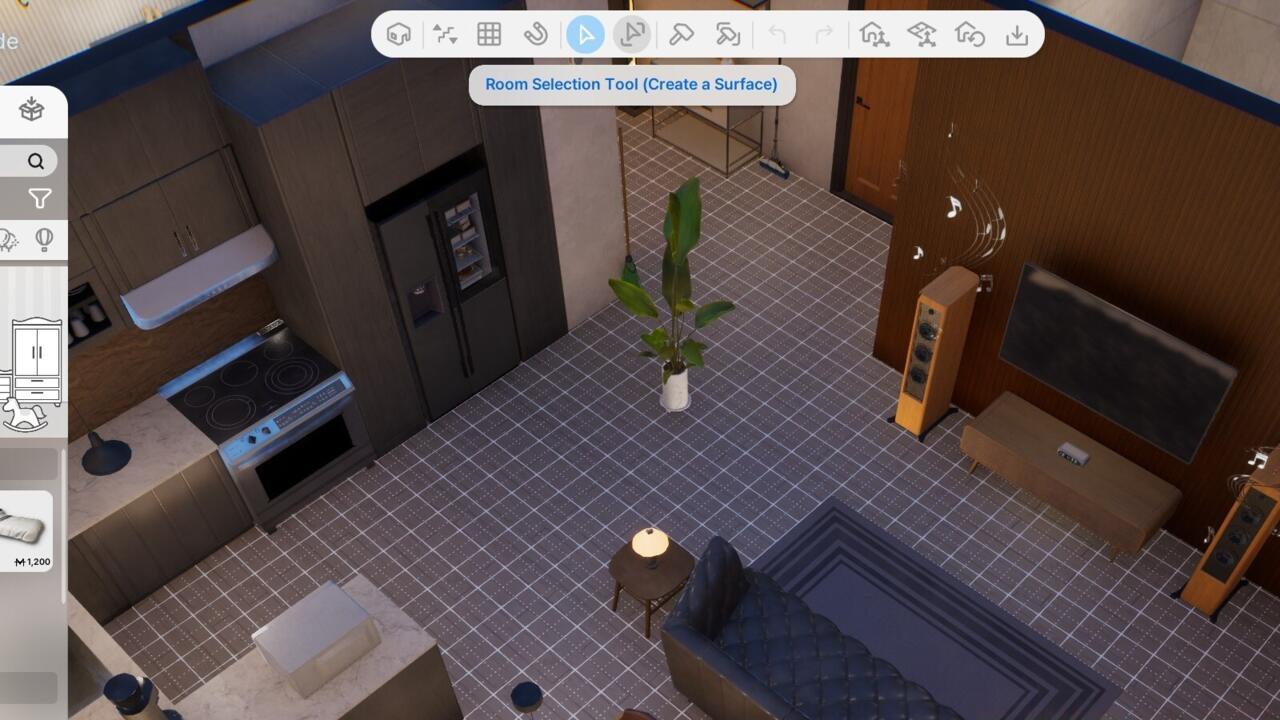
You’d better get used to swapping between the Selection Tool and the Room Selection Tool, because you’re going to do it a lot.
This system shines for standard furnishings but introduces complexity for structural elements. The ability to create truly unique interiors—from pet-themed upholstery to AI-generated marble countertops—comes with the tradeoff of requiring forward-thinking placement to accommodate subsequent modifications.
InZoi’s post-placement customization philosophy creates particular complications for complex architectural components where spatial relationships are critical. Staircases exemplify this challenge, as their functionality depends entirely on precise dimensional requirements that conflict with the trial-and-error customization approach.
Designing space-efficient staircases presents the most notable obstacle. To create a turning staircase that reverses direction midway, you must initially place a full straight staircase, then apply the bend modification. This demands allocating space for the complete straight version initially, undermining the space-saving purpose of turning stair designs.
Successful builders develop strategic workarounds for these limitations, such as creating temporary “construction zones” with extra clearance that can be refined after customization. Planning for this two-phase process from the outset prevents frustrating redesigns and ensures your architectural vision translates effectively to the built environment.
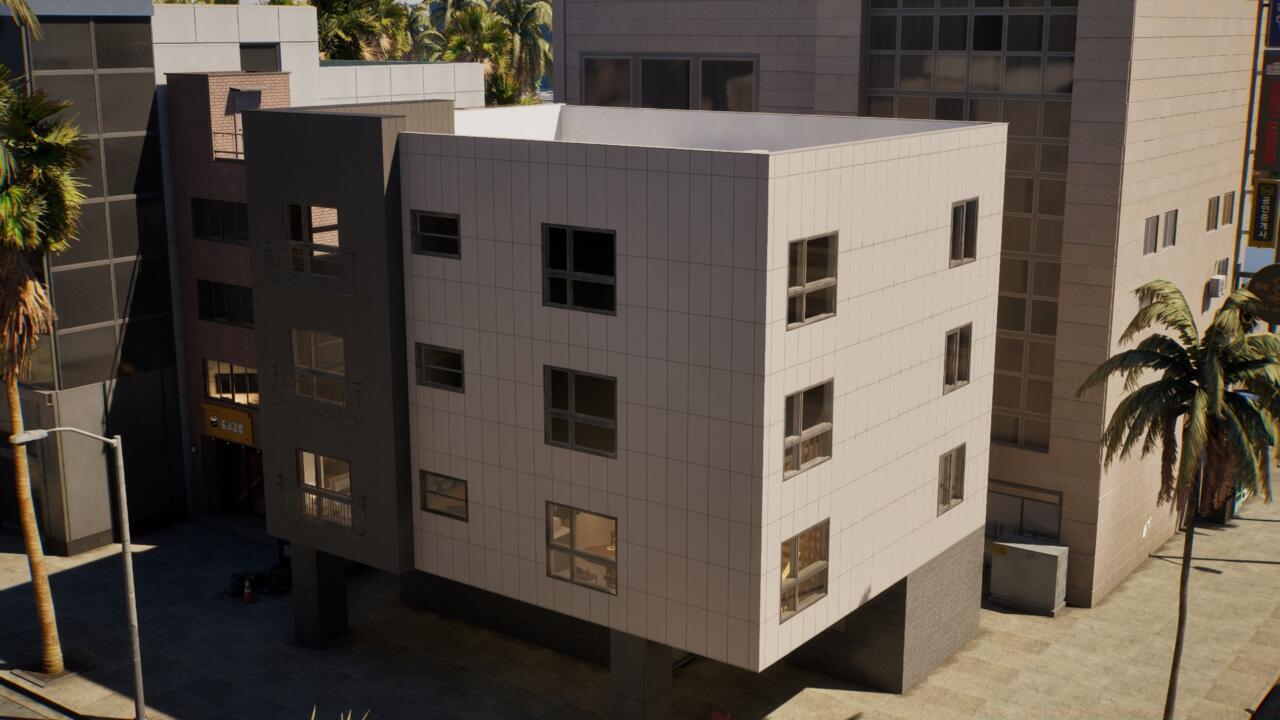
The ersatz apartment building where my Zois live
Additional unique building features without Sims equivalents include terrain modification tools and foundation adjustment options that allow precise control over your structure’s relationship to the landscape. These tools provide additional creative possibilities but also introduce new learning curves for builders accustomed to different systems.
Mastering InZoi’s construction system requires developing efficient workflows that accommodate its unique tool separation and customization timing. Implementing strategic approaches can significantly reduce construction time and frustration while maximizing creative output.
Develop the habit of performing structural modifications first using the Room Selection Tool before placing and customizing furniture and decorative elements. This prevents the common mistake of beautifully customizing items only to discover they no longer fit after room adjustments.
For complex projects, consider dividing your building session into distinct phases: structural layout, object placement, customization, and final adjustments. This methodological approach aligns with InZoi’s tool-specific design and prevents context-switching penalties that slow down construction progress.
Advanced builders recommend creating a “customization checklist” for each room to ensure all elements receive their intended personalization before moving to the next area.
Common pitfalls include forgetting to switch tools when moving between object and structural editing, and placing items too close together before customization (which can block access to modification interfaces). Allocating 15-20% extra space around complex items during initial placement provides flexibility for subsequent adjustments.
Action Checklist
- Identify whether you’re modifying objects or structure before each action
- Use Room Selection Tool for wall movements and room expansions
- Place all furniture before beginning customization
- Allocate 15-20% extra space around complex items for customization
- Create turning staircases by placing straight versions first, then applying bends
- Experiment with AI texture generation for unique surface designs
No reproduction without permission:SeeYouSoon Game Club » InZoi’s Build Mode Is Like The Sims… Until It’s Not Master InZoi's unique building system with essential tools, customization workflows, and advanced strategies