
TL;DR
- Coordinates use XYZ format where X=east/west, Y=vertical, Z=north/south
- Java Edition requires F3 debug screen while Bedrock uses world settings
- Advanced applications include teleportation, structure finding, and spawn management
- Common mistakes include coordinate confusion and improper debug screen usage
- Mobile and console versions have specific coordinate display requirements
Navigating the vast landscapes of Minecraft becomes significantly easier when you master coordinate tracking. Whether you’re exploring deep cave systems, mapping out new territories, or simply trying to find your way back to a valuable resource location, understanding your exact position is crucial for survival success.
The coordinate system employs a straightforward XYZ format that represents your spatial location within the game world. The X-axis indicates your east-west position, with positive values moving eastward and negative values westward. The Y-axis tracks your vertical elevation, measuring how high above or below sea level you’re positioned. Meanwhile, the Z-axis handles north-south movement, where positive values indicate southern travel and negative values northern progression.
Interpreting these values correctly prevents common navigation errors. Many players mistakenly assume Z coordinates represent elevation, when in reality Y values handle vertical positioning. This misunderstanding often leads to failed teleportation attempts and lost locations. Each game version handles coordinate display differently, requiring specific activation methods tailored to your platform.
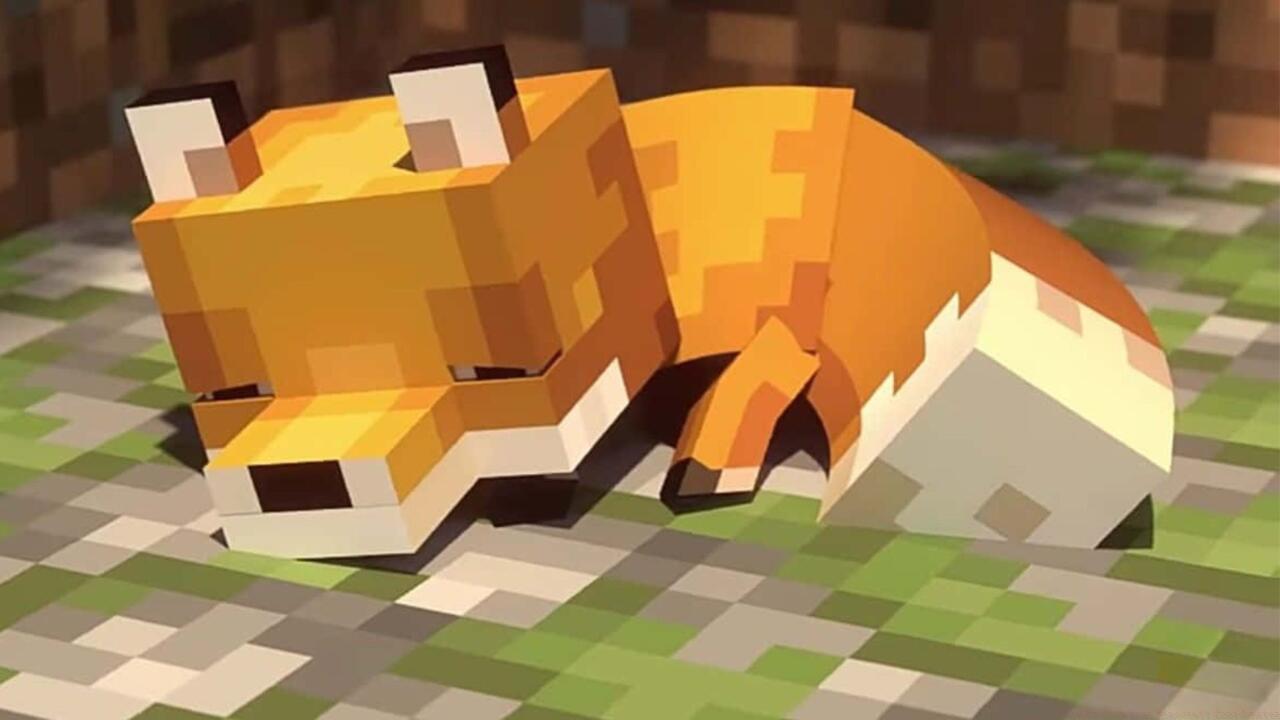
When discovering rare mob spawns like foxes or valuable resource clusters, precise coordinate recording ensures you can return efficiently without tedious searching.
Accessing coordinates in Minecraft’s Java Edition requires activating the debug screen, which provides comprehensive positioning data alongside other technical information. The standard method involves pressing the F3 key, though some keyboard configurations may require the Fn + F3 combination instead. This brings up an overlay filled with various game statistics and technical readouts.
Locate your coordinates approximately one-third down the left side of the debug screen interface. You’ll find three distinct coordinate displays: XYZ shows your current position, Block coordinates reveal information about the specific block you’re targeting, and Chunk data indicates your distance from chunk borders. Chunk coordinates are particularly valuable for understanding rendering boundaries and optimizing game performance.
Beyond basic positioning, the debug screen offers advanced features that experienced players utilize for technical gameplay. The facing direction indicator shows your cardinal orientation, while biome information helps with environmental navigation. To dismiss the debug overlay, simply press F3 again, returning you to an unobstructed game view.
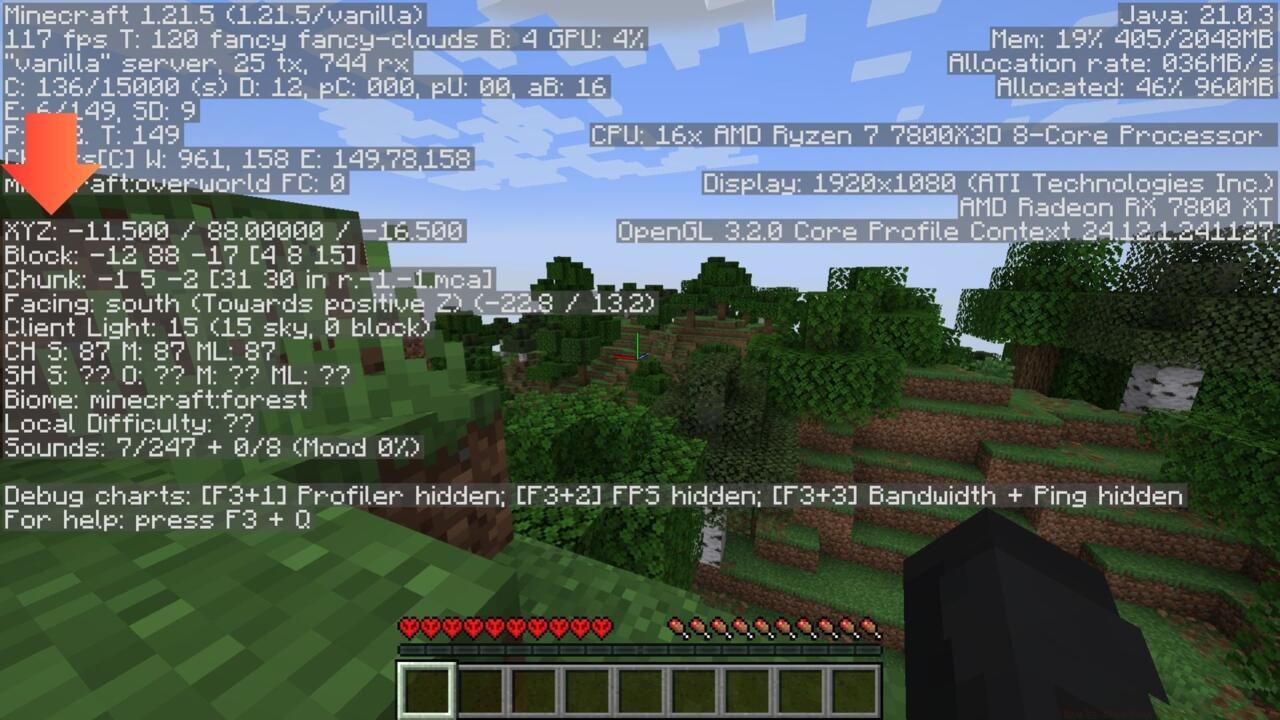
The Java debug screen provides extensive positioning data beyond just coordinates, including biome information and facing direction.
Bedrock Edition handles coordinate visibility through world-specific settings rather than a debug interface. This approach makes coordinates accessible across multiple platforms including Windows 10, consoles, and mobile devices. To activate coordinate display, navigate to the settings menu, select the Game tab, then access World Options where you can toggle ‘Show Coordinates’ to the enabled position.
For players preferring keyboard commands, Bedrock supports a convenient shortcut: typing ‘/gamerule showcoordinates true’ in the chat box immediately activates coordinate display in the screen’s upper-left corner. This method proves especially useful when quickly needing positional data without menu navigation. Disabling coordinates follows the same pattern, using either the settings menu or the ‘/gamerule showcoordinates false’ command.
Platform variations exist within Bedrock Edition that affect coordinate accessibility. Mobile users typically have coordinates enabled by default in newer versions, while console players may need to adjust settings through game menus. Understanding these platform-specific requirements ensures consistent coordinate access regardless of your gaming device.
Beyond basic navigation, coordinates unlock powerful gameplay mechanics through Minecraft’s command system. The teleportation command ‘/tp X Y Z’ instantly moves players to specified coordinates, perfect for rapid travel between established bases or rescuing yourself from dangerous situations. When using teleport commands, ensure your destination coordinates represent safe landing positions to avoid suffocation in blocks or fatal falls.
Coordinate data becomes invaluable when locating specific structures using the ‘/locate’ command. This function returns the coordinates of nearest generated structures like villages, temples, or strongholds, which you can then navigate to or teleport toward directly. This technique saves hours of exploration when targeting particular building types.
Managing world spawn points represents another advanced coordinate application. The ‘/setworldspawn X Y Z’ command establishes a new global respawn location, ensuring you return to a safe, prepared area after unfortunate deaths. For comprehensive gameplay guidance, explore our Complete Guide for additional strategic insights.
You can also utilize coordinates for precise base construction, redstone mechanism placement, and farm design optimization. Understanding vertical (Y-axis) positioning helps with mob spawning mechanics and optimal lighting placement.
Action Checklist
- Activate coordinates in Java Edition using F3 debug screen
- Enable Bedrock coordinates through settings or ‘/gamerule showcoordinates true’
- Practice coordinate interpretation with short navigation exercises
- Record coordinates of valuable discoveries for future return trips
- Master teleportation commands for efficient travel between locations
No reproduction without permission:SeeYouSoon Game Club » How To Show Your Minecraft Coordinates Master Minecraft coordinates across Java and Bedrock editions with expert navigation techniques and practical applications