
TL;DR
- Check your current version number at the bottom of the Minecraft title screen
- Enable automatic updates in launcher settings or device app stores
- Manually trigger updates when new features aren’t accessible
- Clear storage space before large updates to prevent failures
- Verify cross-platform compatibility when playing with friends
Accessing the latest Minecraft features requires keeping your game updated across all platforms. Each major release introduces new mobs, environmental enhancements, and biome expansions that transform your gameplay experience.
When you notice missing content or can’t join friends’ worlds, the most probable cause is an outdated game version. Update procedures vary significantly between devices and settings, making platform-specific knowledge essential.
Regular updates not only deliver fresh content but also include critical performance optimizations and security patches that protect your gaming sessions.
.jpg)
New features are added in each update
PC gamers typically benefit from automatic updates when their systems remain connected to the internet during standby periods. To verify your current build, examine the version number displayed at the bottom of the Minecraft title screen—this appears as a numerical sequence like 1.21.5.
When running an outdated version, manual intervention becomes necessary to access the newest features. To initiate a manual update on Windows, right-click the Minecraft Launcher executable file, navigate to ‘more’ options, then select ‘app settings.’ Choose ‘repair and reset’ to force the launcher to download and install available updates.
Pro Tip: Ensure you have at least 2GB of free disk space before updating, as insufficient storage frequently causes update failures. Additionally, temporarily disable antivirus software during the update process if you encounter download interruptions.
Nintendo Switch Update Process
When your Switch version falls behind the current release, manual updating becomes essential. Locate the Minecraft icon on your home screen and press the ‘+’ controller button to access options. Open the software update menu and select internet-based updating if connected. The local version matching feature allows synchronization with nearby Switch consoles running updated versions.
PlayStation 4 & 5 Systems
These update instructions apply uniformly across PlayStation 4 and PlayStation 5 platforms. Find the Minecraft application tile either on your main dashboard or within your games collection. Press the options button and choose ‘check for update.’ Available updates will automatically download and install when detected.
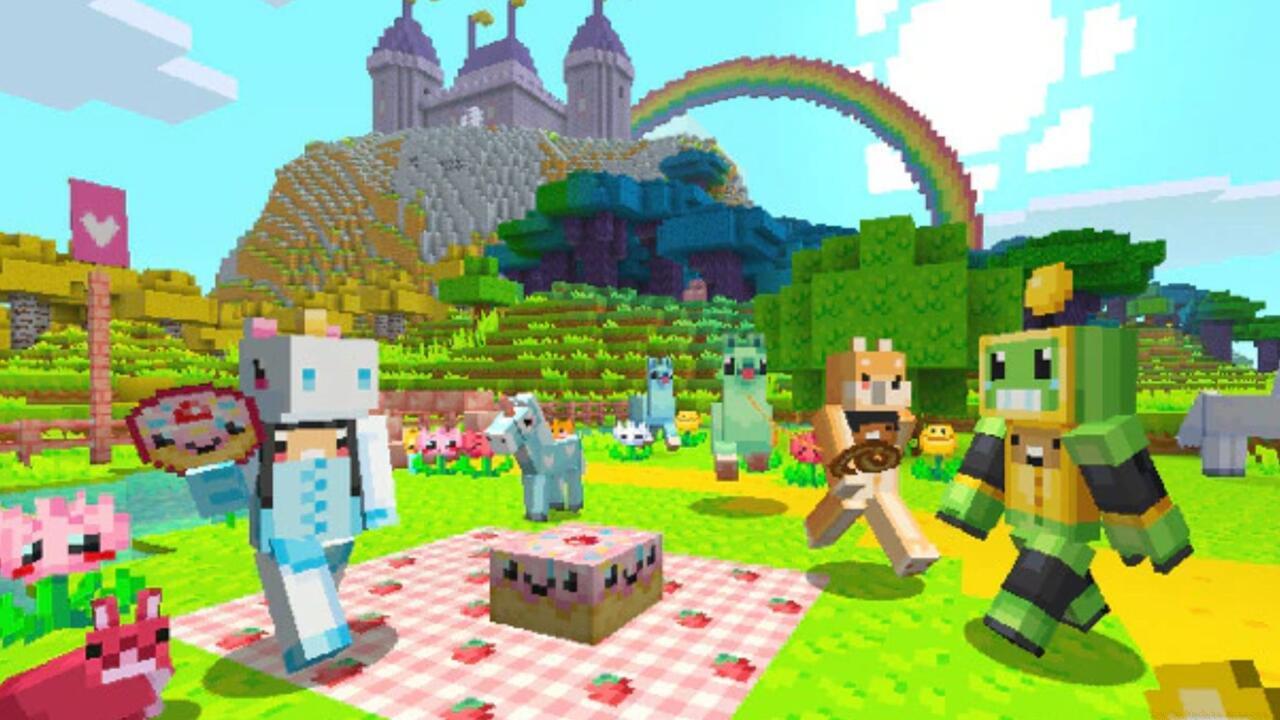
Minecraft updates add new content
Xbox Console Family
From the games and applications interface, access the management menu and proceed to the updates section. After system scanning completes, titles requiring updates will display. You can update all games simultaneously or selectively update only Minecraft.
Console-Specific Advice: Restart your console before checking for updates to clear cache issues. For Xbox users, ensure ‘keep my games & apps up to date’ is enabled in system settings to automate future updates.
The Minecraft mobile update process diverges significantly between iOS and Android operating systems. While automatic updates typically handle version management, specific configuration settings and software restrictions can disrupt this functionality.
iOS Device Procedures
iPhone and iPad users should launch the App Store and tap their profile icon positioned in the upper-right corner. Scroll downward to pending automatic updates and identify the Minecraft update entry. Tap to install, then you’ll operate the current version. Alternatively, visiting Minecraft’s App Store page directly reveals an update button when new versions are available.
Android Device Methods
Open the Google Play Store application and select your profile in the top-right area. Choose ‘manage apps & devices’ then choose ‘updates available.’ Locate Minecraft in the displayed list and tap to update. Mirroring iOS functionality, the Minecraft Play Store listing shows an update option when newer versions exist.
Mobile Optimization: Connect to WiFi before updating to avoid data charges. For Android users, clear Play Store cache in settings if updates fail to appear. iOS users should ensure ‘App Updates’ remains enabled in App Store settings.
Update failures commonly stem from insufficient storage space, with major Minecraft updates often exceeding 500MB. Regularly maintain at least 3-4GB free space on your device to accommodate update files without issues.
Common Problems & Solutions:
- Stuck Downloads: Pause and resume the update or restart your device
- Version Mismatches: Ensure all players use matching editions when joining multiplayer sessions
- Corrupted Files: Use the ‘repair’ function in your launcher or reinstall the game completely
- Update Not Showing: Wait 24-48 hours after announcement as regional rollout timing varies
Before major updates, backup your worlds to prevent potential data loss. For enhanced multiplayer compatibility, coordinate update timing with frequent gaming partners.
That covers Minecraft updating across all supported platforms, including both Java and Bedrock editions. For comprehensive gaming guidance, explore our Complete Guide to other popular titles. If you need weapon-specific strategies, our Weapons Unlock resource provides detailed assistance. Additionally, mastering character selection through our Class Guide can significantly improve your gameplay performance.
Action Checklist
- Check current version number on title screen
- Verify 3-4GB free storage space on your device
- Enable automatic updates in platform-specific settings
- Manually trigger update if automatic fails
- Backup worlds before major version updates
- Coordinate update timing with multiplayer partners
No reproduction without permission:SeeYouSoon Game Club » How To Update Minecraft Complete platform-by-platform guide to updating Minecraft with troubleshooting tips and optimization strategies