
TL;DR
- CS2 offers two buy bind methods: weapon name commands and loadout slot purchases
- Weapon names differ from CS:GO – use our complete reference list for accuracy
- Loadout slot binds provide flexibility but require strategic weapon placement
- Online tools like CS2 Binds Generator automate the setup process
- Always verify your loadout configuration to prevent binding failures
Games and Esports Articles CS 2
Update, October 5, 2023: Valve has resolved the weapon buy binds issue that plagued early CS2 adopters. The October 4th update streamlined the binding process, making it more intuitive for competitive players. You now have two reliable approaches to configure your preferred weapon purchases.
Choosing between methods depends on your playstyle: weapon name binds offer precision for specific firearms, while loadout slot binds provide adaptability for changing strategies. Understanding both systems gives you maximum flexibility during matches.
Option 1: Purchase by weapon name using traditional console commands. First, enable the developer console in Settings → Game if you haven’t already. The tilde key (~) typically activates it, though some keyboard layouts may require adjustment.
Bind “your key” buy weapon name
This approach requires exact weapon naming precision. Each firearm must occupy a slot in your active loadout, otherwise the command will fail silently. This precision makes it ideal for players who consistently use specific weapons throughout matches.
Pro tip: Test each bind in a practice session before competitive play. Many players overlook this verification step, leading to frustrating purchase failures during critical rounds.
Option 2: Utilize loadout slot purchasing for enhanced flexibility. Configure your preferred weapons in the desired slots through the main menu, then employ these commands with X representing your chosen slot number (Secondary indicates Pistol category).
Bind “your key” buy secondaryX
Bind “your key” buy midtierX
Bind “your key” buy rifleX
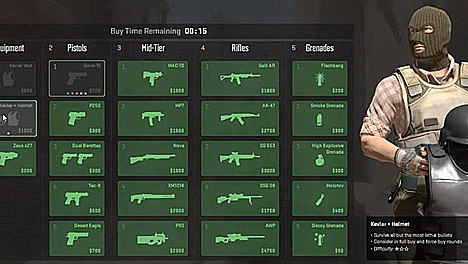
Strategic slot placement is crucial: position your most frequently purchased weapons in easily memorable positions. Many professional players standardize their slot arrangements across loadouts for consistency.
Advanced strategy: Create situational binds for different map positions. For example, bind a specific key for long-range weapons on Dust2 but close-quarters options on Inferno.
The full list of weapon names in CS2
- glock
- hkp2000
- usp_silencer
- elite
- p250
- tec9
- fn57
- deagle
- galilar
- famas
- ak47
- m4a1
- m4a1_silencer
- ssg08
- aug
- sg556
- awp
- scar20
- g3sg1
- nova
- xm1014
- mag7
- m249
- negev
- mac10
- mp9
- mp7
- ump45
- p90
- bizon
- vest
- vesthelm
- taser
- defuser
- heavyarmor
- molotov
- incgrenade
- decoy
- flashbang
- hegrenade
- smokegrenade
Critical Note: Several weapon names have changed from CS:GO. The M4A1-S now uses “m4a1_silencer” while the USP-S is “usp_silencer”. Double-check these changes to avoid binding errors.
Optimizing your buy bind configuration requires understanding common pitfalls and professional techniques. Many players struggle with inconsistent performance due to improper setup.
Common Mistakes: Forgetting to enable console, using outdated weapon names, or configuring binds for weapons not in active loadouts.
Pro Player Insights: Top competitors often create multiple bind sets for different economic situations. Consider implementing eco-round specific binds for cost-effective purchases.
Loadout management strategy: Maintain consistent weapon positions across all loadout variations. This ensures muscle memory remains effective regardless of which loadout you select.
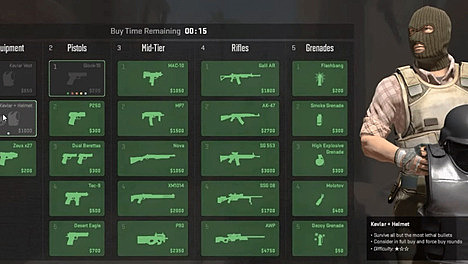
Advanced technique: Combine weapon name and slot binds for maximum coverage. Use name binds for primary weapons and slot binds for situational alternatives.
For players seeking streamlined configuration, third-party tools provide excellent alternatives. The CS2 Binds Generator created by Redditor Marineray automates the entire process with minimal user input required.
- Navigate to the official generator website
- Select your preferred key for each weapon bind
- Identify the loadout slot containing your desired firearm
- Repeat this process for all essential weapons in your arsenal
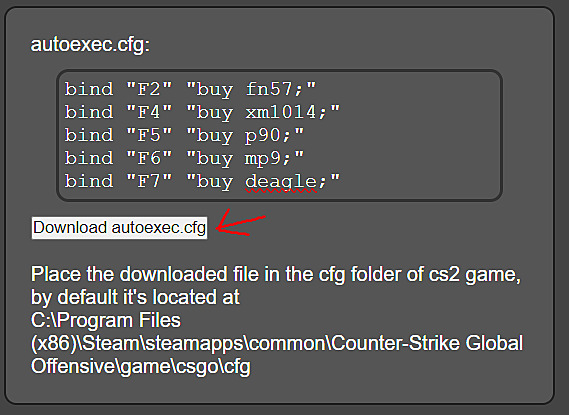
- Locate the configuration panel on the right side and download your autoexec.cfg file
- Transfer the downloaded configuration to your CS2 cfg directory (Standard path: C:Program Files (x86)SteamsteamappscommonCounter-Strike Global Offensivegamecsgocfg)
Warning: Previous weapon reset actions may interfere with automated tool functionality. Always verify tool-generated binds in practice sessions.
Record-breaking M4A1-S crafted skin with Titan stickers, estimated at $320,000, was made in CS:GO
Action Checklist
- Enable developer console in game settings
- Choose between weapon name or loadout slot binding method
- Configure loadout with preferred weapons in strategic slots
- Test all binds in practice session before competitive use
- Create backup autoexec.cfg file for quick recovery
No reproduction without permission:SeeYouSoon Game Club » How to make weapon buy binds in CS2? Why binds doesn’t work in config and how to fix them? Weapon names for console commands in CS2 Master CS2 weapon buy binds with two proven methods, complete weapon names list, and troubleshooting guide