
TL;DR
- Baldur’s Gate 3 runs on Steam Deck but requires specific graphics API settings for stability
- Minimum 256GB storage recommended due to 80GB+ installation size and future updates
- Switch from Vulkan to DirectX 11 to prevent crashes and improve overall performance
- Use microSD expansion and performance tweaks to optimize battery life and loading times
- Configure controller settings and skip launcher commands for smoother handheld gameplay
Discover the essential requirements and current compatibility status for running Baldur’s Gate 3 on your Steam Deck handheld gaming device.
While Baldur’s Gate 3 has launched successfully, it’s important to note that the game hasn’t achieved full Steam Deck verification status yet. This means you’ll encounter some technical challenges when attempting to play this massive RPG in portable mode. Our comprehensive guide provides detailed solutions for the most common issues Steam Deck users face, along with performance optimization strategies that deliver the best possible gaming experience.
The epic campaign in Baldur’s Gate 3 typically requires around 100 hours for a standard playthrough, with completionist runs potentially doubling that time. Given these extensive gameplay hours, the Steam Deck offers an excellent alternative to being tethered to your desktop setup. However, understanding the specific requirements and limitations is crucial before diving into this handheld adventure.
First and foremost, Baldur’s Gate 3 demands substantial storage space, currently requiring approximately 80.46 GB for installation. This massive footprint presents immediate challenges for Steam Deck owners, particularly those with the base 64 GB model.
The entry-level 64 GB Steam Deck model simply doesn’t provide adequate space for Baldur’s Gate 3 installation and future updates. We strongly recommend opting for either the 256 GB or 512 GB variants to ensure sufficient room for the game and potential mods. Alternatively, high-speed microSD cards can effectively expand your storage capacity, though loading times may be slightly longer compared to internal SSD storage.
Installing Baldur’s Gate 3 on your Steam Deck follows the standard procedure – simply download through Steam without requiring Proton compatibility adjustments. However, several important caveats demand your attention during the initial setup phase.
- Launching the game activates the Larian Launcher interface. You might experience cursor disappearance or reset issues while navigating. Use the right thumbstick for cursor movement, then activate the right trigger (RT) when selecting Get Started.
- The default graphics API setting is Vulkan, which frequently causes game crashes during initial startup sequences.
- Immediately switch to DirectX 11 mode, then use RT to select the Play button with your cursor positioned correctly.
We strongly advise selecting DirectX 11 initially since Vulkan consistently causes stability problems on the Steam Deck hardware configuration.
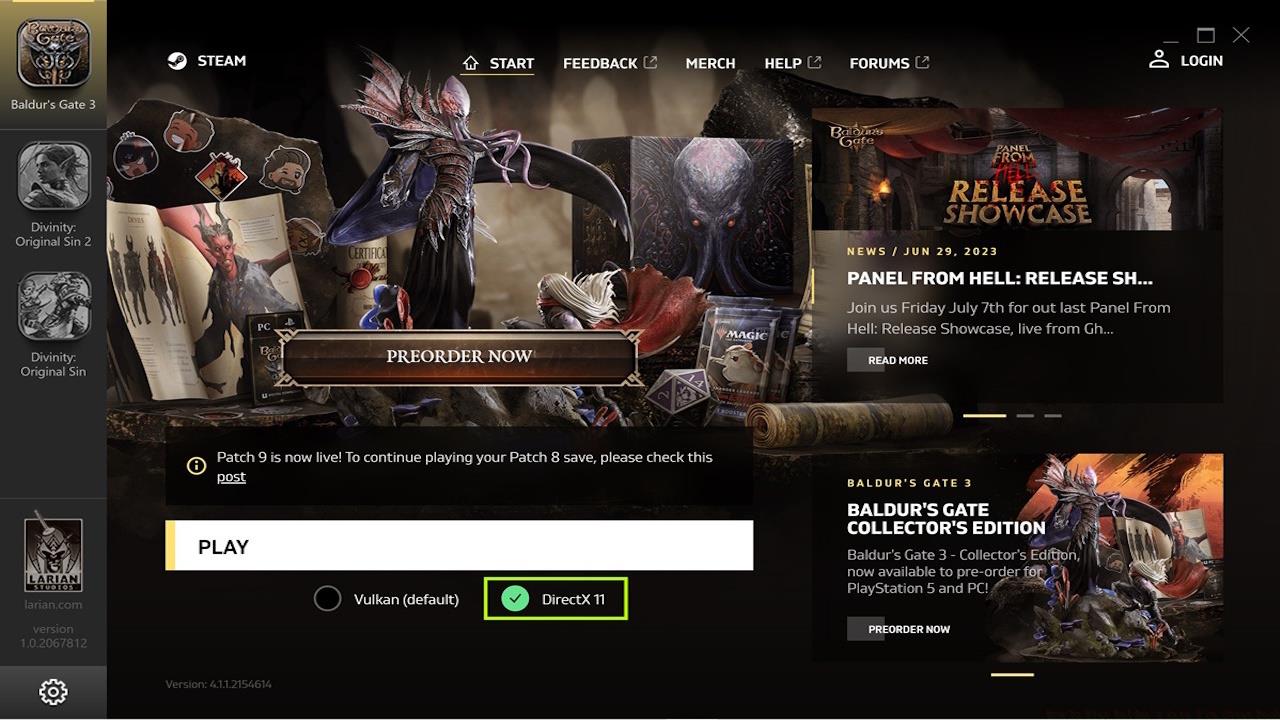
DirectX 11 provides significantly better stability than Vulkan on Steam Deck hardware.
Beyond the essential DirectX 11 switch, several performance optimizations can dramatically improve your Baldur’s Gate 3 experience on Steam Deck. Adjusting the TDP limit to 11W and enabling GPU clock scaling can extend battery life by approximately 30-45 minutes per charge cycle. Lowering shadow quality to medium and disabling depth of field effects reduces GPU load while maintaining visual fidelity.
Controller configuration deserves special attention. The default control scheme works adequately, but creating custom radial menus for frequently used actions and spells significantly enhances gameplay fluidity. Consider mapping the left trackpad for quick access to inventory management and the right trackpad for camera control adjustments.
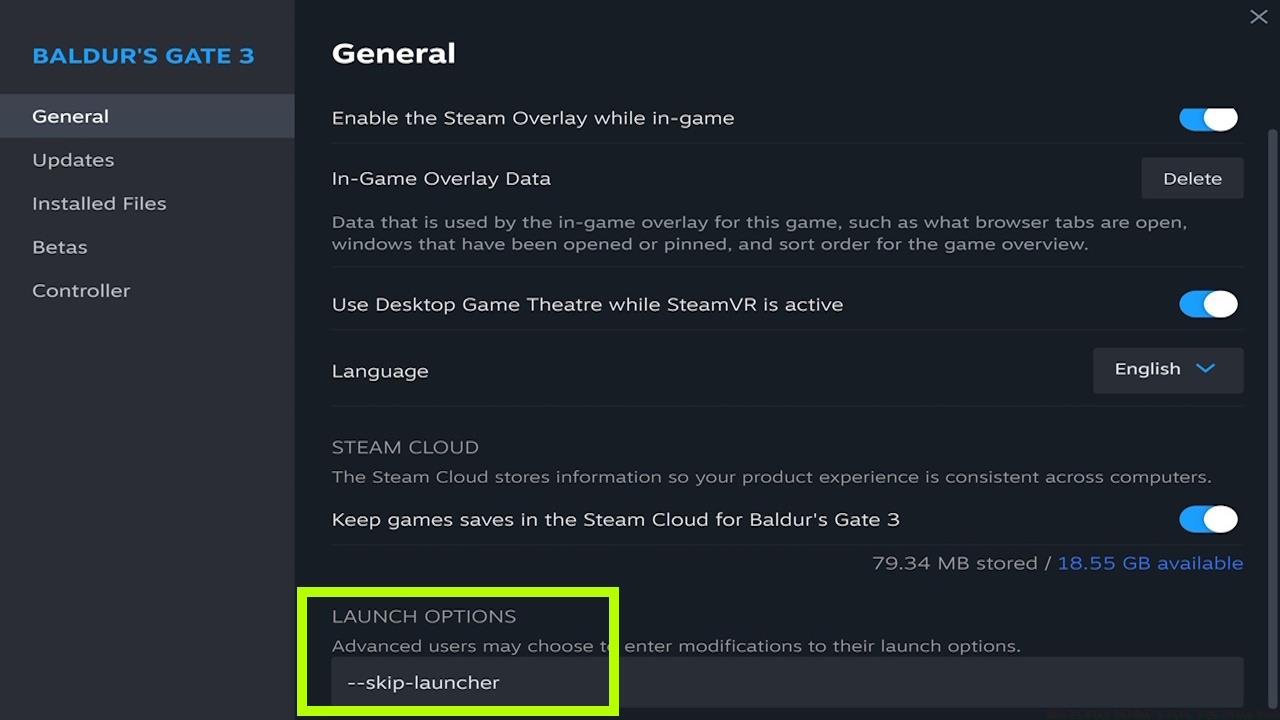
Implementing the skip launcher command bypasses potential cursor issues and launches directly into the game.
For advanced users, accessing the Steam Deck desktop mode allows installation of community control schemes and performance monitoring tools. These additional configurations can provide real-time performance metrics and further customization options not available through the standard gaming interface.
When encountering persistent issues with Baldur’s Gate 3 on your Steam Deck, several advanced troubleshooting methods can resolve common problems. If experiencing frequent crashes even with DirectX 11, try reducing the in-game resolution to 1152×720 and enabling FSR quality mode. This combination maintains visual clarity while significantly improving frame rate stability.
Input lag or unresponsive controls often stem from the game’s default control scheme conflicting with Steam Input. Navigate to Controller Settings > Browse Configs > Community and select a highly-rated Baldur’s Gate 3 specific layout. These community configurations typically include optimized dead zones, trigger sensitivity adjustments, and radial menu presets.
For the most seamless experience, implement the skip launcher command through Steam properties. Right-click Baldur’s Gate 3 in your library, select Properties, and in the Launch Options field, enter: --skip-launcher. This bypasses the problematic Larian Launcher entirely and starts the game directly with your preferred DirectX 11 configuration.
Storage management becomes increasingly important as you progress through the game. Regular saves and installed mods gradually consume additional space. Monitor your remaining storage through Steam Deck settings and consider archiving older saves to cloud storage or external devices to maintain optimal performance.
Action Checklist
- Verify available storage space (minimum 100GB recommended)
- Install game through Steam and launch to Larian Launcher
- Switch graphics API from Vulkan to DirectX 11
- Configure skip launcher command in Steam properties
- Adjust performance settings (TDP, GPU scaling, graphics quality)
- Customize control scheme through Community configurations
No reproduction without permission:SeeYouSoon Game Club » How To Play Baldur’s Gate 3 On Steam Deck Complete Steam Deck optimization guide for Baldur's Gate 3 with performance tweaks and troubleshooting solutions