
TL;DR
- Proper RAM allocation eliminates lag in modded Minecraft and large worlds
- Vanilla Minecraft needs 3-5GB while modded requires 5-7GB for optimal performance
- Use F3 debug screen to monitor memory usage and identify bottlenecks
- Configure JVM arguments through Minecraft launcher for precise control
- Balance allocation to avoid system slowdown while maximizing game performance
Eliminate frustrating performance drops and chunk loading delays with strategic memory management. Minecraft’s Java edition relies heavily on available RAM to handle complex world generation and mod processing.
When you’ve built extensive bases, installed numerous modifications, or joined crowded multiplayer servers, insufficient memory allocation becomes immediately apparent. The game struggles to load new terrain chunks smoothly, resulting in noticeable stuttering during exploration. World-saving operations may take significantly longer, and texture rendering can become inconsistent.
It’s crucial to understand that RAM allocation techniques apply exclusively to Minecraft Java Edition due to its different architecture. The Bedrock edition operates with fixed memory management that users cannot modify directly.
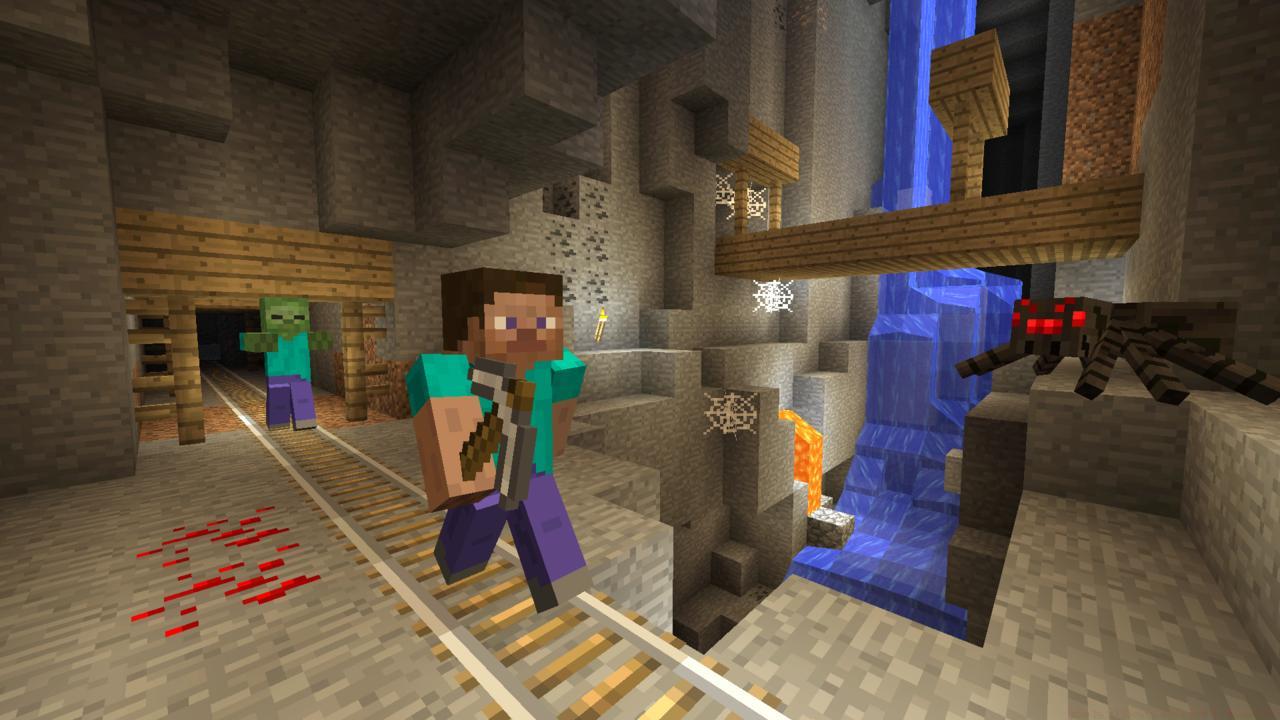
Strategic RAM allocation transforms choppy gameplay into buttery-smooth performance.
Increasing available memory enhances mod compatibility and reduces crash frequency. However, excessive allocation can negatively impact overall system responsiveness, as your operating system requires sufficient RAM for background processes and other applications.
Determining the ideal memory allocation requires balancing your gameplay style with system capabilities. For vanilla Minecraft without modifications, target 3-5GB as your baseline configuration. This range provides ample headroom for complex redstone contraptions and extensive world exploration.
Modded gameplay demands substantially more resources—typically 5-7GB depending on modpack complexity. Heavy modpacks like All the Mods or SevTech Ages may require 8GB or more to maintain stable framerates. Monitor performance metrics after adding new mods to assess their memory impact.
Consider your total system RAM when making allocation decisions. On systems with 8GB total memory, allocating more than 4GB may cause system-wide slowdown. For 16GB systems, 6-8GB allocation strikes an effective balance. Systems with 32GB or more can safely allocate 10-12GB for extremely demanding mod configurations.
Avoid the common mistake of maximum allocation regardless of need. Excessive RAM can trigger Java garbage collection issues, causing periodic performance hitches rather than smooth gameplay. The garbage collection process takes longer with larger memory pools, creating noticeable stutters during cleanup cycles.
Monitoring your actual memory usage provides crucial data for optimization decisions. While in-game, press F3 to activate the debug overlay displaying real-time performance metrics. This screen reveals essential information about your current setup and performance bottlenecks.
Locate the “Mem:” section in the upper-right corner of the debug display. The percentage value following this label indicates your current memory utilization rate. For optimal performance, this percentage should consistently fluctuate between 20% and 40% during normal gameplay.
The numerical value displayed shows exactly how much RAM is currently allocated to Minecraft. If this number matches your intended allocation but utilization consistently exceeds 80%, you’ve identified a clear need for increased memory.
Watch for memory usage patterns during different activities. Building and exploring typically consume more resources than stationary activities. If your memory usage consistently hits 90% or higher, you’ll experience frequent garbage collection stutters and potential crashes.
Monitoring your actual memory usage provides crucial data for optimization decisions. While in-game, press F3 to activate the debug overlay displaying real-time performance metrics. This screen reveals essential information about your current setup and performance bottlenecks.
Locate the “Mem:” section in the upper-right corner of the debug display. The percentage value following this label indicates your current memory utilization rate. For optimal performance, this percentage should consistently fluctuate between 20% and 40% during normal gameplay.
The numerical value displayed shows exactly how much RAM is currently allocated to Minecraft. If this number matches your intended allocation but utilization consistently exceeds 80%, you’ve identified a clear need for increased memory.
Watch for memory usage patterns during different activities. Building and exploring typically consume more resources than stationary activities. If your memory usage consistently hits 90% or higher, you’ll experience frequent garbage collection stutters and potential crashes.
Access the Minecraft Launcher and navigate to “Installations.” Select your current game profile and click “More Options” to reveal the JVM arguments field. This is where you’ll implement your memory configuration changes.
Locate the argument beginning with “-Xmx” which controls maximum memory allocation. The default setting typically shows “-Xmx2G” indicating 2GB allocation. Modify this value to your desired amount, such as “-Xmx6G” for 6GB allocation. Ensure you maintain the proper syntax and capitalization.
For comprehensive optimization, consider adding these additional JVM arguments: “-XX:+UseG1GC” for improved garbage collection and “-Dsun.rmi.dgc.server.gcInterval=300000” to reduce cleanup frequency. These tweaks complement increased memory allocation for smoother overall performance.
Test your new configuration by monitoring gameplay for 15-30 minutes. If performance improves but occasional stutters persist, slightly reduce your allocation until stability is achieved. Sometimes less memory with efficient garbage collection outperforms excessive allocation with poor cleanup cycles.
If you encounter launch failures after modification, verify your syntax and ensure you’re not exceeding available system memory. Common errors include missing the “G” suffix or specifying more RAM than your system physically contains.
Action Checklist
- Check current allocation using F3 debug screen during gameplay
- Determine optimal allocation based on gameplay style and system RAM
- Modify JVM arguments in Minecraft launcher with precise syntax
- Test new settings for 15-30 minutes while monitoring performance
- Fine-tune allocation based on observed performance and stability
No reproduction without permission:SeeYouSoon Game Club » How To Allocate More RAM To Minecraft Optimize Minecraft performance with proper RAM allocation techniques and troubleshooting strategies