
TL;DR
- Calibrate controller dead zones using MW3’s built-in test tool to eliminate stick drift completely
- Enable 120Hz refresh rate and optimize FOV between 90-110 for maximum situational awareness
- Use Headphones Bass Boost audio mix with effects volume at 100% for critical footstep detection
- Configure tactical button layout and instant ADS transition for faster reaction times
- Balance graphics settings to maintain stable frame rates while preserving visual clarity
Mastering Modern Warfare 3 requires more than just skill—it demands controller optimization that matches your playstyle. This section breaks down essential configurations that separate casual players from competitive contenders.
Input Configuration
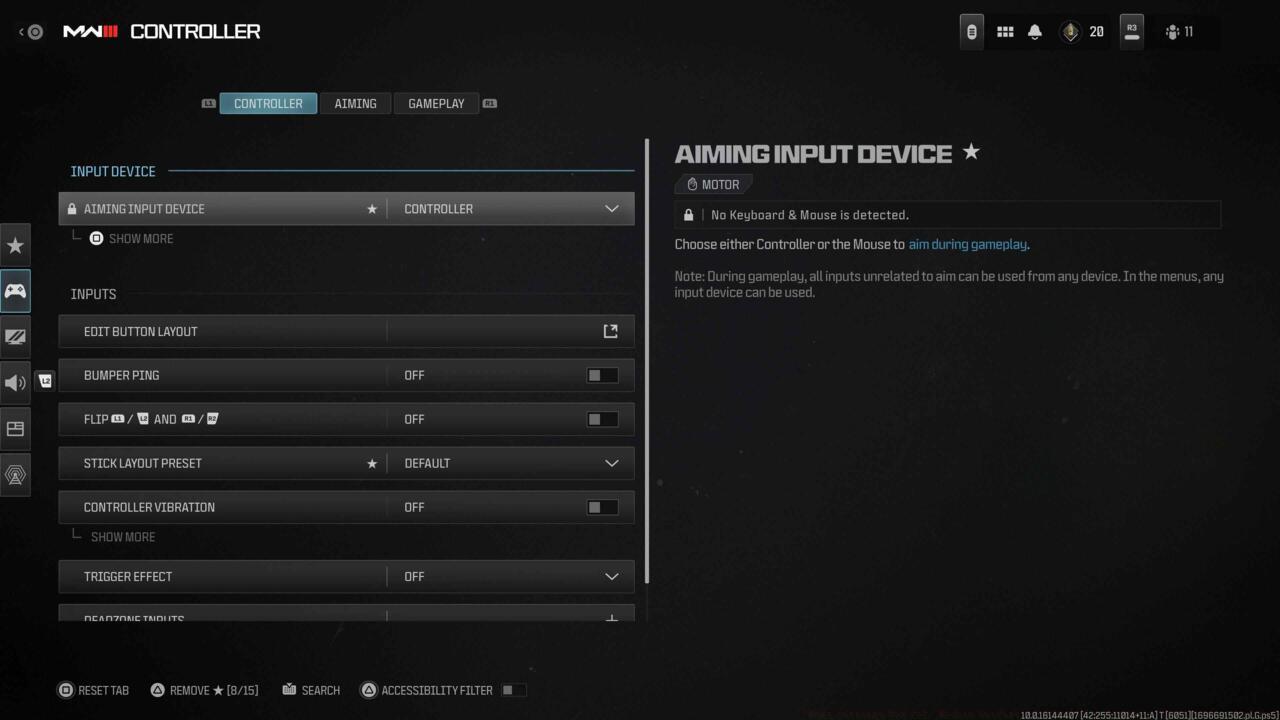
MW3 controller settings interface showing input options
- Bumper Ping: Off
- Button Layout Preset: Tactical or Default
- Flip L1/R1 with L2/R2: Off
- Stick Layout Preset: Default
- Controller Vibration: Off
- Trigger Effect (PS5): Off
Choosing between tactical and default layouts depends heavily on your controller hardware. Modern Warfare 3 emphasizes rapid movement mechanics including sliding, diving, crouching, and going prone. The tactical configuration proves superior for standard controllers by mapping crouch/slide/dive functions to thumbstick clicks, enabling fluid motion without compromising thumb positioning. For premium controllers like Scuf with customizable mapping, default settings often work perfectly.
Pro Tip: Disable PS5 trigger effects immediately—while the haptic feedback feels immersive, it significantly hinders precision aiming and trigger response times.
Dead Zone Calibration
Input Deadzone Configuration:
- Left Stick Min: 0.3
- Left Stick Max: 0.99
- Right Stick Min: 0.3
- Right Stick Max: 0.99
- L2 Button: 0.0
- R2 Button: 0.0
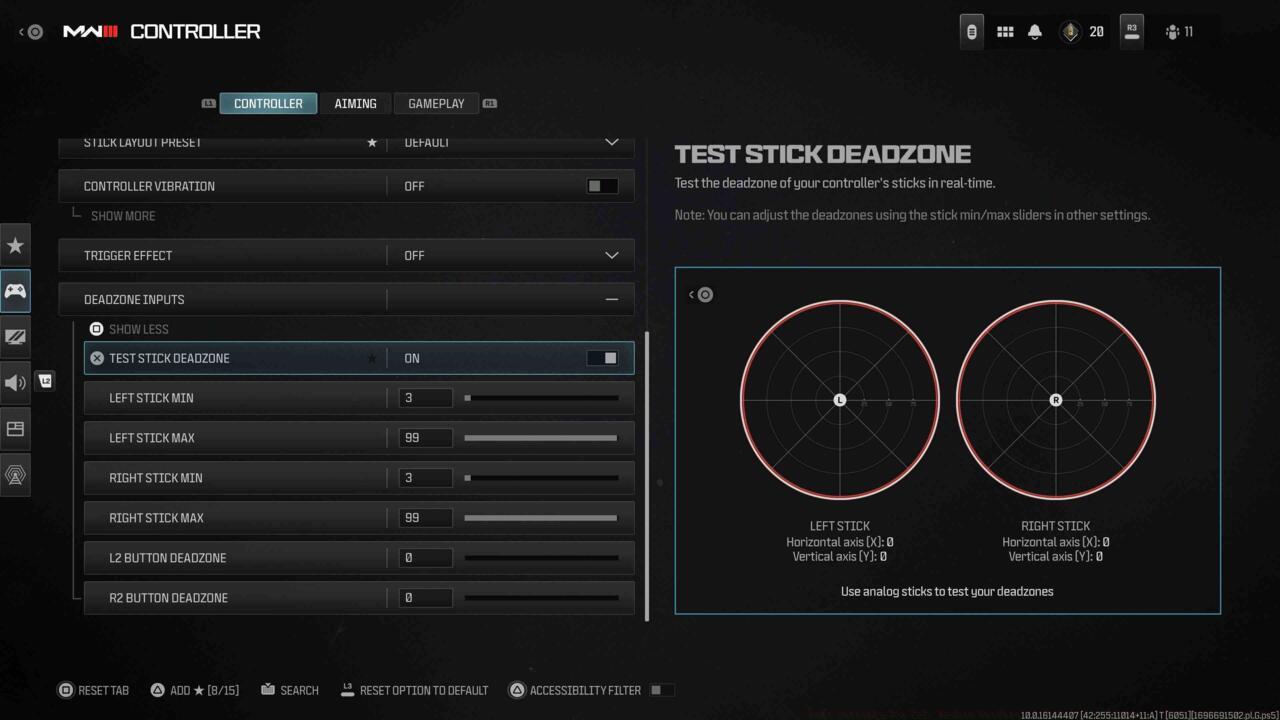
MW3 deadzone test interface showing stick input readings
Controller stick drift varies significantly between devices. Modern Warfare 3 introduces an invaluable calibration tool directly within settings—the Test Stick Deadzone feature. Begin with default values, then activate the testing mode to receive numerical readings for both analog sticks. The golden rule: adjust minimum deadzone values to at least one unit higher than displayed test numbers.
Example Calibration: If left stick shows 3 and right stick shows 2, set minimum drift to 4 (left) and 3 (right), then retest to confirm drift elimination.
Common Mistake: Many players overlook L2/R2 calibration. Always set these to 0.0 for instantaneous trigger activation during firefights.
Aiming Sensitivity
- Horizontal Stick Sensitivity: 6
- Vertical Stick Sensitivity: 6
- ADS Sensitivity Multiplier: 1.00
- Sensitivity Multiplier:
- Ground Vehicle sensitivity: 1.00
- Tablet sensitivity: 1.00
- Vertical Aim Axis:
- Vertical Aim On Foot: Standard
- Vertical Aim Ground Vehicles: Standard
- Aim Response Curve Type: Standard
- Aim Response Curve Slope Scale
- ADS Sens. Multiplier Focus: 0.90
- ADS Sensitivity Transition Time: Instant
- Custom Sensitivity Per Zoom: On
Sensitivity preferences vary dramatically among players. Professional competitors typically operate within 6-8 sensitivity ranges for Call of Duty multiplayer, though some specialists excel with extreme settings. Start at 6 sensitivity and incrementally adjust based on target tracking performance.
Advanced Technique: Enable custom sensitivity per zoom to maintain consistent aiming feel across different optic magnifications, crucial for long-range engagements.
Aim Assist Configuration
- Target Aim Assist: On
- Aim Assist Type: Default
Experiment with all available aim assist variants, though most players find Default delivers optimal performance. Precision and Focus modes provide stronger rotational assistance but only activate near targets. The Black Ops alternative offers traditional aim behavior from that series, often feeling similar to Default.
Motion Sensor Aiming
- Motion Sensor Aiming: Off
- Motion Sensor Advanced Setting: Off
This PlayStation-exclusive feature utilizes motion tracking technology for tilt-based aiming. While valuable as an accessibility option, competitive players should maintain this disabled as shown in default configurations.
Gameplay Behaviors
MW3 gameplay settings showing movement and interaction options
- Automatic Sprint: Automatic Tactical Sprint
- Auto Move Forward: Off
- Tactical Sprint Behavior: Double Tap
- Grounded Mantle: Off
- Automatic Airborne Mantle: Partial
- Automatic Ground Mantle: Off
- Invert Slide and Dive Behavior: Standard
- Plunging Underwater: Trigger
- Sprinting Door Bash: On
- Ledge Climb Behavior: Mantle Only
Combat Behaviors
- Aim Down Sight Behaviors: Hold
- Change Zoom Shared Input: Sprint/Tactical Sprint/Focus
- Equipment Behavior: Hold
- Weapon Mount Activation: ADS + Melee
- Tactical ADS Activation: ADS + Down Button
- Tactical ADS Behavior: Always
- Interact/Reload Behavior: Prioritize Reload
- Interact/Reload Behavior: Prioritize Interact
- ADS Stick Swap: Off
- Weapon Mount Exit Delay: Short
- Depleted Ammo Weapon Switch: On
- Quick C4 Detonation: One By One
Vehicle Behaviors
- Vehicle Camera Recenter: Short Delay
- Camera Initial Position: Free Look
- Lean-Out Activation: Melee
Overlay Behaviors
- Ping Wheel Delay: Moderate
- Killstreak Wheel Behavior: Hold
Visual configuration in Modern Warfare 3 requires balancing performance with clarity. Competitive players prioritize frame rate stability and visual information over graphical fidelity.
Texture and Detail Optimization
MW3 graphics settings interface showing detail and texture options
- On Demand Texture Streaming: Off
- World Motion Blur: Off
- Weapon Motion Blue: Off
- Film Grain: 0.00
- Depth of Field: Off
- FIDELITYFZ CAS: On
- FIDELITYFZ CAS Strength: Choose somewhere between 50 – 80
Regarding On-Demand Texture Streaming, the data consumption remains ambiguous when enabled without restrictions. Unlimited data users can safely activate this feature, while those with data caps should disable or limit it.
Performance Insight: Disabling motion blur and depth of field provides significant competitive advantage by eliminating visual distractions during rapid camera movements.
Field of View Strategy
- 120 HZ Refresh Rate (If applicable): On
- Field of View: Choose somewhere in 90-120 range
- First-Person Camera View: Least 50%
- Inverted Flashbang: On
- Spectator Camera: Game Perspective
- Brightness: Adjust brightness to your specific monitor/TV
- Safe Area: Adjust to your specific monitor/TV
Increasing field of view expands peripheral vision but simultaneously zooms out the central view. While settings extend to 120 FOV, extreme values often create disorienting zoom effects. Personal preference dominates here, though testing between 90-110 typically yields optimal balance.
Pro Configuration: Enable 120Hz refresh rate immediately if your display supports it—the doubled frame rate provides substantially smoother aiming and target tracking.
Common Error: Many console players overlook display calibration. Properly setting brightness and safe areas ensures critical UI elements remain visible during intense gameplay.
Audio optimization provides critical tactical intelligence in Modern Warfare 3. Proper configuration can mean the difference between anticipating enemy movements and being caught unaware.
Volume Mix Strategy
MW3 audio settings interface showing volume controls and audio mix options
- Audio Mix: Home Theater or Headphones Bass Boost
- Master Volume: 100
- Gameplay Music Volume: 75
- Dialogue Volume: 80
- Effects Volume: 100
- Voice Chat Volume: 80
- Cinematic Music Volume:
Audio configuration presents significant personalization challenges due to varying equipment and preferences. Television audio users benefit from Home Theater mode delivering quality sound with adequate footstep detection. Headset users should select Headphones Bass Boost for enhanced low-frequency response.
Call of Duty games typically feature intense audio levels, particularly music elements. Maximum volume settings aren’t necessary for optimal experience. Personally, I substantially reduce music levels while moderately decreasing other volumes except effects. Effects volume contains crucial footstep audio—never reduce this below maximum if you want to maintain auditory advantage.
Competitive Edge: Maintain effects volume at 100% regardless of other adjustments. This ensures you detect enemy movements before visual contact occurs.
Communication Settings
- Voice chat device: On
- Game Voice Channel: (Depends on whether you prefer hearing the entire lobby, party only, or friends only
- Last Words Voice Chat: On or Off (Determines if eliminated enemies hear your death communications)
Microphone Configuration
- Open Mic Sensitivity: 70
- Mute Yourself When Connecting: Off
- Microphone Level: 100
- Test Microphone: Off
Subtitles and Accessibility
- Subtitles: Default
- Subtitles Size: Default
- Opacity: 0
Subtitle preferences remain entirely subjective. Default setting displays subtitles exclusively during campaign missions, while alternatives activate them across all modes or disable entirely. Three size options accommodate different visibility needs. Opacity adjustments enable transparency modification for improved readability.
Audio Functionality
- Mono Audio: Off
- Reduce Tinnitus Sound: On
- Juggernaut Music: On
- Hit Marker Sound Effects: MW
This category also involves personal preference. I personally enable Reduce Tinnitus Sound to mitigate the occasionally extreme audio effects from flashbang and concussion grenades. Select configurations that best suit your auditory sensitivity and tactical requirements.
Properly adjusting these console configurations will enhance your aiming precision, movement fluidity, audio awareness, and visual clarity throughout your Modern Warfare 3 experience.
Action Checklist
- Calibrate controller dead zones using the built-in test tool to eliminate stick drift
- Configure tactical button layout and disable controller vibration for faster reactions
- Enable 120Hz refresh rate and set FOV between 90-110
- Optimize audio mix for headphone use with effects volume at maximum
- Disable motion blur, depth of field, and film grain for visual clarity
- Test sensitivity settings in private match before committing to competitive play
No reproduction without permission:SeeYouSoon Game Club » Best Settings For CoD: Modern Warfare 3 – Controller Layouts, Sensitivity, And More Optimize your MW3 console experience with pro-level controller, graphics, and audio settings for competitive advantage