
TL;DR
- Minecraft multiplayer requires understanding Java vs Bedrock edition differences
- Joining friends involves platform-specific methods and proper network configuration
- Realms provide persistent worlds with subscription-based access management
- Server joining requires specific IP addresses and compatibility verification
- Common issues include NAT type restrictions and version mismatches
Embarking on Minecraft multiplayer adventures requires grasping essential technical foundations before diving into collaborative gameplay. The game’s dual-edition system creates distinct multiplayer pathways that demand careful navigation.
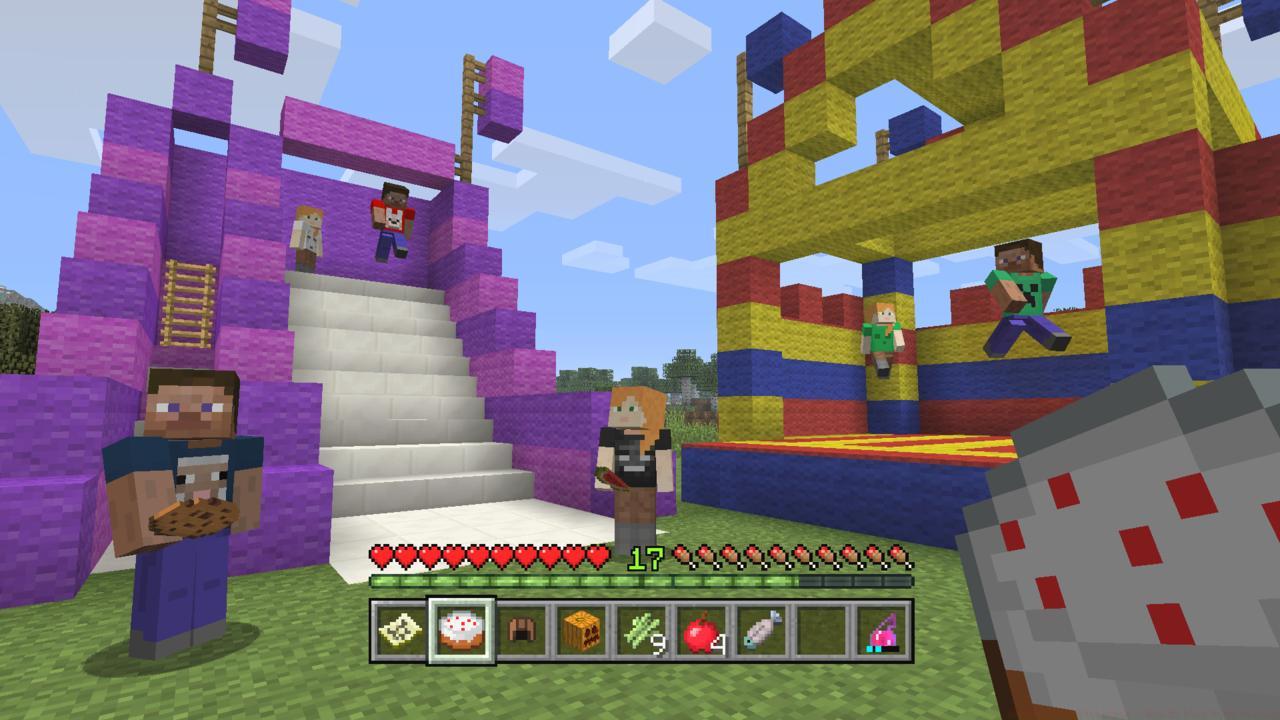
All sorts of multiplayer fun awaits.
Minecraft operates through two primary editions: Java Edition for PC users and Bedrock Edition spanning consoles, mobile devices, and Windows 10. This division significantly impacts multiplayer compatibility, as Java players cannot directly connect with Bedrock users without specialized bridging software. Understanding your specific platform’s requirements prevents frustrating connection attempts that are doomed to fail from the outset.
Network configuration forms another critical foundation. Most multiplayer sessions require stable internet connections with proper NAT (Network Address Translation) settings. Moderate or strict NAT types often block connections, while open NAT configurations facilitate seamless joining. For local network play, ensure all devices connect to the same Wi-Fi network and have network discovery enabled.
Connecting to friends’ Minecraft worlds involves distinct procedures based on your gaming platform and edition. Mastering these methods ensures you spend more time playing and less time troubleshooting connection hurdles.
Adventure across the biomes with friends.
For Bedrock Edition players, the process begins by accessing the ‘Friends’ tab from the main menu. Here you’ll see currently active friends’ worlds marked as ‘Joinable.’ Simply select the desired world and confirm joining. Critical prerequisite: both players must be Xbox Live friends regardless of platform, and the host must have their world settings configured to allow friends to join. A common mistake involves forgetting to toggle ‘Multiplayer Game’ to enabled in world settings before hosting.
Local multiplayer, often called LAN (Local Area Network) play, automatically detects active worlds on the same network. The host must have their world open with ‘Visible to LAN’ activated. All participants then find the session in their ‘Friends’ tab under ‘LAN Games.’ This method typically offers lower latency but requires physical proximity or VPN connections for remote play.
- How to join a friend on Bedrock
- How to join a friend’s world on local multiplayer
Minecraft Realms provides persistent world hosting through Mojang’s official subscription service, eliminating the need for the host to remain online. This premium solution offers reliable uptime and simplified friend management compared to traditional peer-to-peer hosting.
Work together to build impressive structures.
Java Edition Realm invitations arrive via in-game notifications or email. Accepting the invitation automatically adds the Realm to your list of available worlds. Realm owners can manage invitations through the Realms configuration screen, specifying whether invited players can merely visit or also build and modify the world. Subscription costs vary by player count and edition, with Java supporting up to 10 players and Bedrock accommodating 2 or 10 depending on the plan selected.
Bedrock Realm management occurs through the Realms and Clubs section. Owners can send invitations directly to Xbox Live friends or generate shareable invitation links. These links remain valid for limited durations to maintain security. Realms automatically create daily backups, providing crucial protection against accidental world corruption or griefing incidents.
- How to invite friends to a Realm in Java
- How to invite friends to a Realm in Bedrock
Establishing a robust friends list forms the foundation of seamless Minecraft multiplayer experiences. The friend addition process varies significantly between platforms, requiring platform-specific approaches rather than universal methods.
Be careful in caves–there are many monsters.
Console and Bedrock Edition players utilize their platform’s native friend systems—Xbox Live for Xbox and Windows, PlayStation Network for PS4/PS5, and Nintendo Switch Online for Switch. These systems require exchanging and sending friend requests through the respective platform interfaces. Cross-platform friends must all possess Xbox Live accounts regardless of their primary gaming platform.
Java Edition lacks a built-in friend system, relying instead on direct IP connections or server whitelists. Many Java players utilize mods like Essential Mod to create cross-platform friend capabilities, bridging the gap between Java’s traditional isolation and modern multiplayer expectations.
Dedicated Minecraft servers offer persistent worlds with custom gameplay experiences, from minigames to survival communities. Joining these servers requires specific technical knowledge and compatibility verification to ensure successful connections.
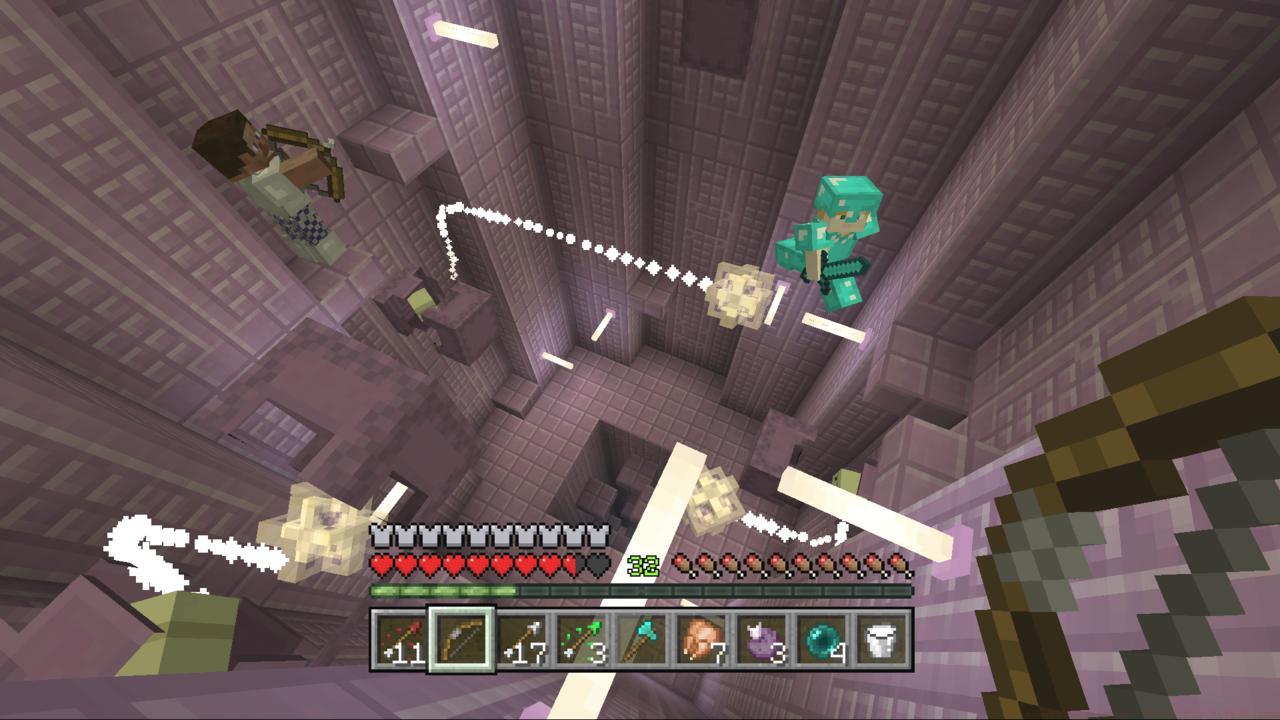
Can you find the rare Purpur blocks with your friends’ help?
Public server joining begins by selecting ‘Multiplayer’ from the main menu, then ‘Add Server.’ Enter the server’s IP address or domain name along with an optional display name. After saving, the server appears in your list—select it and click ‘Join Server.’ Always verify server version compatibility; attempting to join a 1.19 server with a 1.18 client invariably fails. For optimal performance, choose servers geographically close to your location to minimize latency.
Private server access typically requires whitelist approval. Server administrators must add your Minecraft username to their whitelist before you can connect. Some servers utilize custom launchers or modpacks that require additional installation steps before joining. Performance optimization involves adjusting render distance and graphics settings based on server population and your hardware capabilities.
Encountering connection issues in Minecraft multiplayer remains frustratingly common, but systematic troubleshooting resolves most problems efficiently. Understanding common pitfalls and their solutions transforms multiplayer from problematic to seamless.
Version mismatch represents the most frequent connection blocker. Ensure all players use identical Minecraft versions—including minor updates. Network configuration problems, particularly strict NAT types or firewall restrictions, often prevent connections. Port forwarding (default port 25565 for Java Edition) or enabling UPnP in your router settings frequently resolves these issues.
Performance optimization becomes crucial in populated servers. Reduce render distance to 8-10 chunks, disable fancy graphics and clouds, and lower entity distances. For persistent connection timeouts, try connecting via direct IP rather than domain names, as DNS resolution sometimes causes unexpected failures.
Advanced network configuration involves checking router settings for bandwidth allocation and QoS (Quality of Service) prioritization for gaming traffic. Wired Ethernet connections consistently outperform wireless for stability, particularly during extended play sessions with multiple participants.
Action Checklist
- Verify all players use identical Minecraft versions and editions
- Check network NAT type and ensure open configuration
- Configure world settings to allow multiplayer connections
- Exchange and accept platform-specific friend requests
- Test connection with closest geographic servers first
No reproduction without permission:SeeYouSoon Game Club » Minecraft Multiplayer – How To Play With Friends Master Minecraft multiplayer: Join friends, Realms, and servers with expert troubleshooting tips