
Complete guide to linking Steam with Escape from Tarkov account plus troubleshooting tips
Introduction to Steam Integration
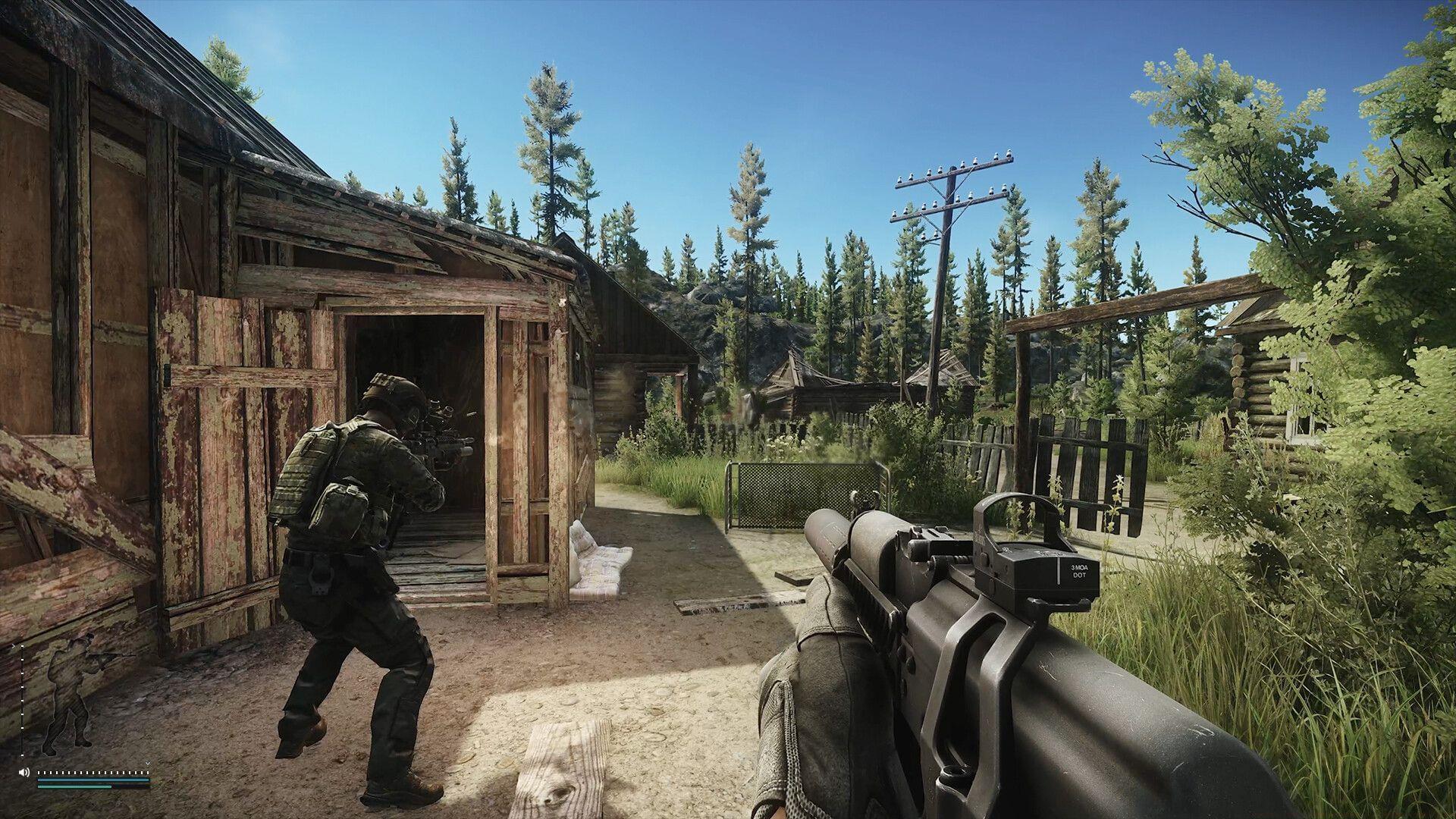
Escape from Tarkov’s recent Steam release marks a significant platform expansion, requiring players to connect their existing Battlestate Games profiles with Steam accounts. This integration process streamlines game access while maintaining your progression data and inventory intact across platforms.
The transition to Steam offers enhanced convenience through Valve’s robust ecosystem, including seamless updates, friend integration, and additional security layers. Understanding the proper linking procedure ensures you avoid common pitfalls that could disrupt your gaming experience.
Step-by-Step Account Linking Process
Follow this comprehensive guide to successfully merge your gaming profiles without losing any progress or purchased content:
- Initialize Steam Client: Launch the Steam application and authenticate using your login credentials. Ensure you’re running the latest client version to prevent compatibility issues during the linking sequence.
- Game Acquisition: Purchase Escape from Tarkov through the Steam store if you haven’t already. Existing Battlestate Games owners still need to acquire the Steam version for platform integration.
- Browser Preparation: Navigate to the official Escape from Tarkov website using your preferred web browser. Chrome, Firefox, and Edge typically provide the most reliable experience for this process.
- Account Authentication: New players should create a Battlestate Games account, while returning veterans must log into their existing profile using their original credentials.
- Connection Finalization: Locate the account connections section within your profile settings. Initiate the Steam linking procedure and complete the verification prompts to synchronize both platforms.
Common Issues and Troubleshooting
Many players encounter specific obstacles during the account synchronization process. Understanding these common scenarios helps resolve them quickly:
Verification Delays: The confirmation process may take several minutes as systems synchronize. Avoid repeated attempts during this period as multiple requests can trigger security flags.
Browser Compatibility: Clear your browser cache and disable ad-blocking extensions before starting the linking process. These tools sometimes interfere with the authentication protocols.
Credentials Mismatch: Ensure your Battlestate Games login information matches exactly what you previously used. Password reset functions are available if you’ve forgotten your original credentials.
Steam Connectivity: Verify Steam is running in online mode with stable internet connection. Offline mode prevents the necessary handshake between platforms.
Advanced Tips and Best Practices
Optimize your linked account experience with these professional recommendations:
Security Enhancement: Enable two-factor authentication on both Steam and Battlestate Games accounts. This additional layer prevents unauthorized access during the linking process and beyond.
Password Management: Use unique, complex passwords for each platform. Password managers help maintain security without complicating your login experience.
Launcher Maintenance: Regularly update both Steam client and EFT launcher to the latest versions. Outdated software frequently causes integration failures and performance issues.
Future-Proofing: Monitor official Battlestate Games announcements for platform updates. The developers continuously refine the integration process based on player feedback.
No reproduction without permission:SeeYouSoon Game Club » How to link Steam account in Escape from Tarkov Complete guide to linking Steam with Escape from Tarkov account plus troubleshooting tips