
Comprehensive guide to fix Escape from Tarkov Error 213 with troubleshooting strategies and performance optimization
Understanding Error 213 and Its Impact
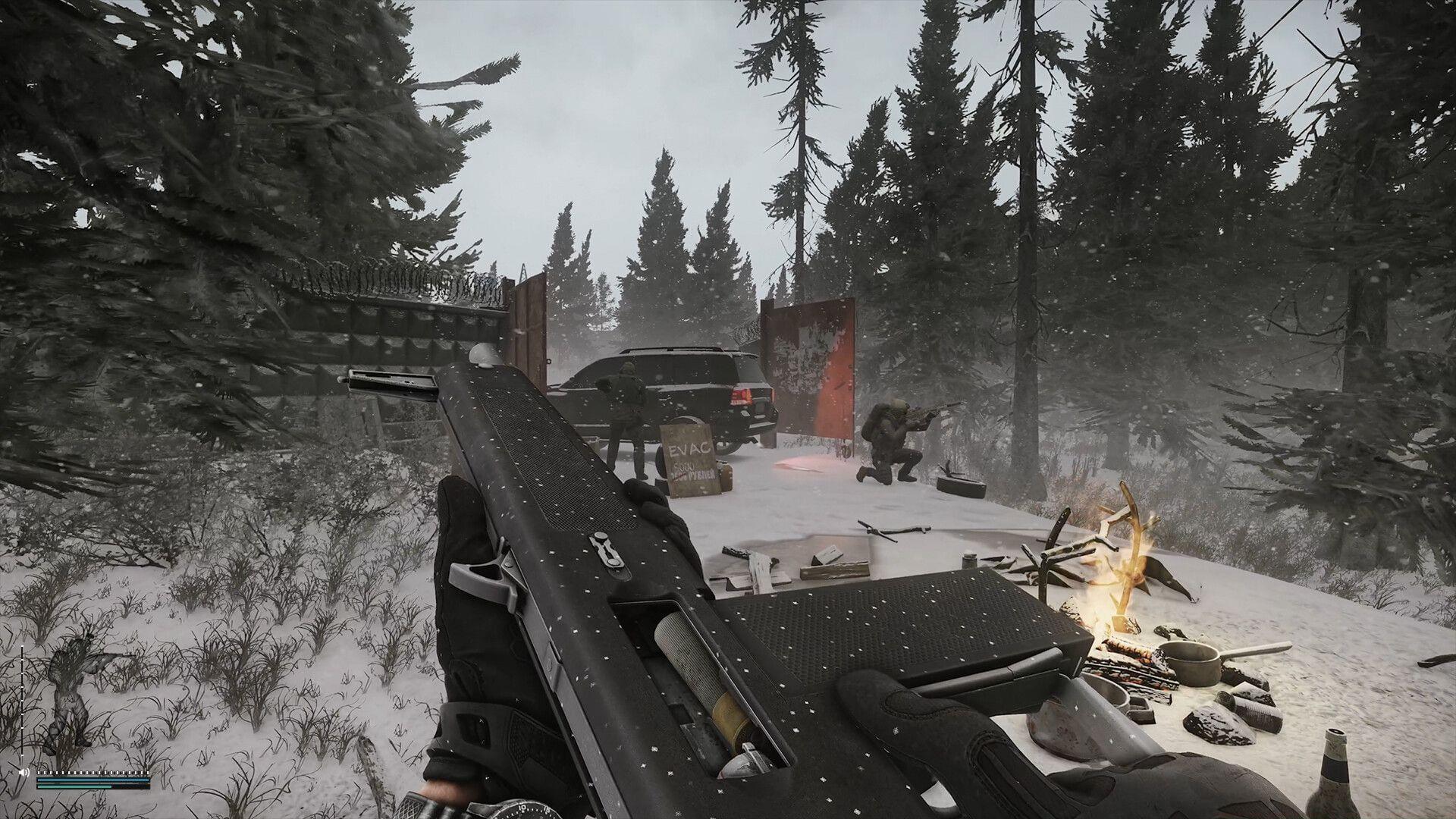
Escape from Tarkov’s Steam debut has encountered significant technical challenges, with Error 213 emerging as one of the most prevalent launch-blocking issues affecting players. This critical error prevents the game from initializing properly, leaving many users unable to access the intense tactical shooter experience. The frustration compounds when players encounter this barrier immediately after installation or during crucial gaming sessions.
Error 213 typically manifests as a complete failure to launch, with the game either crashing during the loading sequence or displaying specific error codes related to system compatibility and file integrity. Understanding the underlying causes is essential for implementing effective solutions.
File Integrity Verification Methods
Corrupted or incomplete game files represent the most common trigger for Error 213. When installation files become damaged during download or system updates, critical components may fail to load properly. Steam provides built-in tools to address these issues efficiently.
Here’s a comprehensive approach to verifying and restoring game file integrity:
If file verification fails to resolve the issue, consider a complete reinstallation. Uninstall the game through Steam, clear any remaining registry entries, then download a fresh copy. This eliminates deep-seated corruption that surface-level verification might miss.
After reinstalling, configure proper administrator permissions by locating EscapeFromTarkov.exe in the installation directory. Right-click the executable, access Properties, navigate to the Compatibility tab, and enable the Run this program as an administrator option. This ensures the game has necessary system access rights.
Firewall and Network Solutions
Windows security systems often misinterpret game connections as potential threats, resulting in Error 213 through blocked network access. Proper firewall configuration ensures Escape from Tarkov can establish necessary connections to game servers.
Configure Windows Firewall exceptions using this systematic approach:
For advanced users, consider creating specific inbound and outbound rules within Windows Defender Firewall with Advanced Security. This provides granular control over network permissions and can resolve complex connectivity issues that standard exceptions might miss.
Advanced Troubleshooting Techniques
When basic solutions prove insufficient, advanced system-level troubleshooting becomes necessary. Outdated graphics drivers, conflicting software, and system resource limitations can all contribute to Error 213 occurrences.
Update your graphics drivers through the manufacturer’s official application or website. NVIDIA users should employ GeForce Experience, while AMD adherents can utilize Radeon Software. These tools automatically identify and install optimal driver versions for gaming performance.
Disable background applications that might conflict with game operations. Antivirus software, system monitoring tools, and overlay applications like Discord or Steam overlay can sometimes interfere with game initialization. Temporarily disabling these during gameplay can identify potential conflicts.
Check system resource availability through Task Manager. Ensure you have sufficient RAM and CPU headroom before launching the game. Escape from Tarkov is resource-intensive, and insufficient system resources can trigger various errors including Error 213.
Prevention and Maintenance Strategies
Implementing proactive maintenance routines significantly reduces Error 213 recurrence. Regular system updates, driver maintenance, and game file validation create a stable gaming environment.
Schedule weekly verification of game files through Steam, especially following system updates or driver installations. This catches corruption early before it causes launch failures.
Maintain updated system drivers beyond just graphics cards. Chipset, audio, and network adapter drivers all contribute to game stability. Use tools like Windows Update and manufacturer utilities to keep these components current.
Monitor game and system update schedules. Battlestate Games frequently releases patches that address known issues. Staying current with updates ensures you benefit from the latest stability improvements and bug fixes.
If all troubleshooting attempts fail, contact Battlestate Games technical support with detailed information about your system configuration and the exact error behavior. This assists their team in identifying potential new issues and providing targeted solutions.
No reproduction without permission:SeeYouSoon Game Club » Escape from Tarkov Error 213: Possible reasons and fixes Comprehensive guide to fix Escape from Tarkov Error 213 with troubleshooting strategies and performance optimization