
TL;DR
- Access City Appearance menu via HUD icon or M key for comprehensive customization options
- Use three-level intensity sliders for weather, decorations, and wildlife to fine-tune your environment
- Combine Control Environment settings with visual filters for dramatic thematic transformations
- Layer multiple customization elements like weather, foliage, and special effects for maximum impact
- Experiment with different combinations to create unique city personalities that match your gameplay style
Transform your InZoi city into a personalized masterpiece using the game’s comprehensive editing tools. This life simulation game, currently in Steam Early Access, provides extensive customization capabilities that surpass many competitors in the genre.
To begin your city transformation journey, locate the second icon positioned in the bottom right corner of your heads-up display (HUD). This provides direct access to the Edit City interface. Alternatively, experienced players can use the keyboard shortcut by pressing the M key for faster access.
Once inside the editing interface, navigate to the City Appearance tab situated at the top center of your screen. This central hub consolidates all environmental modification tools in one convenient location.
The Weather tab within City Appearance offers four distinct atmospheric conditions that dramatically alter your city’s visual presentation and mood. Each selection creates unique environmental storytelling opportunities for your gameplay sessions.
Available weather types include:
- Sunny: Clear skies with vibrant lighting ideal for cheerful gameplay scenarios
- Cloudy: Overcast conditions that create subdued, realistic urban atmospheres
- Rainy: Precipitation effects that add dynamic movement and reflective surfaces
- Snowy: Winter transformations that completely alter terrain appearance
Advanced customization becomes available when selecting Cloudy, Rainy, or Snowy conditions. These options feature a precision dial that adjusts intensity across three distinct levels. For example, Snow Level 1 creates a light dusting perfect for seasonal charm, while Snow Level 3 generates heavy accumulation suitable for survival scenarios.
Pro Tip: Combine weather effects with corresponding foliage choices – rainy conditions pair exceptionally well with lush green vegetation for enhanced realism.
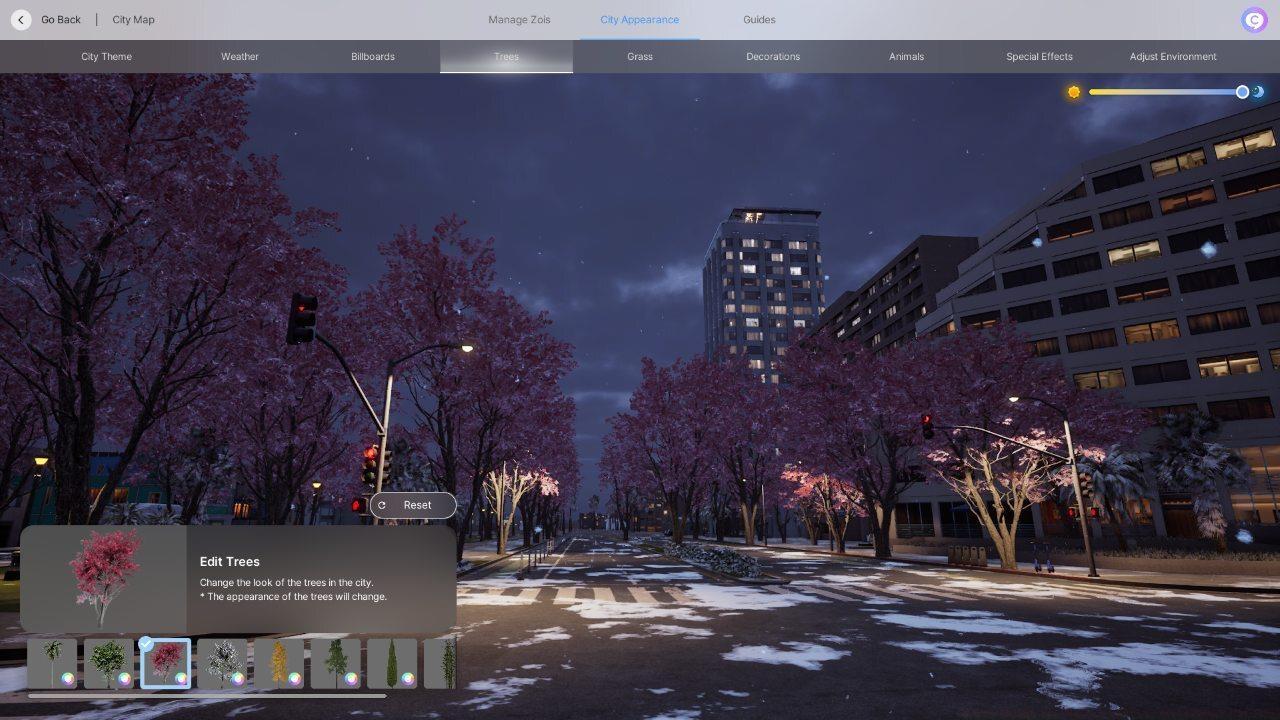
Changing tree appearance
The vegetation system provides extensive control over your city’s botanical landscape. Access the Trees and Grass tabs to completely transform your environment’s natural elements according to your creative vision.
Strategic foliage selection can establish distinct neighborhood identities within your city. Consider using sunflowers or rose bushes in residential districts for vibrant color accents, while opting for maple trees along commercial corridors creates sophisticated urban boulevards.
Common Mistake to Avoid: Don’t randomly mix tree types without considering seasonal compatibility. Some species may appear out of place when combined with certain weather conditions.
For optimal performance, limit your tree variations to 2-3 complementary species rather than using all available options simultaneously.
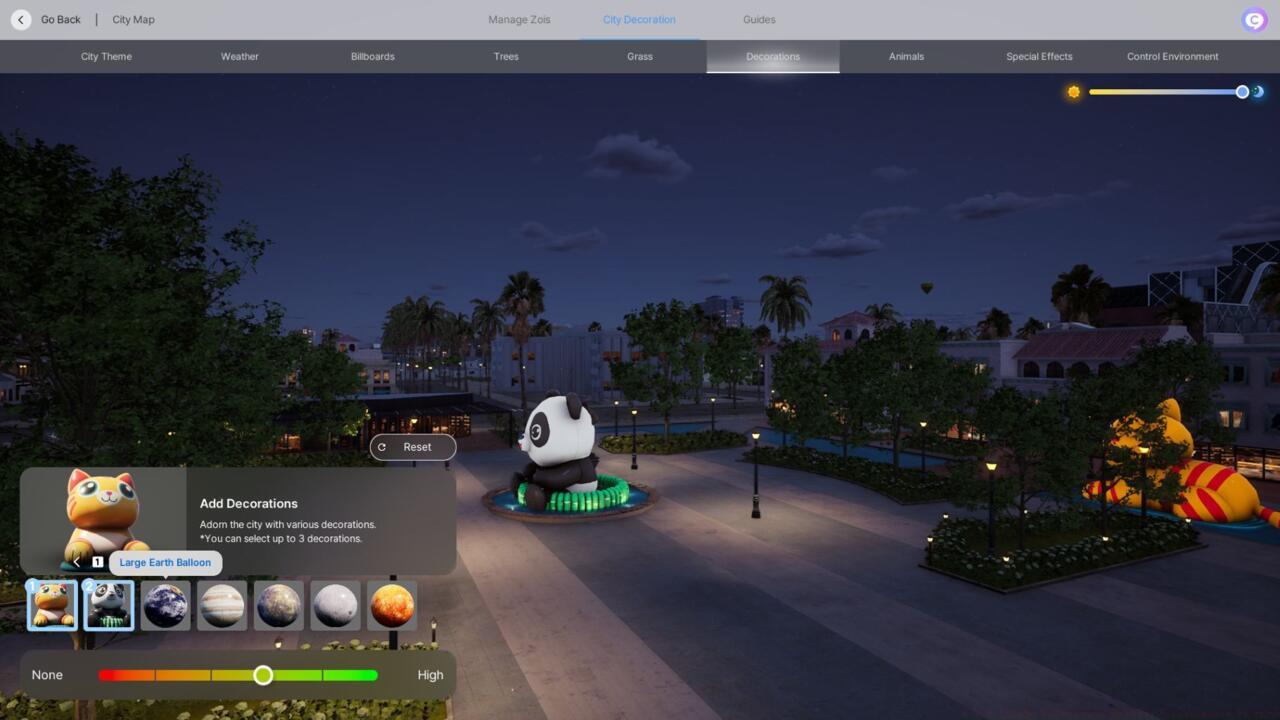
Decorations tab lets you add inflatable pandas
Elevate your city’s personality through strategic placement of oversized inflatable decorations. These elements add whimsical character and become visual landmarks within your urban landscape.
Available decorative elements include:
- Panda balloon characters for playful districts
- Large cat inflatables for family-friendly zones
- Celestial balloons including Earth, moon, Sun, Jupiter, and Mercury for educational or scientific themes
The decoration system permits selection of up to three different inflatable types simultaneously. Crucially, utilize the quantity slider located beneath your selections to adjust decoration density from complete absence to abundant presence.
Advanced Technique: Position inflatables near parks or recreational areas to create natural focal points that enhance community spaces.
Your city’s ecosystem comes alive through carefully managed animal populations. The system supports up to three different species coexisting within your urban environment, creating dynamic wildlife encounters for your citizens.
Select from these urban-adapted animals:
- Domestic companions: Cats and Dogs
- Woodland creatures: Deer, Raccoons, Squirrels, and Foxes
- Exotic additions: Pandas and Crocodiles for unique gameplay scenarios
Population density controls are essential for balanced ecosystems. The adjustment slider beneath animal selections regulates population levels from complete absence to thriving communities.
Important Consideration: Balance your animal selections to create believable urban wildlife interactions. Avoid combining naturally conflicting species that might create unrealistic scenarios.
For optimal performance, consider that higher animal densities may impact frame rates on lower-end systems.
The Special Effects tab houses sophisticated environmental enhancements that add layers of detail to your cityscapes. These elements create atmospheric depth and visual interest throughout different times of day.
Available special effects include:
- Butterflies that animate floral areas with natural movement
- Fireflies that create magical evening atmospheres in park settings
- Red lamps for dramatic lighting in entertainment districts
- Fireworks displays for celebratory events and holidays
- Drone shows that provide modern technological spectacle in commercial zones
Each effect features its own density controller that determines frequency and visibility. Strategic application of these elements can transform ordinary locations into memorable destinations within your city.
Timing Tip: Schedule fireworks and drone shows for evening hours when their visual impact is maximized against darker skies.
Apocalypse look with the Thriller filter active
For players seeking dramatic narrative transformations, InZoi provides powerful tools to create apocalyptic or horror-themed environments. These settings completely transform the game’s typically vibrant aesthetic into something darker and more atmospheric.
Begin your transformation by accessing the Control Environment tab within City Appearance. This interface contains a cleanliness slider that ranges from pristine urban environments to post-apocalyptic devastation.
Sliding completely toward the dirty extreme generates environments featuring dead vegetation, crumbling infrastructure, and generally desolate cityscapes perfect for survival or horror storytelling.
Filters
Visual filters amplify your thematic transformations when layered over environmental customizations. Access the filter menu using the star-shaped icon positioned at the top center of your game screen.
While some filters like the Fisheye lens offer limited practical utility, others dramatically reshape your city’s atmospheric quality and narrative potential.
Two particularly effective filter combinations for apocalyptic themes:
- Thriller: Creates cinematic horror atmosphere reminiscent of classic thriller films with enhanced shadows and desaturation
- Cartoon: Produces stylized apocalyptic visuals similar to graphic adventure games, ideal for distinctive storytelling approaches
Expert Combination: For maximum impact, apply the Thriller filter to a city already adjusted to maximum dirtiness in the Control Environment settings.
Remember that customization is about creating the perfect environment for your unique gameplay vision. Whether you prefer tropical paradises with pandas or snow-covered metropolitan centers, these tools empower your creative direction.
If you’re beginning your InZoi journey, our Complete Guide provides essential foundation knowledge for maximizing your gameplay experience.
Action Checklist
- Access Edit City menu via HUD icon or M key shortcut
- Navigate to City Appearance tab and explore all available customization categories
- Set base weather condition and adjust intensity level using three-step slider
- Select 2-3 complementary tree species and grass types for optimized performance
- Place up to three inflatable decorations in strategic locations near parks or landmarks
- Choose animal populations and set density levels for balanced urban ecosystems
- Apply special effects like fireflies or butterflies to enhance specific zones
No reproduction without permission:SeeYouSoon Game Club » How To Change The Weather And City Environments In InZoi Master InZoi city customization with advanced weather, foliage, and atmospheric effects for unique gameplay experiences