
TL;DR
- Switch 2 exclusively uses microSD Express cards, incompatible with standard microSD cards
- Installation requires specific orientation and triggers automatic system updates
- Built-in storage under 256GB may require expansion for multiple large games
- No current USB-C external storage support, but future updates possible
- Proper card selection and installation prevents data transfer issues
When expanding your Nintendo Switch 2’s storage capacity, you face a single viable solution that differs significantly from previous console generations. The hardware specifications mandate specific storage requirements that every user should understand before making purchase decisions.
Nintendo Switch 2’s external storage capabilities present notable limitations during the initial launch period, with the system exclusively supporting microSD Express card technology. While completing the Switch 2 system transfer process preserves all data from your original Switch console, the expanded game libraries many players accumulate often exceed the internal storage capacity, necessitating compatible expansion solutions.
This comprehensive breakdown covers your available external storage alternatives for Switch 2, supplemented with practical installation guidance and strategic recommendations.
The Switch 2 exclusively accommodates microSD Express cards for storage expansion, representing a significant technological departure from conventional microSD formats. These specialized cards differ fundamentally from standard microSD cards in both interface protocol and performance characteristics, meaning your Switch 2 will not recognize traditional microSD cards previously used with original Switch models. This compatibility restriction stems from the enhanced data transfer speeds microSD Express provides, enabling smoother gameplay experiences with large game files.
Despite these limitations, the Switch 2’s internal storage capacity approaches 256GB, allowing installation of several moderately sized games without immediate expansion needs. This provides breathing room for users waiting for microSD Express pricing to become more accessible as market adoption increases and manufacturing scales.
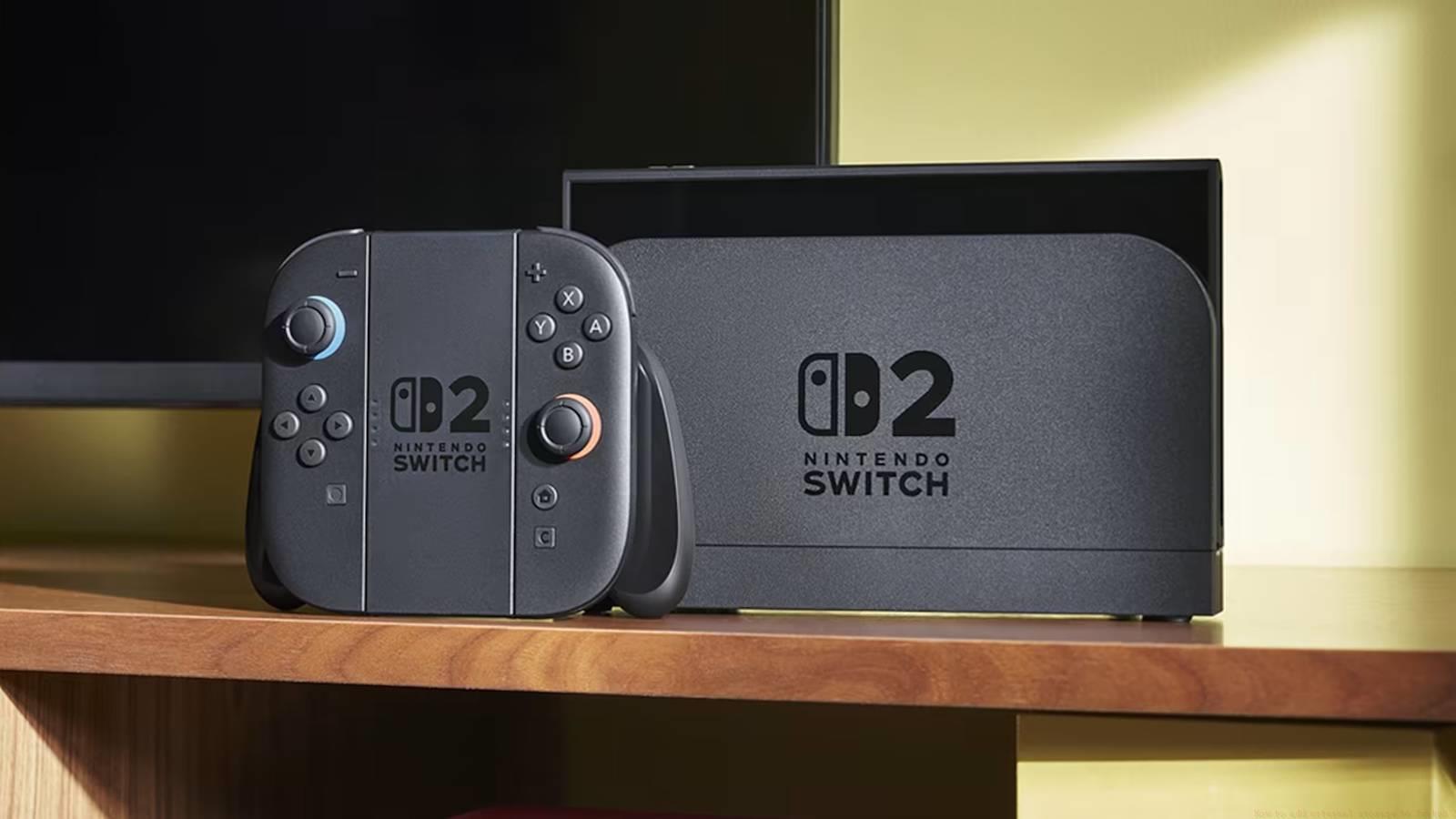
Proper microSD Express card installation follows a straightforward but precise procedure that ensures optimal performance and system recognition. Following these steps meticulously prevents potential issues and guarantees seamless integration with your Switch 2 system architecture.
After acquiring a compatible microSD Express card, locate the Switch 2’s integrated kickstand mechanism and gently extend it outward. Positioned on the left side beneath the kickstand, you’ll discover a dedicated slot designed specifically for microSD Express card insertion. Orient the card correctly by ensuring the printed text on the card’s surface faces outward toward you during installation. Initial card insertion triggers an automated system update prompt—follow the on-screen instructions to complete this necessary firmware enhancement, after which the console will automatically restart to finalize the configuration process.

Image: Nintendo
During the console’s launch window, the Switch 2 maintains strict compatibility limitations, refusing to recognize any external storage devices besides certified microSD Express cards. Attempting to connect alternative storage solutions through the Switch 2’s USB-C ports, even with appropriate USB-C connectors, results in complete system non-recognition—the console behaves as if no external device exists. This represents a conscious design decision rather than technical oversight.
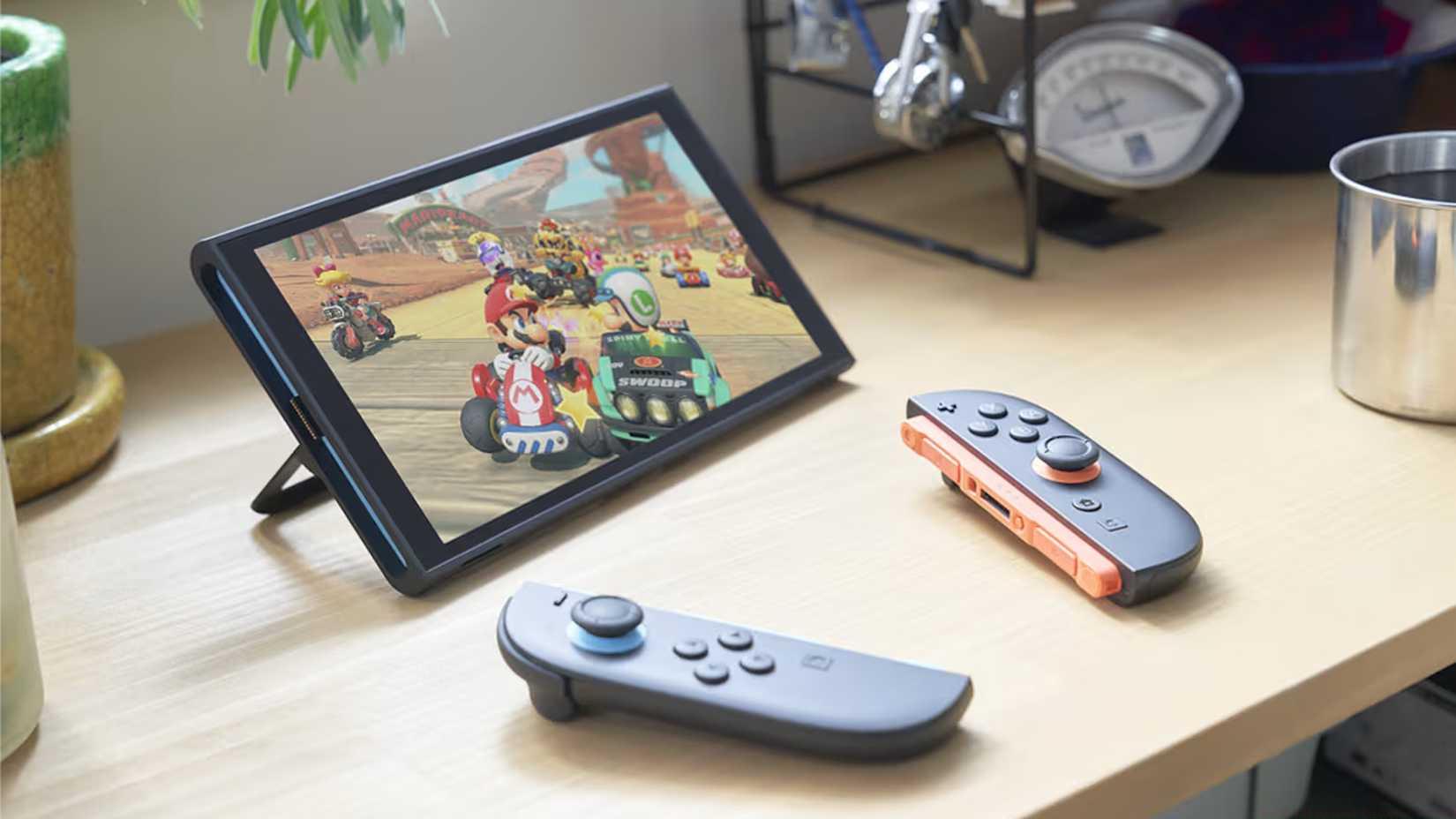
Image: Nintendo via Polygon
Online gaming communities, particularly Reddit discussion threads, contain speculation regarding Nintendo potentially introducing external hard drive compatibility through future system updates, mirroring the approach taken with Wii U console enhancements. However, important contextual differences exist between these console generations that influence this possibility.
The Wii U featured severely constrained internal storage capacity and supported only standard SD cards with maximum 32GB limitations, creating compelling reasons for expanded storage options. Conversely, the Switch 2 provides substantially greater built-in storage alongside microSD Express support reaching 1TB capacities, substantially reducing the imperative for additional external storage solutions compared to its predecessor.
Have you recently acquired a Nintendo Switch 2 system? Are you working toward unlocking all available characters and cosmetic outfits in Mario Kart World? Perhaps you’re experiencing The Legend of Zelda: The Wind Waker for the first time and require guidance navigating the challenging stoplight sequences within Forsaken Fortress? Regardless of your gaming objectives, our comprehensive resources provide the assistance needed to optimize your experience. For broader gaming strategies, consult our Complete Guide to master complex game mechanics across multiple titles.
When planning your storage strategy, consider that microSD Express cards offer varying performance tiers. Higher-speed cards reduce loading times significantly for large open-world games. Always purchase from reputable retailers to avoid counterfeit cards that may corrupt your game data. Format new cards directly through the Switch 2 system settings rather than on computers to ensure proper file system configuration. For weapon-specific strategies that complement your storage management, explore our Weapons Unlock guide covering progression systems in detail.
Future system updates might expand connectivity options, but current evidence suggests Nintendo prioritizes the streamlined microSD Express approach. Understanding these limitations helps manage expectations while planning your storage expansion strategy. Different gaming genres have varying storage impacts—role-playing games typically require more space than arcade-style titles. Monitoring your storage allocation through system settings prevents unexpected capacity issues during crucial gaming sessions. For character and class optimization that affects your storage decisions, our Class Guide provides essential loadout information.
Action Checklist
- Verify microSD Express card compatibility before purchase
- Insert card with text facing outward using kickstand access
- Complete system update prompted during first installation
- Monitor storage allocation in system settings monthly
- Research performance tiers when upgrading storage capacity
No reproduction without permission:SeeYouSoon Game Club » How to add external storage to Switch 2 Complete guide to Switch 2 storage expansion with microSD Express cards and installation tips