
TL;DR
- Set Graphics Quality to Custom for granular control over individual settings
- Use 110-115 Field of View for optimal situational awareness in combat
- Disable all motion blur effects to maintain visual clarity during fast-paced action
- Configure upscaling options based on your GPU capabilities for performance boost
- Regularly test settings in actual gameplay to fine-tune for your specific hardware
Mastering graphics configuration in Battlefield 6 represents the difference between struggling with inconsistent performance and achieving competitive dominance. The franchise’s reputation for cutting-edge visual technology continues with BF6, presenting both stunning battlefield immersion and significant hardware demands that require careful tuning.
While Battlefield 6 launches with respectable optimization out of the box, its advanced graphical features can severely impact frame rates if not properly configured. Achieving stable high FPS requires strategic adjustments that balance visual fidelity with raw performance, especially during intense 128-player Conquest matches where every frame counts.
This comprehensive guide delivers expert-level optimization strategies that transform your gaming experience. We provide detailed analysis of every graphics option, explaining not just what to change but why specific settings impact performance the way they do.
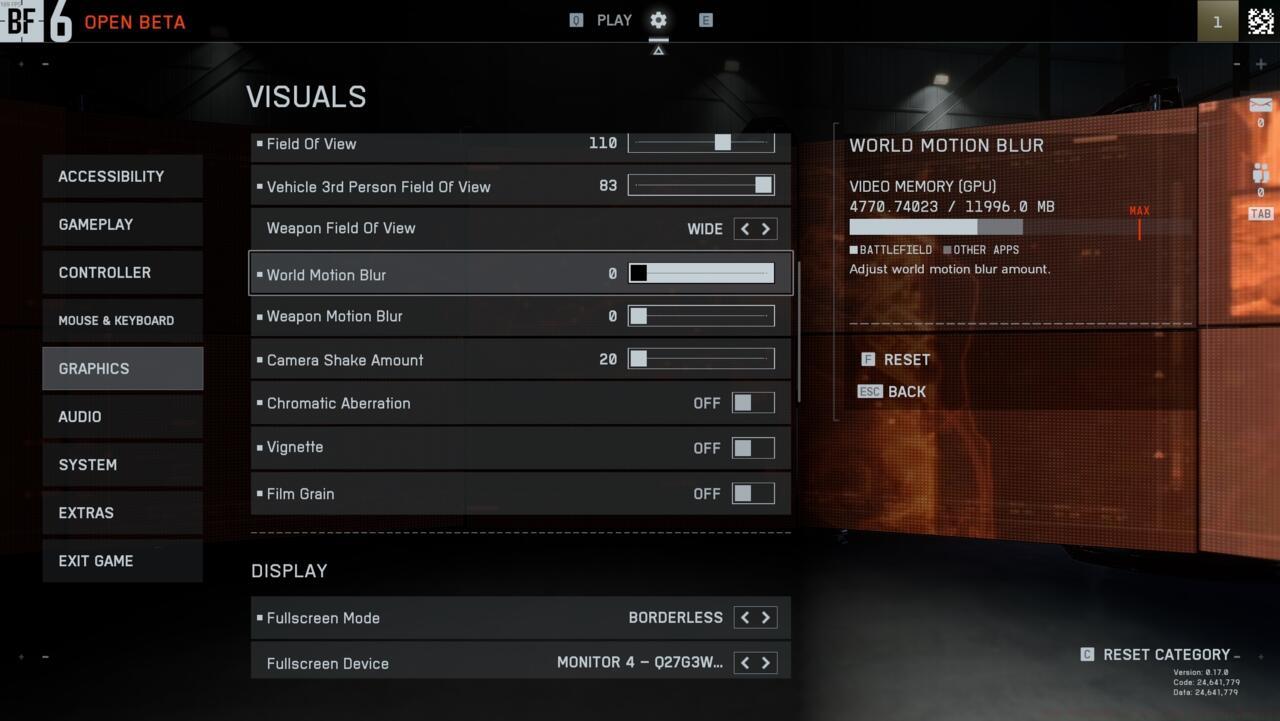
The main graphics settings menu in Battlefield 6
Begin your optimization journey by navigating to the main menu and selecting the cog icon, then accessing the Graphics section. This interface provides comprehensive control over visual presentation and performance parameters that directly affect gameplay responsiveness.
The general graphics menu contains foundational settings that establish your baseline experience. Resolution selection and monitor configuration remain personal preferences, but our tested recommendations ensure optimal performance across diverse hardware configurations.
- Graphics Quality: Custom (enables granular control over individual settings)
- Field of View: 110-115 (maximizes situational awareness without distortion)
- Vehicle 3rd Person Field of View: 83 (balanced vehicle control and environmental awareness)
- Weapon Field of View: Wide (improves peripheral vision during aiming)
- Weapon Motion Blur: 0 (eliminates visual distraction for precise targeting)
Field of View configuration deserves special attention in Battlefield 6. The 110-115 range provides the ideal balance between environmental awareness and target acquisition, crucial for spotting enemies in large-scale NATO operations across varied terrain.
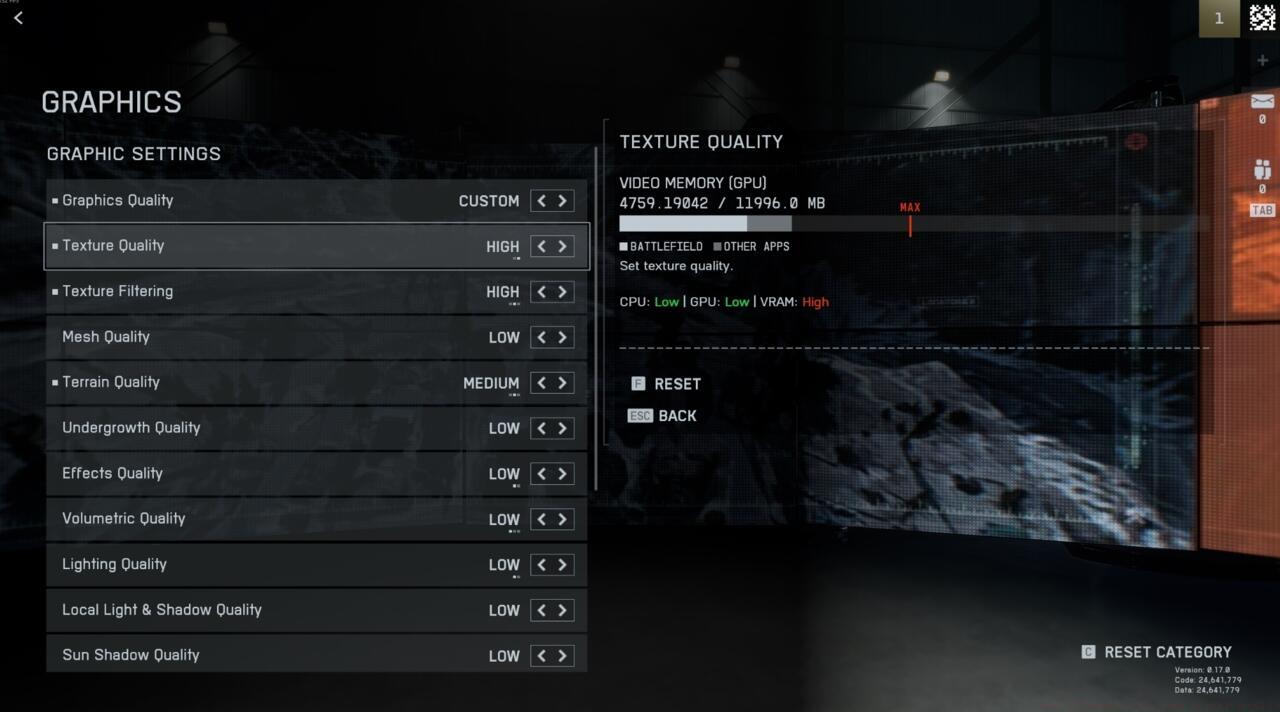
Customizing the individual graphics settings
Advanced players should note that disabling motion blur entirely provides significant competitive advantage. This setting, while cinematic, obscures enemy movement and reduces aiming precision during fast-paced combat scenarios in modes like Pax Armata.
Many players overlook the performance impact of upscaling technologies in Battlefield 6. Modern GPUs benefit significantly from DLSS or FSR implementation, providing substantial frame rate improvements with minimal visual quality loss when configured correctly.
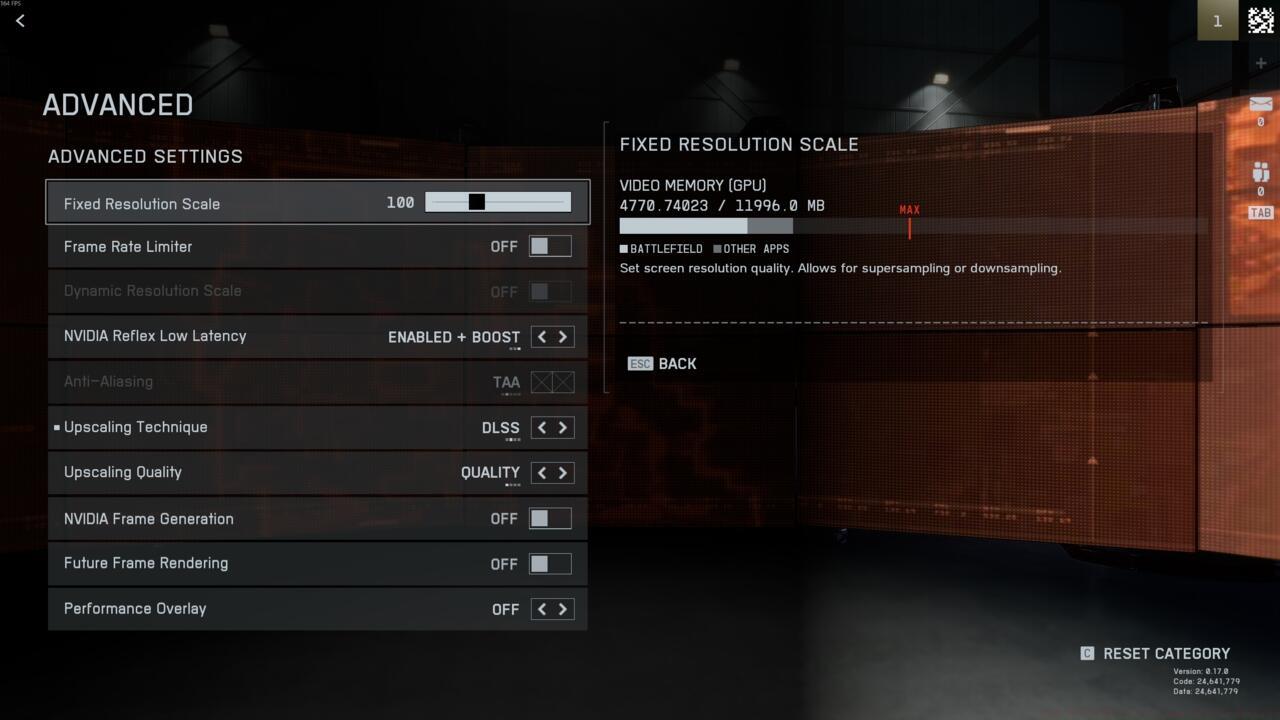
Going through the upscaling options in Battlefield 6
A common optimization mistake involves maxing out texture quality without sufficient VRAM. This creates stuttering and inconsistent performance as the game struggles to stream high-resolution assets. Monitor your VRAM usage in the settings display to avoid this performance trap.
For competitive players focusing on Assignments completion and ranking progression, maintaining consistent 100+ FPS should take priority over maximum visual fidelity. The fluid responsiveness gained from proper optimization directly translates to improved kill-death ratios and mission success rates.
Hardware-specific recommendations vary significantly. NVIDIA RTX 3000/4000 series cards excel with DLSS Quality mode, while AMD RX 6000/7000 GPUs achieve best results using FSR 2.2. Each configuration requires individual testing in actual gameplay conditions rather than relying solely on benchmark numbers.
Remember that optimal settings evolve with game updates and driver improvements. Revisit your configuration monthly and consult our Complete Guide for ongoing optimization strategies as Battlefield 6 continues to develop through its live service cycle.
Action Checklist
- Navigate to Graphics settings via main menu cog icon
- Set Graphics Quality to Custom and configure FOV to 110-115
- Disable all motion blur effects and configure upscaling based on GPU
- Test settings in live Conquest match and adjust based on performance
- Fine-tune weapon and vehicle-specific settings for optimal control
No reproduction without permission:SeeYouSoon Game Club » Best PC Graphics Settings In Battlefield 6 Optimize Battlefield 6 graphics settings for maximum FPS while maintaining visual quality and competitive advantage