
Optimize Battlefield RedSec graphics for competitive advantage with performance-focused settings and strategic adjustments
Core Graphics Settings Strategy
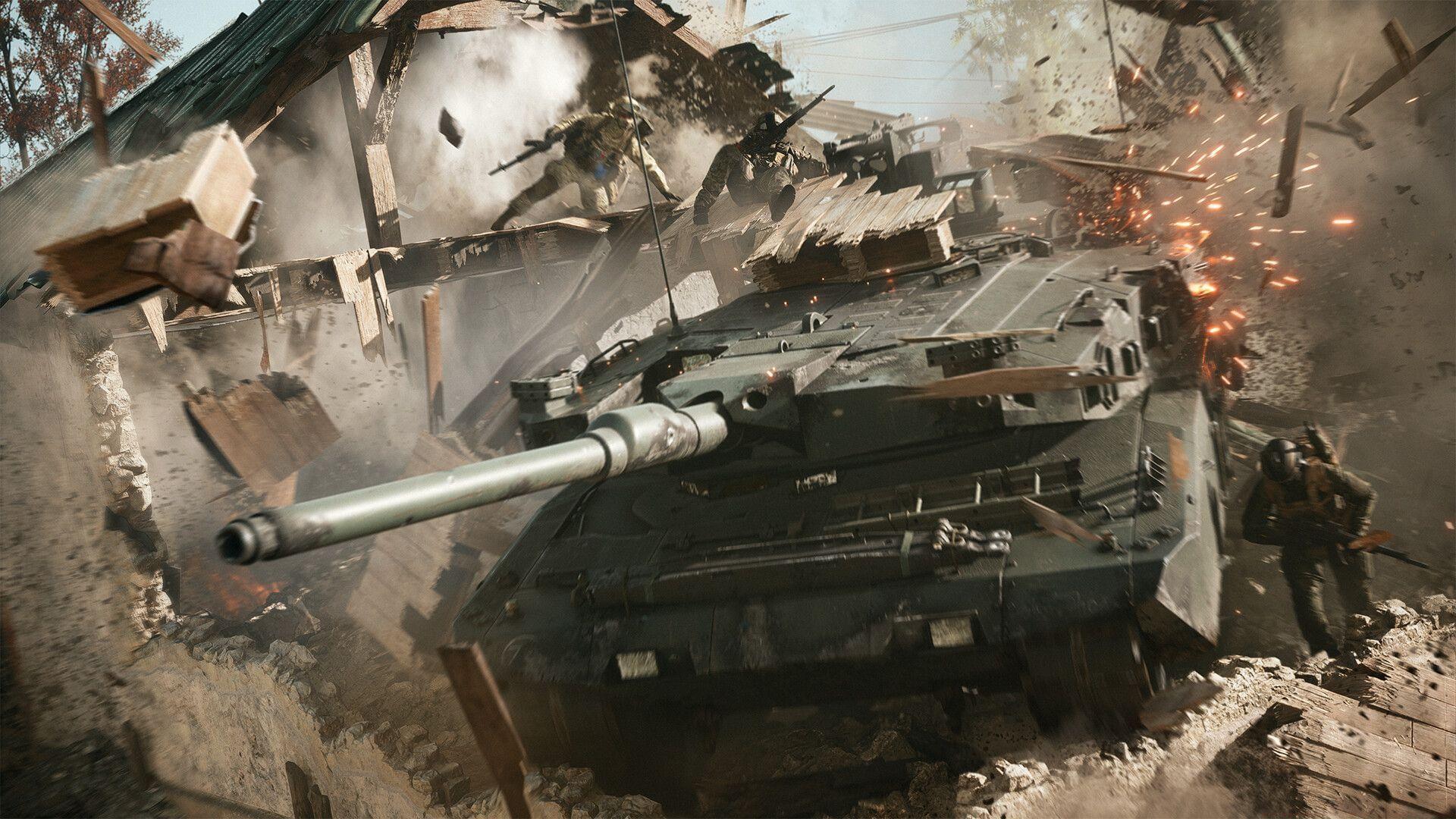
Mastering the graphics settings for Battlefield RedSec requires balancing visual clarity with competitive performance. Rather than simply minimizing every setting, strategic adjustments can dramatically improve enemy visibility while maintaining smooth gameplay. This approach ensures you’re not sacrificing frames unnecessarily while gaining tactical advantages in the Battlefield battle royale environment.
Texture Quality Strategy: High (for GPUs with 8+ GB VRAM) / Low (for GPUs with less than 8 GB VRAM) – This setting primarily impacts VRAM usage rather than GPU processing power. High textures provide clearer distant object details, crucial for spotting enemies at range.
Texture Filtering: Overkill – This setting has minimal performance impact on modern hardware while ensuring textures remain crisp when viewed at angles.
Undergrowth Quality: Low (setting not working as intended) – Current implementation causes performance issues without providing visual benefits. Reducing this minimizes foliage clutter that can obscure enemy movement.
Volumetric Quality: Low (GPU-bound systems) / High (CPU-bound systems) – Smoke and explosion effects are performance-intensive. Lower settings reduce particle density for clearer sightlines during intense firefights.
Lighting Quality: High – Maintains accurate shadow placement and environmental lighting, essential for identifying enemy positions in varied lighting conditions.
Local Light & Shadow Quality: Low – Dynamic shadows from multiple light sources are computationally expensive without providing significant tactical advantage.
Sun Shadow Quality: Medium – Balances outdoor shadow clarity with performance. Higher settings add minimal visibility benefits for the performance cost.
Reflection Quality: Low – Environmental reflections rarely impact gameplay visibility while consuming substantial GPU resources.
Screen Space Reflections: Off – This setting significantly impacts performance without enhancing competitive visibility. Disabling it frees resources for more critical settings.
Post Processing Quality: Low – Reduces filter effects that can obscure visual clarity and introduce input lag.
Screen Space AO & GI: Off – Ambient occlusion and global illumination are visually appealing but performance-heavy effects that don’t improve enemy detection.
High Fidelity Objects Amount: Medium – Preserves object detail at medium distances where most engagements occur, without the extreme performance cost of maximum settings.
Advanced Technical Configuration
Also Read – All Points of Interest (POIs) in Battlefield RedSec Fort Lyndon
Advanced graphics configuration in Battlefield RedSec requires understanding how different rendering techniques impact both performance and visual fidelity. These settings become increasingly important at higher resolutions where GPU demands escalate significantly.
Fixed Resolution Scale: 100 – Maintaining native resolution ensures optimal image quality. Reducing this value creates blurriness that can obscure distant enemies, while increasing it provides diminishing visual returns for substantial performance costs.
Frame Rate Limiter: Set to the maximum refresh rate supported by your display – Matching your monitor’s refresh rate eliminates screen tearing without introducing the input lag associated with V-Sync. For competitive play, consider setting this 2-3 FPS below your monitor’s maximum refresh rate for stability.
Nvidia Reflex Low Latency: Disabled (setting not working as intended) – Currently this implementation may introduce stability issues. Monitor future patches for activation when the feature is properly implemented.
Anti-Aliasing: DLAA (Nvidia) / FSR (AMD) – These temporal solutions provide superior edge smoothing compared to traditional MSAA while maintaining better performance profiles. DLAA offers exceptional quality for RTX users, while FSR provides excellent AMD compatibility.
Upscaling Technique: Off (1080p) / DLSS or FSR (1440p and above) – At 1080p, native resolution provides the clearest image. For 1440p and 4K, DLSS Quality or FSR Balanced modes significantly boost performance while maintaining visual quality that often surpasses native resolution through advanced reconstruction.
Upscaling Quality: Balanced – This preset optimally balances image quality and performance gains. Quality mode provides minimal visual improvement for greater performance cost, while Performance mode may introduce noticeable artifacts.
Nvidia Frame Generation: Off – While DLSS 3 Frame Generation can dramatically increase FPS counters, it introduces additional input latency that negatively impacts responsive gameplay in competitive scenarios.
Future Frame Rendering: Off – Disabling this reduces input lag at the cost of some frame rate stability. For competitive play, lower input latency typically outweighs minor frame pacing benefits.
Performance Overlay: Simple – Monitoring performance metrics helps identify bottlenecks without cluttering the screen. Advanced overlays can distract during critical gameplay moments.
Camera and View Settings
Proper camera configuration in Battlefield RedSec dramatically impacts situational awareness and target acquisition speed. These settings should be customized to your playstyle while maximizing your ability to detect and engage enemies effectively.
Field of View: 110-120 – Wider Field of View settings provide superior peripheral awareness, crucial for detecting flanking maneuvers and environmental threats. However, extremely high values can make distant targets appear smaller and more difficult to engage accurately.
Vehicle 3rd Person Field of View: 83 – This optimized vehicle perspective balances environmental awareness with target identification. Higher values can make targeting precise vehicle weak points more challenging during combat.
Weapon Field of View: Wide – Increasing weapon Field of View provides better situational awareness during aiming without significantly impacting weapon model clarity. This is particularly valuable in close-quarters combat scenarios.
Weapon Motion Blur: 0 – Disabling motion blur eliminates visual distortion during rapid camera movements, maintaining target clarity during intense firefights. This setting significantly improves tracking accuracy against moving targets.
Camera Shake Amount: 20 – Minimal camera shake maintains immersion during explosions and environmental events without causing visual disorientation that can impair aiming precision.
Chromatic Aberration: Off – This photographic artifact simulation reduces image clarity along high-contrast edges, potentially obscuring enemy silhouettes against complex backgrounds.
Pro Tip: Experiment with Field of View settings in the practice range before committing to competitive matches. The optimal value varies based on screen size, viewing distance, and personal preference. Consider incrementally increasing Field of View by 5-10 degrees each session to acclimatize to the wider perspective.
Display and Interface Configuration
Optimal display and interface settings ensure that Battlefield RedSec renders correctly on your hardware while providing essential gameplay information without screen clutter. These configurations work in tandem with graphics settings to create a cohesive competitive experience.
Fullscreen Mode: Borderless – Provides convenient alt-tabbing functionality while maintaining performance close to exclusive fullscreen mode. Some systems may experience minor performance gains with exclusive fullscreen, but borderless offers superior multitasking capability.
Fullscreen Device: Primary monitor – Ensures the game launches on your main display with the correct resolution and refresh rate settings automatically applied.
Fullscreen Resolution: Native display resolution – Matching your monitor’s native resolution prevents scaling artifacts and maintains optimal image clarity. Never use non-native resolutions unless absolutely necessary for performance.
Refresh Rate: Maximum supported refresh rate for your monitor – Higher refresh rates provide smoother gameplay and reduced input lag. If experiencing stability issues, gradually reduce the refresh rate until consistent performance is achieved.
Interface configuration directly impacts your ability to process game information quickly and efficiently during combat situations.
Infantry HUD Motion: Off – Static HUD elements prevent unnecessary screen movement that can distract during precise aiming and targeting sequences.
Vehicle HUD Motion: Off – Vehicle interfaces benefit similarly from stabilized display elements, particularly during complex maneuvering where screen clarity is essential.
Show Soldier Overlays: On – Critical information including health, ammunition, and ability status must remain visible to make informed combat decisions.
Show Vehicle Overlays: On – Vehicle status, weapon systems, and passenger information provide essential tactical data during vehicle engagements.
Show Outlines on Friendly Targeted Soldiers: On – Friendly identification prevents accidental team damage and improves squad coordination during chaotic firefights with multiple combatants.
Common Mistake to Avoid: Don’t disable critical HUD elements in pursuit of a “cleaner” screen. The tactical information provided by overlays far outweighs the minimal visual distraction they cause. Instead, focus on reducing motion effects and screen shake that actually impair combat effectiveness.
These optimized configurations for Battlefield RedSec typically result in a minimal 2-3% framerate reduction compared to all-low settings, while providing substantially improved visibility that can dramatically increase survival rates and combat effectiveness throughout Fort Lyndon’s diverse combat environments.
No reproduction without permission:SeeYouSoon Game Club » Best graphics settings for Battlefield RedSec Optimize Battlefield RedSec graphics for competitive advantage with performance-focused settings and strategic adjustments