
Comprehensive troubleshooting guide for Battlefield RedSec PS5 launch issues with practical solutions
Understanding the PS5 Launch Issues
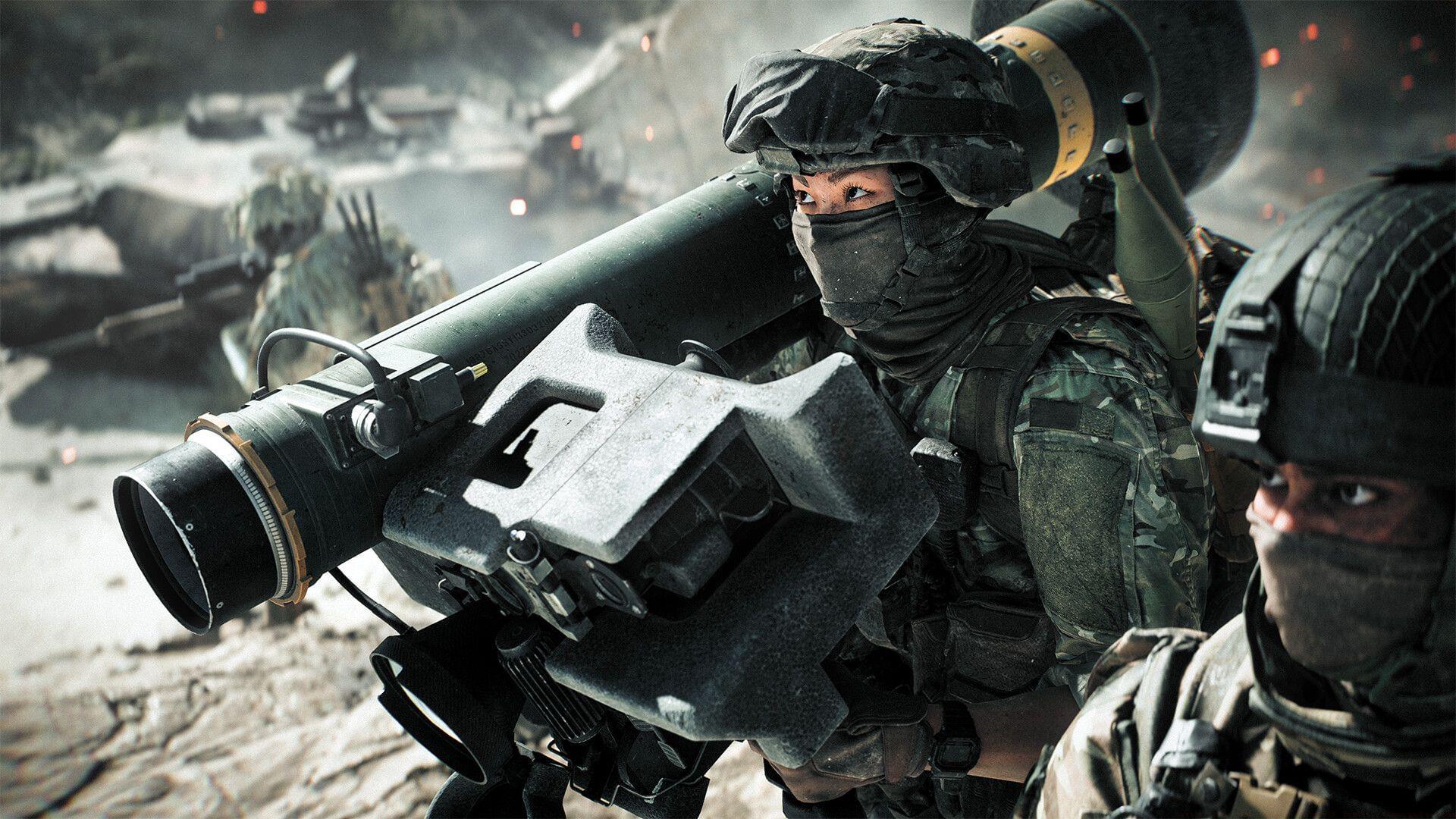
Battlefield RedSec, launched on October 28, 2025, represents Electronic Arts’ ambitious entry into the competitive battle royale landscape. As a free-to-play title, its debut generated significant anticipation among gaming communities. However, numerous PS5 users have encountered persistent launch failures preventing access to the game. These technical hurdles appear related to day-one release anomalies that commonly affect newly launched titles.
Initial analysis suggests these compatibility problems stem from temporary file conflicts between the game’s architecture and PS5’s system software. The issues manifest primarily as failed launches, frozen loading screens, or unexpected application closures. Understanding that these are typical launch-week challenges can help manage expectations while developers work on permanent solutions.
Pro Tip: New game releases often experience temporary compatibility issues that typically resolve within 48-72 hours as developers release hotfixes. Monitoring official Battlefield social media channels can provide real-time status updates.
Cache Clearing Procedure
The process of clearing cached data on your PlayStation 5 represents one of the most effective initial troubleshooting steps. Accumulated temporary files can create conflicts with newly installed games, particularly during initial launches. This comprehensive guide ensures proper cache clearance without risking system stability.
- Completely power down your console by selecting Power Off from the quick menu. Wait approximately 30 seconds to ensure full shutdown before proceeding to the next step.
- Press and continuously hold the Power Button located on the console front until you distinctly hear two audible beeps approximately seven seconds apart. This auditory confirmation indicates successful entry into Safe Mode environment.
- Connect your DualSense controller using a high-quality USB cable to establish stable communication. Press the PS button to activate controller pairing within the restricted mode.
- Navigate through the safety menu using your controller D-Pad for precise selection. Choose the Clear Cache and Rebuild Database option from the available troubleshooting utilities.
- Select Clear System Software Cache as your primary action, then confirm by pressing OK when prompted. The system will automatically restart upon completion.
- Attempt to launch Battlefield RedSec following system reboot to verify whether the cache clearance resolved the launching problem.
Common Mistake to Avoid: Many users rush through the power-down process without allowing complete system termination. Ensure your PS5’s power indicator fully ceases illumination before initiating Safe Mode access attempts.
Network Optimization Strategies
Online-exclusive titles like Battlefield RedSec demand consistent internet connectivity for proper functionality. Network irregularities represent one of the most overlooked factors contributing to launch failures and gameplay disruptions. Implementing these connectivity enhancements can significantly improve your gaming experience.
For optimal performance, prioritize wired Ethernet connections over wireless configurations. Cable connections provide superior stability, reduced latency, and consistent packet delivery compared to Wi-Fi alternatives. If wireless remains your only option, ensure 5GHz band utilization with minimal signal interference from other devices.
Conduct preliminary network diagnostics by testing your connection speed through the PS5’s built-in network tool. Ideal specifications include minimum download speeds of 25 Mbps, upload speeds of 5 Mbps, and latency under 50ms for seamless Battlefield RedSec gameplay. Consider port forwarding specific to PlayStation Network requirements if persistent connectivity issues emerge.
Advanced Optimization: Competitive players should consider implementing Quality of Service (QoS) rules on their routers to prioritize gaming traffic, reducing potential conflicts with other household internet activities during gameplay sessions.
Advanced Troubleshooting Methods
When fundamental solutions prove ineffective, game reinstallation represents the next escalation level in troubleshooting hierarchy. This process addresses potential file corruption that might have occurred during initial download or installation phases.
To properly reinstall, navigate to your PS5’s settings menu and select Storage followed by Console Storage. Locate Battlefield RedSec within your games list and choose Delete to remove all local files. Subsequently, access the PlayStation Store to download a fresh installation using your stable internet connection.
Concurrently, verify that your PS5 system software maintains current version status. Navigate to Settings > System > System Software to check for available updates. Installing the latest firmware ensures compatibility with newly released games and often includes stability improvements specifically addressing launch issues.
Recognize that persistent problems may indicate release-day bugs requiring developer intervention. Electronic Arts typically deploys emergency patches within 24-72 hours post-launch to address widespread technical concerns. Monitoring official Battlefield communication channels provides timely update notifications.
Proactive Prevention Measures
Implementing preventive strategies can minimize future game launch complications and enhance overall system performance. These proactive approaches address common underlying factors that contribute to gaming instability on PlayStation 5 platforms.
Establish regular cache maintenance routines by clearing system software cache monthly, particularly if you frequently install and uninstall games. This practice prevents temporary file accumulation that can conflict with new installations. Additionally, maintain at least 20% free storage space on your console to ensure adequate operating room for game updates and system operations.
For ongoing issue resolution, document any error codes or specific failure patterns encountered. This information proves invaluable when contacting official support channels at Electronic Arts or PlayStation Support. Detailed incident reports enable support teams to identify emerging patterns and provide targeted solutions.
Community Engagement: Participate in official Battlefield forums and subreddits to share experiences and solutions with other players facing similar technical challenges. Collective troubleshooting often reveals workarounds not immediately apparent through individual efforts.
Stay tuned to Sportskeeda for more updates, guides, and news.
No reproduction without permission:SeeYouSoon Game Club » Battlefield RedSec not working on PS5: Possible fixes and reasons Comprehensive troubleshooting guide for Battlefield RedSec PS5 launch issues with practical solutions