
TL;DR
- Vanguard requires Windows 10 version 1709+ and specific BIOS security features to function properly
- Multiple troubleshooting approaches include permission fixes, service resets, and complete reinstalls
- System compliance errors stem from outdated Windows versions or disabled Secure Boot/TPM 2.0
- Advanced solutions involve command line service deletion and boot file management
- BIOS configuration changes should be approached cautiously to avoid system instability
Games and Esports Articles LoL
Riot Games’ Vanguard anti-cheat system, originally developed for Valorant, has now been integrated into League of Legends to enhance security measures. This kernel-level protection operates at system startup, providing comprehensive monitoring capabilities that traditional anti-cheat solutions cannot match. However, the enhanced security architecture has introduced compatibility challenges for many players attempting to launch the game following recent updates.
Vanguard’s sophisticated protection mechanisms can trigger various error messages that prevent game initialization. Understanding the root causes behind these failures is essential for implementing effective solutions. The system’s deep integration with Windows security features means even minor configuration discrepancies can cause complete launch failures.
When encountering Vanguard-related launch issues, begin with straightforward permission verification before progressing to more complex system modifications. This systematic approach minimizes potential complications while maximizing resolution effectiveness.
- Navigate to your League of Legends installation directory, typically located at C:Riot GamesLeague of Legends. Right-click the folder, select Properties, then navigate to the Security tab. Grant full control permissions to your user account and system processes, ensuring Vanguard can access necessary resources without restrictions.
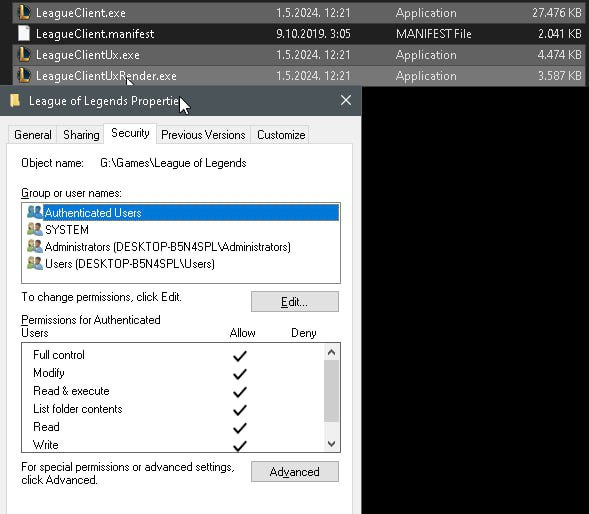
- Attempt launching through RiotClientServices.exe located in the game’s root directory rather than using desktop shortcuts. This bypasses potential shortcut corruption issues and ensures all dependencies load correctly.
- Perform complete uninstallation of both League of Legends and Vanguard components, then download fresh copies from official sources. This eliminates file corruption or incomplete update installations as potential failure points.
- Enable UEFI firmware and TPM 2.0 security features within your system’s BIOS configuration menu. These modern security standards are increasingly required for advanced anti-cheat systems.
For persistent Vanguard errors that resist basic troubleshooting, advanced system-level interventions may be necessary. These solutions address deeper integration issues between the anti-cheat system and Windows security architecture.
- Access the Windows folder through File Explorer and locate the vgkbootstatus.dat configuration file. Create a backup copy before deletion, then remove the original file and restart your computer to force regeneration.
- Open Command Prompt as Administrator by typing cmd in Windows search, right-clicking, and selecting “Run as administrator.” Execute the commands sc delete vgc and sc delete vgk sequentially to remove corrupted service entries. Complete the process with a system reboot to reinitialize services with clean configurations.
These advanced procedures directly manipulate Vanguard’s integration with Windows services and boot processes. They effectively resolve issues stemming from improper previous installations or update conflicts that standard troubleshooting cannot address.
The “out of compliance with current system settings” error message specifically indicates that your system configuration fails to meet Vanguard’s security requirements. This commonly occurs when running Windows 10 versions earlier than 1709, as these lack the necessary security infrastructure for proper anti-cheat operation. The only reliable solution involves upgrading to Windows 10 version 1909 or later, or transitioning to Windows 11 for optimal compatibility.
This compliance error frequently appears when BIOS configurations lack enabled Secure Boot or TPM 2.0 security features. If Secure Boot options are unavailable in your BIOS interface, disable CSM (Compatibility Support Module) to reveal modern security options. Exercise extreme caution when modifying BIOS settings, as incorrect configurations can render your system unbootable until properly corrected.
Understanding Vanguard’s specific system requirements helps prevent future compliance issues. The anti-cheat system mandates contemporary security standards that older system configurations may not support without specific adjustments and updates.
All new and removed items of League of Legends patch 14.10. How items change in second Split?
That’s a lot of unexpected changes.
Action Checklist
- Verify League of Legends folder permissions and grant full control
- Launch game via RiotClientServices.exe instead of shortcuts
- Check Windows version compatibility (must be 1709 or later)
- Enable Secure Boot and TPM 2.0 in BIOS settings
- Delete and reinstall both LoL and Vanguard components
No reproduction without permission:SeeYouSoon Game Club » League of Legends doesn’t start after Vanguard update. How to fix Vanguard errors, including “out of compliance with current system settings” Comprehensive troubleshooting guide for Vanguard errors preventing League of Legends from launching after update