
TL;DR
- Access nickname changes through profile icon in top-left home screen corner
- Two methods available: Profile banner quick edit or User Settings detailed menu
- Switch 2 enforces strict 10-character limit requiring creative abbreviation
- Changes don’t affect friend connections but require manual notification
- Profile customization extends beyond names to icons and display preferences
Transform your gaming persona with a fresh identity that reflects your current playstyle and preferences. Your digital presence on Nintendo’s latest console serves as your primary identification marker across the gaming ecosystem.
Whether you’ve maintained a legendary gamertag for years or prefer rotating creative aliases, your Switch 2 nickname becomes your visual signature in multiplayer lobbies and social features. This identifier allows friends to track your gaming activity, invite you to sessions, and recognize your achievements across various titles. When considering an identity refresh, understanding the platform’s customization framework ensures seamless transitions.
The beauty of Nintendo’s system lies in its profile consistency – modifying your display name won’t disrupt existing friend connections or gameplay history. Your unique friend code and account associations remain intact, preserving your gaming legacy while allowing cosmetic updates. However, proactive communication about name changes prevents confusion in coordinated gaming sessions.
Nintendo provides dual pathways for nickname adjustments, both originating from the same starting point. Your initial action remains constant: select your profile portrait positioned in the upper-left quadrant of the home screen interface. This universal entry point ensures consistent navigation regardless of your preferred method.
Primary Method: Profile Banner Editing
Navigate to your Profile section after accessing your account icon, then interact with the prominent banner display on the right-side panel. This streamlined approach offers immediate access to both avatar customization and nickname modification in a unified interface, perfect for quick updates between gaming sessions.
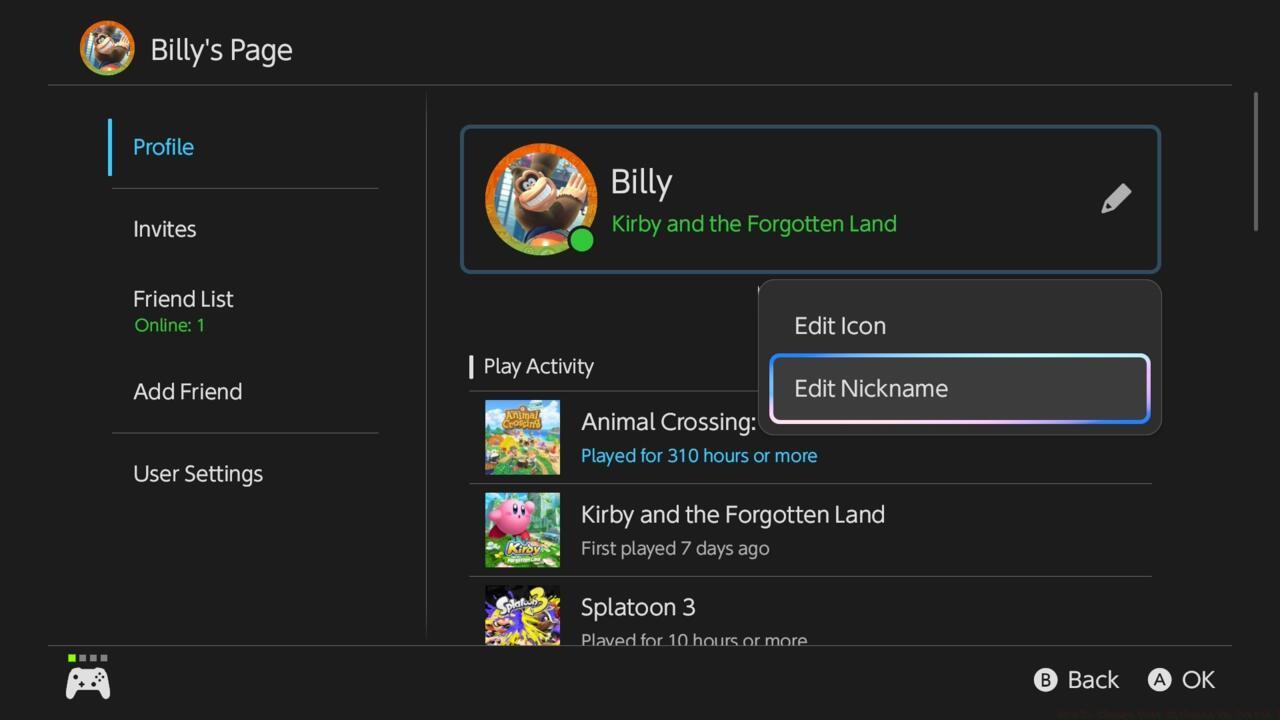
The Profile banner method provides the fastest route to nickname customization with visual confirmation of your current selection.
Alternative Method: User Settings Menu
For players preferring comprehensive menu navigation, select User Settings at the interface bottom after entering your profile. This method integrates nickname changes within the broader context of account management, ideal for users simultaneously adjusting multiple profile parameters.
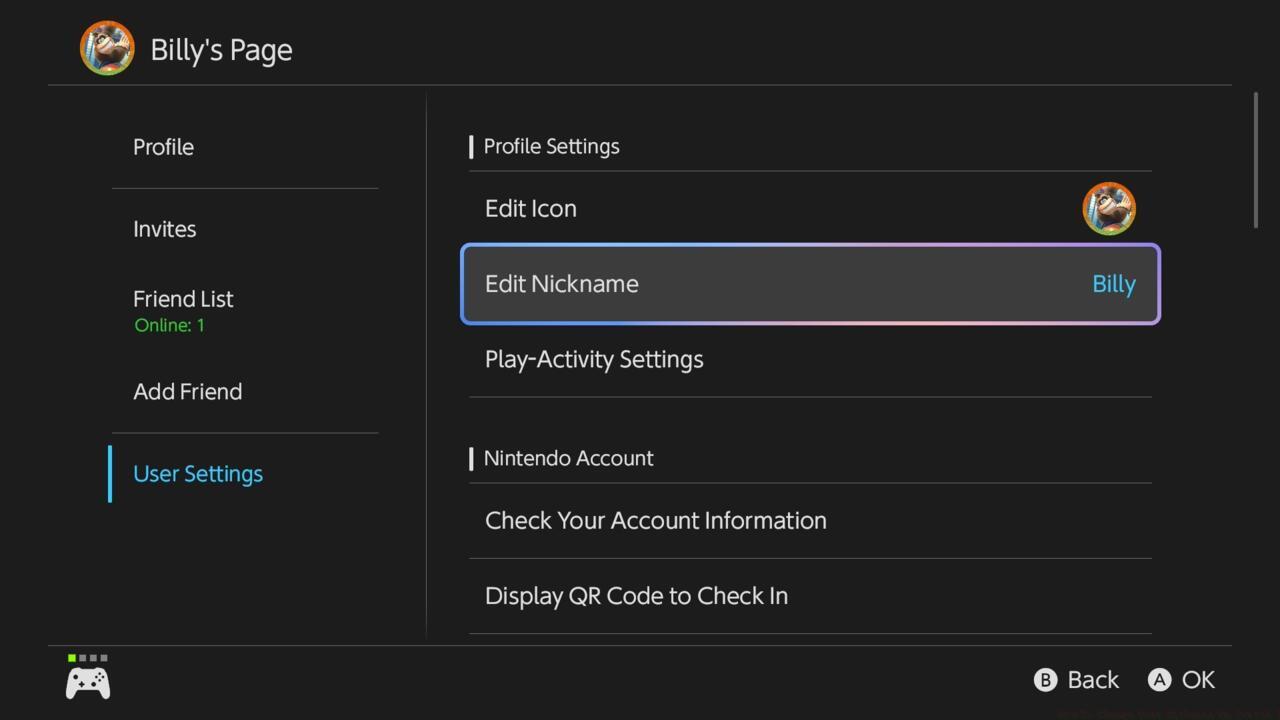
User Settings offers methodical access to nickname editing alongside other account configuration options for systematic profile management.
Strategic selection between these approaches depends on your immediate needs. The banner method excels for rapid changes, while User Settings provides contextual alignment with other profile adjustments. For broader gaming optimization, consult our Complete Guide to enhance your overall console experience.
When executing your nickname transformation, acknowledge the platform’s technical constraints. Switch 2 imposes a firm 10-character maximum for display names, necessitating creative abbreviation strategies for longer identifiers. This limitation encourages concise, memorable aliases that display clearly across all interface elements.
Character Limit Workarounds
Successful nickname adaptation within the character constraint involves strategic shortening techniques. Consider phonetic spellings (“Xplorer” instead of “Explorer”), strategic vowel removal, or symbolic representations. For personal names, abbreviations or common nicknames often fit perfectly within the allocation.
Creative Naming Strategies
Develop distinctive identifiers that resonate with your gaming personality while remaining technically compliant. Thematic names related to your favorite game genres or characters can enhance your gaming identity. For weapon-specific inspiration, our Weapons Unlock guide provides naming ideas from military terminology.
Profile Synchronization Considerations
While nickname changes update immediately across the Switch 2 interface, some third-party games may cache previous names temporarily. For optimal social connectivity in team-based games like those featuring Conquest modes, ensure your squadmates recognize your updated identity. Different Class Guide selections can also influence appropriate nickname choices for role identification.
Regular profile maintenance includes evaluating whether your current nickname still represents your gaming identity accurately. As you progress through different game phases or join new gaming communities, your displayed identity should evolve accordingly to maintain relevance and recognition.
Action Checklist
- Access profile icon from home screen top-left position
- Choose between Profile banner (fast) or User Settings (comprehensive) method
- Craft new nickname within 10-character limit using abbreviation strategies
- Notify regular gaming partners about name change to maintain coordination
- Verify name displays correctly across games and friend lists
No reproduction without permission:SeeYouSoon Game Club » How To Change Your Nickname On Switch 2 Master Switch 2 nickname customization with step-by-step guide and pro tips