
TL;DR
- Prepare both consoles with official power adapters and stable Wi-Fi connection
- Complete transfer during initial setup for seamless account migration
- Use manual account linking if you skipped the initial transfer process
- Transfer media files using original microSD cards for photos and videos
- Allow 30-45 minutes for completion and verify all data post-transfer
Successfully migrating your Nintendo Switch data requires careful preparation to ensure a smooth transition between consoles. Proper setup prevents data loss and reduces transfer time significantly.
Before initiating the transfer process, verify that both your original Nintendo Switch and the new Switch 2 meet specific technical requirements. The system will prompt you about account migration during initial configuration, but having everything ready beforehand streamlines the entire operation.
Here are the critical components you need to organize before starting:
- Stable Wireless Network: Ensure you have your Wi-Fi password readily available and confirm both consoles can maintain consistent internet connectivity throughout the process
- System Updates: Install the latest firmware on your original Switch to guarantee compatibility with transfer protocols
- Power Management: Use official Nintendo power adapters for both systems and position them within close proximity—ideally adjacent to each other
- Time Allocation: Reserve at least 30-45 minutes of uninterrupted time for the complete transfer cycle
Pro Tip: Avoid third-party USB-C chargers during transfer, as our testing revealed inconsistent power recognition that can interrupt the migration process.
The most efficient method for migrating your gaming ecosystem involves completing the transfer during the Nintendo Switch 2’s initial configuration. This integrated approach automatically syncs your Nintendo Account, save data, and user profiles in a coordinated sequence.
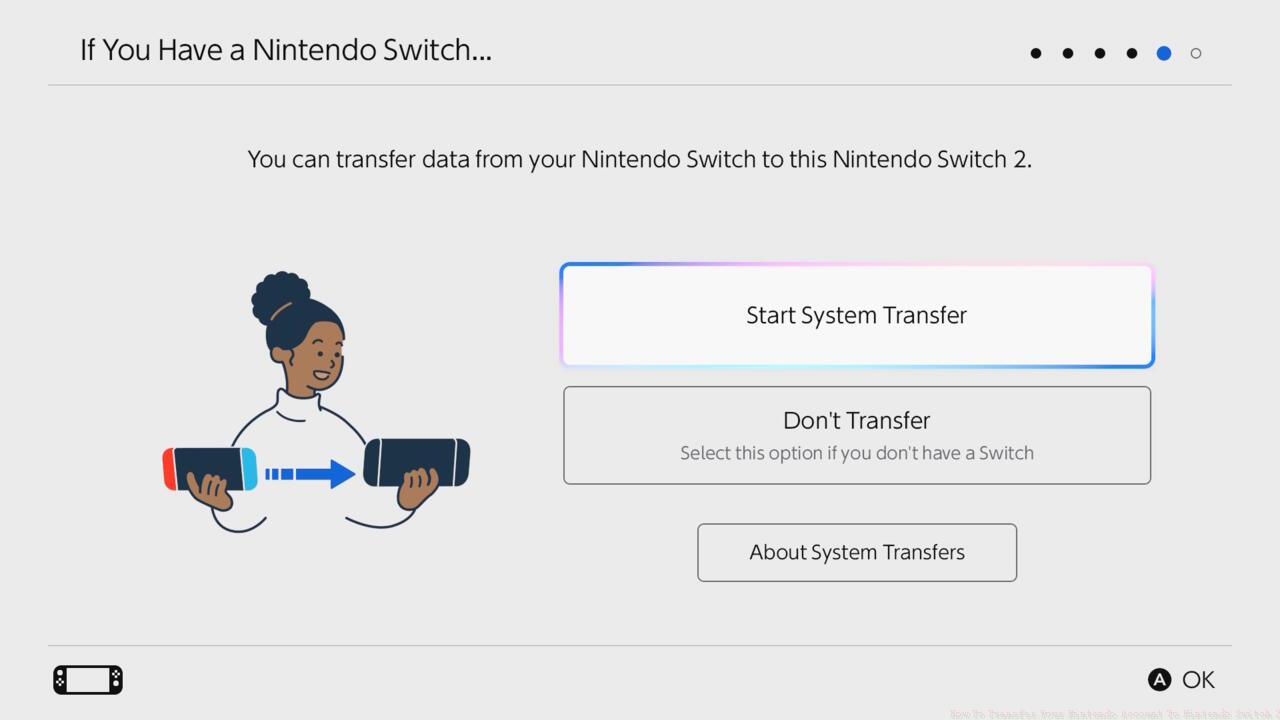
Completing the transfer during initial setup provides the most streamlined experience for migrating your complete gaming profile.
Follow this systematic approach when prompted during setup:
- Select “Transfer User Data” when the Nintendo Switch 2 setup menu presents the option
- Ensure both consoles remain powered on and connected to the same Wi-Fi network throughout
- Keep the devices within 3-5 feet of each other to maintain stable communication
- Follow the on-screen instructions precisely, confirming each step as prompted
- Wait for the completion notification before proceeding with additional setup steps
Common Mistake: Many users interrupt the process prematurely when it appears stalled. The transfer includes verification phases that may temporarily pause—allow the system to complete all stages without intervention.
This method automatically migrates your Nintendo Account, digital purchase history, friend list, and most save data (where cloud saves are enabled). For games like BF6 Weapons Unlock, this ensures your progression and unlocks transfer seamlessly to the new console.
If you bypassed the initial transfer opportunity or need to migrate additional data after setup, Nintendo provides alternative methods to complete your account migration. While slightly more manual, these approaches effectively restore your gaming identity to the new hardware.
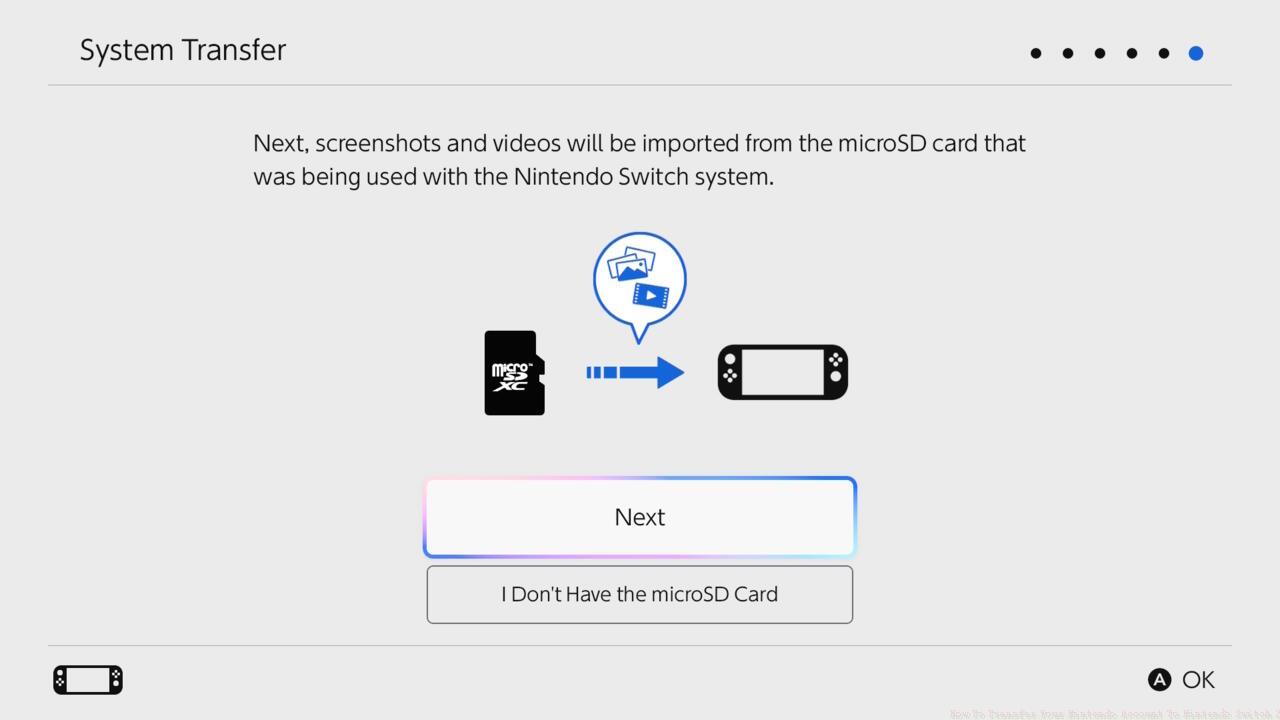
Media files including screenshots and videos require physical transfer using your original microSD card.
For account recovery after initial setup:
- Access System Settings on your Nintendo Switch 2 and navigate to Users
- Select “Add User” and choose to import an existing Nintendo Account
- Sign in with your Nintendo Account credentials when prompted
- Enable cloud save data synchronization for supported games
- For physical media, insert your original microSD card to transfer screenshots and video captures
Important Consideration: Games that don’t support cloud saves may require additional steps or might not transfer at all. Consult Nintendo’s compatibility list for specific title requirements.
This method works exceptionally well for restoring your class configurations and progression in supported titles, though some manual reconfiguration might be necessary for certain game settings.
Even with proper preparation, data transfer processes can encounter obstacles. Understanding common issues and their solutions ensures you can resolve problems without data compromise.
Frequent Transfer Challenges:
- Connection Drops: If consoles lose communication, restart both systems and begin the transfer process anew
- Power Issues: As noted in our testing, only use official Nintendo power adapters—third-party USB-C cables often fail to maintain consistent power delivery
- Incomplete Transfers: Verify all user data post-migration and use Nintendo’s account management website to check linked devices
- Save Data Conflicts: When cloud saves exist for both consoles, you’ll need to choose which data to preserve—typically selecting the most recent save version
Optimization Strategies:
- Transfer during off-peak hours for better network performance
- Close all running games on both consoles before initiating transfer
- For extensive game libraries, consider transferring in phases if the system supports partial migration
For comprehensive guidance on managing your transferred game data, explore our Complete Battlefield 6 Guide for advanced configuration tips.
Performance Tip: After completing your transfer, perform a system restart on both consoles to clear temporary files and ensure clean operation.
Action Checklist
- Gather official power adapters for both consoles and ensure stable Wi-Fi connectivity
- Update original Switch to latest firmware and close all running applications
- Position consoles within 3-5 feet and initiate transfer during Switch 2 setup
- Verify transferred data completeness and sync cloud saves for supported games
- Transfer media files using original microSD card and perform system restart
No reproduction without permission:SeeYouSoon Game Club » How To Transfer Your Nintendo Account To Nintendo Switch 2 Complete guide to transferring Nintendo Switch data with troubleshooting tips and optimization strategies