
TL;DR
- Access GameChat via orange home screen icon or dedicated C button on controllers
- Complete phone verification and friend approval during initial setup process
- Utilize three main functions: Create Chat, Chat List, and Settings management
- Enable long-distance GameShare sessions even when only one player owns the game
- Take advantage of open-access period until March 31, 2026 before subscription requirement
Nintendo’s latest console introduces revolutionary social communication tools that transform multiplayer gaming experiences. The Switch 2 GameChat system represents a significant advancement over previous Nintendo online services, offering seamless voice chat integration directly through the console interface.
For years, Nintendo trailed competitors in social feature implementation, but the Switch 2 delivers comprehensive improvements. This integrated communication platform enables real-time voice conversations during gameplay sessions, eliminating the need for external smartphone apps that complicated previous generations.
Locate the distinctive orange GameChat symbol positioned at the bottom section of your home screen display. Alternatively, activate the feature using the newly designed C button found exclusively on Switch 2 controllers—including both Joy-Cons and Pro Controller variants. Standard operation requires Nintendo Switch Online membership, though currently all users benefit from an extended open-access period running through March 31, 2026. Post-trial phase, non-subscribers will encounter non-functional GameChat buttons.
First-time GameChat activation triggers an essential user agreement presentation that demands careful review. Consent approval remains mandatory for feature utilization, though you maintain flexibility to revoke permissions anytime through the GameChat settings interface. Many users overlook that withdrawal options exist, assuming initial acceptance becomes permanent.
The verification process necessitates providing an active mobile number for SMS confirmation, establishing an additional security layer. This phone-based authentication prevents unauthorized account usage and ensures communication occurs only between verified individuals. Nintendo’s approach prioritizes user safety, particularly for younger gamers.
GameChat restricts communication exclusively to pre-approved friends from your Nintendo network. The configuration workflow automatically displays your complete friends roster, enabling selective authorization for GameChat privileges. Completion unlocks three primary navigation choices: Create Chat, Chat List, and Settings customization panels.
Create Chat functionality initiates voice channels with selected contacts, though participation requires mutual GameChat configuration. You cannot invite friends who haven’t completed their own setup procedures, which often causes confusion during initial usage attempts. The Chat List interface showcases incoming chat invitations from established connections. The Settings dashboard provides comprehensive control over approved friend lists, microphone configurations, user reporting tools, and terms review.
Common setup mistakes include attempting to voice chat with non-configured friends or misunderstanding microphone sensitivity settings. Optimal performance comes from adjusting voice activation thresholds based on your gaming environment—lower for quiet spaces, higher for noisy backgrounds.
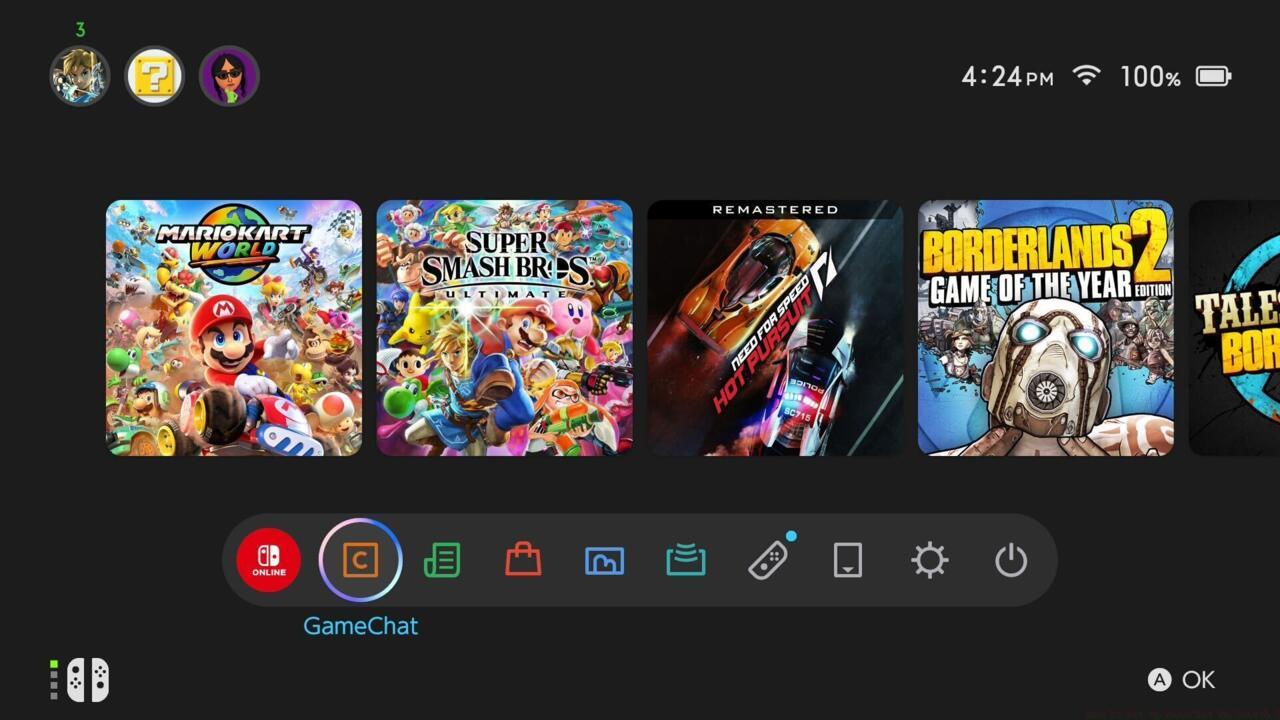
The GameChat icon is next to the Nintendo Switch Online icon on the home screen.
GameChat extends beyond basic communication to facilitate long-distance GameShare sessions for cooperative gameplay. Non-local GameShare connections require GameChat initiation, creating synchronized gaming experiences across geographical distances. The system enables shared game access where only one participant needs ownership, allowing temporary gameplay for all connected users throughout active sessions.
GameShare-compatible title owners must first locate the GameShare option within specific game menus. Simultaneously, participants without game ownership should access the GameShare feature from the Switch 2 home screen and choose the GameChat Session alternative. Session hosts should ensure stable internet connections to maintain GameShare stability, particularly during extended multiplayer engagements.
Advanced users can combine GameChat sessions with strategic gameplay approaches detailed in our Class Guide for optimized team coordination. The integration between communication and shared gameplay creates unprecedented social gaming possibilities on Nintendo platforms.
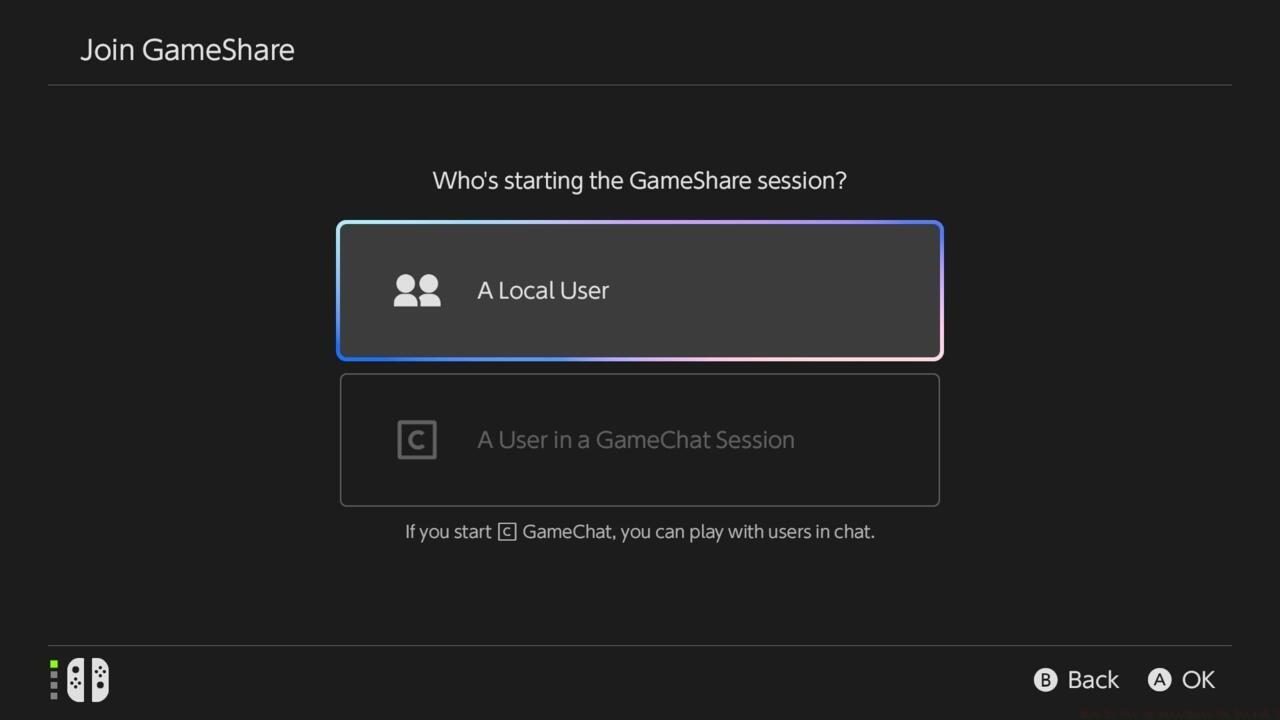
Use GameChat to set up long-distance GameShare sessions.
Action Checklist
- Locate orange GameChat icon on home screen or use C button
- Review and accept user agreement terms during initial setup
- Complete phone number verification via SMS confirmation
- Select and approve friends for GameChat communication privileges
- Configure microphone settings based on your gaming environment
- Test GameShare functionality with compatible games and friends
No reproduction without permission:SeeYouSoon Game Club » How To Set Up GameChat On Switch 2 Master Nintendo Switch 2's GameChat system with voice communication, GameShare sessions, and step-by-step setup guidance