
TL;DR
- Download surf maps from Steam Workshop and launch in custom mode for offline practice
- Apply specific console commands including sv_gravity 800 and sv_airaccelerate 150 for proper surf physics
- Create autoexec config files to save your preferred settings for quick access
- Use Steam Browser or dedicated websites to find online surf servers with good ping
- Optimize sv_air_max_wishspeed values for different tick rates to improve control
Games and Esports Articles CS 2
Valve has successfully restored surfing functionality in CS2 after it was disrupted since September 2025. This popular community mod now allows players to either compete on dedicated servers or practice privately on their local machines. Surfing involves sliding along specially designed ramps and surfaces using precise air strafing techniques to maintain momentum. We’ve compiled this comprehensive guide to help you configure everything correctly for both offline and online surfing experiences.

For newcomers to surf gaming, the initial step involves acquiring appropriate maps from the Steam Workshop. Navigate to the workshop section and filter content by entering “surf” in the search bar, accessible through this link. Initiate the selected map using the custom game mode option from the main menu.
When selecting maps, prioritize those with high ratings and recent updates to ensure compatibility with CS2’s current version. Beginner-friendly maps typically feature wider ramps and simpler routes, while advanced maps include complex trick zones and narrow pathways. Understanding map difficulty ratings will help you progress systematically through the surfing skill levels.
Most surf maps lack proper configuration presets by default, requiring manual adjustment of specific game parameters. Activate the developer console by pressing the tilde (~) key, then input the following command sequence and execute by pressing Enter.
sv_jump_precision_enable 0; sv_gravity 800; sv_airaccelerate 150; sv_enablebunnyhopping 1; sv_autobunnyhopping 1; sv_falldamage_scale 0; sv_staminajumpcost 0; sv_staminalandcost 0; sv_disable_radar 1; mp_roundtime 60; mp_round_restart_delay 0; mp_freezetime 0; mp_team_intro_time 0; mp_drop_knife_enable 1; mp_warmup_end; mp_warmuptime 0; bot_quota 0; sv_noclipspeed 3500; sv_subtick_movement_view_angles false; sv_maxvelocity 5000
These settings create the ideal surfing environment: reduced gravity enables extended air time, increased air acceleration provides better control during slides, and disabled fall damage eliminates punishment for mistakes. The extended round timer allows uninterrupted practice sessions without constant resets.
An additional crucial command enhances movement precision. The default sv_air_max_wishspeed 30 corresponds to 64-tick server behavior. Increasing this to sv_air_max_wishspeed 37.5 approximates 128-tick server responsiveness, offering tighter control over aerial maneuvers. Consider creating dedicated configuration files for your preferred settings to streamline future sessions.
How to set up config autoexec file in Counter-Strike 2. Where to find config for CS2 to keep settings
Setting up config file for CS2.
Establishing persistent configuration files eliminates the need to re-enter commands each session. Navigate to your CS2 installation directory and create an autoexec.cfg file in the cfg folder. This file automatically executes upon game launch, ensuring your surf settings remain consistent. For those interested in broader FPS gaming strategies, our Complete Guide offers comprehensive tactical approaches.
Organize your configs by skill level—beginner configurations might feature higher gravity for easier control, while expert setups maximize air acceleration for advanced trick execution. Regularly backup your configuration files to prevent loss during game updates or system changes.
If your objective involves competitive online surfing, the process remains straightforward. Locate servers or platforms hosting surf maps through multiple methods. Access available servers directly from the game client by opening the Steam Browser in the main interface and searching for “surf”. This displays a comprehensive list of active servers alongside your connection latency to each.
Alternative approaches include visiting dedicated surfing websites, which offer server browsers with additional filtering options. Search “CS2 surf” in your web browser to identify platforms that best match your regional and skill requirements. Many community sites provide server rankings, player statistics, and specialized surfing leagues for competitive players.
When selecting servers, prioritize those with stable tick rates and low ping to ensure responsive controls. Beginner-friendly servers often feature simplified maps and helpful communities, while advanced servers focus on competitive time trials and complex routes. Understanding server types helps maximize your improvement rate and enjoyment. For weapon-specific strategies that complement movement skills, explore our Weapons Unlock guide for tactical insights.
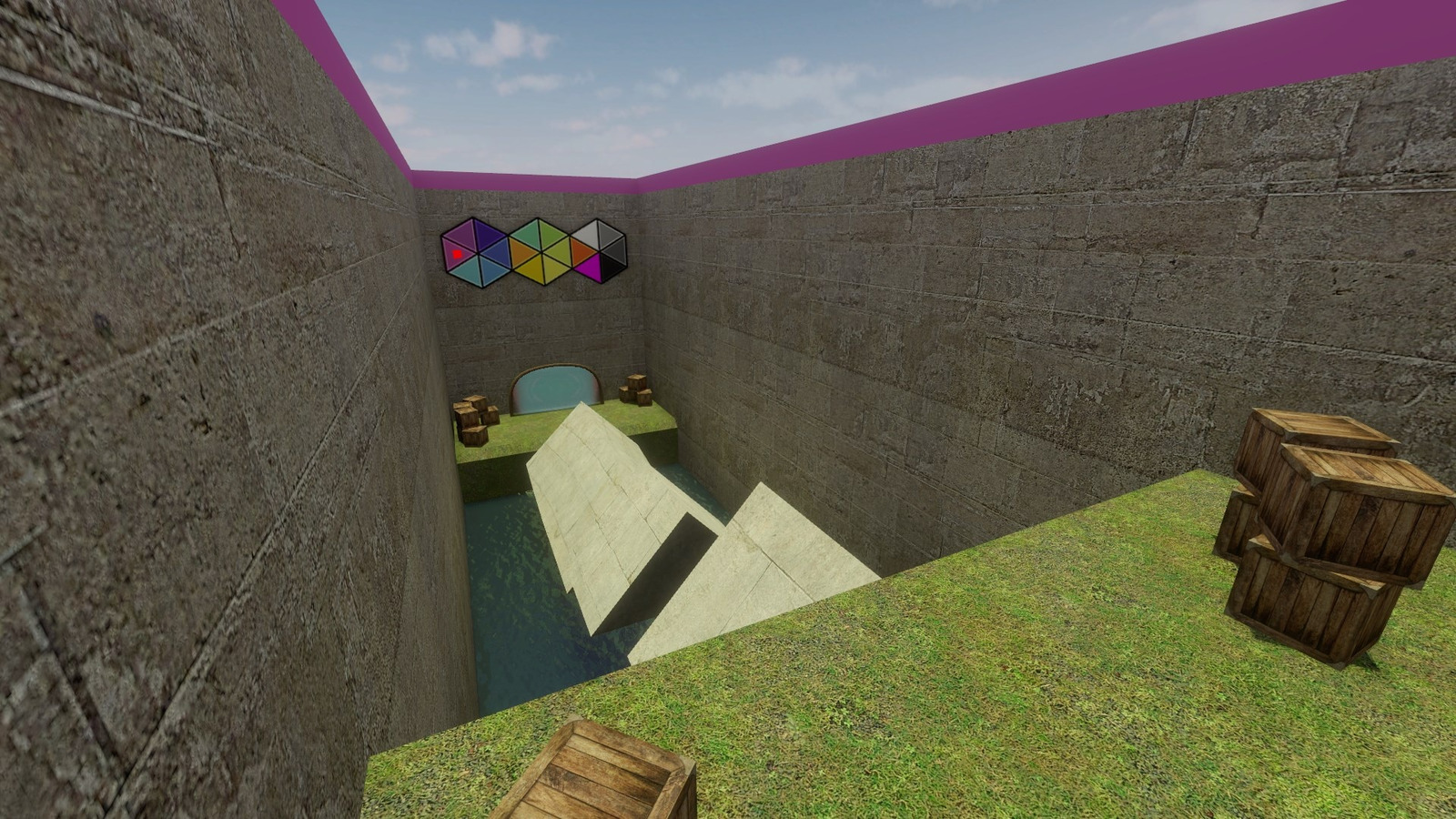
Online surfing introduces social and competitive elements absent from offline practice. Many servers feature ranking systems, global leaderboards, and specialized game modes like combat surf or trick surf. These variations keep the experience fresh while developing different aspects of your movement capabilities. Proper class selection enhances your overall gameplay; our Class Guide provides detailed character role explanations.
Action Checklist
- Download surf maps from Steam Workshop using search term ‘surf’
- Launch selected map in custom game mode from CS2 main menu
- Open console (~) and apply surf command package for proper physics
- Create autoexec.cfg file with preferred settings for quick future access
- Adjust sv_air_max_wishspeed based on desired tick rate responsiveness
- Connect to online servers via Steam Browser or dedicated surfing websites
No reproduction without permission:SeeYouSoon Game Club » How to play surf offline in CS2. Console settings for surfing on your PC in CS2 Master CS2 surfing with complete offline setup, console commands, and online server connection guide