
TL;DR
- Roblox supports Steam-compatible headsets (HTC Vive, Valve Index) and Oculus devices with different setup processes
- Meta Quest 2/3/Pro have native Roblox apps while older Quest 1 lacks compatibility
- VR mode must be enabled in-game settings and requires compatible experiences
- Apple Vision Pro and discontinued headsets like Quest 1 won’t work with Roblox
- Performance optimization and controller calibration significantly improve the VR experience
Mastering Roblox in virtual reality begins with understanding which headsets deliver optimal performance. The platform accommodates various VR systems, though setup procedures differ significantly between device categories.
Many players remain unaware that Roblox offers comprehensive VR support across numerous compatible headsets. While early VR technology demanded substantial physical space and involved complex cable management, modern wireless solutions have streamlined the immersion process dramatically.
Current VR hardware falls into two primary compatibility categories: SteamVR ecosystem devices and Oculus/Meta platform headsets. Each requires distinct installation approaches but ultimately delivers transformative gaming experiences when configured correctly.
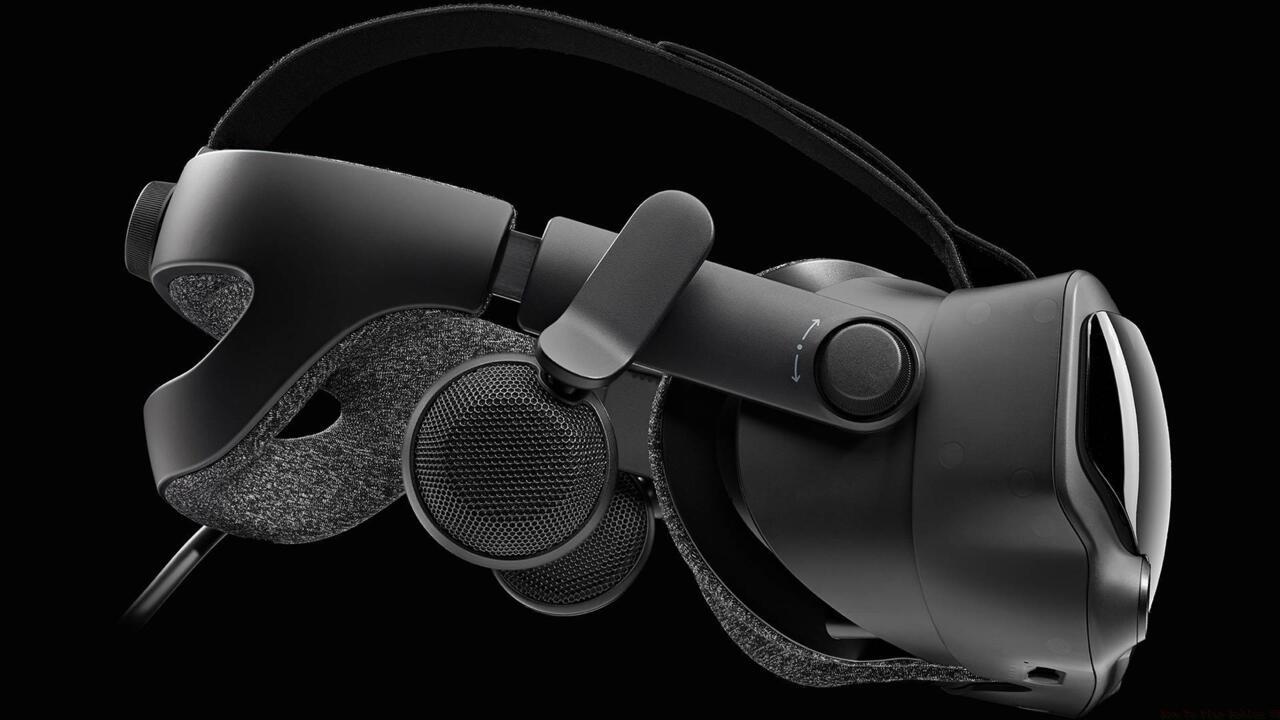
High-end SteamVR headsets like the Valve Index provide premium tracking precision and visual fidelity, justifying their more complex configuration requirements.
Steam-compatible VR systems including HTC Vive, Valve Index, Pico Neo series, and Windows Mixed Reality devices all function seamlessly with Roblox. These PC-tethered headsets leverage SteamVR’s robust tracking infrastructure for exceptional positional accuracy.
Oculus devices manufactured within recent years maintain full Roblox compatibility, though setup protocols vary between standalone and PC-connected models. Understanding these distinctions prevents frustration during installation.
Unfortunately, Apple’s Vision Pro remains incompatible since it doesn’t support either Steam or Oculus application frameworks. Similarly, discontinued headsets like the original Meta Quest 1 no longer receive manufacturer support and cannot run Roblox effectively.
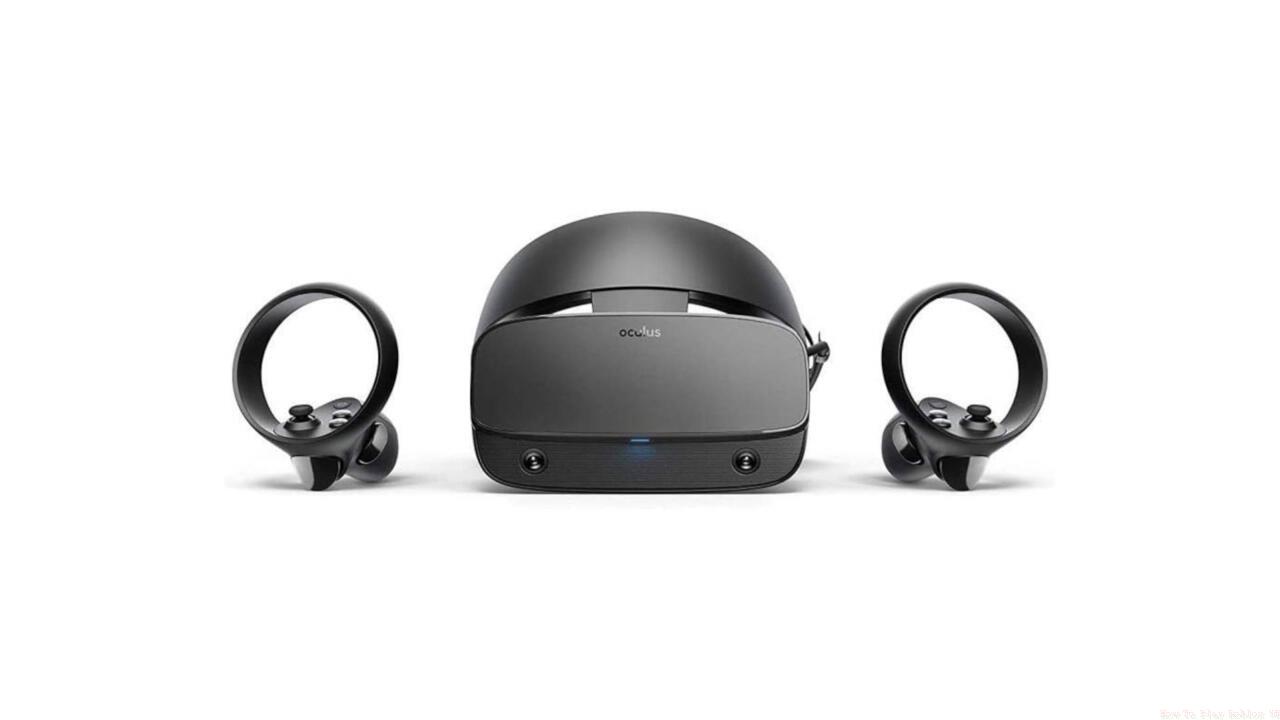
Legacy Oculus Rift models continue to function with Roblox despite their age, offering an affordable entry point into VR gaming.
Configuring SteamVR headsets for Roblox involves multiple software layers but delivers premium performance. Begin by ensuring your headset functions correctly within SteamVR before attempting Roblox integration.
Installation requires the SteamVR application from Valve’s platform alongside the standard Roblox desktop client. Verify both applications are updated to their latest versions to prevent compatibility conflicts during the setup process.
Connection sequencing proves critical: launch SteamVR first, establish tracking and controller functionality, then open Roblox. This ensures the VR runtime environment is fully initialized before Roblox attempts to detect your hardware.
Many users encounter initial detection issues where Roblox fails to recognize connected VR hardware. Restart both applications in the correct order typically resolves these recognition problems within minutes.
Performance optimization significantly enhances the experience. Adjust Roblox graphics settings to prioritize frame rate stability over visual fidelity, as consistent performance proves more immersive than high-resolution textures in VR.
Oculus headsets offer multiple connectivity methods depending on your model. Understanding whether your device operates in standalone or PC-tethered mode determines the appropriate setup procedure.
For Oculus Rift and Rift S models, ensure the Oculus PC application is installed and updated. Connect your headset via USB and DisplayPort, then verify proper tracking within the Oculus environment before launching Roblox.
Quest series devices provide flexibility through both standalone operation and Oculus Link PC streaming. Standalone mode utilizes the Meta Quest store Roblox application, while Link mode enables PC Roblox experiences.
Controller calibration frequently requires attention with Oculus devices. Access the controller settings within either the Oculus or SteamVR dashboard to ensure optimal button mapping and tracking performance.
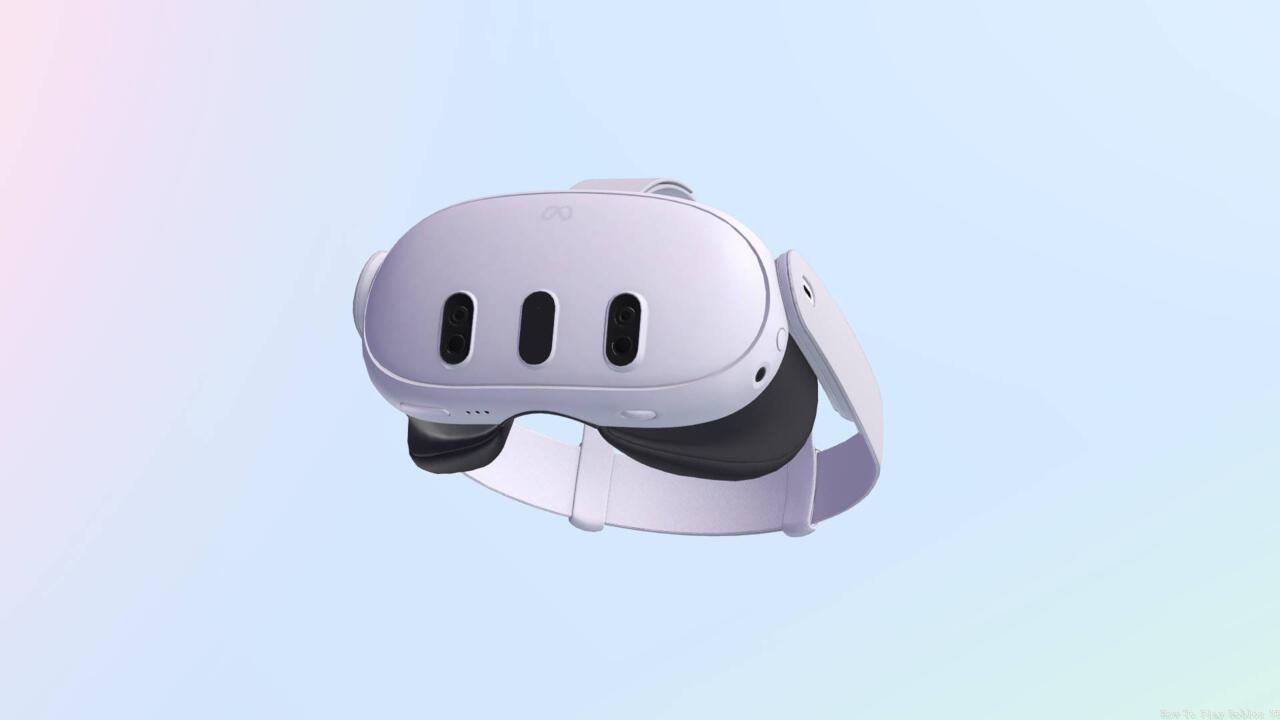
Modern Meta Quest headsets streamline Roblox access through their dedicated application store, minimizing setup complexity.
A common mistake involves attempting to run PC Roblox while the headset operates in standalone mode. Ensure you understand your current operational configuration to apply the correct setup method.
VR functionality within Roblox operates on a per-experience basis, meaning not all games support virtual reality. Identifying compatible experiences precedes successful VR implementation.
Access VR settings through the Roblox in-game menu once your headset is properly connected. The option toggles between standard and VR modes, though availability depends on developer implementation.
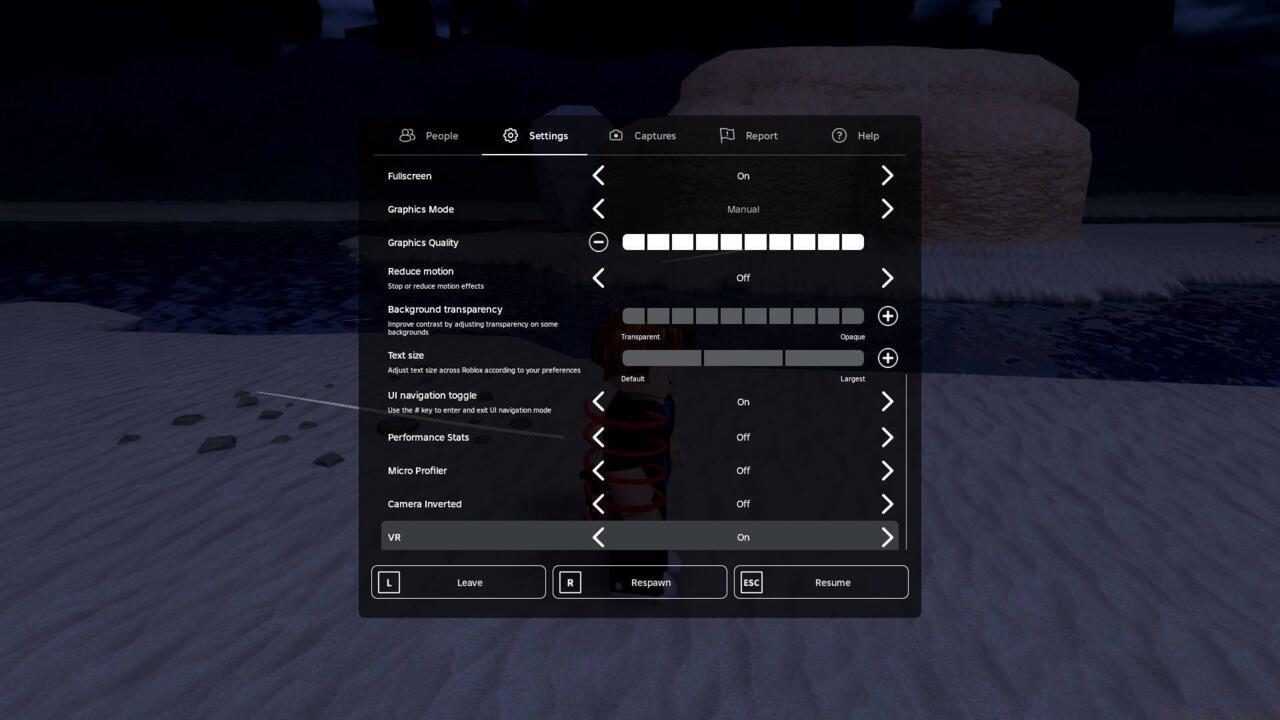
VR-compatible experiences display the toggle option regardless of headset connection status, serving as a compatibility indicator.
Manual VR activation occurs through the settings menu, but some experiences automatically detect connected headsets and prompt for mode switching.
Troubleshooting VR mode issues typically involves verifying headset detection, checking experience compatibility, and ensuring proper controller configuration.
Disabling VR returns you to standard gameplay, useful when experiencing motion discomfort or preferring traditional controls. The toggle functions instantaneously without requiring application restarts.
Meta Quest 2, Quest 3, and Quest Pro feature native Roblox applications available through the Meta Quest Store. This standalone approach eliminates PC requirements but may limit graphical capabilities compared to tethered experiences.
Installation follows standard app store procedures: search “Roblox” in the Quest store, select install, and wait for completion. The process typically completes within five minutes depending on internet connection speed.
Performance considerations for standalone operation include managing battery life, as VR gaming consumes substantial power. Consider external battery packs for extended play sessions.
For enhanced graphics and performance, utilize Oculus Link or Air Link to connect your Quest to a gaming PC, then access the desktop Roblox client for improved visual fidelity.
The original Meta Quest 1 lacks Roblox compatibility due to hardware limitations and discontinued software support. Attempting sideloading methods typically proves unsuccessful and may compromise system stability.
Controller optimization for Quest devices involves customizing grip sensitivity and button mappings through the device settings menu. These adjustments significantly improve interaction precision within Roblox experiences.
Action Checklist
- Verify headset compatibility and install required platform software (SteamVR or Oculus)
- Connect and calibrate VR hardware, ensuring proper tracking and controller functionality
- Launch Roblox and access VR-compatible experiences
- Enable VR mode through in-game settings and configure controller bindings
- Optimize performance settings and test multiple experiences for compatibility
No reproduction without permission:SeeYouSoon Game Club » How To Play Roblox VR Complete guide to setting up Roblox VR on Steam, Oculus, and Meta Quest headsets with troubleshooting tips