
TL;DR
- Xbox Series X provides 802GB usable space while Series S offers only 364GB for game installations
- Implement priority-based game management by focusing on active titles and removing completed games
- Disable auto-updates to prevent unnecessary storage consumption from inactive game updates
- Utilize external drives for backward-compatible games while maintaining Quick Resume functionality
- Combine internal SSD with external storage for optimal performance and capacity balance
Managing storage capacity effectively on your Xbox Series X or Series S represents one of the most critical skills for modern console ownership. The technical specifications reveal that while the Xbox Series X includes a 1TB solid-state drive, only approximately 802GB remains available for actual game installations after system requirements. Meanwhile, the more affordable Series S provides just 512GB total storage, with merely 364GB accessible for your gaming library.
Contemporary gaming presents unprecedented storage challenges, with many flagship titles now exceeding 100GB per installation. Games like Battlefield 6 and other AAA releases frequently demand 120-150GB when including all downloadable content and updates. This storage consumption trend continues accelerating, making strategic space management essential rather than optional.
While Microsoft offers a proprietary expansion card adding 1TB capacity, its $220 price point approaches the cost of an entire Series S console. This economic consideration makes mastering storage optimization techniques fundamentally important for maximizing your gaming experience without additional financial investment.
Developing a systematic approach to game prioritization dramatically improves storage efficiency. Begin by categorizing your installed games into three distinct groups: actively playing, planning to play soon, and completed titles. This organizational framework enables intelligent decision-making about which games to retain versus remove.
Many users mistakenly maintain extensive libraries of completed games, consuming precious SSD space unnecessarily. Remember that all digitally purchased titles remain permanently accessible through your account library, allowing deletion and re-downloading as needed. Physical disc owners should note that even disc-based games require significant drive installation, often 40-80GB depending on the title.
Common Mistake Alert: Avoid the temptation to keep every game installed ‘just in case.’ This habit typically wastes 200-300GB of premium storage space that could host 3-4 additional current-generation titles.
Implementation tip: Create a monthly review ritual where you assess your gaming priorities and remove titles you haven’t played in 30 days. This practice ensures your limited SSD space consistently hosts your most relevant gaming experiences.
Intelligent update management represents one of the most overlooked storage optimization opportunities. By default, Xbox consoles automatically download updates for all installed games, including titles you may have completed months ago. These updates can collectively consume 50-100GB of unnecessary space over several months.
Navigate to Settings > System > Updates to disable automatic updates, then manually update only your actively played games. This approach not only conserves storage but also prevents new game downloads from being delayed behind unnecessary update queues.
Advanced Technique: For Game Pass subscribers, consider disabling auto-updates specifically for games you’ve tried but don’t plan to continue playing. The service’s rotating library means some titles may leave before you return to them, making their updates particularly wasteful.
Performance consideration: While manually managing updates requires slightly more attention, the storage benefits substantially outweigh the minor inconvenience. You’ll maintain faster download speeds for new acquisitions while ensuring your drive contains only relevant, updated content.
External storage devices provide the most cost-effective solution for expanding your Xbox Series X|S capacity. However, understanding the performance limitations proves crucial: only Xbox One and earlier generation games can actually be played directly from external drives. Next-generation optimized titles, including all BF6 content and Xbox Series X|S exclusives, must reside on the internal SSD or expansion card for gameplay.
The strategic approach involves using external drives as dedicated repositories for backward-compatible games while reserving premium internal storage for current-generation titles. This configuration allows instant access to hundreds of additional games without sacrificing performance for your primary gaming experiences.
Critical Insight: You can store Xbox Series X|S optimized games on external drives, then transfer them to internal storage when ready to play. While transfer times vary (15-45 minutes for 100GB games), this process remains significantly faster than re-downloading titles, especially with slower internet connections.
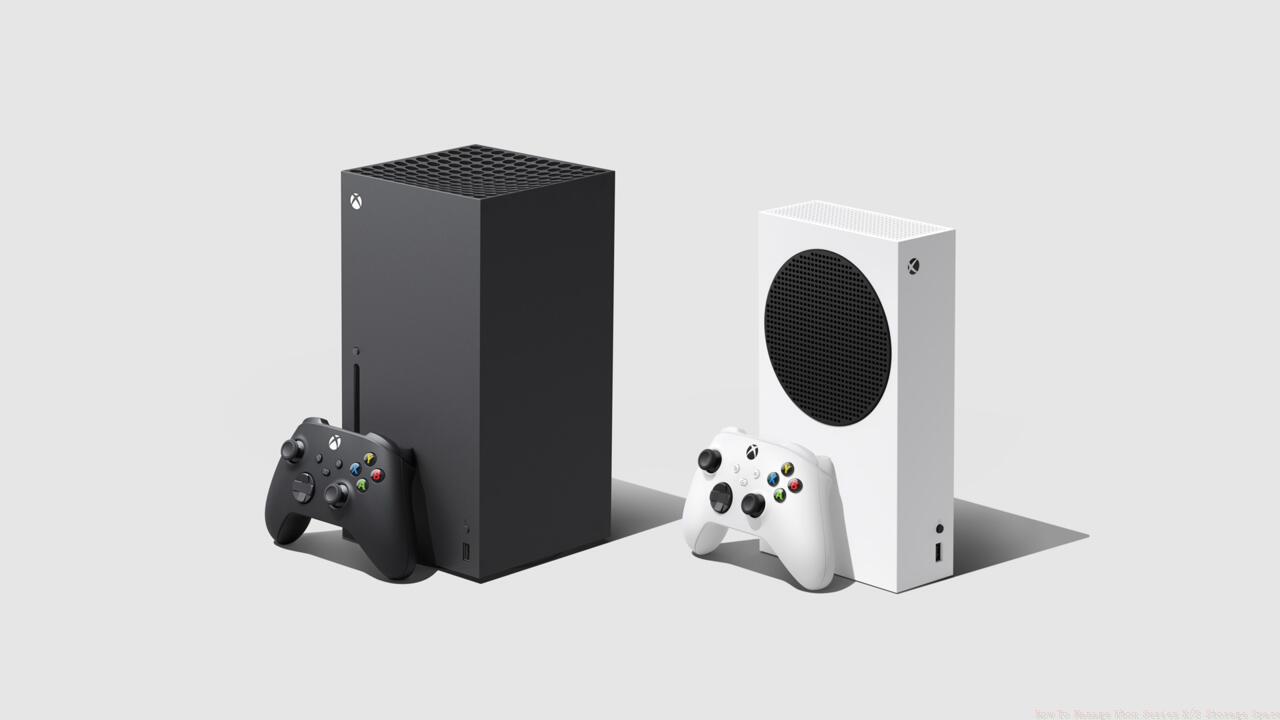
The Xbox Series X – 802GB usable storage space / The Xbox Series X – 364GB usable storage space.
Quick Resume functionality continues working seamlessly with backward-compatible games stored externally, and loading times improve noticeably compared to original hardware, depending on your external drive’s specifications. For optimal Conquest mode performance in games like Battlefield 6, prioritize internal SSD installation.
Action Checklist
- Audit installed games and categorize by priority (active/soon/completed)
- Disable auto-updates in Settings > System > Updates
- Configure external drive for backward-compatible game storage
- Establish monthly review routine to remove unplayed games
- Transfer rather than re-download Xbox Series X|S games when space needed
No reproduction without permission:SeeYouSoon Game Club » How To Manage Xbox Series X/S Storage Space Expert strategies to maximize Xbox Series X|S storage efficiency with practical management techniques