
TL;DR
- Access Social menu via View/Tab button for comprehensive player management
- Use Y/R button for instant group muting or individual player card controls
- Navigate to Audio settings to disable all chat functions permanently
- Combine platform party chat with in-game muting for optimal experience
- Monitor audio settings after game updates to maintain preferred configurations
Halo Infinite’s cross-platform multiplayer seamlessly connects Xbox One, Xbox Series X|S, and PC players through integrated voice chat functionality. While this creates an immersive social experience, many players encounter unwanted audio disruptions that can impact gameplay performance and concentration. Mastering the muting system becomes essential for maintaining competitive focus and personal comfort during intense matches.
The game’s interface presents several navigation challenges, particularly for players accustomed to traditional first-person shooter controls. Unlike many competitors where muting options appear directly on scoreboard screens, Halo Infinite requires accessing specialized menus that aren’t immediately intuitive. This design choice often leads to frustration when players need to quickly silence disruptive teammates during critical gameplay moments.
Strategic communication management provides significant advantages beyond mere comfort. Professional players consistently emphasize that controlling audio input directly affects reaction times and strategic decision-making. By mastering these controls, you transform potential distractions into tactical benefits while maintaining the social aspects you actually want to preserve.
Locating the Social Menu requires specific input commands depending on your gaming platform. Console players should press the Menu button followed by the View button, while PC gamers utilize Escape then Tab sequences. This two-step process differs from most modern shooters and represents one of the game’s less intuitive design elements.
When the main menu screen appears, focus your attention on the bottom right corner where critical interface prompts are displayed. Here you’ll find access points for Chat, Social, and Settings menus—three distinct systems that control different aspects of your communication experience. The centrally positioned Social menu serves as your primary hub for managing all player interactions.
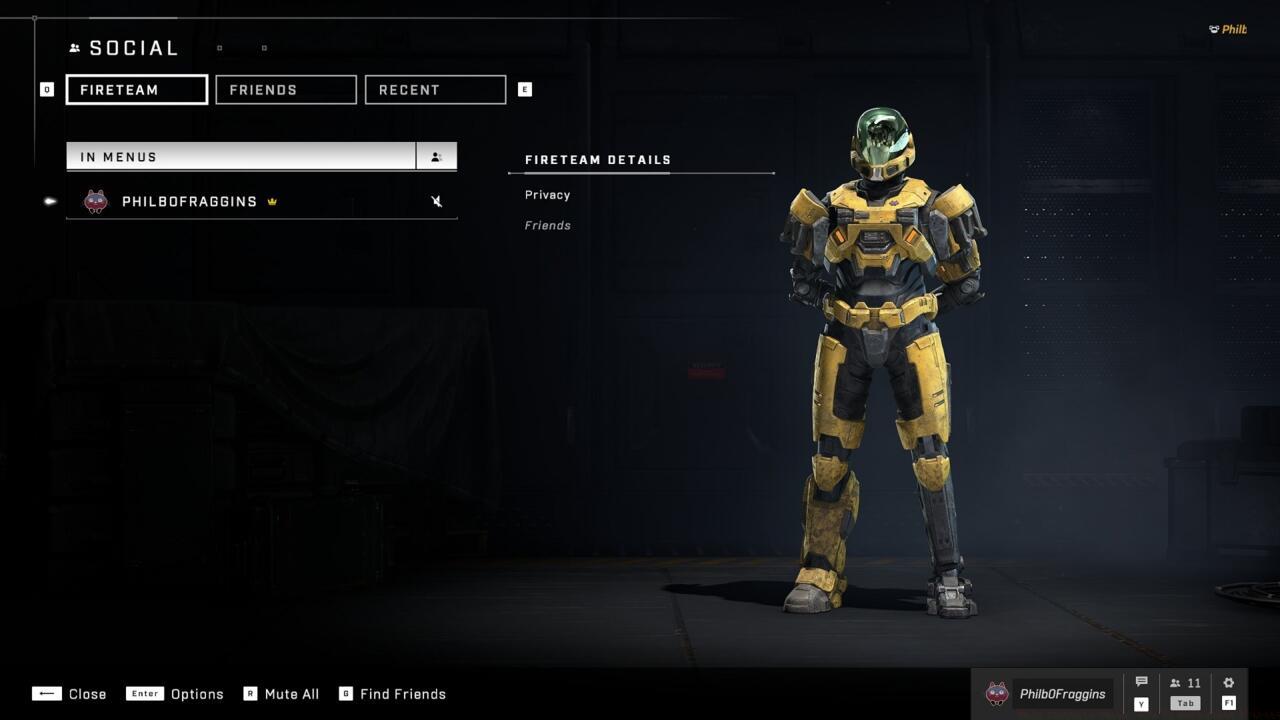
The Social menu interface provides comprehensive control over voice chat settings and player profile access, serving as your central management hub.
Advanced players recommend creating muscle memory for these navigation sequences through practice during non-critical gameplay moments. Many competitive gamers map these functions to specialized macro keys or controller paddles for faster access during matches. This preparation ensures you can quickly address audio issues without compromising your in-game performance.
Upon entering the Social menu, you’ll encounter three distinct tabs at the screen’s top section. Select the leftmost tab to display all participants in your current match session. This interface provides both comprehensive and targeted muting capabilities through clearly marked controls.
For immediate silence of all players, utilize the quick mute function activated by pressing Y on controllers or R on keyboards. This blanket approach proves invaluable when entering matches with known disruptive players or when focusing on specific objectives requiring intense concentration.
Individual player management requires selecting specific names then activating their player cards with A (controller) or Enter (keyboard). Once the detailed profile appears, navigate to the mute option to selectively disable that individual’s communication. This precision control allows maintaining communication with strategic teammates while eliminating specific distractions.
Professional gamers often combine both approaches—muting known problematic players individually while keeping the group mute option ready for unexpected situations. This layered approach ensures you maintain optimal communication flexibility while having emergency controls immediately available.
For players who prefer permanent chat solutions, Halo Infinite offers comprehensive audio deactivation through the Settings menu. Access this configuration hub via Start controller button, F1 keyboard command, or through the escape menu hierarchy where it appears as the top-listed option.
Navigate to the Audio tab where you’ll discover voice chat management options at the menu’s bottom section. The Voice Chat Mode setting provides different configuration presets, while separate toggles control Lobby Chat and Match Chat functionalities. Complete silence requires disabling both chat types simultaneously.
This approach proves particularly valuable for solo players, those utilizing Xbox party chat systems, or gamers coordinating through third-party applications like Discord. Many competitive squads prefer external communication tools for their superior audio quality and reliability compared to in-game systems.
Advanced audio configuration includes output device selection, chat volume mixing, and microphone sensitivity adjustments. These additional controls allow fine-tuning your audio experience beyond simple muting, creating an optimized sound environment tailored to your preferences and hardware capabilities.
Seasoned Halo Infinite competitors recommend several optimization strategies for managing game audio. First, establish your preferred communication setup during practice sessions rather than competitive matches. Second, create quick-access patterns for muting functions to minimize interface navigation time during critical gameplay moments.
A common mistake involves forgetting to reactivate chat functions after using global mute options, potentially missing crucial team coordination. Professional players suggest implementing a checklist system to verify audio settings between matches, ensuring you maintain desired communication levels.
Game updates occasionally reset audio preferences, making regular configuration verification essential. Many advanced players document their preferred settings externally to facilitate quick restoration if reset occurs. This proactive approach prevents frustration and maintains consistent audio experiences across gaming sessions.
For those transitioning from other military shooters, understanding Halo Infinite’s unique menu hierarchy represents the largest learning curve. Unlike BF6 class systems with straightforward communication controls, this game requires memorizing specific navigation sequences that become second nature with practice.
Action Checklist
- Practice Social menu navigation during custom games to build muscle memory
- Configure quick mute shortcuts using Y/R buttons for emergency situations
- Establish individual player muting protocols for targeted audio management
- Disable Lobby and Match chat in Audio settings for permanent solutions
- Integrate external communication tools like Discord with in-game muting for optimal audio quality
- Document audio settings externally for quick restoration after game updates
No reproduction without permission:SeeYouSoon Game Club » Halo Infinite Guide: How To Mute Other Players Master Halo Infinite voice chat controls with comprehensive muting techniques and audio optimization strategies