
TL;DR
- Fine-tune controller deadzone between 5-15% to eliminate stick drift while maintaining responsiveness
- Optimize sensitivity settings separately for infantry, ground vehicles, and aircraft combat
- Configure screen HUD elements to maximize visibility and minimize visual clutter
- Balance graphics settings for optimal performance without sacrificing target visibility
- Adjust audio mix to enhance directional awareness of enemy movements and gunfire
Discover the definitive configuration guide to elevate your Delta Force performance on Xbox Series X|S and PlayStation 5 consoles. Transitioning from PC or mobile to console presents unique challenges that require specialized settings adjustments.
Delta Force brings its free-to-play tactical shooting experience to current-generation consoles with full controller integration. However, many players encounter initial difficulties with aiming precision and movement fluidity when adapting to gamepad controls. Our comprehensive settings analysis provides targeted recommendations to enhance your targeting accuracy, sensitivity calibration, and navigation efficiency across all combat scenarios. This guide incorporates both audio and visual optimization strategies specifically designed for console gameplay.
The game supports cross-platform matchmaking, though compatibility varies based on your chosen platform. For detailed information on playing with friends across different systems, consult our extensive Delta Force cross-play guide covering platform-specific requirements and connection protocols.
Delta Force currently offers 11 distinct class-based operatives, each with unique abilities and equipment loadouts. Learn comprehensive strategies for unlocking and maximizing each operator’s potential in our dedicated operators guide.
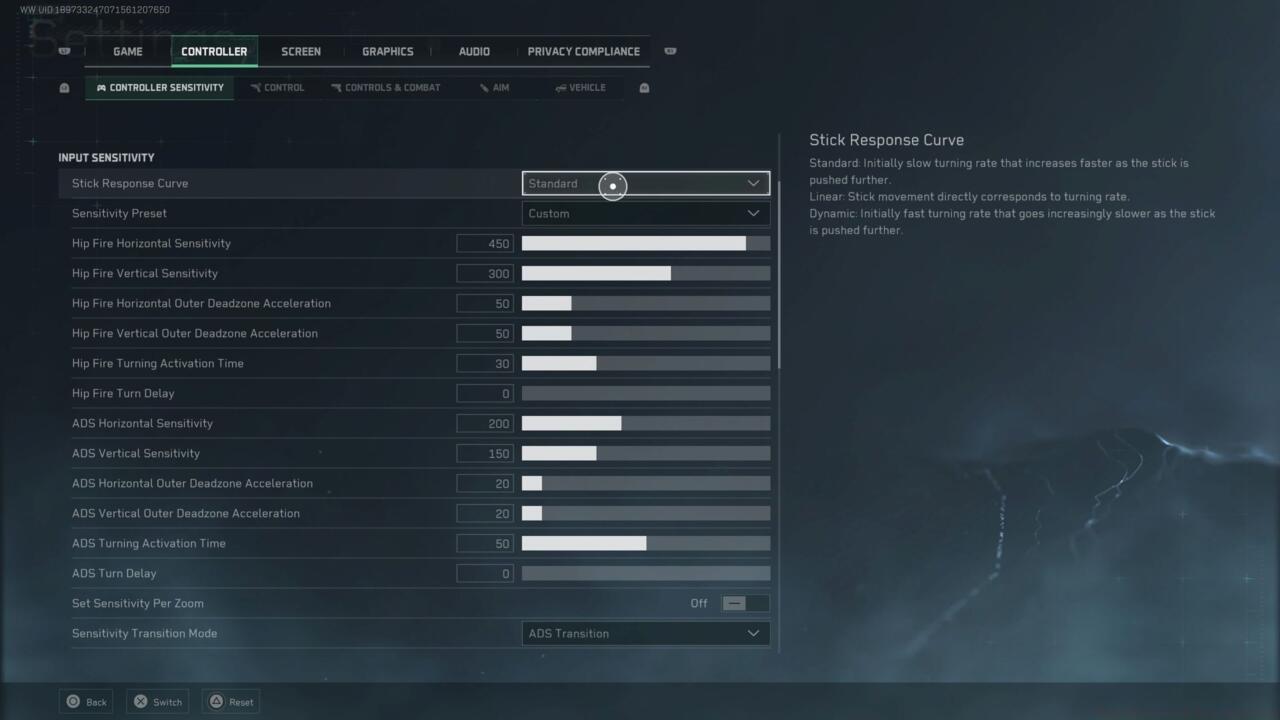
Controller sensitivity configuration interface
Mastering controller configuration is fundamental to competitive performance in Delta Force. Proper sensitivity calibration separates average players from elite operatives in high-stakes firefights.
Controller Sensitivity Fine-Tuning
Controller deadzone settings critically impact your aiming precision. Set this between 5-15% to eliminate stick drift while maintaining responsive input detection. Excessive deadzone creates input latency, while insufficient values cause erratic reticle movement.
Input sensitivity should be configured separately for hip-fire and aimed-down-sights combat. Begin with 45-55% for general infantry combat, then adjust based on your target tracking performance in live matches.
Ground vehicle sensitivity requires distinct calibration from infantry settings. Tanks and armored transports benefit from lower sensitivity values (30-40%) for stabilized turret control, while light vehicles perform better with higher responsiveness (50-60%).
Aircraft sensitivity demands the most specialized configuration. Helicopter and fixed-wing aircraft controls work best with moderate sensitivity (40-50%) combined with exponential response curves for precise aerial maneuvering.
Gunner sensitivity in multi-crew vehicles should be slightly higher than driver settings to facilitate rapid target acquisition against mobile threats.
Aim assist functionality provides targeting assistance but can interfere with leading moving targets. Disable this feature if you prefer complete manual control over your aiming mechanics.
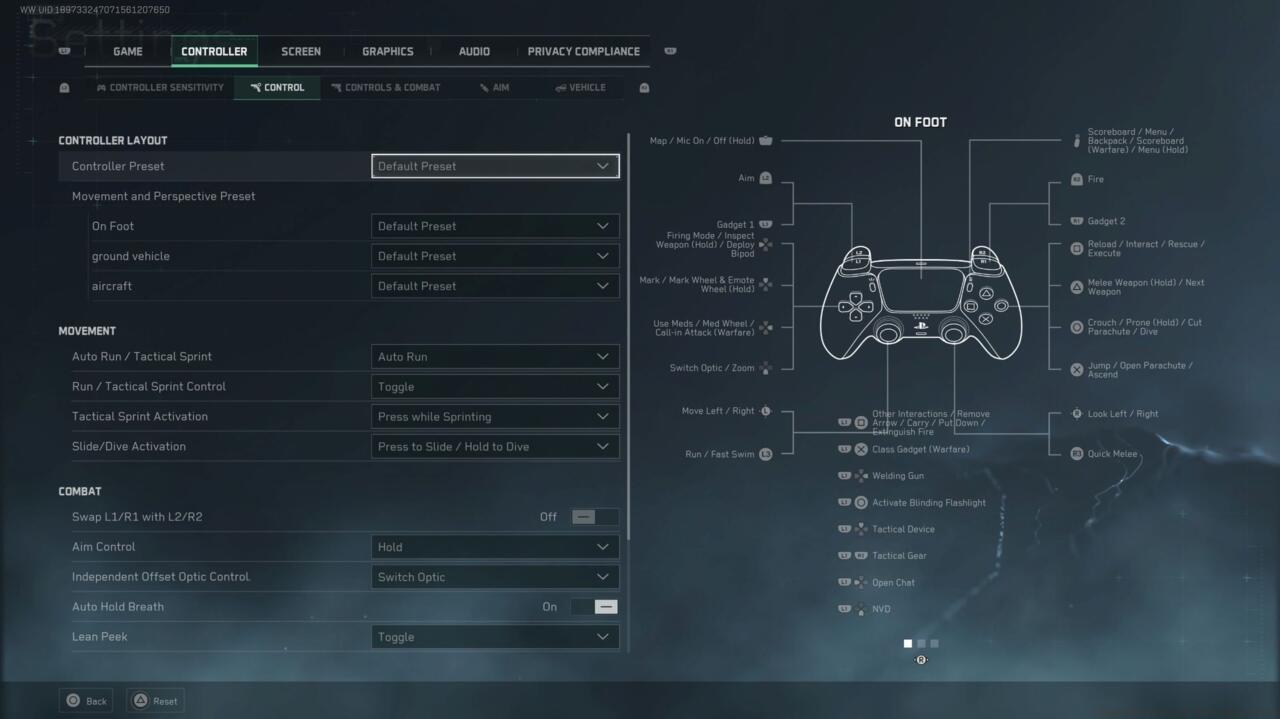
Controller layout customization options
Controller Layout Optimization
Controller layout configuration is divided into combat and movement sections. The default layout works adequately, but customized configurations can significantly improve your reaction times.
Movement controls should prioritize ergonomic accessibility to crouch, prone, and sprint actions without compromising thumbstick manipulation during intense engagements.
Combat controls require strategic button mapping for weapon switching, grenade throws, and equipment deployment. Elite players often relocate these functions to shoulder buttons or paddles for simultaneous access.
Aiming controls benefit from toggle/hold preference adjustments based on your playstyle. Hold options provide momentary precision while toggles reduce finger fatigue during extended aiming periods.
Vehicle controls may be configured independently from infantry settings. Consider creating separate profiles for air and ground vehicles if the game supports multiple configuration slots.
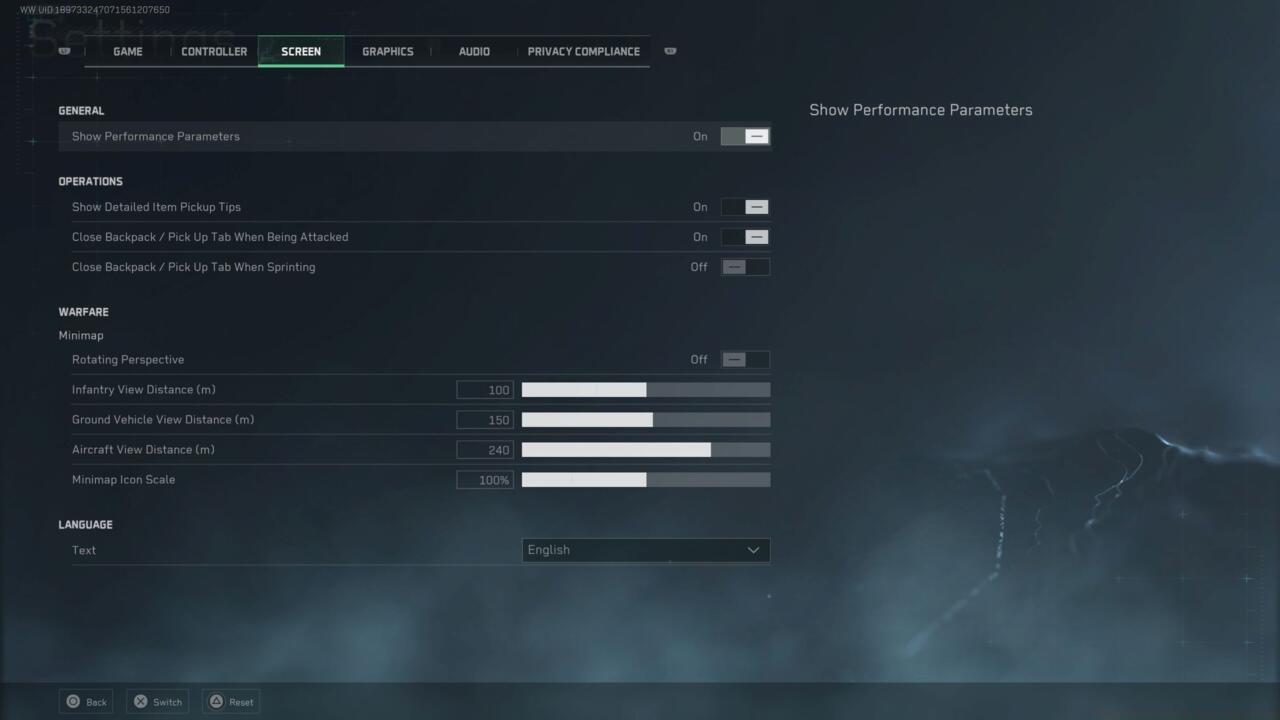
Screen and interface customization panel
Strategic HUD configuration dramatically enhances your situational awareness and reaction speed. Proper interface customization reduces visual clutter while highlighting critical combat information.
General Display Settings
Brightness calibration should be adjusted until the Delta Force logo becomes barely visible in the reference image. This ensures optimal visibility in both shadowed interiors and sunlit exteriors.
Operations interface elements require careful prioritization. Display only essential mission objectives and teammate status indicators to maintain clean sightlines during firefights.
Warfare Interface Optimization
Minimap configuration is arguably the most crucial HUD element. Set to maximum size and enable rotation to maintain spatial orientation during dynamic combat scenarios.
Language settings support multiple regional configurations. While gameplay language should match your primary comprehension, voice chat language settings can be adjusted separately for international squad communication.
Advanced players often disable non-essential visual effects and victory animations to maintain focus during competitive matches. These minor adjustments cumulatively improve target acquisition speed.
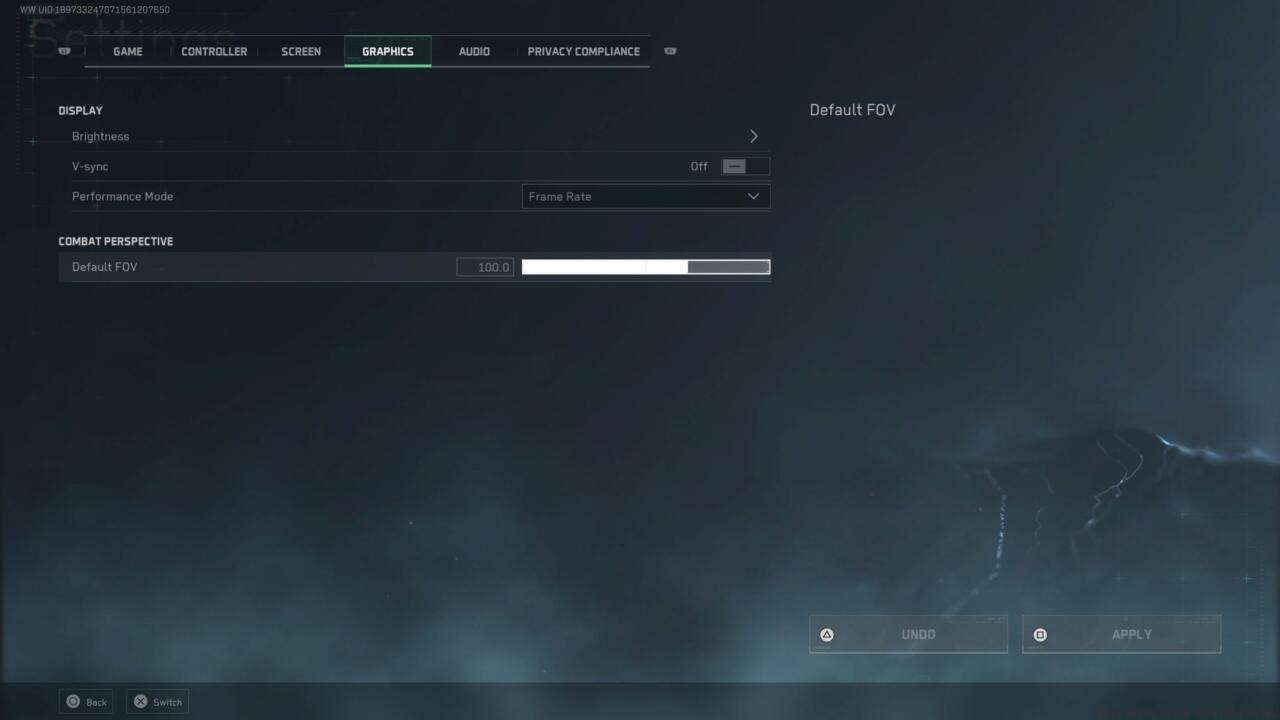
Graphics quality and performance adjustment interface
Graphics configuration requires balancing visual fidelity with competitive performance. Prioritize stable frame rates and target visibility over purely aesthetic enhancements.
Visual Quality vs Performance Balance
Texture quality significantly impacts both visual clarity and loading times. Set to High on current-generation consoles for optimal detail without significant performance impact.
Shadow quality can be reduced to Medium to improve enemy visibility in dark areas while maintaining adequate environmental context.
Anti-aliasing should be enabled to reduce visual noise and improve target identification at distance. Temporal solutions provide the best balance between quality and performance.
Effects quality influences explosion, smoke, and particle density. Consider reducing this setting during competitive play to maintain visibility during intensive firefights with multiple explosives.
Advanced graphics options like motion blur and depth of field should be disabled entirely. These features impair target tracking and situational awareness without providing competitive benefits.
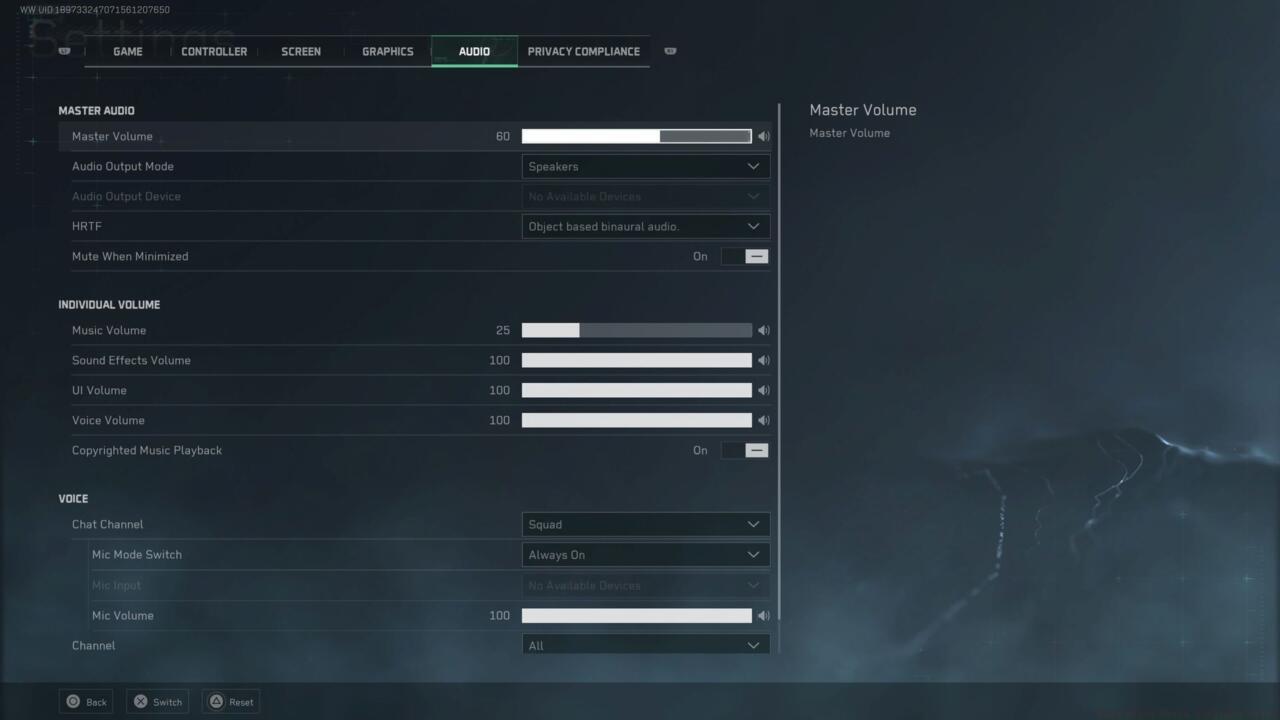
Audio mix and directional sound configuration
Audio configuration provides critical tactical intelligence in Delta Force. Proper sound calibration allows you to detect enemy movements, weapon directions, and environmental hazards before visual contact.
Sound Directionality Configuration
Master volume should be set to a level where distant gunfire remains audible without overwhelming close-range combat sounds.
Sound effects volume requires precise balancing. Prioritize footstep audio and weapon reports over ambient environmental sounds for maximum combat effectiveness.
Voice chat volume must be adjusted to maintain clear squad communication without obscuring critical gameplay audio cues.
Music volume should be significantly reduced or disabled during competitive matches. While the soundtrack enhances atmosphere, it can mask subtle audio cues indicating enemy presence.
Advanced audio settings like dynamic range compression can enhance subtle sounds but may distort directional information. Experiment with these settings in training modes before committing to competitive play.
Footstep audio enhancement is particularly valuable for detecting approaching enemies. Increase this specific audio channel if the game provides individual sound category controls.
Action Checklist
- Calibrate controller deadzone to 10% as baseline, then fine-tune based on stick responsiveness
- Configure infantry sensitivity to 50%, vehicle sensitivity to 40%, and aircraft sensitivity to 45%
- Optimize HUD by maximizing minimap size and disabling non-essential visual elements
- Adjust graphics settings prioritizing frame rate stability over visual effects
- Fine-tune audio mix to enhance footstep detection and directional gunfire cues
- Test all configurations in training mode before competitive matches
No reproduction without permission:SeeYouSoon Game Club » Best Delta Force Settings To Use Master Delta Force console controls with optimized sensitivity, graphics, and audio settings for competitive advantage