
TL;DR
- Set Infantry Mouse Sensitivity 40-50 with Uniform Aiming enabled for consistent targeting
- Configure Zoom Sensitivity Coefficient at 178 with 80-90 zoom sensitivity for scoped accuracy
- Use 105 Field of View for maximum situational awareness without distortion
- Enable specific vehicle settings like Helicopter Control Assists Off for maximum control
- Customize keybinds strategically to match your playstyle and reaction patterns
Optimizing your keyboard and mouse configuration in Battlefield 6 provides a decisive competitive advantage that can dramatically improve your battlefield performance. While controller support remains popular among console veterans, the precision and customization available through KBM setups deliver superior target acquisition and movement control.
Keyboard and mouse input methods have become the preferred choice for serious Battlefield 6 competitors. Although many players continue using gamepads due to console familiarity, numerous enthusiasts transition to keyboard and mouse because achieving optimal controller configurations in Battlefield 6 presents significant challenges that limit performance potential.
Whether you’re newly adopting keyboard and mouse (KBM) or have extensive experience with these peripherals, implementing the ideal settings for your equipment is essential. Properly configuring your keybind layouts, sensitivity adjustments, and specialized options frequently determines mission success or failure in intense combat scenarios.
This comprehensive guide details the perfect configuration for each keyboard and mouse menu selection within Battlefield 6’s extensive settings system.
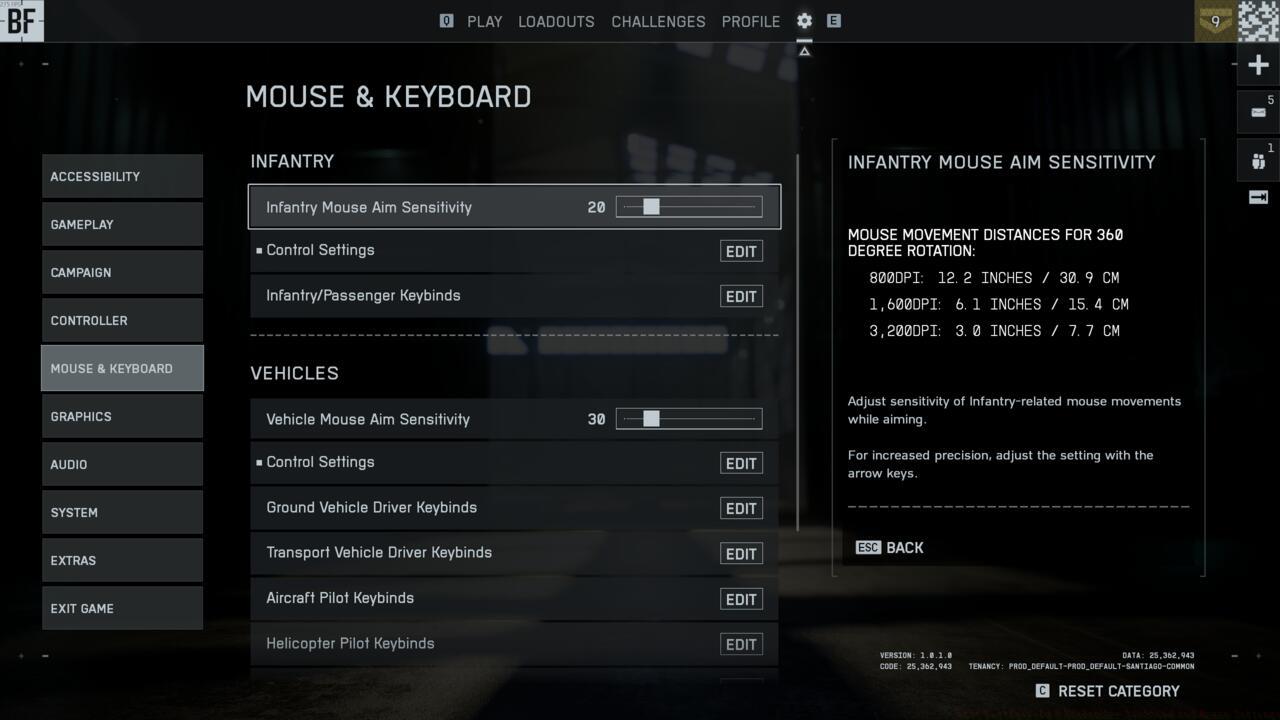
The Mouse and Keyboard settings menu in Battlefield 6 – Your central hub for input optimization
Access your keyboard and mouse configurations by selecting the gear icon positioned at the upper-right corner of the Battlefield 6 main interface. From there, proceed to the section identified as “Mouse & Keyboard” to discover the complete range of adjustable parameters and viewing options.
The keyboard and mouse configuration system in Battlefield 6 organizes settings across multiple categories and submenus, creating potential navigation complexity. Fortunately, our detailed breakdown below identifies each configurable section alongside its associated Battlefield 6 settings for streamlined optimization.
Infantry Control Settings
Aiming Configuration
- Infantry Mouse Aim Sensitivity: 40-50
- Uniform Infantry Aiming: On
- Zoom Sensitivity Coefficient: 178
- Infantry Zoom Aim Sensitivity: 80-90
- Vertical Mouse Aim Ratio: 100
- Invert Vertical Look – Infantry: Off
- Field of View: 105
Movement Optimization
- Infantry Sprint: Click
- Double Tap Forward Sprint: Off
- Sprint: Left Shift
- Crouch Toggle Sprint: Stand
- Vault Over Sprint: On
- Slide: N/A
- Crouch Slide: All
- Double Tap Crouch For Sprint Slide: Off
- Landing Roll: On
Zoom Settings
- Infantry Weapon Zoom: Hold
- Zoom: Right Mouse Button
- Steady Scope: Hold
- Steady Scope: Left Shirt
- Infantry Zoom Aim Sensitivity: 80-90
- Vertical Mouse Aim Ratio: 100
Advanced Controls
- Parachute Auto Deploy: Insertions Only
- Interact & Reload: Prioritize Reload
- Skip Revive: Hold
- Request Revive: Toggle
- Invert Demolition Charge: Off
- Mount Breakout: Instant
- Mount Presets: Combo
- Peek Type: Side and Up
- Mount Type: Side and Up
- Interacts: Off
Pro Tip: The 178 Zoom Sensitivity Coefficient maintains consistent aiming sensitivity when transitioning between hip-fire and scoped combat, eliminating the need for muscle memory adjustment during critical engagements. This setting ensures your mouse movements translate identically regardless of zoom state, providing predictable crosshair behavior that’s essential for building reliable aiming skills.
Infantry Keybinds
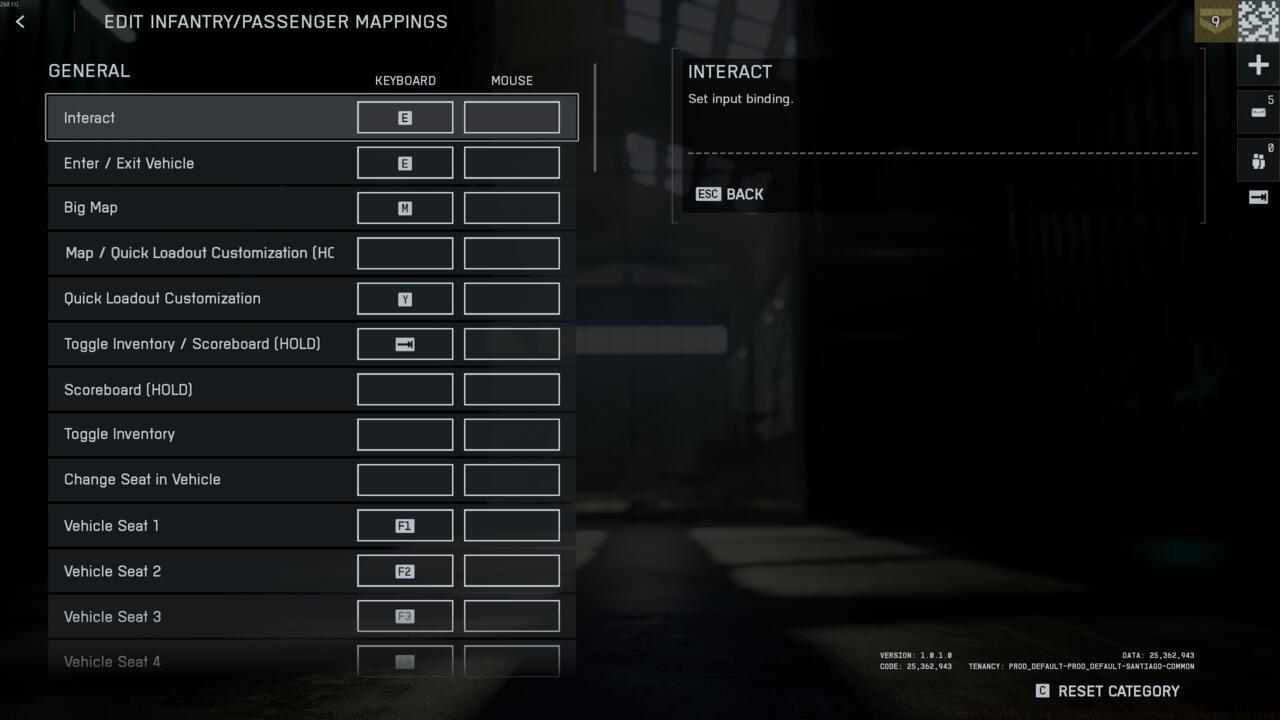
The Infantry Keybinds menu in Battlefield 6 – Strategic command mapping for combat efficiency
General Command Mapping
- Interact: E
- Enter / Exit Vehicle: E
- Big Map: M
- Quick Loadout Customization: Y
- Toggle Inventory/Scoreboard: Tab
- Change Seat in Vehicle: F
- Skip to Deploy: Space
- Ping / CommoRose (Hold) / Call-in Gadget Half Combo: Left Alt
Movement & Aiming Configuration
- Walk Forward: W
- Walk Backward: S
- Strafe Right: D
- Strafe Left: A
- Look Up: Mouse Forward
- Look Down: Mouse Backward
- Look Right: Mouse Right
- Look Left: Mouse Left
- Jump: Space
- Vault: Space
- Sprint: Left Shift
- Crouch (Hold): C
- Crouch (Toggle): Left Ctrl
- Prone: Z
- Parachute Deploy: Space
- Slide: N/A
- Lean/Peek: N/A
Weapons & Equipment Management
- Fire: Left Mouse Button
- Zoom: Right Mouse Button
- Reload: R
- Melee/Takedown: F
- Primary Weapon: 1
- Secondary Weapon: 2
- Gadget One: 3
- Gadget Two: 4
- Weapon Inspect: I
- Squad Progression/Class Gadget: X
- Grenade: G
- Contextual Action: 5
- Toggle Laser And/or Flashlight: T
- Fire Mode/Zeroing /Ranger Finder Zeroing: B
- Steady Scope: Left Shift
- Toggle Scope: V
- Cycle Primary Weapon: Mouse Wheel Up
- Cycle Secondary Weapon: Mouse Wheel Down
- Deploy Bipod/Mount: F
Strategic Insight: Consider rebinding frequently used actions like grenade throws (G) and melee attacks (F) to more accessible keys if you find yourself struggling during intense firefights. Many competitive players assign grenades to mouse thumb buttons for quicker access while maintaining movement control.
Vehicle Sensitivity Settings
- Vehicle Mouse Aim Sensitivity: 40
Vehicles Control Settings
- Invert Vertical Flight – Aircraft – Off
- Invert Vertical Look – Aircraft: Off
- Air Control Sensitivity: 40-50
- Helicopter Control Sensitivity: 40-50
- Helicopter Control Assists: Off
- Third Person Aircraft Camera Roll: On
- Vehicle Boost: Toggle
- Vehicle Weapon Zoom: Hold
Advanced Vehicle Tip: Disabling Helicopter Control Assists provides experienced pilots with complete aerial maneuverability, allowing advanced techniques like complex evasion patterns and precision attack runs that assisted controls restrict.
This comprehensive configuration addresses all essential keyboard and mouse parameters required for optimal Battlefield 6 performance. We’ve intentionally excluded less impactful settings and all interface keybinds, as these typically function adequately with their default assignments. Nevertheless, you can always revisit the configuration menus should you desire adjustments in those areas. We strongly recommend implementing our suggested settings initially, then progressively customizing them to match your individual preferences and playstyle.
Common Configuration Mistakes to Avoid:
- Overly High Sensitivity: New players often set sensitivity too high, sacrificing precision for speed. Start with our recommended 40-50 range and adjust gradually.
- Inconsistent Zoom Settings: Failing to maintain proportional sensitivity between hip-fire and scoped aiming creates muscle memory conflicts.
- Ignoring Uniform Aiming: This critical setting ensures consistent mouse feel across different zoom levels and weapon types.
- Field of View Extremes: While higher FOV provides broader vision, extreme values create target size distortion that hampers long-range accuracy.
Performance Optimization Strategy: After implementing these baseline settings, spend 15-20 minutes in the practice range testing your configuration. Focus on target transitions, recoil control, and movement fluidity to identify areas needing refinement.
For additional Battlefield 6 guidance, explore our comprehensive Complete Guide covering all aspects of EA’s latest military shooter masterpiece. Our Weapons Unlock guide provides detailed weapon progression strategies, while the Class Guide details optimal specialization selections for different combat roles.
Progressive Refinement Approach: Don’t attempt to master all settings simultaneously. Focus on infantry controls first, then vehicle configurations, implementing changes incrementally to assess their impact on your gameplay performance.
Action Checklist
- Navigate to Settings > Mouse & Keyboard via main menu cog icon
- Configure Infantry Mouse Sensitivity between 40-50 with Uniform Aiming enabled
- Set Zoom Sensitivity Coefficient to 178 with 80-90 zoom sensitivity
- Implement recommended keybinds for movement, weapons, and equipment
- Test configuration in practice range for 15-20 minutes
- Gradually customize settings based on personal performance feedback
No reproduction without permission:SeeYouSoon Game Club » Best Battlefield 6 Keybinds – Keyboard And Mouse Settings Master Battlefield 6 keyboard and mouse settings for competitive edge and superior gameplay performance