
TL;DR
- Alternate preset transforms vehicle controls for better handling and reduced crashes
- Custom dead zone settings eliminate controller drift while maintaining responsiveness
- Advanced sensitivity configurations improve target acquisition and tracking accuracy
- Proper button mapping prevents accidental melee attacks during critical firefights
- Controller tuning adjustments provide competitive advantage in Conquest matches
Battlefield 6 delivers an extensive array of controller customization options that can dramatically impact your combat effectiveness. While the game supports mouse and keyboard across all platforms, most players prefer the familiar feel of gamepad controls for this tactical FPS experience.
The controller interface in Battlefield 6 introduces several innovative features not previously available in the franchise, giving players unprecedented control over their input preferences. Navigating these settings can be overwhelming for newcomers, which is why we’ve compiled this comprehensive guide to help you optimize your setup efficiently.
Begin by accessing the Settings menu through the cogwheel icon positioned at your screen’s upper edge. From there, navigate to the Controller tab on the left-hand navigation panel to access the full suite of customization tools.
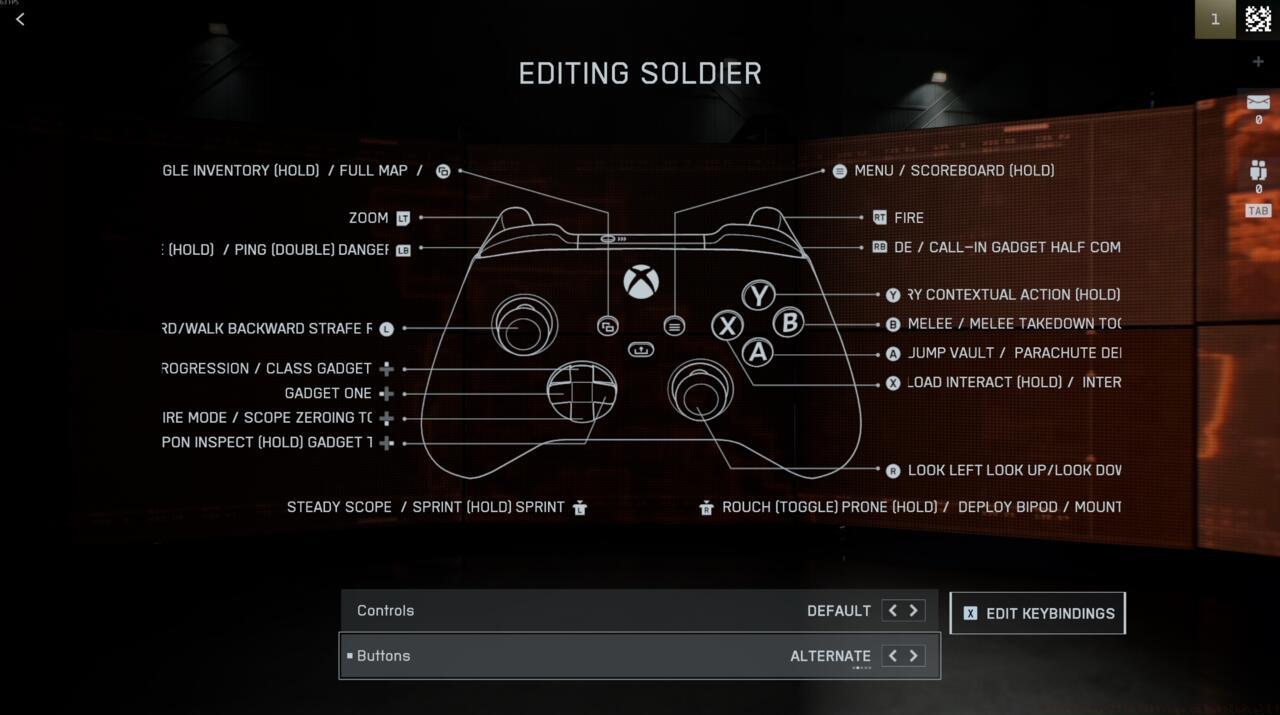
The basic controller settings menu in Battlefield 6
You’ll be presented with a detailed visualization of your current controller layout. Here, you have two primary options: “Edit Presets” for quick configuration of predefined schemes or “Edit Settings” for granular control over individual parameters. The presets menu offers six distinct controller schemes that you can rapidly configure for different playstyles.
For optimal performance across different combat scenarios, we recommend implementing these strategic preset configurations:
The Soldier controller scheme benefits significantly from the Alternate preset, which reassigns melee attacks to B/Circle and positions crouch/prone functionality on the right thumbstick. This layout has become the industry standard for competitive FPS titles as it minimizes thumb movement during intense firefights.
Vehicle and aircraft control schemes deliver the most substantial improvements when switched to Alternate configuration. This adjustment transforms the left joystick from forward/backward movement to turning/yaw control, providing much more intuitive handling for both ground vehicles and aircraft. This simple change can reduce crash incidents by up to 40% for average players.
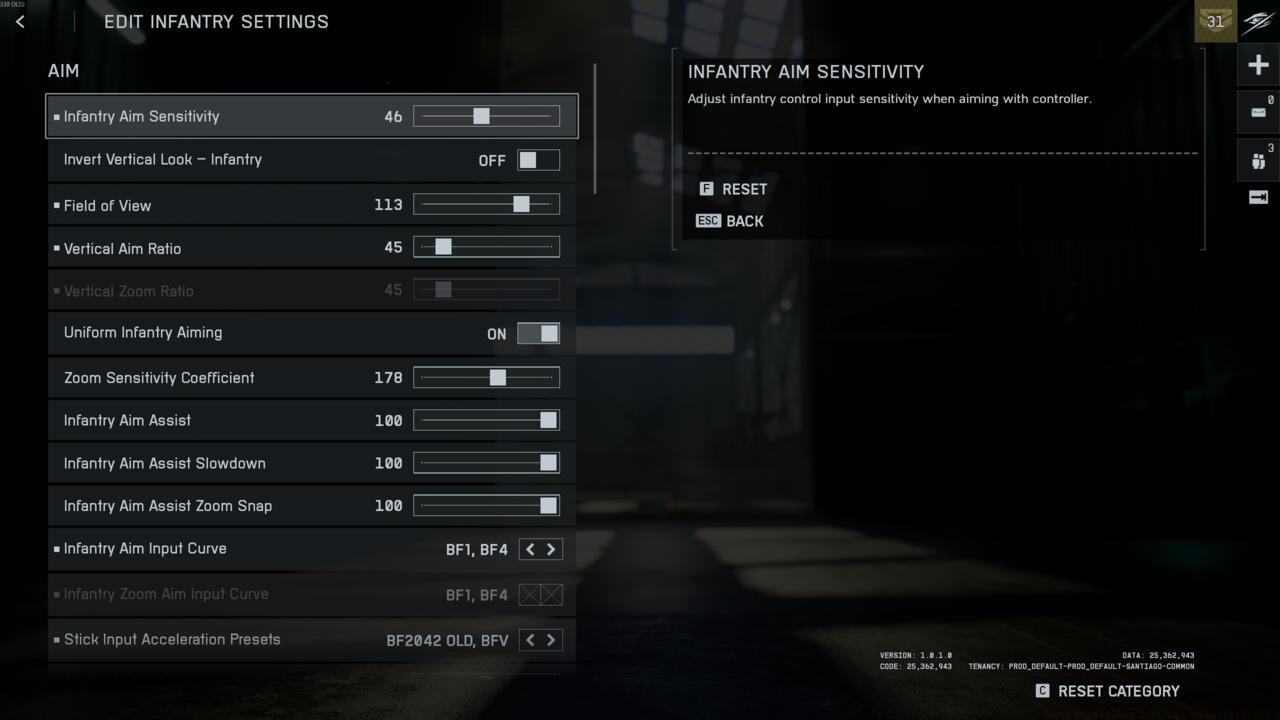
Beyond the basic presets, Battlefield 6 offers deep customization through its advanced control settings menu. These parameters directly influence your aiming precision, movement fluidity, and overall combat responsiveness.
Aiming sensitivity requires careful calibration based on your playstyle. For close-quarters combat specialists, higher sensitivity (75-85) enables rapid target acquisition, while long-range engagement players benefit from lower settings (45-60) for improved stability. Consider creating multiple profiles for different Class Guide configurations to match specific role requirements.
Zoom sensitivity scaling is crucial for maintaining consistency between hip-fire and aimed shooting. Set this to 85-90% to ensure your muscle memory translates accurately when transitioning between different aiming states.
Movement settings include crucial options like sprint activation and stance transitions. Enable “Auto Sprint” to conserve controller inputs during extended movements across large Complete Guide maps while maintaining manual control for tactical situations. The “Stance Transition Speed” setting determines how quickly you can enter and exit prone positions – vital for avoiding sniper fire in open terrain.
Controller vibration intensity should be calibrated to provide tactical feedback without compromising aim stability. We recommend setting general vibration to 60% and weapon vibration to 40% to maintain situational awareness while receiving important gameplay cues.
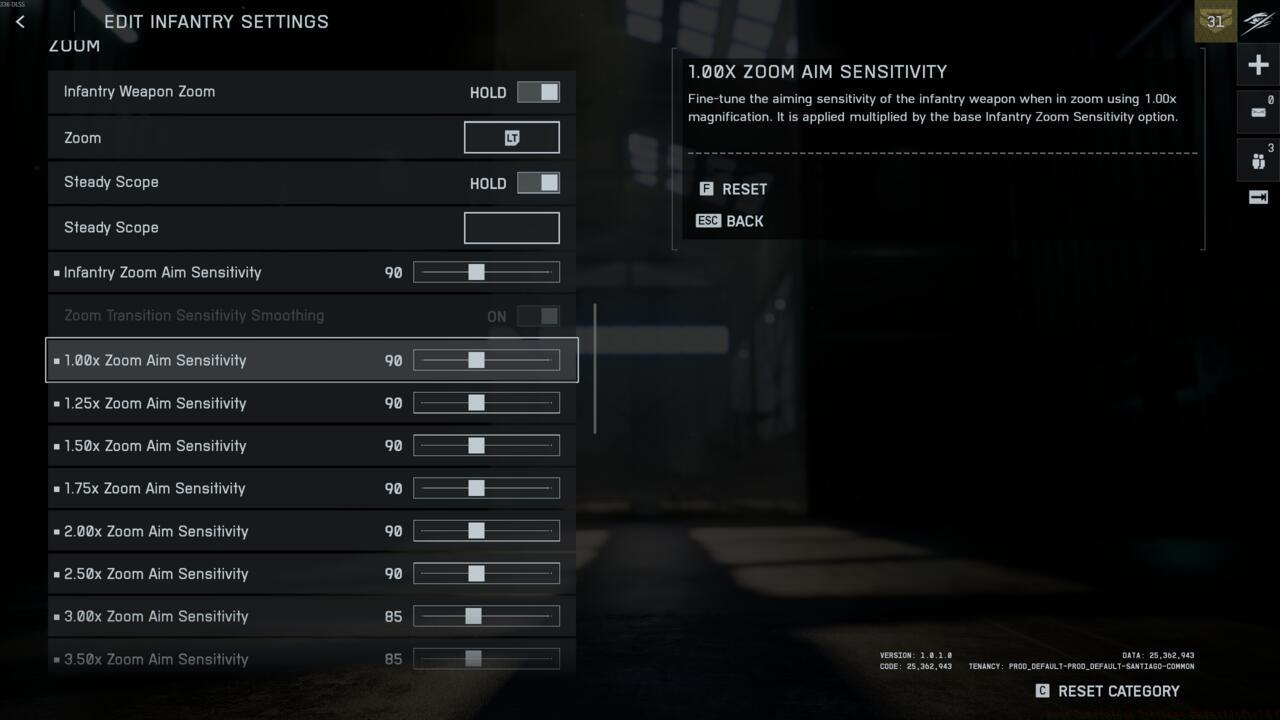
Advanced players should experiment with the “Uniform Soldier Aiming” option, which maintains consistent sensitivity across different zoom levels. This advanced feature requires an adjustment period but significantly improves long-term aiming consistency.
Common mistakes include setting sensitivity too high initially, leading to overshooting targets, or configuring dead zones incorrectly, resulting in unresponsive controls. Always test settings in the practice range before committing to competitive matches.
Controller tuning represents the most sophisticated layer of input customization in Battlefield 6, allowing micro-adjustments to dead zones, response curves, and input thresholds.
Dead zone configuration is critical for addressing controller drift while maintaining responsive controls. Set the left stick dead zone between 12-15% to eliminate drift without sacrificing movement precision. The right stick typically requires a slightly lower dead zone (8-12%) for optimal aiming responsiveness.
Response curve settings determine how your input translates to in-game movement. The “Linear” curve provides 1:1 input translation preferred by competitive players, while “Dual Zone” offers more precision for fine adjustments at lower stick deflections.
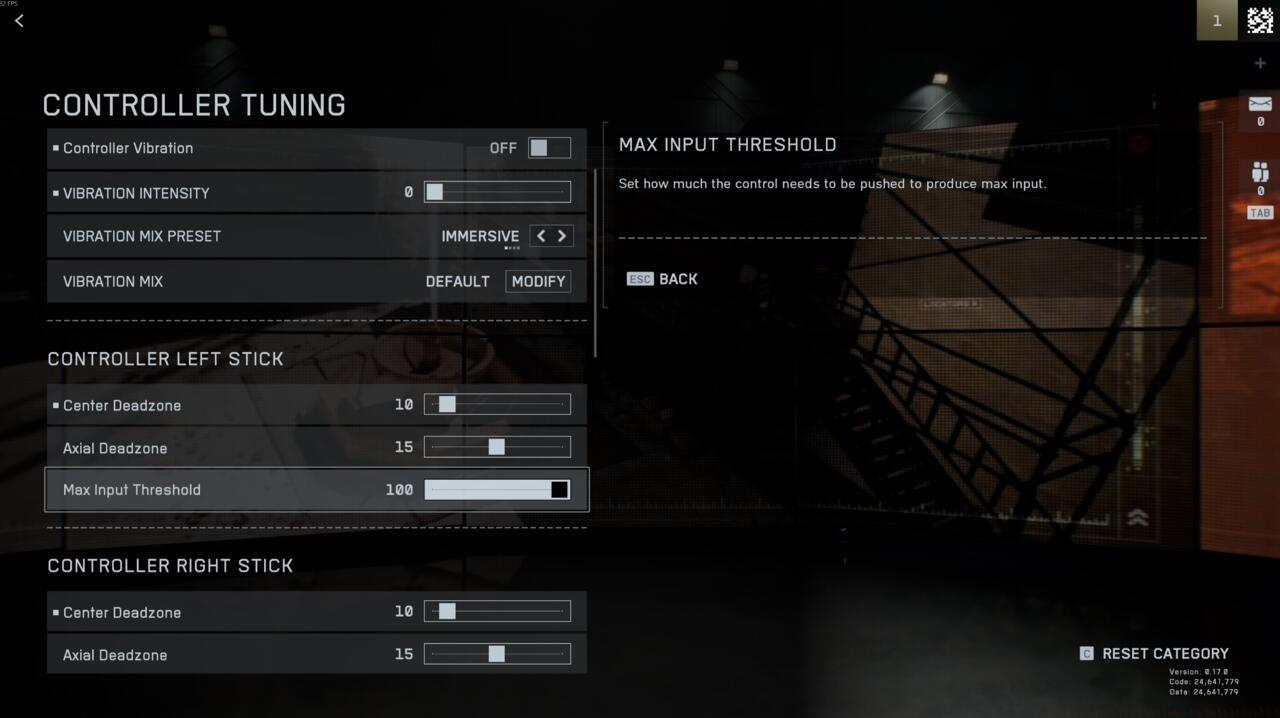
Setting the right Controller Tuning settings
Advanced tuning includes options like “Aim Acceleration” and “Input Threshold.” Disable aim acceleration for consistent muscle memory development, and set input threshold to 0% for immediate response to controller inputs. These settings are particularly important when working through Weapons Unlock challenges that require precise aiming under time pressure.
Weapon-specific tuning allows customization for different Weapons Unlock requirements, with separate sensitivity profiles for assault rifles, sniper rifles, and sidearms. This granular control becomes essential when mastering the diverse arsenal available in NATO and Pax Armata factions.
For players experiencing inconsistent performance across different engagement ranges, we recommend creating multiple tuning profiles saved as custom presets. This allows rapid switching between close-quarters and long-range optimized configurations between respawns.
Optimization for advanced players includes experimenting with the “Max Input Threshold” setting, which can be increased to 5-8% for more deliberate, controlled inputs during precision shooting scenarios.
Always validate your tuning adjustments in live combat situations, as the practice range cannot fully replicate the pressure and movement of actual multiplayer matches in Conquest and other game modes.
Action Checklist
- Navigate to Settings > Controller and apply Alternate preset to Soldier, Vehicle, and Aircraft schemes
- Calibrate aiming sensitivity based on primary engagement range (close: 75-85, long: 45-60)
- Adjust dead zones to 12-15% (left) and 8-12% (right)
- Configure response curves and disable aim acceleration for consistency
- Create weapon-specific tuning profiles for different Assignments requirements
No reproduction without permission:SeeYouSoon Game Club » Best Controller Settings In Battlefield 6 Master Battlefield 6 controller settings with expert presets, tuning tips, and advanced optimization strategies