
TL;DR
- Proximity chat creates realistic communication limited by distance, unlike traditional voice chat
- Choose between Always On for convenience or Push To Talk for privacy in different gameplay scenarios
- Environmental effects like cave echoes and underwater muffling add immersive audio realism
- Strategic microphone management prevents accidental audio leakage during stealth situations
- Proper audio configuration enhances both immersion and tactical coordination with teammates
Coordinating with companions in Sons of the Forest transforms the survival experience, but the game’s communication system elevates teamwork to new strategic heights. The proximity voice feature introduced in version 1.0 represents a significant evolution beyond basic voice functionality.
Unlike standard voice chat that broadcasts to everyone regardless of location, proximity-based communication restricts your voice to players within audible range. This creates authentic scenarios where distant teammates cannot overhear conversations, forcing strategic positioning for effective coordination. The feature addresses limitations of earlier versions where global voice chat offered little advantage over external applications like Discord or TeamSpeak.
The environmental audio processing represents one of the most impressive technical achievements. When exploring subterranean caverns, your voice acquires noticeable reverberation that realistically mimics acoustic physics. Similarly, underwater communication becomes muffled and distorted, accurately simulating how sound travels through different mediums. These subtle touches significantly enhance immersion during exploration and combat situations.
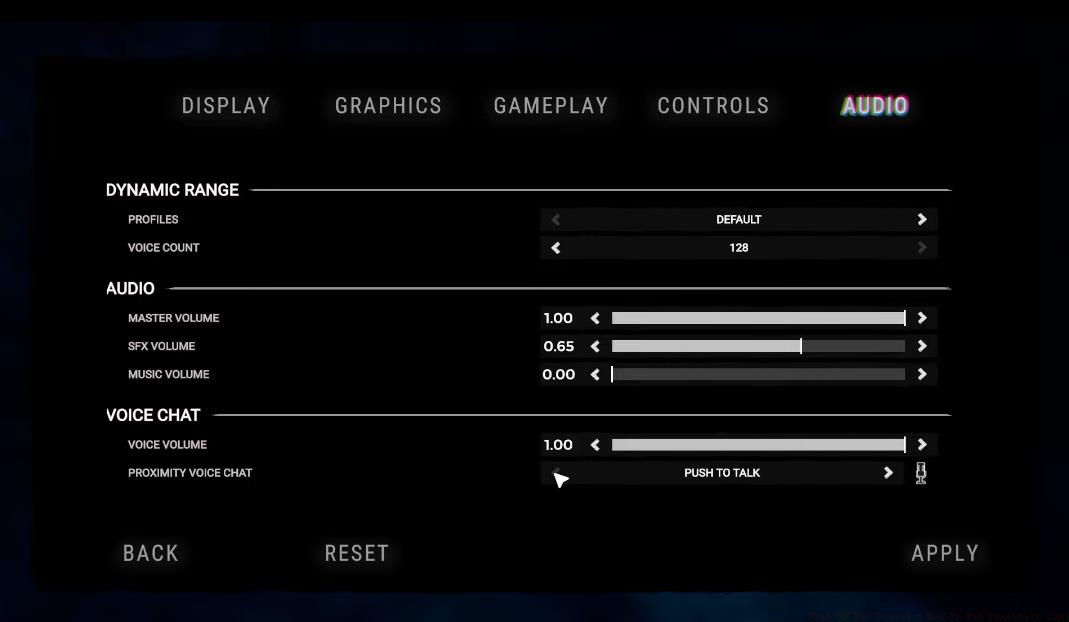
Accessing and modifying proximity chat options follows an intuitive pathway through the game’s menu system. Navigate to Settings > Audio tab and locate the Voice Chat section where you’ll find the crucial Voice Proximity Chat configuration setting.
Players can select between two primary operational modes: “Always On” and “Push To Talk.” The continuous capture mode utilizes your selected input device to transmit audio whenever you speak, though transmission only occurs when other survivors are within the designated proximity radius. This setting works well for coordinated teams who maintain visual contact frequently.
The manual activation alternative requires pressing a designated key to enable microphone transmission. This approach proves invaluable for preventing accidental audio leakage during stealth sequences or private conversations. Identify your assigned Push To Talk button by checking Settings > Controls and scrolling to the Push To Talk assignment. Keyboard users typically find the “V” key pre-mapped, though this can be customized to personal preference.
Beyond basic activation methods, several advanced configuration options exist. Microphone sensitivity thresholds help filter background noise, while voice ducking reduces game audio during conversations. Testing different configurations in various environments ensures optimal performance across diverse gameplay scenarios.
Mastering proximity communication requires understanding both technical configuration and tactical implementation. Teams should establish communication protocols before engaging dangerous areas, similar to coordination strategies used in tactical shooters like Battlefield 6 where squad communication determines mission success.
A common configuration error involves setting microphone sensitivity too high, resulting in background noise transmission that alerts nearby enemies. Conversely, excessively low sensitivity may cut off the beginning of urgent communications. Finding the optimal balance typically requires 5-10 minutes of testing with teammates in different environments.
For complete audio privacy, two reliable methods exist. Maintaining the Push To Talk setting without ever activating the key ensures absolute silence from your end. Alternatively, setting voice chat volume to “0” in Audio settings guarantees no audio transmission regardless of other configurations.
Advanced players often combine proximity chat with strategic positioning, using the communication limitations to their advantage. Designating specific meeting points for information exchange mimics real-world tactical operations and enhances the survival realism. Understanding these advanced techniques transforms proximity chat from a simple feature to a strategic gameplay element.
Like optimizing BF6 weapon loadouts or selecting appropriate specialized classes, mastering communication systems provides competitive advantages that separate novice survivors from experienced veterans.
Action Checklist
- Navigate to Settings > Audio and locate Voice Chat section
- Test both Always On and Push To Talk modes in safe areas
- Configure microphone sensitivity to eliminate background noise
- Establish team communication protocols for different scenarios
No reproduction without permission:SeeYouSoon Game Club » Sons Of The Forest – How To Use Proximity Chat Master proximity chat settings in Sons of the Forest with advanced audio strategies and tactical communication tips