
TL;DR
- Disable automatic trophy videos to save significant storage space on PS5
- Use manual share button recording for intentional gameplay moments
- Consider disabling trophy screenshots for additional space savings
- Regularly manage your capture gallery to prevent storage bloat
- Combine storage optimization with external SSD for maximum capacity
Managing storage capacity effectively is crucial for PS5 owners who want to maintain optimal console performance while preserving their gaming achievements.
For veterans transitioning from PS4 to the latest PlayStation console, Sony has implemented significant changes to how trophy accomplishments are documented. Unlike the previous generation that primarily captured screenshots, the PS5 automatically records video clips precisely when you unlock any trophy. This enhancement benefits players who want comprehensive documentation of their gaming milestones, but comes with storage implications that require careful management.
The cumulative effect of these automatic video recordings can substantially impact your available storage. Each trophy clip, regardless of significance, consumes valuable SSD space that could otherwise accommodate additional game installations. While preserving memorable gaming moments has value, the automatic nature of this feature means you’re storing footage for achievements that may not warrant permanent recording.
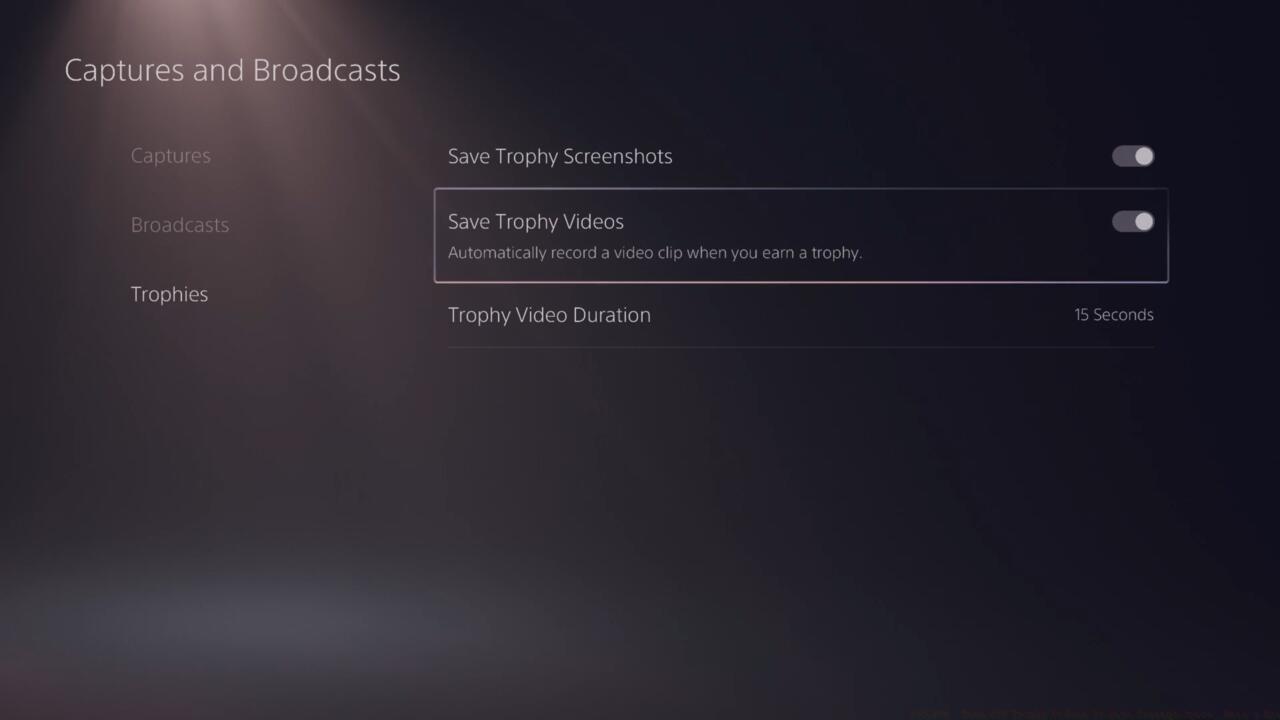
Strategic storage management through trophy video settings can significantly increase available space for new game installations.
Implementing storage optimization begins with accessing the correct system settings. Navigate from your PS5 home screen to Settings > Captures and Broadcasts > Trophies, where you’ll find the automatic recording controls.
Within the trophy settings menu, locate and disable the Save Trophy Videos option. This single adjustment prevents the console from automatically generating video files for every trophy earned. For additional storage conservation, consider turning off Save Trophy Screenshots simultaneously, though this eliminates visual documentation of your achievements entirely.
Common configuration mistakes include forgetting to apply changes after adjusting settings or overlooking related storage-hogging features. Ensure you confirm each modification and consider implementing a comprehensive storage strategy that addresses multiple space-consuming elements.
Even with automatic trophy recording disabled, the PS5 provides robust manual capture capabilities through its enhanced share button functionality. This allows you to intentionally record significant gameplay moments without the storage overhead of automatic trophy clips.
The share button can save video capturing several minutes of recent gameplay when activated after noteworthy events. This selective approach ensures you preserve truly memorable moments while avoiding storage waste on insignificant achievements.
For comprehensive storage management, regularly review and delete unnecessary captures from your media gallery. Combine this with external SSD expansion for optimal storage capacity, similar to strategies discussed in our Complete Guide to system optimization.
Advanced users should consider implementing a scheduled cleanup routine for their capture gallery. This prevents gradual storage degradation and maintains consistent performance, much like the weapon management systems in our Weapons Unlock guide emphasizes for inventory management.
If you require additional space-saving techniques, our storage optimization resources provide extensive guidance. For broader system configuration advice, reference our setup tutorials and game transfer documentation. Players maintaining older consoles can explore trade-in opportunities to offset upgrade costs, applying similar optimization principles across their gaming ecosystem as detailed in our Class Guide for character management.
Action Checklist
- Navigate to Settings > Captures and Broadcasts > Trophies
- Disable ‘Save Trophy Videos’ option
- Consider disabling ‘Save Trophy Screenshots’ for additional space
- Practice using share button for intentional moment capture
- Schedule monthly capture gallery cleanup sessions
No reproduction without permission:SeeYouSoon Game Club » PS5 PSA: Turn Off Trophy Videos To Save Storage Space, Here’s How Maximize PS5 storage by disabling automatic trophy videos while preserving manual capture options