
Master NVIDIA filters in Warzone: Boost visibility and gain competitive edge with optimized settings
Accessing NVIDIA Filters in Warzone
Unlocking NVIDIA’s powerful visual filters in Warzone requires proper setup before diving into battle. These tools can dramatically improve enemy visibility and environmental clarity when configured correctly.
Before activating these competitive advantages, ensure your system meets two critical requirements: the latest GeForce Experience software and updated GPU drivers. These components work together to enable the full range of NVIDIA’s gaming enhancements.
Warzone’s Season 3 update brought significant graphical improvements, with NVIDIA’s DLSS technology being the headline feature. However, the often-overlooked filter options provide equally valuable benefits for competitive play. While DLSS boosts frame rates, these filters enhance visual clarity – particularly useful for spotting enemies in dark corners or distant terrain.
To activate the filter menu during gameplay, press Alt+Z to open the NVIDIA overlay. Many players miss this crucial step because the shortcut isn’t prominently displayed. For those using custom keybindings, you can reconfigure this shortcut in GeForce Experience settings.
Optimal NVIDIA Filter Settings
Customizing your visual filters requires balancing clarity with performance. The NVIDIA overlay allows three distinct profiles, enabling players to create specialized configurations for different combat scenarios.
Begin with these essential adjustments for improved visibility:
- Brightness (+10-15%): Crucial for dark areas like building interiors
- Contrast (+5-10%): Enhances object definition without oversaturation
- Sharpness (40-60%): Improves distant enemy recognition
Advanced players should experiment with HDR Toning and Bloom reduction to minimize visual distractions while maintaining critical environmental details. Content creator JGOD demonstrates how excessive Bloom can actually obscure enemies in certain lighting conditions.
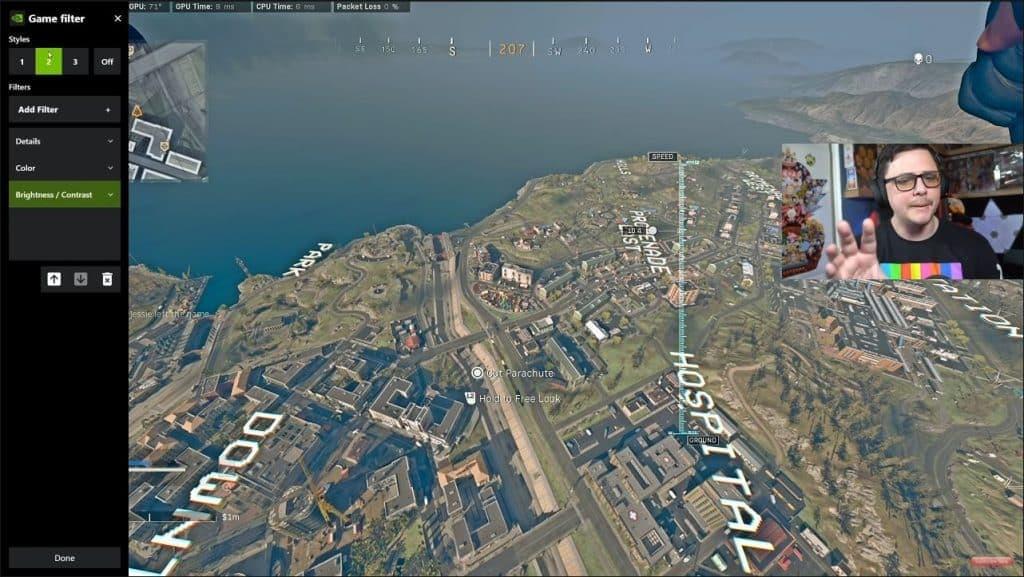 YouTube / JGOD
Professional players often combine Clarify (+30%) with Detail (+15-20%) settings to maintain visibility during fast-paced engagements. However, these settings may impact performance on mid-range systems, requiring careful balancing.
Advanced Optimization Tips
Maximize your filter effectiveness with these professional techniques that go beyond basic adjustments.
Create dedicated profiles for Warzone’s different maps:
- Verdansk: Higher brightness for expansive outdoor areas
- Rebirth Island: Enhanced contrast for close-quarters combat
- Night Maps: Specialized settings for limited visibility conditions
Monitor your FPS when applying intensive filters. If you experience significant frame drops, prioritize these critical settings:
- Reduce Sharpen intensity first
- Lower Detail settings if needed
- Disable Bloom entirely for competitive play
Remember that NVIDIA frequently releases driver updates that can affect filter performance. Always test your configurations after updating your graphics drivers, as optimal settings may change with new versions.
No reproduction without permission:SeeYouSoon Game Club » How to use Warzone NVIDIA graphics filters to improve settings Master NVIDIA filters in Warzone: Boost visibility and gain competitive edge with optimized settings