
TL;DR
- DLDSR renders at higher resolution then downscales for superior image clarity
- DLSS counters performance loss by using AI-powered upscaling technology
- Picture-in-picture scopes may display visual artifacts requiring adjustment
- RTX 30xx series GPUs deliver optimal performance with minimal frame rate impact
- Proper configuration requires balancing smoothness settings with sharpness adjustments
Games and Esports Articles
DLDSR (Deep Learning Dynamic Super Resolution) represents NVIDIA’s advanced supersampling technology that’s accessible within Escape from Tarkov. This sophisticated rendering method works by generating frames at resolutions exceeding your monitor’s native capabilities, then intelligently downscaling them to match your display. When paired with DLSS (Deep Learning Super Sampling), this combination can substantially elevate visual fidelity while mitigating traditional performance penalties, though certain limitations merit consideration.
Hardware Compatibility Notice: This configuration delivers optimal results primarily for RTX 30xx series graphics card owners. While 20xx series GPUs might function, the performance impact from DLDSR processing typically proves too substantial for smooth gameplay. AMD users should explore alternative technologies like FSR, which won’t be detailed in this particular guide.
Let’s examine the fundamental operation of these technologies. DLDSR functions by rendering game scenes at elevated resolutions—typically 1.78x or 2.25x your native resolution—then applies AI-driven downsampling to produce a noticeably sharper final image. This process significantly enhances both visibility and image smoothness, enabling quicker enemy identification and reduced eye strain during extended gaming sessions. Naturally, rendering at higher resolutions imposes additional GPU workload, creating potential performance bottlenecks that DLSS effectively addresses through its intelligent upscaling algorithms.
When implementing DLSS in Tarkov at native resolution, performance remains respectable but visual clarity often disappoints many players. However, when DLSS processes imagery already enhanced by DLDSR’s superior rendering, the resulting visual output demonstrates remarkable improvement in sharpness and detail preservation.
Best items to sell to traders in Escape from Tarkov. What to sell to traders to level up
How to level up traders in Tarkov.
The primary advantage of implementing DLDSR lies in its ability to dramatically improve image quality without requiring expensive monitor upgrades. The technology delivers superior edge smoothing, reduces jagged lines, and enhances texture detail—critical advantages in a tactical shooter like Escape from Tarkov where spotting distant enemies can determine survival. Many competitive players report significant improvements in target acquisition speed and reduced visual fatigue during extended raids.
Performance impact varies significantly based on your hardware configuration. With RTX 30xx series GPUs, the performance penalty typically ranges between 10-25% depending on resolution scaling factors. However, since Escape from Tarkov predominantly stresses CPU performance, users with powerful graphics cards may experience minimal frame rate reduction while enjoying substantially improved visual clarity.
DLSS counteracts the performance cost by using AI to reconstruct images at lower internal resolutions then upscale them to your target output. This synergistic relationship allows DLDSR to provide superior source material for DLSS to process, resulting in cleaner, sharper images than either technology produces independently.
For optimal results, consider your gaming priorities. Competitive players might prioritize DLSS Performance mode for maximum frames, while those focused on visual immersion may prefer DLDSR with DLSS Quality for the best image fidelity. Testing different combinations during various lighting conditions and map environments provides the most accurate assessment of what works for your specific setup and playstyle.
Now, addressing the potential drawbacks. The most prominent issue involves DLSS’s handling of picture-in-picture scopes, which are prevalent in Escape from Tarkov. This often manifests as visual artifacts, ghosting effects, and noticeable blurriness when aiming through magnified optics. Unlike many other performance challenges in EFT, this particular problem isn’t unique to the game and appears across multiple titles utilizing similar rendering techniques. Sensitivity to these artifacts varies among players, making personal testing essential to determine acceptable visual quality.
Another frequent complication involves resolution resetting when alt-tabbing between applications. The game may revert to native resolution after switching windows, necessitating manual readjustment in the video settings menu. Some users report this occurs inconsistently, while others experience it with every application switch.
Fortunately, there’s a positive aspect to consider. Since the most significant visual issues stem from DLSS rather than DLDSR, and Escape from Tarkov heavily taxes CPU resources, there exists a realistic possibility of activating DLDSR without catastrophic performance degradation if you possess a capable GPU. Personal experimentation remains crucial to evaluate results and determine if this configuration suits your preferences and hardware capabilities.
Advanced users can mitigate scope artifacts by creating custom NVIDIA Profile Inspector settings that disable DLSS specifically during scope usage, though this requires technical proficiency and may introduce stability concerns. For most players, adjusting DLSS sharpening settings or temporarily disabling DLSS during long-range engagements provides a more accessible solution.
How to activate DLDSR in EFT
Implementing DLDSR involves straightforward configuration steps. Navigate to NVIDIA Control Panel → 3D Settings → Manage 3D Settings. Within this menu, locate DSR – Factors and select both the 1.78x DL and 2.25x DL options. Then adjust the Smoothness parameter, which defaults to 33%. Higher percentage values introduce additional blur to counteract potential oversharpening artifacts, so customize this setting according to your visual preferences and monitor characteristics.
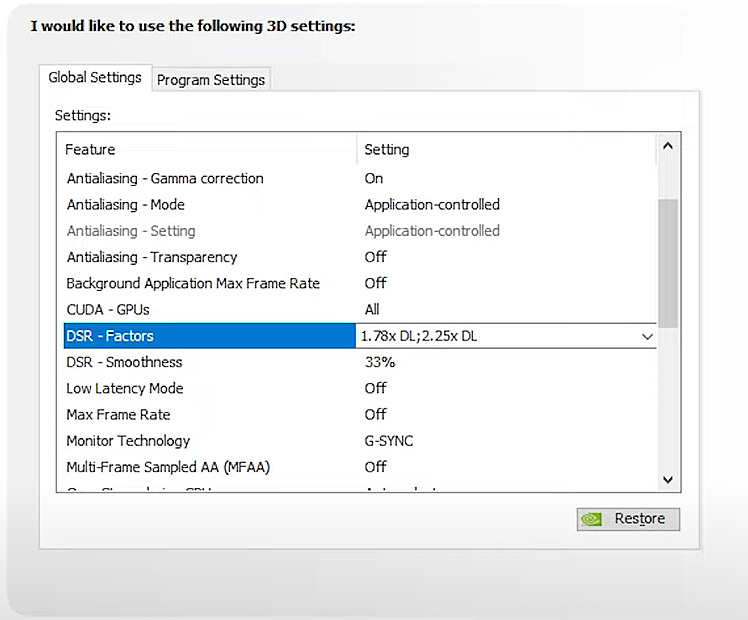
Following these adjustments, Escape from Tarkov’s video settings will display two additional resolution choices alongside your native option. Select either DLDSR resolution, and the technology immediately activates. Subsequently, experiment with enabling DLSS using the Quality preset, then fine-tune these parameters to achieve your desired visual presentation. Thorough testing of scopes and dense foliage areas proves essential to determine whether you can tolerate the potential visual anomalies.
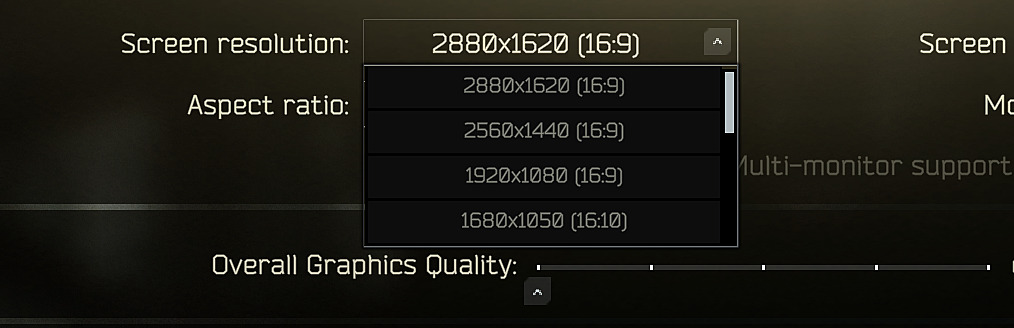
If scope artifacts prove unacceptable, attempt disabling DLSS entirely and evaluate the resulting performance impact. If you maintain acceptable performance but encounter excessive general blurriness, experiment with the sharpness slider in NVIDIA settings. Should the game revert to native resolution after alt-tabbing, simply reselect your preferred DLDSR resolution within Tarkov’s settings. An alternative resolution involves adjusting your desktop resolution to match the DLDSR setting, though this may cause unusual behavior in other applications. Remember to revert desktop resolution changes after concluding your Tarkov sessions.
For optimal performance balancing, consider these advanced strategies: Begin with DLDSR 1.78x combined with DLSS Quality mode. Test frame rates across different maps—Woods and Shoreline typically demonstrate the most significant performance variations. Monitor GPU utilization percentages; if consistently below 90%, you likely have additional performance headroom for higher DLDSR factors or DLSS Balanced mode.
Action Checklist
- Access NVIDIA Control Panel and enable both DLDSR factors (1.78x and 2.25x)
- Adjust smoothness setting (start at 25-30% for most displays)
- Select DLDSR resolution in Tarkov video settings
- Enable DLSS Quality mode and test scope functionality
- Evaluate performance across different maps and lighting conditions
- Fine-tune sharpness and performance settings based on test results
No reproduction without permission:SeeYouSoon Game Club » How to turn on DLDSR with DLSS in Escape from Tarkov guide, benefits and issues, will it make the image more sharp and is it worth it Master DLDSR and DLSS in Escape from Tarkov for enhanced visuals and competitive edge