
TL;DR
- Use Angel’s CS2 FPS Benchmark workshop map for detailed performance analysis
- Subscribe via Steam Workshop and access through in-game Workshop Maps menu
- Benchmark tests multiple scenarios including smoke effects and combat situations
- Focus on both average FPS and P1 (1% lows) for complete performance picture
- Compare results with similar hardware configurations in workshop comments
Games and Esports Articles CS 2
Performance testing in Counter-Strike 2 has become significantly more accessible thanks to community developer Angel’s recently published benchmark map. While Valve hasn’t integrated native performance testing tools directly into CS2, this third-party solution provides comprehensive frame rate analysis that competitive players need. Understanding your system’s capabilities through systematic benchmarking helps identify optimization opportunities and hardware limitations that could impact your gameplay experience.
Proper FPS testing goes beyond simple frame rate monitoring—it reveals how your system handles the most demanding in-game scenarios. This guide walks you through the complete process from installation to results interpretation, ensuring you gain actionable insights from your performance data.
How to play on a Workshop map in CS2?
Begin by navigating to the CS2 FPS Benchmark workshop page and selecting the prominent green Subscribe button positioned beneath the map preview. This action automatically queues the map download, which will complete during your next CS2 launch session. Many users encounter installation delays—if the map doesn’t appear immediately, restarting Steam typically resolves synchronization issues.
Within CS2’s main interface, locate the Workshop Maps tab at the top navigation bar. Scroll through your subscribed content until you find CS2 FPS BENCHMARK, then initiate the loading sequence by clicking the Go button. The system typically processes the map within 15-30 seconds depending on your storage drive performance.
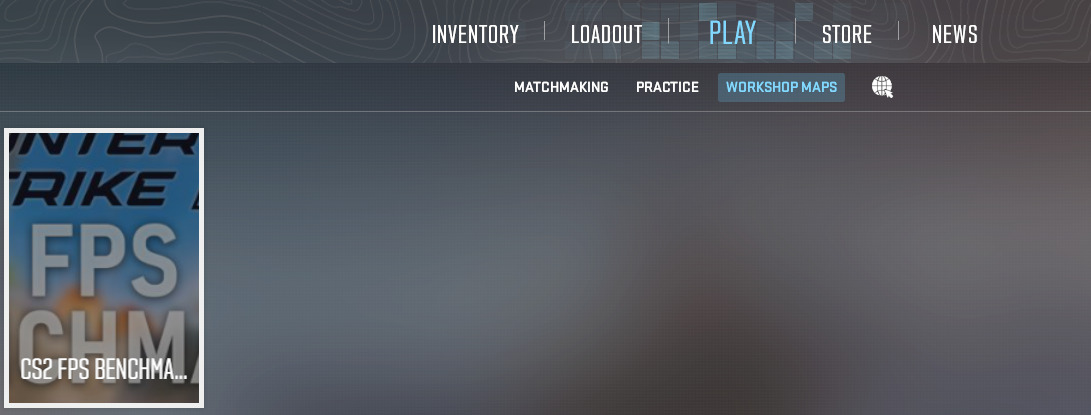
How to run benchmark FPS test
Once the benchmark environment loads, the interface will prompt you to press the E key to commence the automated testing procedure. The map comprehensively stress-tests your gaming rig across diverse conditions that mirror actual gameplay challenges: evaluating performance while panning across different angles, navigating through dense smoke effects, observing complex fire particle systems, and processing multiple gunshot sequences with tracer rounds. Each scenario targets specific hardware components to identify potential bottlenecks.
Upon test completion, the system automatically activates the developer console and presents detailed performance metrics. For accurate results, ensure no background applications are consuming significant system resources during testing. The complete benchmark cycle typically runs 3-5 minutes depending on your system’s capabilities.
- Avg FPS represents your system’s consistent performance across the entire test duration.
- P1 metrics capture the average of your lowest 1% frame rates, highlighting performance consistency during demanding moments.
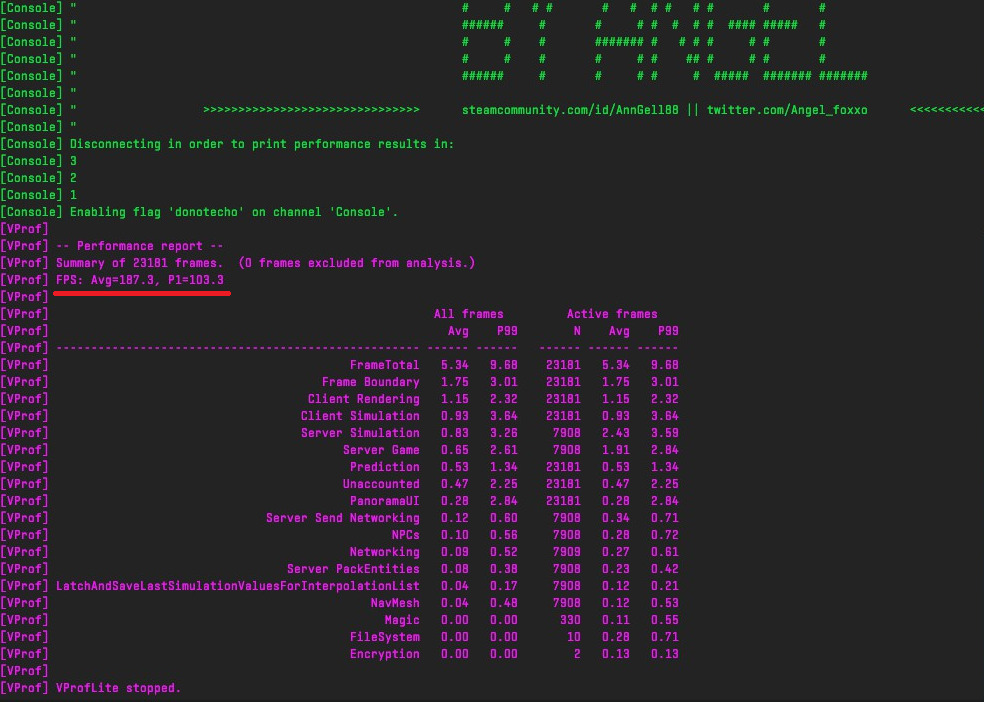
It’s crucial to recognize that benchmark results don’t perfectly replicate competitive matchmaking conditions. The test utilizes Dust 2, one of CS2’s least graphically intensive maps, and employs 10 AI-controlled bots that typically generate lower computational load than human players. Various environmental factors may also influence test outcomes to some extent.
For optimal accuracy, conduct multiple test runs to identify and eliminate statistical outliers. Consistent results across 3+ tests provide the most reliable performance baseline. Professional players recommend maintaining at least 200 FPS average for competitive play, with P1 values no lower than 60% of your average FPS for smooth gameplay.
If your results fall below expectations, consider exploring our Weapons Unlock guide for optimization techniques that can improve frame rates. Significant disparities between average FPS and P1 values often indicate CPU limitations or memory bandwidth constraints.
How to compare my performance with other players?
Utilize the Workshop page’s comment section to locate users with comparable hardware configurations and assess whether your performance metrics align with community standards. The platform accumulated over 100 performance reports within the first 24 hours of the map’s release, providing substantial comparative data.
When comparing results, focus on systems with similar CPU/GPU combinations rather than identical components. Performance variations of 10-15% between similar systems are normal due to driver versions, background processes, and system optimization differences. For comprehensive system analysis, reference our Complete Guide to advanced performance tuning techniques.
Where to find FPS counter in CS2? How to activate FPS command in console or Steam overlay in CS2
See how well your game runs.
Action Checklist
- Subscribe to Angel’s CS2 FPS Benchmark map via Steam Workshop
- Launch CS2 and access through Workshop Maps menu
- Run complete benchmark test following on-screen prompts
- Record both average FPS and P1 values from console results
- Compare results with similar hardware in workshop comments
No reproduction without permission:SeeYouSoon Game Club » How to test FPS in CS2? Running benchmark test using workshop map Complete guide to benchmark FPS testing in CS2 using community workshop maps for performance optimization