
TL;DR
- Parental controls on Switch 2 manage screen time, purchases, and content access through a dedicated smartphone app
- Setup requires downloading Nintendo’s Parental Controls app and linking it to your Nintendo Account
- Advanced options include ESRB rating filters, communication restrictions, and spending limits
- Regular monitoring and password security are crucial for maintaining effective controls
- The system provides comprehensive protection but requires proper configuration for optimal security
Modern gaming consoles like the Nintendo Switch 2 offer extensive digital experiences that require thoughtful management, especially for younger players. The platform’s parental control system provides robust tools to safeguard children’s gaming activities while allowing age-appropriate access.
Digital safety becomes increasingly important as children gain earlier access to online environments. Nintendo’s comprehensive approach to parental controls addresses multiple concerns simultaneously, from managing screen time to preventing unauthorized purchases. These features help create a balanced gaming experience that aligns with family values and safety standards.
The parental control suite enables restrictions on various aspects including GameChat functionality, titles with specific ESRB ratings, online interactions, and in-game purchasing capabilities. This multi-layered protection system ensures parents can customize the gaming environment to match their child’s maturity level and family guidelines.
Begin the configuration process by navigating to your Switch 2’s home screen and selecting the Settings icon, typically represented by a gear symbol. Scroll through the menu options until you locate Parental Controls, then choose Set Up Parental Controls to initiate the system.
The console will prompt you to install the dedicated Nintendo Switch Parental Controls application on your smartphone. The most efficient method involves using your phone’s camera to scan the displayed QR code, which automatically directs you to the appropriate app store. Alternatively, you can manually search for “Nintendo Switch Parental Controls” in your device’s application marketplace or use the direct download links:
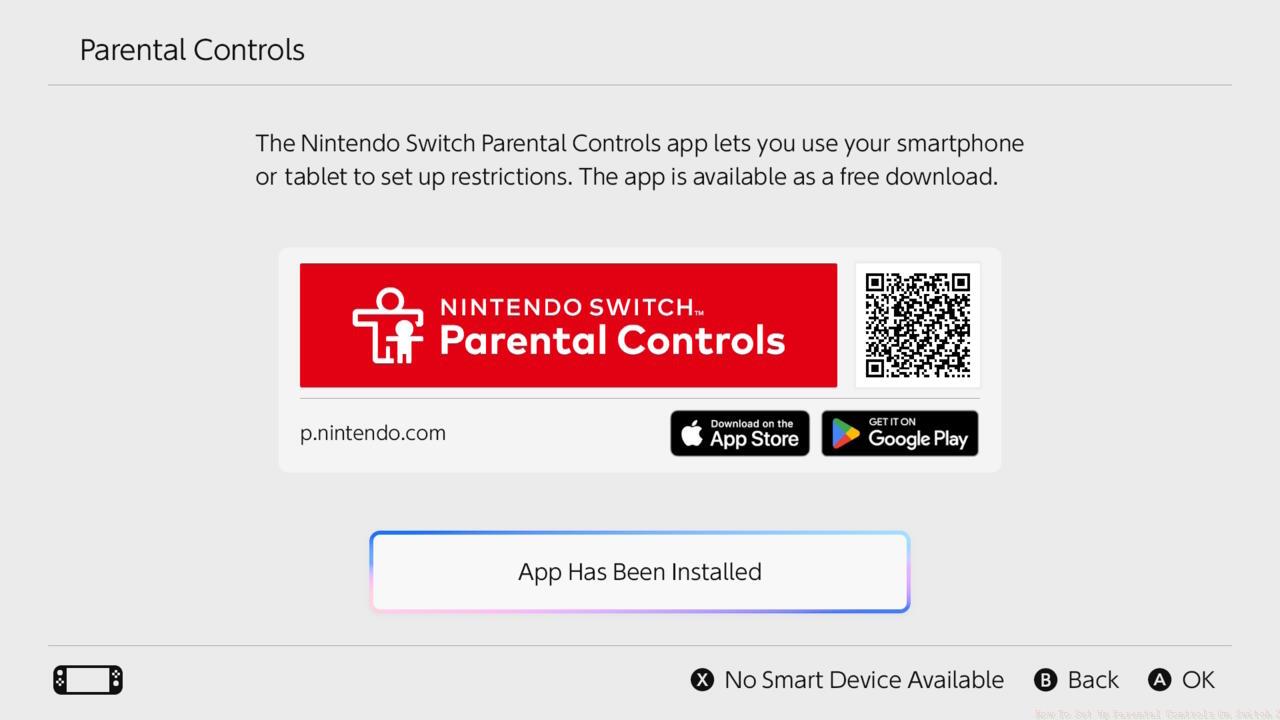
The parental controls app provides the primary interface for managing your child’s gaming experience.
After installing the application, launch it and complete the authentication process using your Nintendo Account credentials. New users can establish a free account during this phase. When the app generates a verification code, carefully input the six-digit sequence into your Switch 2 as instructed.
Proceed to the subsequent screen where you’ll authorize the connection between your Nintendo Account and the parental controls application. This linkage enables seamless management and monitoring capabilities across devices.
Once the foundational setup completes, the parental controls application reveals its comprehensive management interface. This centralized dashboard allows precise customization of various restriction parameters to suit your family’s specific needs.
The system enables implementation of age-appropriate limitations governing which software titles and system functionalities remain accessible. You can establish filters based on Entertainment Software Rating Board (ESRB) classifications, ensuring children only encounter content suitable for their developmental stage.
Additional configuration possibilities include managing online communication features, controlling multiplayer access, restricting video sharing capabilities, and setting daily or weekly play time limits. The application also provides detailed activity reports showing which games were played and for what duration.
For families with multiple children, the system supports creating individual profiles with tailored restrictions for each user. This personalized approach ensures appropriate content accessibility while maintaining consistent safety standards across all accounts.
Seasoned parents recommend establishing clear gaming guidelines before implementing technical controls. Discuss appropriate play times, content boundaries, and online behavior expectations with your children to create understanding rather than just enforcement.
A frequent configuration error involves setting restrictions too loosely initially. Begin with stricter parameters and gradually relax them as children demonstrate responsible gaming habits, rather than starting lenient and tightening later.
Regularly review the activity reports provided by the parental controls application. These insights help identify usage patterns and determine whether current settings remain appropriate or require adjustment.
Ensure you create a strong, memorable password for the parental controls application itself. Avoid using easily guessable combinations or sharing this authentication with children, as it undermines the entire protection system.
Consider establishing gaming-free periods, such as during homework hours or before bedtime. The system’s scheduling features allow automated enforcement of these time boundaries without daily manual intervention.
For families exploring other gaming options, our Complete Guide to Battlefield 6 provides comprehensive insights into managing mature gaming content appropriately.
Action Checklist
- Access Settings menu and select Parental Controls option
- Download the Parental Controls app on your smartphone
- Link your Nintendo Account with the parental controls application
- Configure ESRB rating restrictions and communication limits
- Set appropriate play time limits and purchase restrictions
- Establish monitoring routine and adjust settings as needed
No reproduction without permission:SeeYouSoon Game Club » How To Set Up Parental Controls On Switch 2 Complete guide to setting up Nintendo Switch 2 parental controls with expert tips and common pitfalls