
TL;DR
- Navigate to Settings from home screen to manage user profiles efficiently
- Choose between Nintendo Account linking or local profile creation based on needs
- Always backup save data before removing users to prevent permanent loss
- Utilize family sharing features for optimal multi-user gaming experience
- Implement proper profile organization to enhance console performance
Mastering user profile management on your Nintendo Switch 2 unlocks the console’s full potential for shared gaming experiences. This comprehensive guide provides actionable strategies for both adding and removing profiles while ensuring data security and optimal performance.
The Switch 2’s multi-profile capability transforms how families and gaming groups interact with the system. Each profile maintains separate save files, game progress, and personalized settings, allowing multiple players to enjoy their gaming journey without interference. Understanding this system’s architecture is crucial for maximizing your console’s utility.
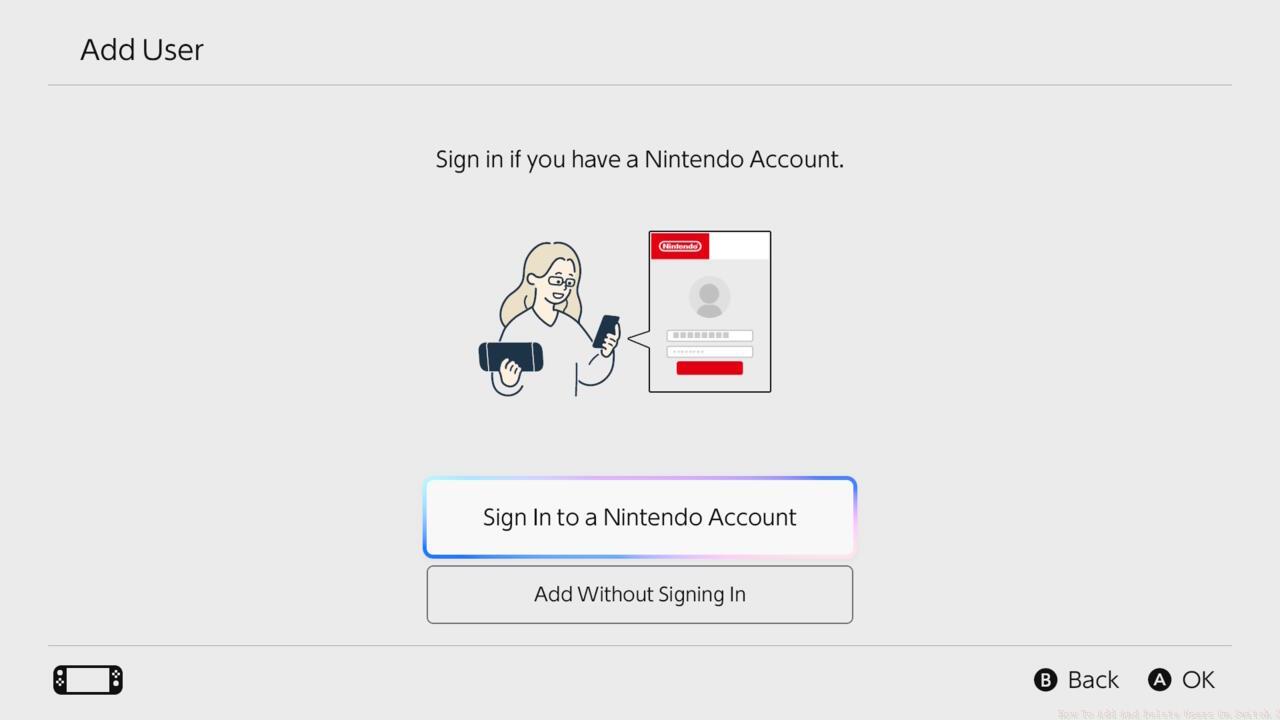
Sign in to a Nintendo Account or create a local user.
When setting up profiles, you’ll encounter two distinct account types: Nintendo Account-linked profiles and local-only accounts. Linked accounts provide cloud saves, online multiplayer access, and cross-device synchronization, while local accounts offer quick setup for temporary users or guests. This distinction significantly impacts long-term data management and gaming capabilities.
Adding new users to your Switch 2 requires careful navigation through the system’s intuitive interface. Begin by selecting the Settings icon prominently displayed on your home screen. This centralized hub contains all essential system management tools.
The critical decision point arrives when choosing between Nintendo Account integration or local profile creation. Nintendo Accounts deliver superior features including cloud backup, online gameplay, and access to exclusive content through Nintendo Switch Online. Local profiles, while limited in functionality, serve perfectly for temporary users or children’s accounts where online features aren’t necessary.
Profile customization represents the final phase, where you’ll assign distinctive avatars, create memorable nicknames, and configure privacy settings. This personalization enhances the gaming experience while maintaining organizational clarity across multiple users.
Advanced users should consider implementing a naming convention for profiles to streamline management. For example, using color-coded avatars or family-specific identifiers can dramatically improve navigation efficiency when multiple people share the console regularly.
Removing user profiles demands careful consideration to prevent accidental data loss. Before initiating deletion, verify that all critical save data has been properly backed up, especially for games with significant progression. Nintendo’s cloud save system automatically protects linked accounts, but local profiles require manual intervention.
Access the removal interface by first selecting the Settings icon from your home screen navigation. Identify the specific user profile requiring deletion by examining their avatar and nickname carefully. Mistaken identity during this phase can lead to irreversible data destruction.
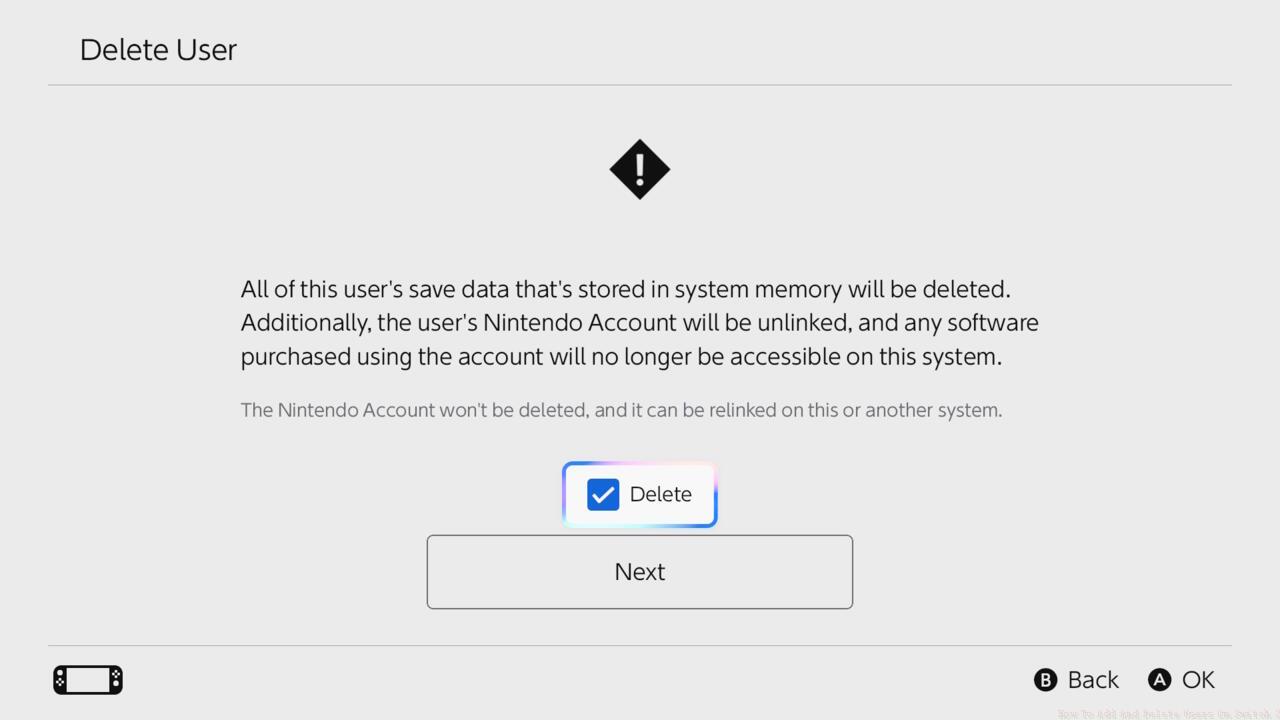
If you’re ready to delete the user, go ahead and make it so.
The system will present multiple confirmation prompts before finalizing deletion. This safety mechanism prevents accidental removals but requires attentive response to each warning message. Permanent deletion occurs immediately after the final confirmation, with no recovery option available.
Optimizing your Switch 2’s user profile system requires implementing professional gaming management techniques. Family sharing features, when properly configured, allow controlled access to purchased games while maintaining individual progress tracking. This approach maximizes value from your game library across multiple users.
Common management pitfalls include overcrowding the system with unnecessary profiles, which can impact loading times and organizational clarity. Limit active profiles to actual regular users and create guest accounts only when specifically needed for temporary access.
Performance optimization involves regularly auditing your user list and removing inactive profiles. Each additional profile consumes system resources and storage space, potentially affecting game performance and loading speeds. Maintain a lean profile roster for optimal console responsiveness.
For gamers diving into complex titles like Battlefield 6, maintaining organized user profiles ensures that multiplayer progress and weapon unlocks remain properly attributed. The class selection system in BF6 benefits from clean profile management, as does tracking weapon assignment progress across different user sessions.
Advanced users should schedule quarterly profile audits to remove unused accounts and reorganize active ones. This maintenance routine typically requires 10-15 minutes but delivers significant long-term benefits for console performance and user experience.
Action Checklist
- Access Settings from home screen and navigate to Users section
- Decide between Nintendo Account linking or local profile creation based on user needs
- Configure profile with customized avatar, nickname, and privacy settings
- Backup all critical save data before proceeding with any user removal
- Perform quarterly profile audits to maintain optimal system performance
No reproduction without permission:SeeYouSoon Game Club » How To Add And Delete Users On Switch 2 Master Switch 2 user management with expert techniques for optimal gaming experience