
TL;DR
- Prince of Persia: The Lost Crown delivers exceptional performance on Steam Deck despite not being available on Steam
- Heroic Games Launcher provides the most straightforward installation method for Epic Games Store purchases
- Ubisoft Connect requires advanced setup but works for direct Ubisoft purchases
- Proton Experimental compatibility tool is essential for smooth gameplay
- Custom artwork and shortcuts enhance the gaming experience in SteamOS
Prince of Persia: The Lost Crown represents a masterful transformation of the beloved franchise into a side-scrolling metroidvania adventure. This genre shift proves particularly well-suited for handheld gaming platforms, creating an immersive experience that feels perfectly at home on devices like the Nintendo Switch and Steam Deck. The game’s fluid combat, intricate level design, and time-manipulation mechanics translate beautifully to the portable format.
The Steam Deck handles The Lost Crown with impressive proficiency, maintaining stable frame rates and responsive controls throughout extended play sessions. However, the installation process requires additional steps since the title isn’t currently available through Steam’s native storefront.

Prince of Persia: The Lost Crown Standard Edition
$50
See at Ubisoft Store See at Amazon 
Prince of Persia: The Lost Crown Deluxe Edition
$60
See at Ubisoft Store See at Best Buy
Whether you purchase directly from Ubisoft’s platform or through the Epic Games Store, you can successfully run The Lost Crown on your Steam Deck. Our comprehensive testing confirms outstanding performance across various gameplay scenarios, making the setup effort thoroughly worthwhile.
Simplest method: Epic Games Store + Heroic Games Launcher
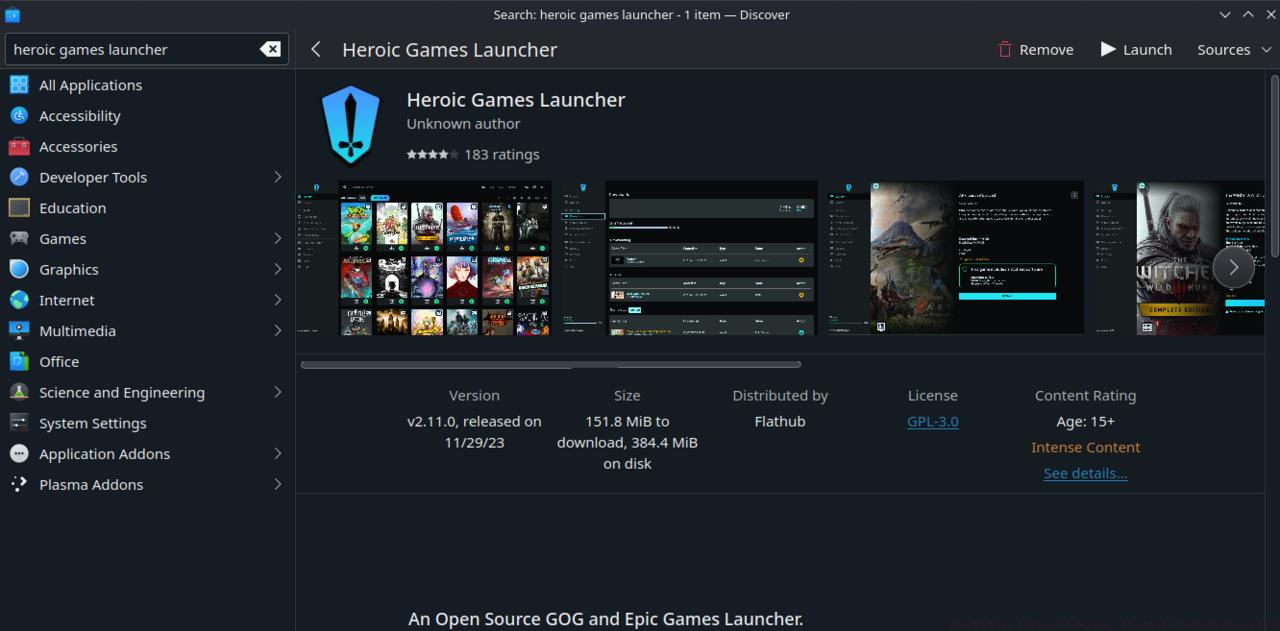
Heroic Games Launcher
For Steam Deck owners seeking the most efficient installation path, purchasing through the Epic Games Store and utilizing the Heroic Games Launcher delivers optimal results. This open-source Linux application consolidates multiple gaming platforms including Epic, GOG, and Prime Gaming into a unified interface that integrates seamlessly with SteamOS.
Follow this comprehensive setup process for best results. We strongly recommend using physical keyboard and mouse peripherals during configuration. If you lack a Steam Deck dock or USB-C hub, Bluetooth accessories provide adequate functionality.
- Access Desktop Mode on your Steam Deck: Press and hold the power button until the system menu appears, then select “Switch to Desktop.”
- Launch the Discover application, identifiable by its shopping bag icon on the taskbar.
- Enter Heroic Games Launcher in the search field. Proceed with installation.
- After installation completes, open the application and authenticate with your Epic Games Store credentials.
- Your complete game collection will load, enabling you to acquire and install Prince of Persia: The Lost Crown directly.
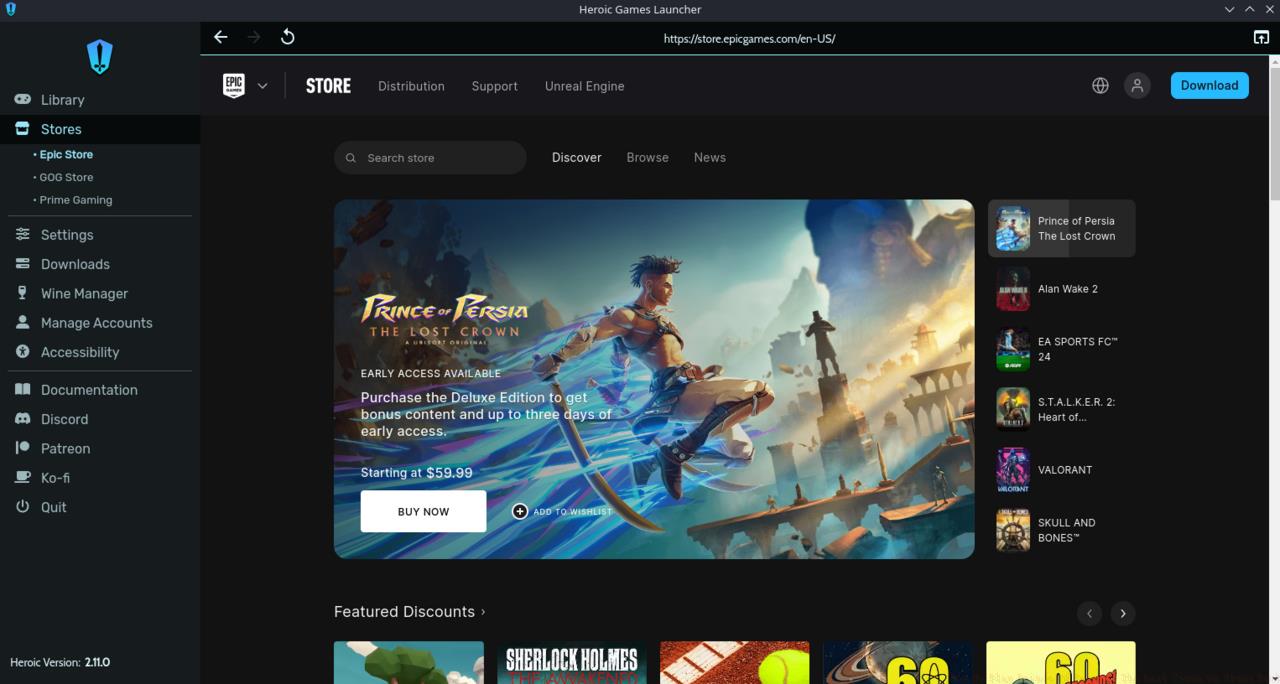
Epic Games Store on Heroic Games Launcher
You can begin playing immediately at this stage, but to access The Lost Crown through Steam Deck’s standard Gaming Mode interface, additional configuration steps become necessary.
- To incorporate Heroic Games Launcher into your Steam library, open Steam within Desktop Mode and select “Add a Game” from the lower left corner.
- Choose “Add a Non-Steam Game.”
- A pre-populated application list will display. Locate Heroic Games Launcher and activate the selection box. Then click “Add Selected Programs.”
- Heroic Games Launcher becomes available for launch in Gaming Mode. You’ll locate it within the “Non-Steam” category.
- For enhanced integration that adds the game directly to your Steam library, once more select “Add a Game” followed by “Add a Non-Steam Game”
- This time select “Browse.”
- Navigate to /home/deck/Games/Heroic
- Inside the Prince of Persia directory, you’ll discover an executable file for The Lost Crown. Choose the exe and click “Open.” Then select “Add Selected Programs.”
- Within Steam, locate the Prince of Persia executable and select the settings icon, then choose “Properties.”
- Consider renaming the shortcut for improved organization.
- This critical final step ensures proper functionality: While in “Properties” select “Compatibility” and activate the option to compel Steam to employ a Proton compatibility utility. Select “Proton Experimental” from the available options.
- Success! You can now initiate Prince of Persia: The Lost Crown identically to your native Steam titles within Gaming Mode.
- Utilize Decky Loader to install SteamDB for adding custom artwork to your game tiles.
- If you prefer alternatives to Heroic Games Launcher, you can incorporate the standard Epic Games Launcher onto your Steam Deck.
Adding Ubisoft Connect to Steam Deck
Playing Prince of Persia: The Lost Crown through Ubisoft Connect, Ubisoft’s proprietary launcher, remains feasible on Steam Deck. However, this approach involves significantly greater complexity compared to other methods. Even when purchasing directly from Ubisoft Connect, we strongly advocate utilizing either the Epic Games Launcher or GOG Galaxy instead. You can synchronize your Ubisoft Connect account with both GOG and Epic platforms, launching your games through those streamlined applications.
If specific circumstances necessitate using Ubisoft Connect directly, implement this detailed configuration procedure:
- Within Desktop Mode, visit ubisoftconnect.com and obtain the launcher installer.
- Avoid executing the installer directly.
- Launch Steam. Select “Add a Game” from the lower left corner and choose “Add a Non-Steam Game.”
- Click “Browse” and navigate to the installer executable within your downloads directory.
- Select “Open” then “Add Selected Programs.”
Ubisoft Connect can be installed within the Steam app
- Return to your Steam library, locate the Ubisoft Connect installer, select the settings gear and choose “Properties.”
- You can modify the name to Ubisoft Connect (using the shortcut text field) then click “Compatibility” in the sidebar. Activate the checkbox to force Steam to implement a compatibility tool and select “Proton Experimental.”
Use Steam Play compatibility tool to run the installer
- Then select “Play” to initiate the installation procedure.
- Deactivate “Run Ubisoft Connect” upon completion of the installation process.
- With Ubisoft Connect successfully installed, you must now incorporate the actual launcher into your Steam library. Failure to complete this step will result in repeatedly triggering the installation sequence.
- To add the functional launcher, return to “Properties.”
- In the shortcut interface, select “Browse” adjacent to the “Target” field.
- Now locate the directory where Steam Deck has generated a simulated Windows file structure.
- Ensure hidden files are visible on your Steam Deck. Accomplish this by either using the keyboard combination ctrl + h or selecting the three horizontal lines icon (beside the magnifying glass) in the upper right corner of the folder. Verify the “Show Hidden Files” checkbox remains selected.
- With this configuration established, follow this precise path sequence to define the correct “Target”:
- home > .local > share > Steam > steamapps > compatdata > most recent folder # > pfx > drive c > programfiles86 > Ubisoft > Ubisoft Game Launcher > UbisoftConnect.exe
UbisoftConnect.exe is what you should be looking for in this for in this folder
- “Most recent folder #” will consist of approximately 10 numerical digits. This identifier varies between users, but typically corresponds to the newest directory within this location.
- Insert quotation marks at both beginning and end of the path. Duplicate and insert the path into the “Start In” text box as well.
- You can now initiate Ubisoft Connect and proceed with game installation.
- If you desire direct game launching from Gaming Mode without first accessing and navigating Ubisoft Connect, once again “Add a Non-Steam Game” to the launcher.
- When you select “Browse,” it should automatically open within the identical sub-directory as previously.
- Navigate to /games/Prince of Persia The Lost Crown/TheLostCrown.exe and incorporate it into your library.
- Configure Steam Play compatibility to “Proton Experimental” and customize the shortcut name according to preference.
- Verify “Target” and “Start In” fields correspond precisely, and enclose the path within quotation marks.
- Finally, we must append a command to the “Launch Options” text box, positioned beneath “Start In.” The following instruction directs Steam to launch both Ubisoft Connect and Prince of Persia simultaneously.
- STEAM_COMPAT_DATA_PATH=”home/deck/.local/share/Steam/steamapps/compdata/most recent folder #” %command%
- Substitute “most recent folder #” with the numerical sequence matching your Ubisoft Connect directory–identical to the string identified in your file path for “Target.”
Your Ubisoft games will be located in the same directory as the launcher
- If you encounter an error indicating the launcher cannot be located when initiating The Lost Crown, you can duplicate/transfer the launcher inside /Ubisoft Game Launcher/games/Prince of Persia The Lost Crown/GameLauncher. This file is named UbisoftGameLauncher.exe and resides within the Ubisoft Game Launcher folder.
- You can utilize Decky Loader to install SteamDB for incorporating custom artwork into your game tiles.
To maximize your Prince of Persia: The Lost Crown experience on Steam Deck, implement these performance enhancement strategies:
Graphics Configuration: Adjust in-game settings to balance visual quality with performance. Medium settings typically provide optimal results, maintaining 60fps while preserving visual fidelity. The game’s art style remains compelling even at reduced graphical settings.
Battery Conservation: Enable the 40Hz refresh rate option in Quick Access Menu for extended play sessions. This reduces power consumption significantly without compromising gameplay smoothness.
Controller Customization: The Lost Crown benefits significantly from customized control schemes. Consider mapping time-manipulation abilities to rear paddles for quick access during combat sequences.
The Steam Deck’s default performance profile handles The Lost Crown exceptionally well, but once you resolve the launcher configuration, you’ll be fully prepared for an exceptional gaming experience.
Action Checklist
- Purchase game through Epic Games Store for simplest setup
- Install Heroic Games Launcher via Discover app in Desktop Mode
- Add Heroic Launcher to Steam library via Non-Steam Games
- Configure Proton Experimental compatibility for optimal performance
- Install Decky Loader and SteamDB for custom artwork
No reproduction without permission:SeeYouSoon Game Club » How To Play Prince Of Persia: The Last Crown On Steam Deck Complete guide to installing Prince of Persia: The Lost Crown on Steam Deck with optimized performance settings