
TL;DR
- CS2’s October update introduced scope bloom visuals showing weapon inaccuracy during movement
- The feature affects AWP, SCAR-20, and G3SG1 sniper rifles with thinner scope lines
- Disable via Settings → Game → Item → ‘Show Scoped Sniper Rifle Inaccuracy’ option
- Use console command ‘cl_sniper_show_inaccuracy 0’ for immediate classic scope restoration
- Both methods provide identical results with no gameplay performance differences
Games and Esports Articles CS 2
Valve’s October 1st Counter-Strike 2 update introduced significant visual changes beyond the expected map additions and cosmetic items. The most discussed alteration involves the AWP scope mechanics, where developers implemented a dynamic visual system called ‘scope bloom’ that represents weapon inaccuracy during movement or initial scoping. This feature modifies the traditional crosshair appearance by thinning the central scope lines when your character is moving or quickly aiming down sights.
The scope bloom visualization affects all scoped sniper rifles in CS2, including the iconic AWP along with the SCAR-20 and G3SG1 automatic sniper variants. Many competitive players find the visual distraction problematic during precise aiming situations, as the fluctuating lines can interfere with target acquisition and shot timing. Fortunately, Valve included an option to disable this feature entirely, allowing players to maintain their preferred visual setup.
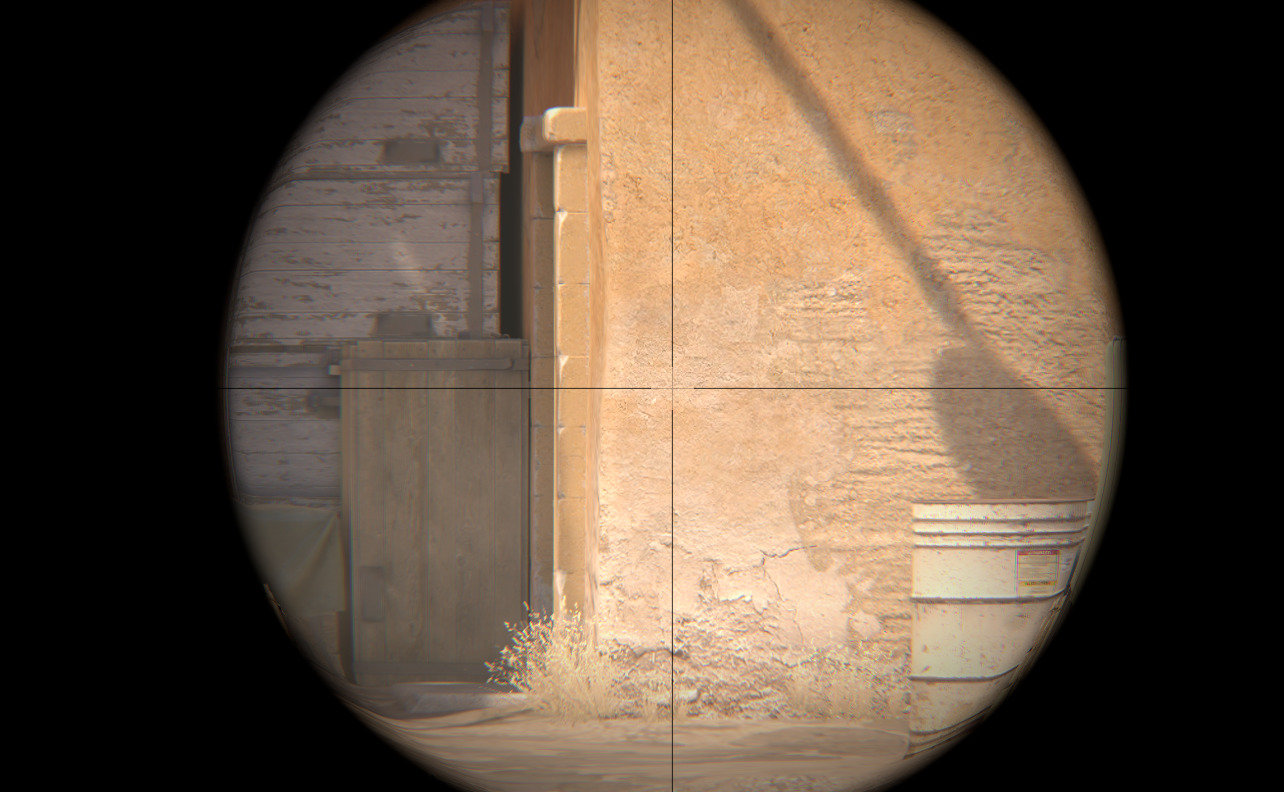
The most straightforward approach to restoring the classic AWP scope involves navigating through CS2’s settings interface. Begin by accessing the main menu and selecting the Settings option, then proceed to the Game tab where you’ll find the Item category. Within this section, locate the toggle labeled “Show Scoped Sniper Rifle Inaccuracy” and disable it to immediately revert to the traditional scope appearance.
This graphical setting adjustment provides instant visual feedback without requiring game restart. The change affects all scoped weapons simultaneously, ensuring consistent visual experience across your sniper rifle arsenal. For players who prefer graphical interfaces over technical commands, this method offers a user-friendly solution that permanently saves your preference within the game’s configuration files.
Many users report improved target tracking and reduced visual clutter after disabling the bloom feature, particularly during aggressive peeking maneuvers or quick-scope engagements where split-second visual clarity becomes critical. Understanding weapon mechanics through our Weapons Unlock guide can help appreciate why visual consistency matters in competitive shooters.
Advanced players and those familiar with CS2’s developer console can achieve identical results through a simple command input. First, ensure the console is enabled in your game settings under the Game category. Once activated, press the tilde key (~) to open the console interface and enter the command “cl_sniper_show_inaccuracy 0” to immediately disable the scope bloom visualization.
This console approach offers several advantages for power users, including the ability to bind the command to specific keys for rapid toggling during matches. The numerical value ‘0’ represents the disabled state, while ‘1’ would re-enable the feature if desired later. The command takes effect instantly without requiring menu navigation.
For permanent configuration, consider adding the command to your autoexec.cfg file, which automatically applies your preferred settings each time CS2 launches. This method proves particularly useful for players who frequently switch between different visual configurations based on map strategies or playstyles. Mastering console commands aligns with advanced techniques covered in our Complete Guide to competitive FPS optimization.
Beyond the basic restoration methods, several optimization strategies can enhance your sniper rifle experience. The scope bloom setting carries no performance impact regardless of its state, making the choice purely preferential rather than technical. However, players should note that disabling the visual indicator doesn’t affect the actual weapon accuracy mechanics—it merely removes the visual representation of inaccuracy.
Common mistakes include confusing this visual setting with actual accuracy improvements or expecting gameplay advantages beyond reduced visual distraction. The modification strictly affects aesthetics, maintaining identical weapon behavior and shooting mechanics. Competitive players often disable the feature to eliminate potential distractions during crucial clutch situations.
For optimal results, combine scope customization with proper crosshair configuration and sensitivity settings to create a cohesive aiming environment. Understanding how different visual elements interact can significantly improve your overall gameplay consistency. These optimization principles apply broadly across FPS titles, as detailed in our comprehensive Class Guide for tactical shooter mastery.
Action Checklist
- Access Settings → Game → Item menu in CS2
- Toggle off ‘Show Scoped Sniper Rifle Inaccuracy’ option
- Enable developer console in game settings if using command method
- Input ‘cl_sniper_show_inaccuracy 0’ in console for immediate effect
- Add command to autoexec.cfg for permanent configuration
No reproduction without permission:SeeYouSoon Game Club » How to get old AWP scope. Ways to turn off new AWP scope spread feature and revert scope bloom inaccuracy Complete guide to disabling AWP scope bloom and restoring classic CS2 sniper rifle visuals with console commands