
Comprehensive guide to fix controller and wheel issues in Assetto Corsa Rally with troubleshooting tips
Understanding Controller Compatibility Problems
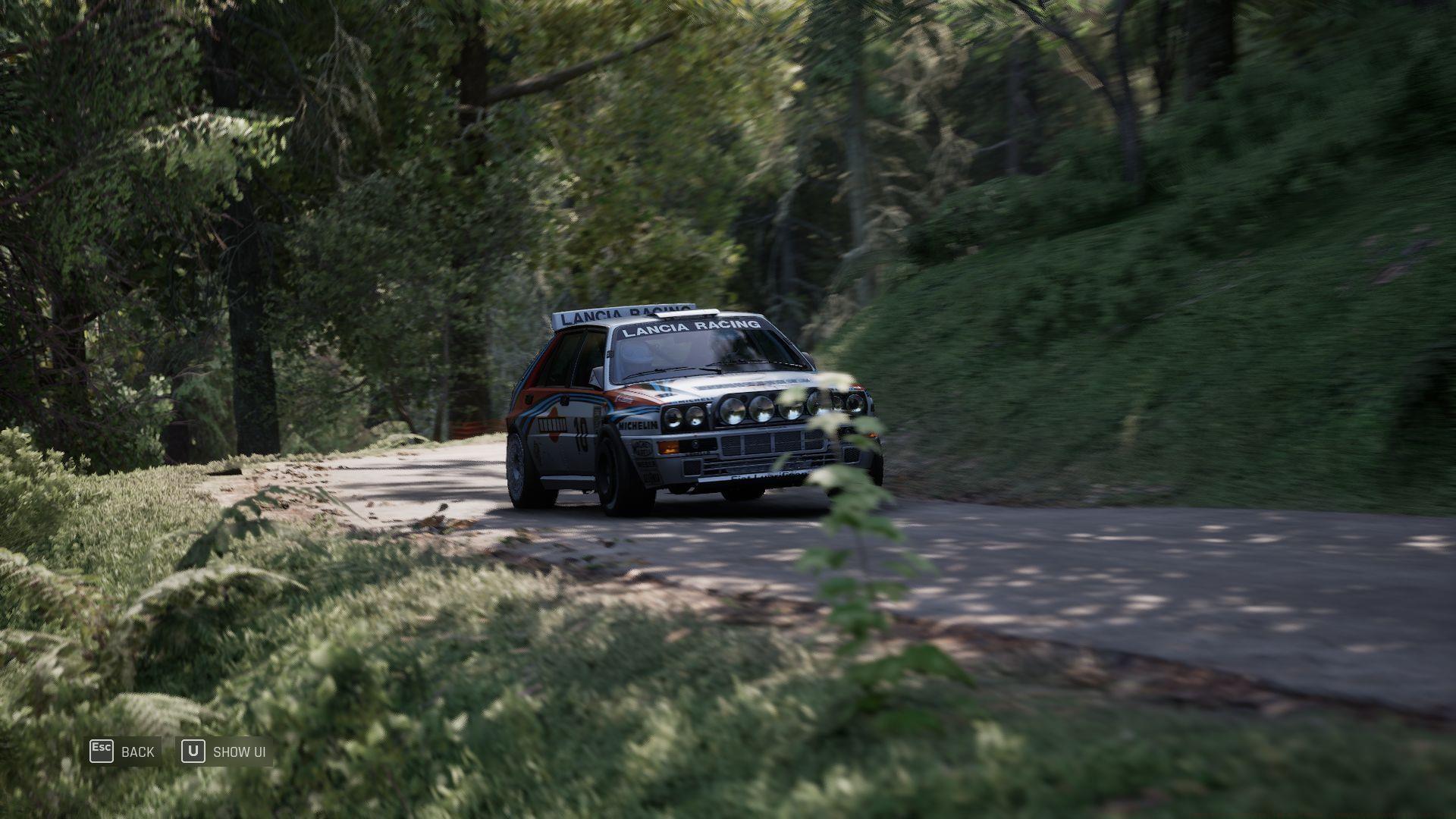
Assetto Corsa Rally has launched with thrilling rally circuits across Alsace and Wales, delivering intense racing action for competitive drivers. Unfortunately, numerous players have encountered frustrating hardware recognition problems preventing them from accessing the game’s full potential. These input device malfunctions typically stem from Steam’s controller management system conflicting with the game’s native support.
Supernova Games Studios has proactively released official solutions to address these controller and wheel detection challenges. The primary culprit involves Steam Input overriding direct controller communication, which disrupts proper device recognition. Understanding this conflict helps explain why the straightforward fix effectively resolves most connectivity issues.
Many sim racers mistakenly believe their hardware is defective when experiencing these problems. In reality, the issue lies in software configuration rather than physical device failure. This distinction is important for troubleshooting efficiently without unnecessary hardware replacements.
Step-by-Step Controller Fix Implementation
Here’s the comprehensive procedure to restore controller functionality in Assetto Corsa Rally:
- Completely exit Assetto Corsa Rally ensuring no background processes remain active
- Navigate to your Steam library and locate the game’s entry page
- Right-click the title and access the Properties configuration panel
- Select the Controller management section and deactivate Steam Input completely
- Relaunch the game to verify controller responsiveness
After implementing these adjustments, most gamepad users should experience seamless controller operation. For racers utilizing both controller and wheel simultaneously, critically important additional step involves manually designating your preferred input method through the in-game Settings menu. Failure to explicitly select your primary device often causes input conflicts and unresponsive controls.
If controller bindings still refuse to function correctly after these steps, perform a complete Steam client restart. This ensures all configuration changes fully initialize and apply when the game relaunches. Many persistent issues resolve simply through this comprehensive restart process that refreshes all background services.
Advanced users should note that controller calibration might require minor adjustments post-fix. The game’s default sensitivity settings may feel different once Steam Input interference is eliminated, potentially improving precision but requiring slight adaptation period.
Fanatec Wheel Force Feedback Solutions
Fanatec direct drive wheel owners require specific configuration adjustments to activate force feedback functionality. The Fanatec DD CSL wheelbase necessitates compatibility mode activation for proper FFB communication with Assetto Corsa Rally’s physics engine.
Follow this precise procedure to enable compatibility mode:
- Locate the power button on your Fanatec wheelbase assembly
- Press and maintain pressure until the LED indicator cycles through colors and stabilizes at yellow
- Once the yellow illumination persists, compatibility mode activates successfully
With compatibility mode engaged, players should immediately experience authentic force feedback through their steering wheel. This tactile feedback represents arguably the most crucial immersion element in simulation racing, providing essential road surface information and vehicle behavior cues. Without functional FFB, drivers lose critical performance feedback necessary for competitive rally driving.
Force feedback strength can typically be adjusted through both the wheelbase settings and in-game force feedback sliders. Finding the optimal balance prevents overwhelming resistance while maintaining informative tactile communication. Many experienced sim racers recommend starting at 70-80% strength then fine-tuning based on personal preference and specific stage conditions.
Advanced Troubleshooting Strategies
When basic solutions prove insufficient, advanced troubleshooting techniques often resolve persistent controller and wheel issues. One common oversight involves USB port selection – always connect racing peripherals directly to motherboard ports rather than through hubs or front panel connectors for optimal power delivery and stability.
Multiple controller configurations demand careful device priority management. Windows typically assigns priority to the last connected device, which can disrupt your intended control scheme. Disconnect unnecessary peripherals before launching the game, then systematically reconnect them after establishing primary control.
Since Assetto Corsa Rally remains in active early access development, players should anticipate occasional compatibility challenges. The development team has confirmed they’re continuously addressing major reported issues through regular updates. Community feedback directly influences patch priorities, making bug reporting valuable for improvement.
For ongoing issues, verify controller functionality in other racing titles to isolate whether problems are game-specific or system-wide. Also consider updating peripheral firmware through manufacturer software, as outdated drivers frequently cause compatibility problems with new game releases.
Also read: Assetto Corsa Rally Review: Immersive gameplay brings the art of rallying to life
Essential companion guides for optimal performance:
- AC Rally best controller settings
- Best camera settings in AC Rally
- Best racing wheel setup for AC Rally
- AC Rally Tyre Choice Guide: When to Use Soft, Medium, or Hard Compounds
- All stages in AC Rally
No reproduction without permission:SeeYouSoon Game Club » How to fix controller and wheel issues in Assetto Corsa Rally Comprehensive guide to fix controller and wheel issues in Assetto Corsa Rally with troubleshooting tips