
Expert solutions to resolve Doom The Dark Ages freezing on PC, including driver optimization, GPU configuration, and file verification.
Understanding the Freezing Problem
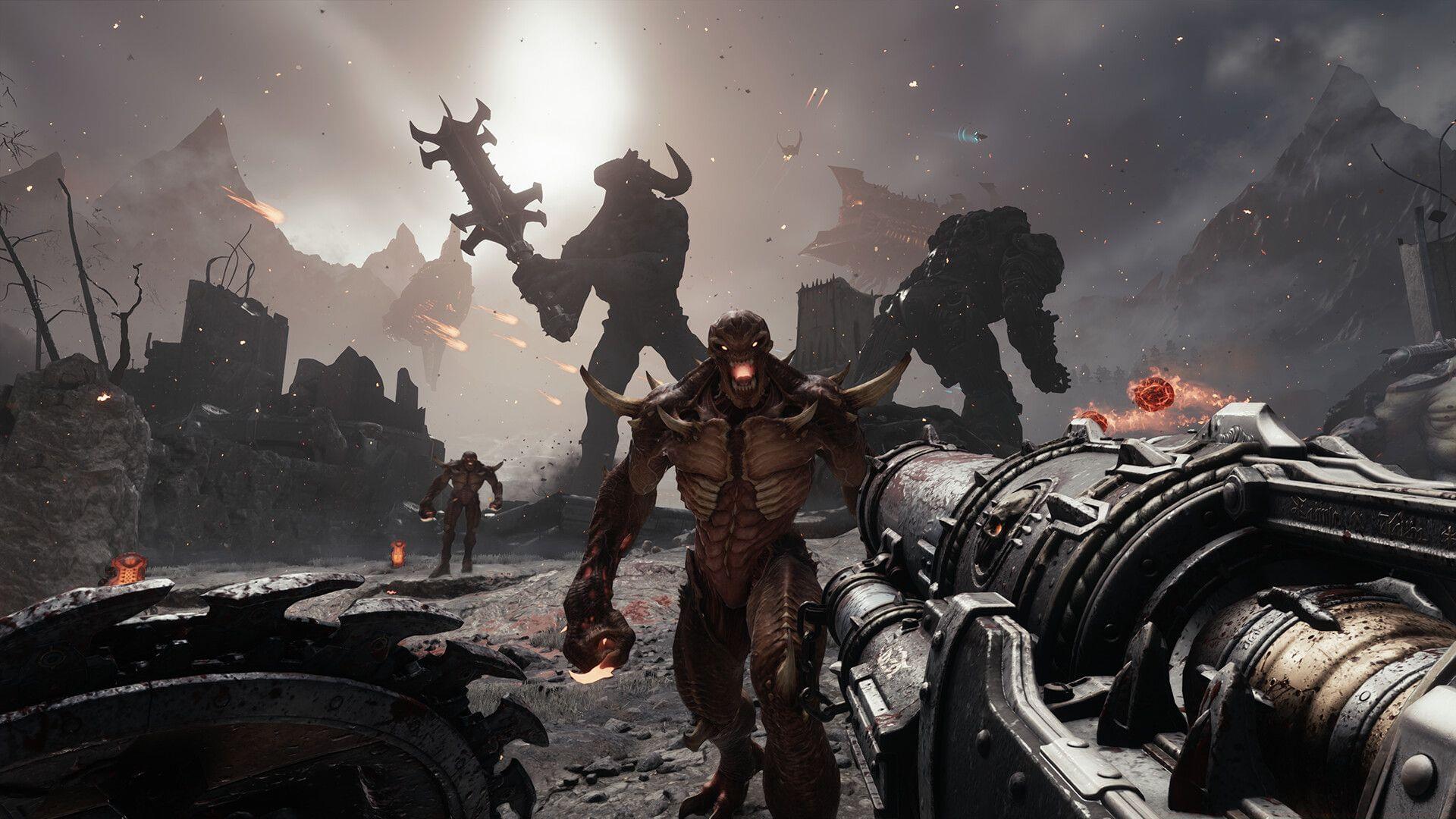
PC players of Doom The Dark Ages are encountering frequent game freezing issues without error messages. Since the game’s launch on May 15, 2025, these interruptions have disrupted gameplay for many users. The freezing typically occurs during intense combat sequences or when loading new areas.
Unlike crashes that generate error codes, freezing problems often stem from hardware compatibility issues or software conflicts. These can include outdated drivers, incorrect GPU allocation, or corrupted installation files. Fortunately, most of these issues can be resolved through systematic troubleshooting.
Read more: How to get Discord x Doom: The Dark Ages Shield Saw Decoration for free
Before diving into specific fixes, it’s helpful to understand what causes these freezes. The game may be attempting to access resources that aren’t properly configured, or your system might be struggling with specific graphical settings. Identifying patterns in when freezes occur can help pinpoint the underlying issue.
Solution 1: Update Graphics Drivers
Graphics drivers serve as the critical communication bridge between your operating system and GPU. Outdated or corrupted drivers represent the most common cause of game freezing in Doom The Dark Ages. Bethesda’s developers specifically recommend current GPU drivers for optimal performance.
Common Mistake: Many players install drivers without removing previous versions, leading to conflicts. Always perform a clean installation to prevent driver stacking issues.
Follow this comprehensive process to update your graphics drivers:
After updating drivers, launch Doom The Dark Ages to check if freezing persists. If issues continue, the problem may involve GPU allocation rather than driver compatibility.
Check out: Is Doom The Dark Ages coming to PS4 and Xbox One?
Solution 2: Configure GPU Settings
Many gaming PCs contain both integrated graphics (usually Intel) and discrete GPUs (NVIDIA or AMD). Windows sometimes defaults to integrated graphics for power saving, which cannot handle demanding games like Doom The Dark Ages.
Optimization Tip: Advanced users can monitor GPU usage through Task Manager (Performance tab) to confirm which GPU the game is using during freezes.
To ensure your discrete GPU handles the game, configure Windows Graphics Settings:
This configuration forces Windows to allocate your powerful discrete GPU to Doom The Dark Ages, potentially eliminating freezing caused by insufficient graphical resources.
Read more: Doom: The Dark Ages crashing on PC error: Possible reasons and fixes
Solution 3: Verify Game Files
Corrupted or missing game files frequently cause freezing issues. These problems can arise from interrupted downloads, disk errors, or antivirus interference during installation. Verifying files through your game launcher replaces damaged components.
Common Mistake: Players often skip file verification when experiencing minor issues, allowing corruption to accumulate. Regular verification prevents progressive degradation.
For Steam users, follow these detailed verification steps:
After verification, Steam replaces corrupted files with fresh copies. This process often resolves freezing caused by damaged game assets or configuration files.
Also check out: 7 things you should know before starting Doom The Dark Ages
Advanced Troubleshooting & Prevention
If basic solutions don’t resolve freezing, advanced troubleshooting may be necessary. These techniques help identify deeper system issues affecting Doom The Dark Ages performance.
Performance Monitoring: Use MSI Afterburner or HWiNFO to monitor GPU/CPU temperatures and usage during gameplay. Freezing often occurs when components thermal throttle or hit 100% utilization.
Optimization Tips for Advanced Players:
Prevention Strategy: Regularly update drivers, monitor system temperatures, and maintain at least 20% free space on your game installation drive. These practices reduce the likelihood of future freezing issues.
That’s everything that you need to know about fixing the Doom The Dark Ages freezing on PC error. For more related guides, check out the links below:
No reproduction without permission:SeeYouSoon Game Club » Doom The Dark Ages freezing on PC error: Possible reasons and fixes Expert solutions to resolve Doom The Dark Ages freezing on PC, including driver optimization, GPU configuration, and file verification.