
Expert solutions to resolve CS2 server class tables mismatch error and prevent future occurrences
Understanding the Server Class Tables Error
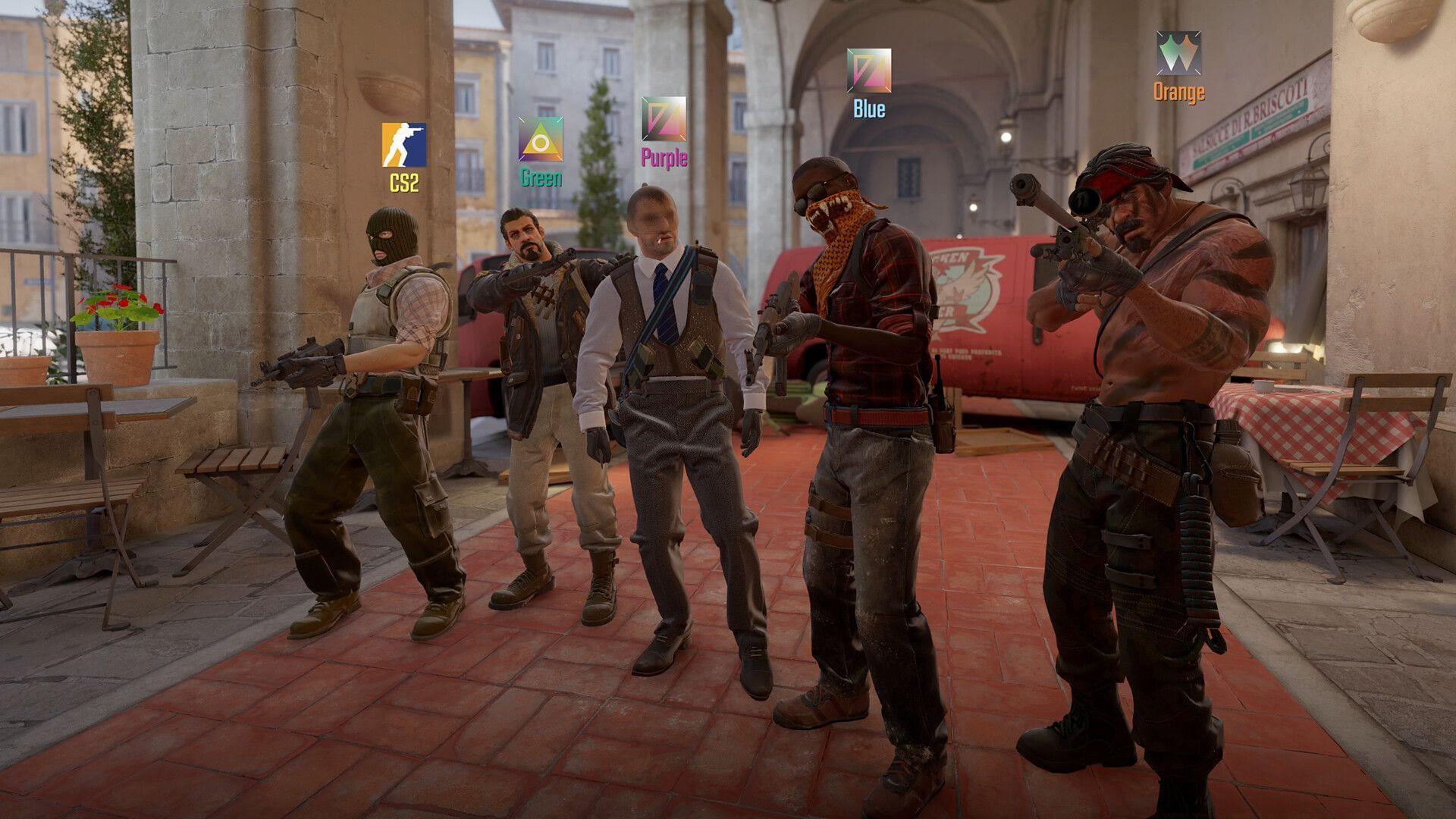
The CS2 server uses different class tables error represents a version synchronization problem between your game client and the server infrastructure. This discrepancy typically emerges following major game updates when the server receives new configuration files that your local installation hasn’t yet acquired. The class tables contain critical game data about weapons, characters, and gameplay mechanics – when these don’t align, the game cannot establish a stable connection.
Players encountering this issue typically experience multiple symptoms beyond the error message itself. Some users receive notifications about outdated client versions, while others face connection timeouts or complete inability to join matches. The problem affects both community-hosted and official Valve servers across all gameplay modes including casual, premier, and competitive matchmaking.
This synchronization problem most commonly surfaces within 24-48 hours after significant game updates, as witnessed with the July 3, 2025 Counter-Strike 2 patch. During these transitional periods, some servers update faster than client distributions, creating temporary compatibility gaps that trigger the error message.
Immediate Fix: System Restart Method
When you first encounter the CS2 server uses different class tables error, begin with a comprehensive system restart protocol. This approach effectively clears temporary cache files and prompts Steam to check for available updates automatically.
Initiate the process by completely closing Counter-Strike 2 through the task manager to ensure no background processes remain active. Subsequently, perform a full computer restart rather than a simple shutdown and power-on sequence. The complete reboot cycle forces Windows to clear system caches and provides Steam with a clean environment to verify game file integrity.
Upon restarting your system, launch Steam directly rather than through shortcuts or game libraries. The platform should automatically initiate update checks for all installed games. Monitor the download section for any Counter-Strike 2 updates queuing automatically. This method resolves approximately 70% of version mismatch issues by synchronizing your client with the latest available build.
Advanced Solution: Manual Build Model Update
If the basic restart method fails to resolve the version discrepancy, proceed with manual build model selection through Steam’s properties interface. This approach gives you direct control over which game version your client uses, ensuring compatibility with current servers.
Follow this detailed procedure:
- Launch Steam and authenticate with your account credentials securely
- Navigate to your game library and locate Counter-Strike 2 in the installed games list
- Right-click the game title and select ‘Properties’ from the context menu that appears
- Access the ‘Betas’ tab within the properties window
- Click the ‘Beta participation’ dropdown menu and choose the lowest-listed option, which typically represents the most recent stable build
After selecting the appropriate build, Steam will download any necessary files to synchronize your client. The platform may display no download progress if your files are already current – this doesn’t indicate failure. Attempt to join a server after completing this process to verify resolution.
Advanced users should note that selecting experimental beta branches can sometimes exacerbate version mismatch issues. Stick to stable release channels unless specifically testing new features.
Steam Client Update Procedure
An outdated Steam client platform frequently contributes to CS2 server uses different class tables error occurrences. The game launcher requires current version protocols to properly communicate with updated game servers and manage file synchronization.
Verify your Steam client status by clicking ‘Steam’ in the top-left corner and selecting ‘Check for Steam Client Updates’ from the dropdown menu. The platform should automatically download and install any available updates. If no updates are found, your client is current, and the issue lies elsewhere.
For persistent update problems, consider Steam’s built-in repair function accessible through the client settings. Navigate to ‘Settings’ > ‘Downloads’ and click ‘Clear Download Cache’ to resolve corrupted update files. This action will require you to re-login to Steam but often fixes stubborn update issues.
Enable automatic Steam updates in the settings menu to prevent future client version problems. The platform typically updates itself automatically, but some system configurations may interrupt this process without notification.
Prevention Strategies
Proactive measures can significantly reduce future occurrences of the CS2 server uses different class tables error. Implement these strategies to maintain continuous gameplay compatibility.
Configure Steam to automatically update Counter-Strike 2 by right-clicking the game in your library, selecting Properties, then Updates, and choosing ‘Always keep this game up to date.’ This ensures your client receives patches immediately upon release rather than waiting until you launch the game.
Following major updates, consider waiting 30-60 minutes before attempting to join servers. This grace period allows the global server infrastructure to stabilize and ensures your local region has fully propagated the update across all game servers.
When joining community servers, verify their displayed version number matches your client build. Many server browsers indicate compatibility status, allowing you to avoid mismatched servers entirely. Premium matchmaking services typically update fastest, making them reliable choices immediately after patches.
Regularly verify your game file integrity through Steam properties (Local Files > Verify Integrity of Game Files) to catch and correct minor version discrepancies before they cause connection issues.
No reproduction without permission:SeeYouSoon Game Club » CS2 server uses different class tables error: Possible reasons and fixes Expert solutions to resolve CS2 server class tables mismatch error and prevent future occurrences