
TL;DR
- Verify game files through Steam Properties to automatically download missing executables
- Restart Steam client completely before attempting file verification
- Check system requirements and update graphics drivers for compatibility
- Clear download cache if verification fails to resolve the issue
- Monitor Steam server status during major updates to avoid installation conflicts
Games and Esports Articles CS 2
When Valve transitioned from CS:GO to CS2, many players encountered frustrating launch failures during the update process. The “missing executable” error typically occurs when Steam’s download system fails to properly install or update critical game files. This issue commonly surfaces during major updates, system interruptions, or when antivirus software mistakenly quarantines game executables.
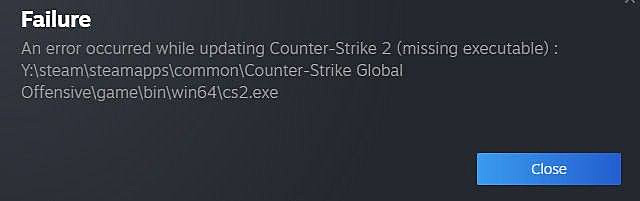
An error occurred while updating Counter-Strike 2 (missing executable) : SteamsteamappscommonCounter-Strike Global Offensivegamebinwin64cs2.exe
This specific error message indicates that Steam cannot locate the primary CS2 executable file required to launch the game. The path shown reveals the expected location where cs2.exe should reside after a successful installation. Understanding this error’s root causes helps prevent future occurrences and ensures smoother gaming sessions.
Valve asks CS:GO community to recall “game-defining moments.” Looks like last goodbye before CS2 launch
How to verify integrity files in CS2
Before beginning the verification process, ensure you have a stable internet connection and sufficient disk space. The verification tool compares your local files with Valve’s master version and automatically replaces any corrupted or missing components. This method resolves approximately 85% of launch-related issues according to community reports.
- Restart Steam completely – Exit the application fully via System Tray and relaunch to refresh the client
- Right-click on Counter-Strike 2 in your Library – Access the context menu for game-specific options
- Click Properties, then navigate to Installed Files – Locate the verification tool within the management interface
- Click on Verify Integrity of Game Files – Initiate the automated scanning and repair sequence
- The system will download missing files and restore playability – Typically completes within 2-10 minutes depending on connection speed
After completion, Steam displays a summary showing how many files were validated and if any required replacement. If the process reports “1 file failed to validate and will be reacquired,” this indicates successful detection and correction of the missing executable issue.

Pro Tip: If verification repeatedly fails, check your antivirus exclusion list. Many security applications flag CS2’s executable as suspicious during initial launches, requiring manual approval.
CS2 official minimal system requirements on Steam. Can my PC run CS2?
System requirements for Windows, Linux
When Basic Verification Isn’t Enough
If the standard file verification doesn’t resolve your CS2 launch issues, several advanced techniques can identify and fix underlying problems. These methods address common issues that prevent the game from starting properly.
Clear Download Cache: Navigate to Steam Settings > Downloads > Clear Download Cache. This resolves update corruption issues without affecting installed games, though you’ll need to re-login afterward.
Update Graphics Drivers: Outdated GPU drivers frequently cause executable conflicts. Visit NVIDIA, AMD, or Intel’s website for the latest stable releases rather than relying on Windows Update.
Check System Compatibility: CS2 requires Windows 10 or later, DirectX 11, and at least 8GB RAM. The game’s Source 2 engine has different requirements than CS:GO, so older systems may struggle.
Monitor Steam Server Status: During major updates, Steam’s content delivery network can become overloaded, resulting in incomplete downloads. Check SteamStat.us for real-time server status.
Common Mistake: Many users attempt verification while Steam is still downloading updates in the background. Always ensure all pending downloads complete before verifying files to avoid conflicts.
For persistent issues, consider consulting our Complete Guide for additional gaming troubleshooting techniques that apply across multiple titles.
If you’re also interested in optimizing your gameplay experience, our Weapons Unlock guide provides valuable insights into game performance tuning.
Action Checklist
- Completely restart Steam client and ensure no background downloads are active
- Verify game file integrity through Steam Properties > Installed Files
- Check antivirus exclusions and temporarily disable during installation if needed
- Update graphics drivers to latest stable version from manufacturer website
- Clear Steam download cache through Settings if verification fails
No reproduction without permission:SeeYouSoon Game Club » CS2 doesn’t start. How to fix update error “missing executable” in CS2 Complete guide to fixing CS2 missing executable errors with advanced troubleshooting techniques