
Master Call of Duty: Vanguard’s audio to gain a competitive edge with optimized settings, hardware tips, and strategic advice.
Why Audio is Your Secret Weapon in Vanguard
In Call of Duty: Vanguard, superior auditory awareness often separates victory from a frustrating trip back to the lobby. This guide delivers the definitive audio configuration strategy to transform sound into your most reliable tactical asset.
Dominating WWII battlefields requires more than sharp aim; it demands sonic precision. Here is your complete blueprint for tuning Vanguard’s audio to pinpoint enemy positions and coordinate seamlessly with your team.
While Sledgehammer Games immerses you in the visceral combat of World War II, the game’s audio landscape is filled with essential, yet often overwhelming, information. Footsteps, weapon reloads, and perk activiations like Dead Silence provide real-time intelligence. A finely tuned audio setup filters out the noise and amplifies the signals that win gunfights. The following settings are engineered for competitive advantage, whether you’re using high-end headphones or standard television speakers.
Optimizing Game Sound Settings for Competitive Play
Raw skill determines your potential, but optimized settings unlock it. In a game where Dead Silence can erase enemy footsteps, hearing the subtler cues becomes paramount. The goal is to create a clear audio hierarchy, ensuring critical combat sounds are never drowned out. Start with these foundational Game Sound adjustments:
For players using headphones, deeper customization yields significant advantages. The superb score by Jack Wall, while atmospheric, competes for your attention during matches.
Navigate to the Music Volume slider and reduce it to 0-5%. This single change dramatically increases your sensitivity to environmental sounds. Furthermore, applying the Dialogue Volume recommendation above (38%) ensures constant squad banter and mission updates don’t create audio clutter.
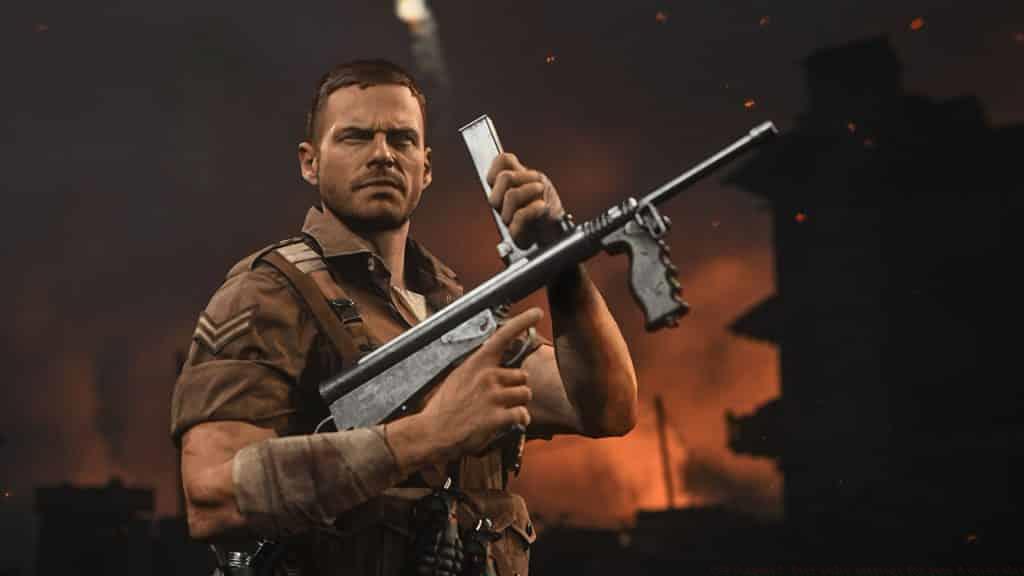 Activision
Precise audio settings let you focus on experimenting with Vanguard’s vast arsenal, not searching for enemies. Compared to the extensive audio presets in Warzone, Vanguard’s current options are more streamlined. This focused approach reduces complexity, allowing you to master one optimal setup. Anticipate more granular controls, such as individual slider adjustments for teammate versus enemy footsteps, in future seasonal updates.
Crystal Clear Voice Chat Configuration
Effective communication is force multiplication. While PS5 squads often use Party Chat, mastering in-game Voice Chat settings ensures compatibility with cross-platform teammates and provides lower latency. Configure these settings for clarity and minimal distraction:
Best Warzone console settings for graphics and FPS
Black Ops 7 brings major movement, audio & Perk changes after beta feedback
Best Black Ops 6 audio settings to hear enemy footsteps
Push to Talk is the professional standard for PC, preserving squad audio clarity. If you are on console or prefer Open Mic, meticulously adjust the Activation Threshold and ensure a quality microphone with noise cancellation to avoid broadcasting distractions to your team.
Beyond Settings: Hardware and Environmental Audio Enhancement
Software settings are only half the battle. Your physical setup dictates the ceiling of your audio performance. The most common mistake players make is relying on poor-quality audio outputs, which flatten critical directional cues.
Hardware Investment: Television and monitor speakers are designed for media consumption, not competitive gaming audio analysis. A dedicated gaming headset, even an affordable one, provides stereo separation and frequency response tailored for footsteps and gunshot differentiation. For a quieter environment, quality gaming earbuds can be a superb, immersive alternative. This upgrade directly translates to earlier enemy detection and more accurate spatial awareness.
Environmental Control: Your physical play space is part of your audio rig. Background noise from fans, air conditioners, household activity, or loud roommates directly masks subtle in-game audio. Pro players prioritize a quiet, controlled environment. Simple actions like closing windows, using a quieter cooling fan for your PC, or playing during lower-noise hours can have a more significant impact on performance than a marginal graphics setting tweak. Consider it freeing up your auditory bandwidth to process game information.
Putting It All Together
You now possess a complete, layered strategy for audio dominance in Call of Duty: Vanguard. Begin by implementing the core Game Sound and Voice Chat settings to establish your baseline. Then, assess your hardware and environment for the most impactful upgrade opportunities. Remember, audio is a dynamic sense; revisit these settings as you change headsets, play on different maps, or as the game evolves with updates.
With your audio finely tuned, you can focus on mastering Vanguard’s sandbox. For further optimization, explore our dedicated guides: Best Automaton Vanguard class loadout: Attachments, Perks, Proficiency, Setup | How to get wins in Call of Duty: Vanguard’s Champion Hill mode | How to import settings from Warzone to Call of Duty Vanguard | Best Itra Burst Vanguard class loadout: Attachments, Perks, Proficiency, Setup | Best CoD: Vanguard settings for FPS, visibility, performance on PC & console | Best STG44 Vanguard class loadout: Attachments, Perks, Proficiency, Setup.
No reproduction without permission:SeeYouSoon Game Club » CoD Vanguard: Best audio settings for game & voice chat Master Call of Duty: Vanguard's audio to gain a competitive edge with optimized settings, hardware tips, and strategic advice.