
Master controller setup for Duet Night Abyss with pro tips for optimal gaming performance
Controller Compatibility Overview
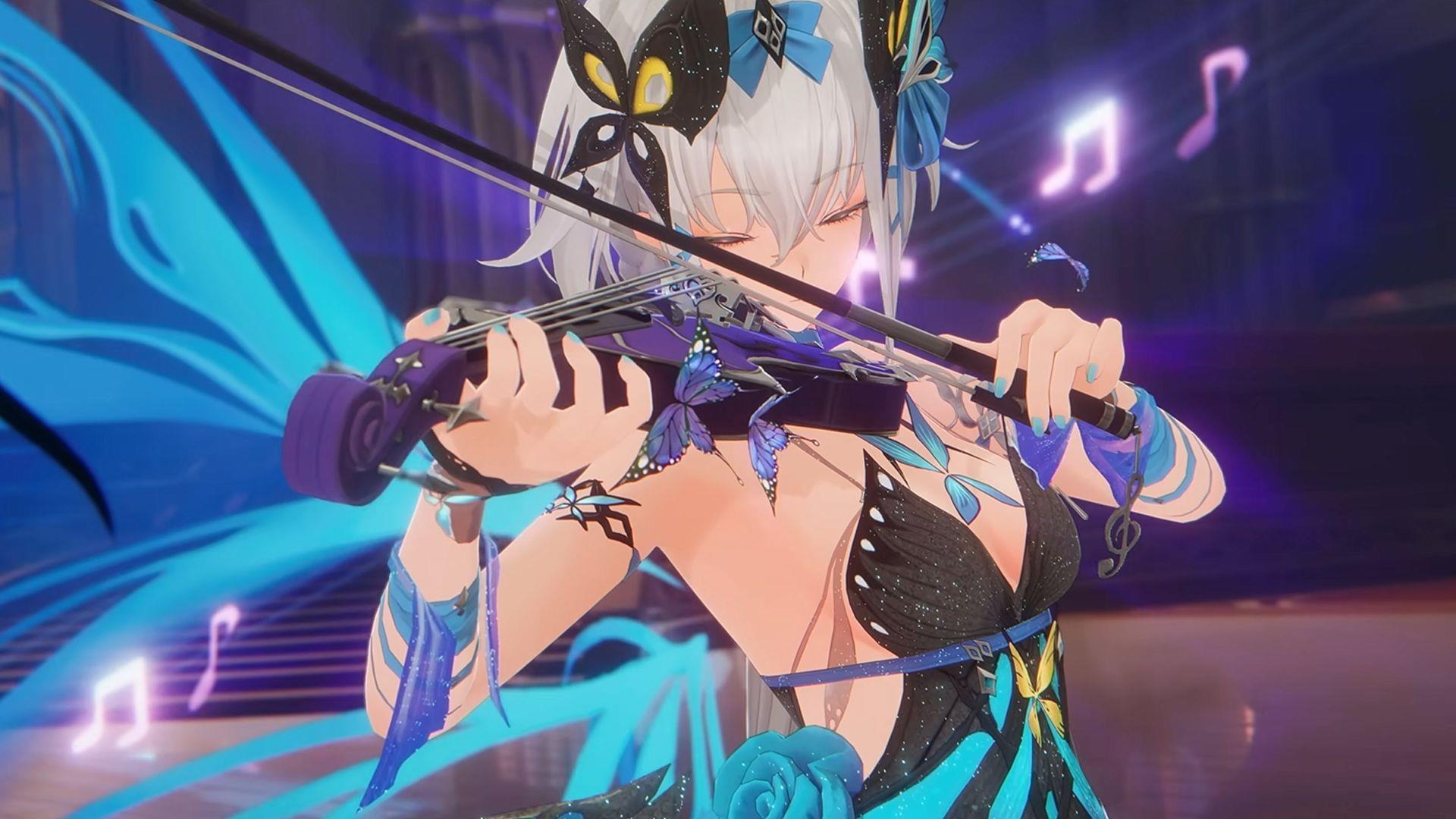
Duet Night Abyss delivers comprehensive controller support, enabling seamless integration with various gamepads for superior gaming comfort. The development team has implemented native compatibility that recognizes popular controllers instantly, requiring minimal configuration effort. This approach significantly enhances the playing experience by providing responsive controls that feel natural and intuitive.
Although console versions haven’t been officially announced yet, the robust controller functionality bridges the gap between mobile and traditional gaming platforms. Players can enjoy console-like precision through properly configured gamepads, offering a substantial upgrade over touchscreen interfaces or standard keyboard and mouse setups. The automatic detection system ensures most modern controllers work immediately upon connection.
Supported controllers include PlayStation DualShock 4, DualSense, DualSense Edge, Xbox Series controllers, and Xbox Elite Series models. Each controller type offers distinct advantages—DualSense provides advanced haptic feedback while Xbox controllers deliver ergonomic comfort for extended sessions. Understanding your controller’s specific capabilities helps maximize your Duet Night Abyss experience.
Connection flexibility varies by controller model: PlayStation 4 controllers require wired connectivity, while other supported gamepads work with both USB and Bluetooth connections. This distinction matters when planning your setup, as wireless freedom versus reliable wired performance represents a key decision point for serious players.
Wired Connection Setup Process
Establishing a wired connection provides the most stable gaming experience with zero latency concerns. This method ensures consistent performance during intense gameplay sessions where responsive controls are critical.
Also read: Duet Night Abyss redeem codes
Follow this comprehensive wired connection procedure:
- Select the appropriate cable: USB-C for DualSense (PS5) and Xbox Series controllers, micro-USB specifically for DualShock 4 (PS4) models. Using incorrect cables may result in connection failures or charging issues.
- Connect the controller directly to your device’s USB port before launching Duet Night Abyss. This sequence ensures proper driver initialization and game recognition.
- Verify connection success through controller indicator lights and in-game response. The game should automatically switch to controller input mode upon detection.
Pro tip: For PC players, ensure your USB ports provide adequate power delivery. Some front panel USB ports on desktops may not supply sufficient power for optimal controller performance. If experiencing intermittent connectivity, try different USB ports or use a powered USB hub for consistent operation.
Wireless Bluetooth Pairing Guide
Wireless connectivity offers freedom of movement and eliminates cable clutter. However, this method is currently limited to specific controller models: Xbox Series, Xbox Elite Series, DualSense, and DualSense Edge controllers.
Execute wireless pairing with this detailed procedure:
- Activate Bluetooth functionality on your gaming device—whether PC, smartphone, or tablet. Ensure Bluetooth visibility settings allow new device discovery.
- Initiate pairing mode on your controller: For Xbox controllers, press and hold the pairing button until the Xbox logo flashes rapidly. For PlayStation controllers, simultaneously hold the PS and Share buttons until the light bar begins flashing.
- Select your controller from the available devices list on your gaming platform. Complete the pairing process, which typically confirms with a solid light indicator.
After successful pairing, launch Duet Night Abyss—the game automatically transitions to gamepad control scheme. If the game fails to recognize your controller, restart the application while keeping the controller powered on and connected.
Advanced tip: Reduce input lag by ensuring no other Bluetooth devices are actively streaming data nearby. Bluetooth interference from headphones, speakers, or other peripherals can impact controller responsiveness during crucial gameplay moments.
Troubleshooting and Optimization
When encountering controller connectivity problems, these systematic troubleshooting steps typically resolve most issues:
- If controller functionality fails after game launch, disconnect and reconnect the controller while the game is running. This forces the game to reinitialize controller drivers.
- Verify adequate battery levels, especially for wireless connections. Low-power mode can cause inconsistent performance or disconnections during gameplay.
- Confirm your device meets controller support requirements. Some older mobile devices or computers may have limited gamepad compatibility despite Bluetooth capability.
Also read: All Duet Night Abyss characters and voice actors
Beyond basic troubleshooting, consider these optimization strategies:
- Update controller firmware through manufacturer applications on PC or console before connecting to Duet Night Abyss. Updated firmware often resolves compatibility issues.
- Adjust in-game controller sensitivity settings to match your playstyle. Higher sensitivity benefits fast-paced combat while lower settings improve precision aiming.
- For competitive play, prioritize wired connections to eliminate potential Bluetooth latency that could impact reaction times during critical gameplay moments.
- Create controller profiles for different gameplay scenarios—one configuration for exploration with different button mappings for combat-intensive sections.
Remember that controller performance can vary based on your device’s specifications and current system load. Close background applications when gaming to ensure maximum system resources dedicated to Duet Night Abyss.
No reproduction without permission:SeeYouSoon Game Club » Can you play Duet Night Abyss using a controller? Master controller setup for Duet Night Abyss with pro tips for optimal gaming performance