
TL;DR
- Customize HUD layouts based on device size for optimal button accessibility
- Enable weapon auto-pickup and equipment automation to streamline looting processes
- Adjust touch sensitivity and controller response curves for precise input control
- Utilize preset configurations as starting points for personalized control schemes
- Implement strategic button placement to reduce finger fatigue during extended sessions
Optimizing your Heads-Up Display configuration represents one of the most impactful adjustments you can make in Warzone Mobile. The extensive customization suite allows players to reposition interface elements, modify button dimensions, and adjust transparency levels to match their specific playstyle and device characteristics.
Device screen dimensions significantly influence optimal HUD arrangements. While default presets function adequately on standard smartphones, tablet users frequently encounter accessibility challenges with out-of-reach controls. On larger iPad Pro displays, strategic button relocation becomes essential for comfortable extended gameplay sessions.
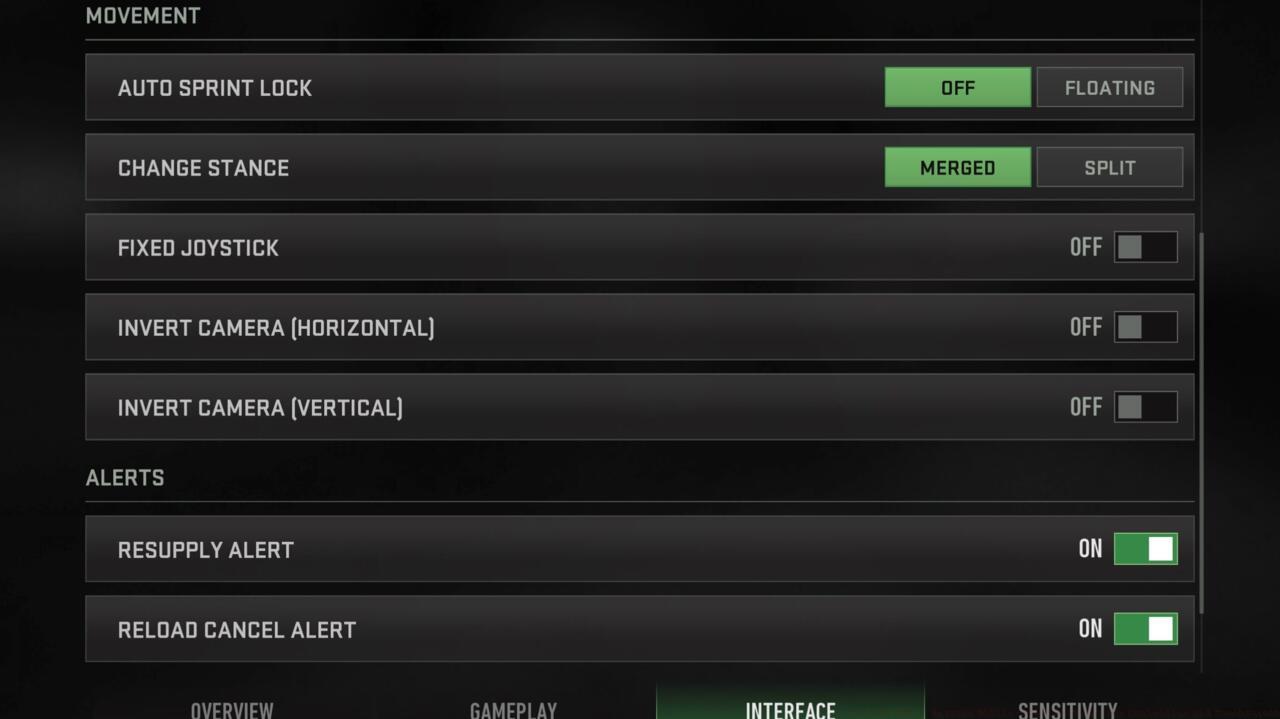
Interface movement controls
The Classic and Popular preset configurations provide excellent foundation layouts for both touchscreen and controller gameplay. These pre-designed interfaces balance functionality with accessibility, though advanced players typically benefit from further personalization. A common mistake involves overcrowding the screen periphery with too many controls, which can obstruct critical visual information during firefights.
Strategic button scaling proves particularly valuable for players with smaller devices. Enlarging essential combat controls like reload, crouch, and weapon swap buttons while minimizing less critical elements creates a cleaner interface without sacrificing functionality.
Mastering touchscreen controls requires understanding the relationship between gesture responsiveness and combat effectiveness. Unlike traditional controllers, touch interfaces demand careful calibration of sensitivity settings to achieve precise aiming while maintaining rapid response times.
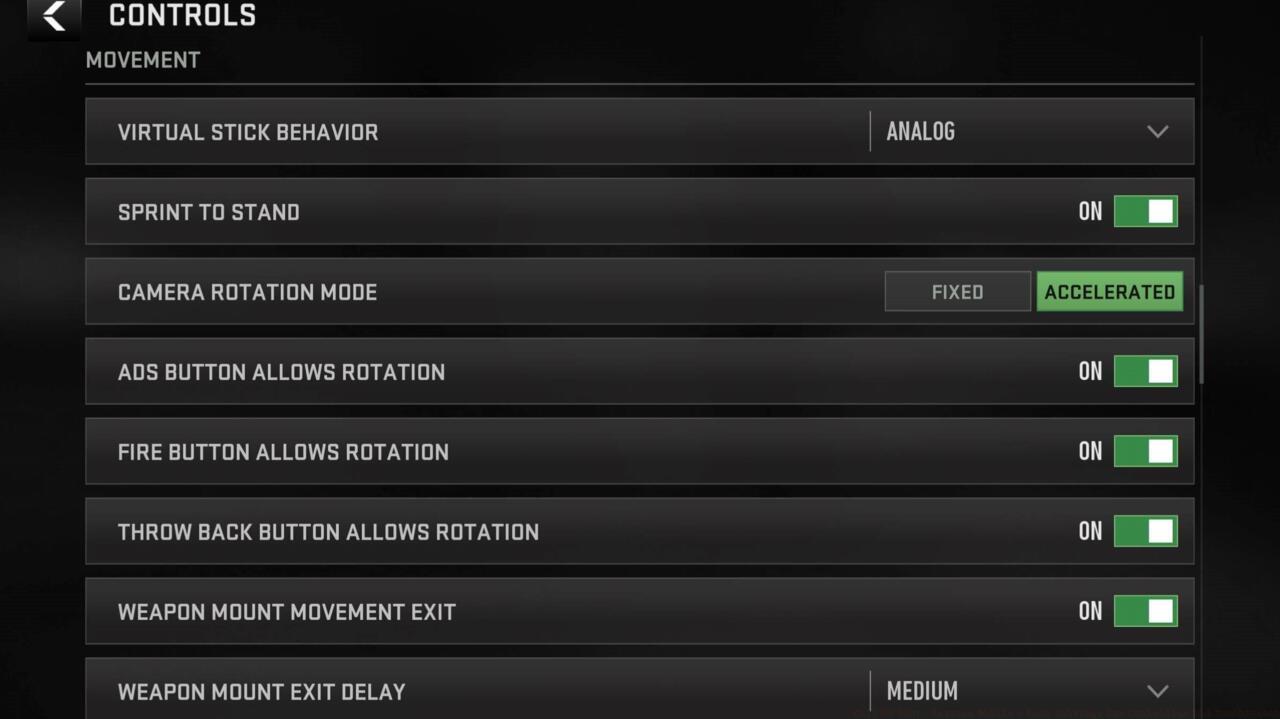
Gameplay movement settings
Advanced players should experiment with custom gesture configurations beyond the default layouts. Implementing multi-finger swipe actions for specific commands like quick weapon switching or tactical equipment deployment can significantly enhance your reaction speed in critical combat situations.
Sensitivity calibration varies dramatically between Android and iOS devices due to differing touchscreen technologies. iOS users typically benefit from slightly higher sensitivity settings to compensate for Apple’s touch processing algorithms, while Android players may require more granular adjustment to achieve optimal responsiveness.
A crucial optimization involves creating separate sensitivity profiles for different engagement ranges. Establishing lower sensitivity for precise long-range sniping while maintaining higher sensitivity for close-quarters combat creates a versatile control scheme adaptable to various combat scenarios.
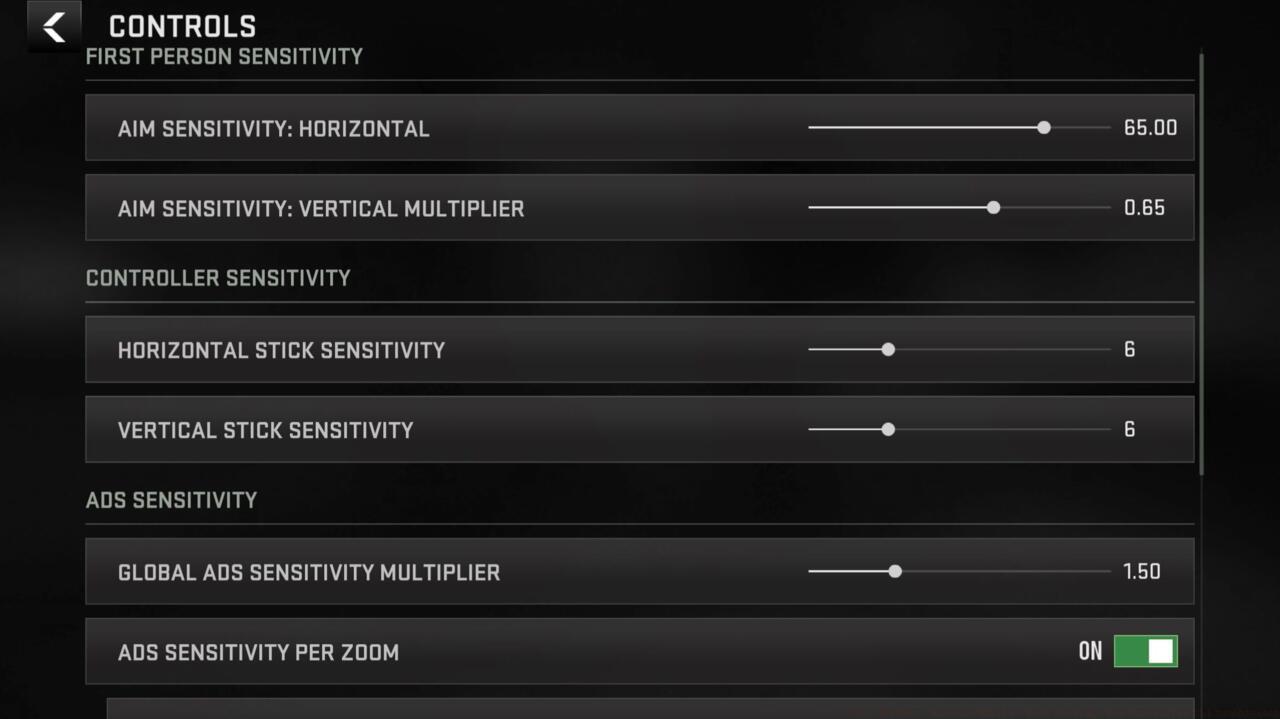
Sensitivty controls
Finger placement strategy represents another critical consideration. Players using thumbs exclusively should cluster essential controls toward the screen edges, while those employing claw grips can position critical buttons in the central display area for faster access.
Controller users enjoy distinct advantages in Warzone Mobile, particularly regarding precision aiming and tactile feedback. However, maximizing these benefits requires careful configuration of button mapping, response curves, and dead zone settings tailored to your preferred playstyle.
Response curve selection dramatically impacts your aiming precision. Linear curves provide direct input translation ideal for tracking moving targets, while dynamic curves offer accelerated response for quick target acquisition—a valuable feature for aggressive playstyles.
Advanced controller configuration involves creating situational button mappings that change based on your current equipment loadout. For example, players using sniper rifles might benefit from swapping trigger functions to prioritize aiming over shooting, while shotgun users typically prefer the reverse configuration.
Bluetooth controller connectivity introduces unique considerations for mobile gaming. Ensuring minimal input latency requires both proper controller calibration and device-specific optimization to maintain responsive controls during intense multiplayer engagements.
Dead zone adjustments represent one of the most overlooked yet critical controller settings. Excessive dead zones create input lag, while insufficient dead zones can cause unintended stick drift. Finding the optimal balance typically requires incremental testing in the practice range before deploying adjustments in live matches.
Strategic automation of routine actions can dramatically improve your combat effectiveness by reducing cognitive load during engagements. The weapon management system offers several automation options that streamline looting processes without sacrificing tactical decision-making.
- Weapon Auto Pick Up: Enabled – Automatically collects weapons during movement, saving crucial seconds in hot drop scenarios
- Auto Pick Up Starter Handgun: Activated – Ensures you never begin engagements completely unarmed
- Weapon Auto Equip: Engaged – Immediately switches to superior weapons during looting
- Weapon Auto Pick-Up Options: Initial slots – Prioritizes primary weapon collection before secondary slots
While automation streamlines gameplay, excessive reliance can create tactical disadvantages. Advanced players should consider disabling certain automated features when pursuing specific playstyles or loadout strategies that require manual control over equipment selection.
Optimizing automation settings requires understanding the specific limitations of each function. For instance, weapon auto-pickup may occasionally select undesirable firearms in cluttered loot areas, requiring manual intervention to correct.
For players transitioning from other battle royale titles, these automation features can significantly reduce the adjustment period while learning Warzone Mobile’s unique mechanics and pacing.
Action Checklist
- Configure HUD layout based on device screen size, relocating critical controls to accessible positions
- Enable weapon automation settings for streamlined looting during combat situations
- Calibrate touch sensitivity or controller response curves in training mode
- Test and adjust dead zone settings to eliminate stick drift while maintaining responsiveness
- Create custom button mappings for your preferred playstyle and loadout combinations
No reproduction without permission:SeeYouSoon Game Club » Call Of Duty: Warzone Mobile – Best Settings For Controller And Touchscreen Master Warzone Mobile with optimized HUD, touchscreen, and controller settings for competitive advantage