
Master Marvel Rivals aiming with expert crosshair codes, customization techniques, and performance optimization strategies
Why Crosshair Selection Matters in Marvel Rivals
Mastering your reticle configuration can dramatically transform your gameplay experience in Marvel Rivals, providing critical visual feedback that enhances target acquisition and shot accuracy.
The right crosshair serves as your primary aiming reference point, with optimal configurations reducing target obscuration while improving shot tracking precision. Different hero abilities demand specialized reticle designs – projectile-based characters like Magneto benefit from wider crosshairs that visualize attack spread, while precision marksmen like Black Widow require minimalistic dots for pixel-perfect accuracy.
Professional players consistently emphasize crosshair optimization as a foundational skill, with studies showing properly configured reticles can improve hit probability by 15-25% depending on character selection and playstyle. The visual reference point directly influences your subconscious aim correction and target leading capabilities.
Before diving into specific configurations, ensure you’ve optimized your broader control scheme. A perfectly tuned crosshair cannot compensate for suboptimal sensitivity settings or input latency issues.
Universal Crosshair Codes for All Heroes
These versatile reticle configurations work effectively across multiple character types, providing reliable aiming references regardless of your hero selection.
Universal crosshairs offer consistency when switching between characters, reducing the cognitive load of adapting to different visual references during intense matches. They’re particularly valuable for players who frequently rotate heroes or are still exploring the roster.
| Type | Crosshair Code |
|---|---|
The Dot |
3;0.0;12.0,12.0,12.0,12.0;100.0,100.0,100.0,100.0;85.0,85.0,85.0,85.0;100.0,100.0,100.0,100.0;0.0,0.0,0.0,0.0;33.0,33.0,50.0,33.0;30.0;100.0,100.0,100.0,100.0;0.0;3,3,3,3;1.0,1.0,1.0; |
The classic dot crosshair provides maximum target visibility with minimal screen obstruction, making it ideal for heroes requiring precise single-target focus. Its compact design ensures you never lose sight of critical enemy movement cues during aiming.
When testing universal crosshairs, pay attention to color contrast against various map backgrounds. Brightly colored reticles may disappear against similarly colored environments, while darker crosshairs can blend into shadowy areas.
Hero-Specific Crosshair Codes and Strategies
Optimize your combat effectiveness by selecting reticles specifically designed for each character’s unique abilities and weapon characteristics.
Specialized crosshairs account for projectile spread patterns, ability activation timing, and optimal engagement distances. For example, area-of-effect heroes benefit from circular reticles that visualize damage radius, while rapid-fire characters need crosshairs that minimize visual distraction during sustained fire.
Note: Use the ‘Filter Hero’ function to quickly find the crosshair for the hero that you’re looking for.
| Hero | Crosshair Code |
|---|---|
Adam Warlock |
4;0;10.0,0.0,11.0,17.0;100.0,100.0,0.0,0.0;20.0,35.0,0.0,0.0;100.0,100.0,100.0,100.0;0.0,0.0,0.0,62.0;33.0,6.0,21.0,33.0;10.0;100.0,100.0,0.0,0.0;0.0;5.0,5.0,5.0,2.0;1.0,0.831,0.0; |
Adam Warlock’s crosshair configuration features distinctive yellow coloring that stands out against most backgrounds while providing clear visual reference for his energy projectile attacks. The slightly elongated design helps players gauge attack trajectories more effectively.
Advanced players often create multiple crosshair profiles for the same hero, switching between them based on map geometry, team composition, and specific combat situations. This level of customization separates competitive players from casual enthusiasts.
Complete Crosshair Setup Guide
Follow these comprehensive steps to configure your ideal reticle setup, whether using default options or importing custom codes.
To change your crosshair, follow these steps:
- Open the Settings menu from the main navigation or pause screen.
- Select either the Keyboard tab or Controller tab, depending on your preferred input method.
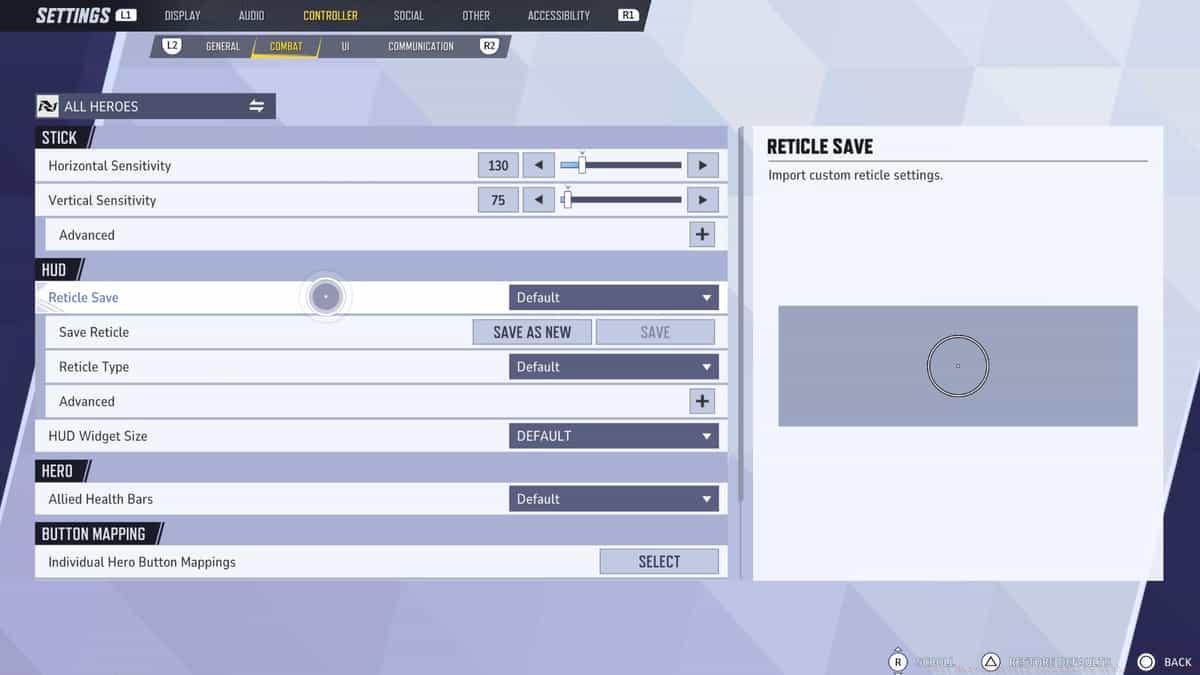
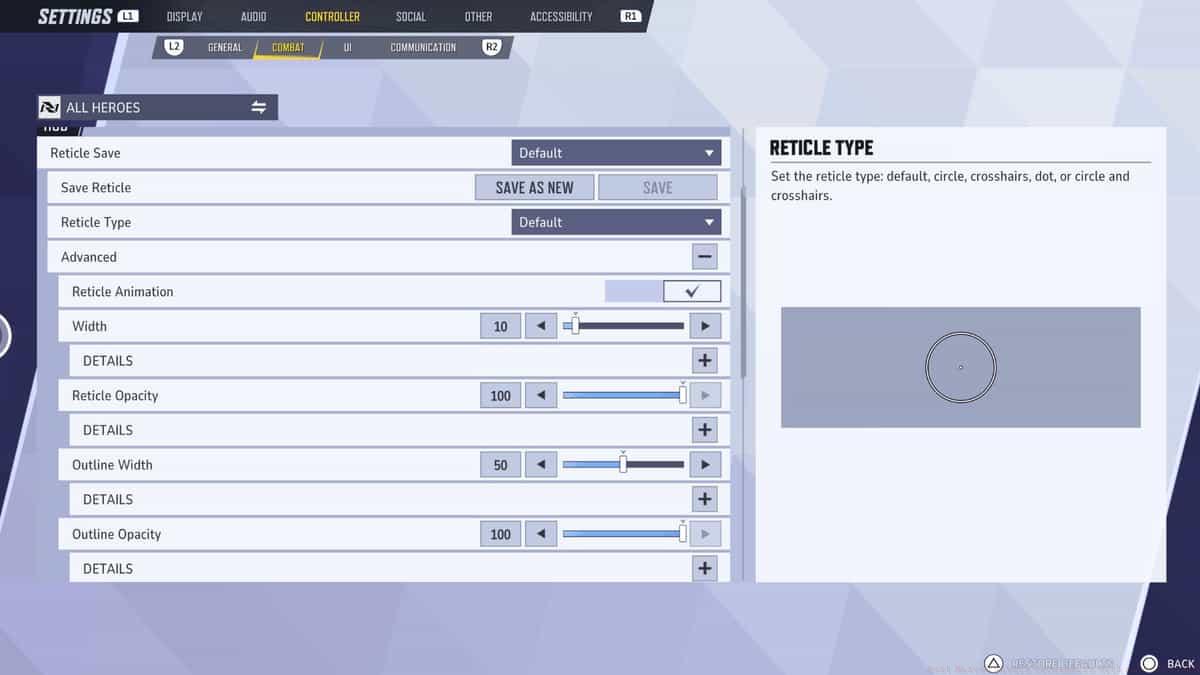
- Scroll down to the Hud section of the menu, and click on the “Reticle Save” button to access customization options.
- From here, you can choose another default reticle or customize a crosshair by adjusting various settings including the opacity, width, and reticle type.
1 of 2
How to import reticle codes
To import reticle codes in Marvel Rivals on PC, follow the steps below:
- Go to Settings from the main menu or in-game interface.
- Select either the Keyboard tab for M&K settings or Controller tab for controller settings.
- Go into the Combat tab to access weapon and aiming configurations.
- Look for the Hud section of the menu containing interface customization options.
- Click the “Import Save” icon between Reticle Save and the crosshair dropdown menu.
- Copy and paste the code for the crosshair you want from our recommended selections.
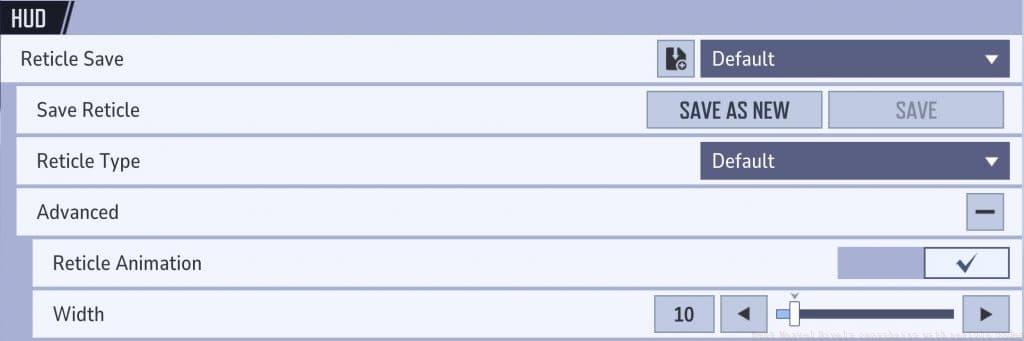
It’s also important to note that in the top left corner of the screen, there’s an option to change all of your settings for each individual hero. It’ll default to “All Heroes” so simply press that, then select the hero you want to apply specific settings for.
This per-hero configuration system allows advanced players to maintain optimized settings across their entire roster. Competitive teams often standardize certain crosshair elements while allowing individual preferences for specific heroes.
Advanced Techniques and Support Features
Master these professional-level configurations and specialized features to elevate your gameplay beyond basic crosshair customization.
If you decide by chance to give your heroes several different crosshairs and swap them out depending on who you’re playing, that’ll give you the option to do it. But there’s also a support-specific option here that’ll help you out in that role as well.
How to enable Healmarkers
 netease / dexerto
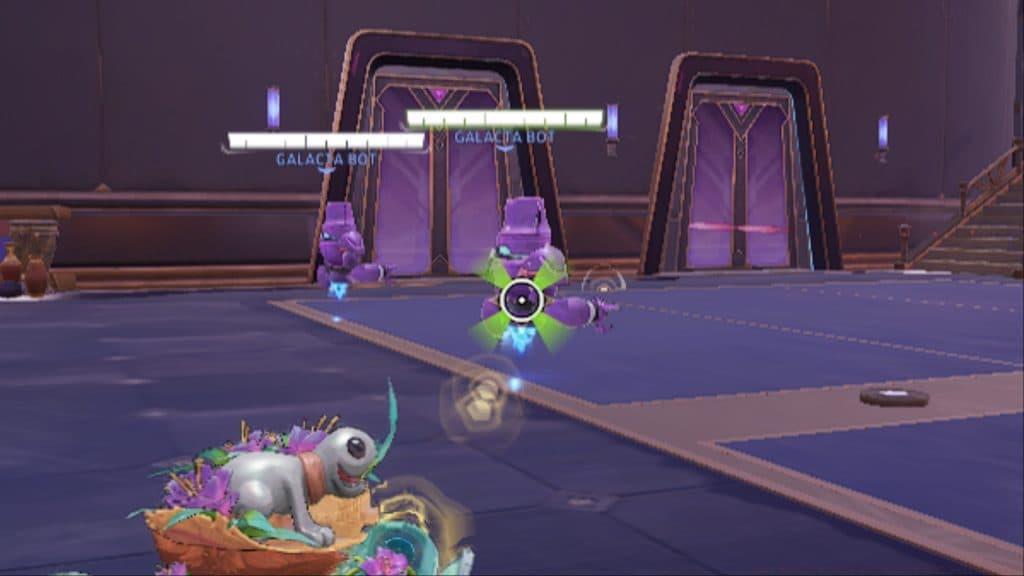
This is what the healmarkers look like in-game when you land your healing shots.
Supports have an option to give you visual feedback when you land a heal on someone, similar to a hitmarker. On heroes like Luna Snow and Invisible Woman, this is a huge help. However, you won’t find it in the same spot as the normal crosshair sections. Instead, you’ll have to select the options for each hero as described above and find the hero-specific settings.
Once you’re there, hit the Healing Reticle Feedback setting to enable the ability to see when you’re healing. Check out our support settings guide for more details on when you’d want to use this and some other settings that’ll help you in that role specifically.
Healmarkers provide critical feedback for support players, confirming successful ability application and helping track healing efficiency. Professional support mains consider this feature essential for maximizing their impact during team fights and sustained engagements.
Advanced players combine crosshair customization with other interface optimizations like damage numbers, ability cooldown displays, and teammate status indicators to create a comprehensive combat information system tailored to their playstyle.
Now you’re up to date with the best Marvel Rivals crosshair codes, check out our guides for the latest free Marvel Rivals codes, the best best PC settings, how to fix DX12 not supported error, and how to save highlights.
No reproduction without permission:SeeYouSoon Game Club » Best Marvel Rivals crosshairs with reticle codes Master Marvel Rivals aiming with expert crosshair codes, customization techniques, and performance optimization strategies