
Essential troubleshooting guide for Where Winds Meet errors with performance optimization strategies for PC and PS5
Understanding Where Winds Meet Technical Issues
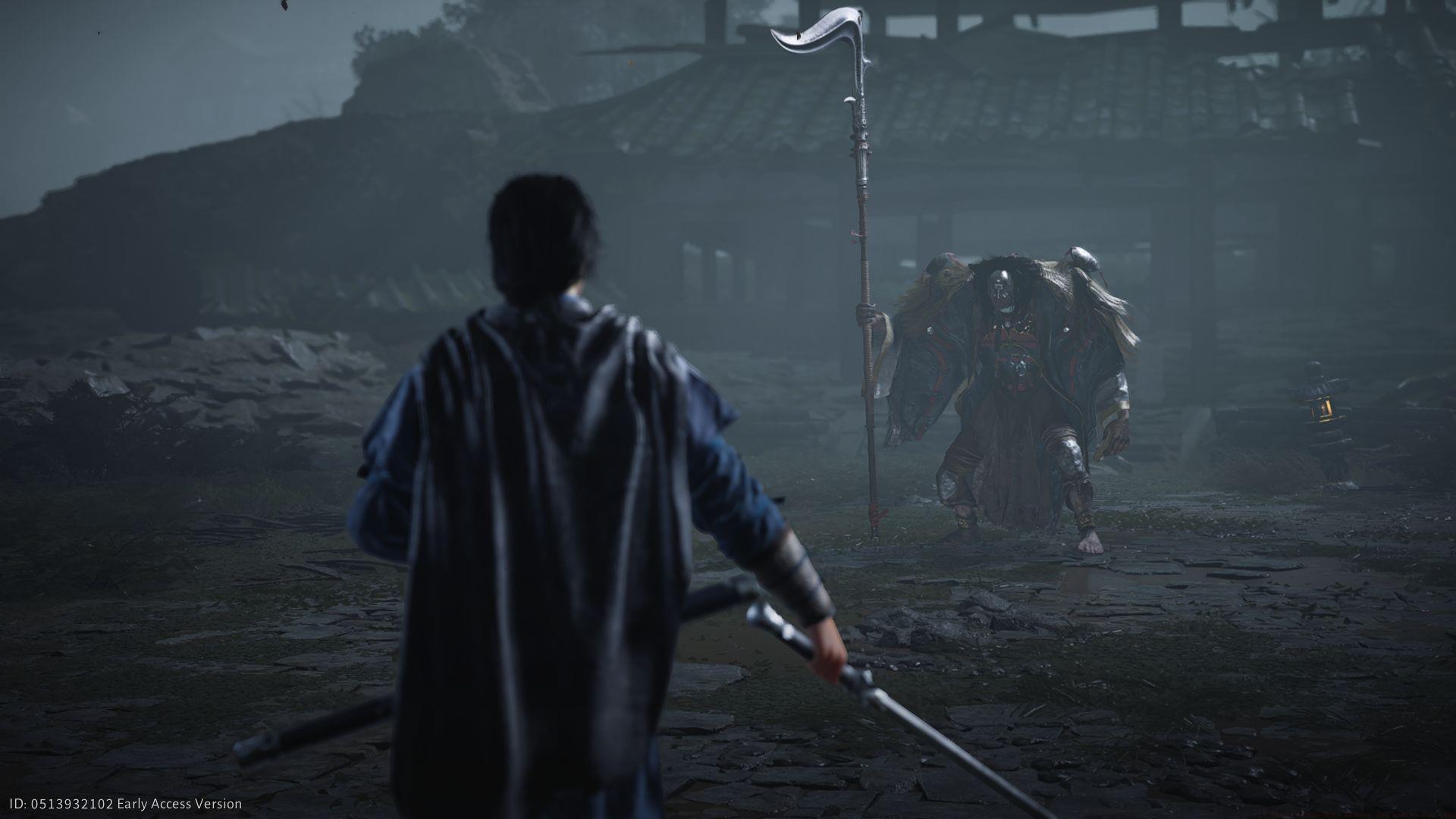
The technical landscape of Where Winds Meet errors has expanded significantly post-launch, creating a divide between players enjoying seamless gameplay and those encountering disruptive technical barriers. Authentication failures, graphical freezes, and client crashes represent the primary categories requiring attention, with solutions ranging from user-applied fixes to developer-deployed patches.
Understanding the distinction between client-side and server-side issues is crucial for effective troubleshooting. Client problems typically involve local hardware, software conflicts, or corrupted files, while server issues manifest as connection timeouts, authentication failures, or region-specific unavailability. Identifying which category your problem falls into saves considerable time and frustration.
Login and Authentication Errors
Authentication barriers represent the most immediately frustrating category of Where Winds Meet errors, typically manifesting during initial launch and preventing account access entirely. These connectivity hurdles often stem from DNS conflicts, router configuration issues, or temporary server unavailability rather than fundamental game flaws.
Before delving into complex solutions, begin with basic network diagnostics that resolve most connectivity problems:
When basic resets prove insufficient, advanced DNS management often resolves persistent authentication problems:
For stubborn authentication loops that resist network fixes, a strategic reinstallation approach proves effective. Rather than simply reinstalling, first manually delete all game cache folders in AppData and Documents directories, then perform a clean installation. This eliminates corrupted configuration files that often survive standard uninstall procedures.
If none of these steps work for Where Winds Meet errors, it’s best to wait for an official patch, as this specific bug seems to be server-related on the developer’s end.
Also read – How (and why) to join a Guild in Where Winds Meet
Black Screen and Loading Freezes
Loading screen failures represent another prevalent category of Where Winds Meet errors, particularly affecting Android devices and certain PC configurations. These visual freezes typically occur during the initial boot sequence or transition between game phases, indicating memory allocation issues or asset loading failures.
The solution hierarchy for loading problems varies by platform but follows consistent principles:
In either case, you can restart your device or reinstall the game. Whereas a fresh boot clears temporary memory conflicts or frozen processes, a reinstall, on the other hand, not only updates the client automatically but also replaces any corrupted temporary data.
Advanced users should monitor system resources during loading attempts. If RAM usage spikes to near-maximum capacity before freezing, consider closing background applications or increasing virtual memory allocation. For PC players, verifying game file integrity through the launcher often resolves specific asset corruption without full reinstallation.
This fix has worked for most cases of infinite loading on mobile and PC. If the bug persists even after these steps, it’s likely on the server side, as it’ll need to be resolved through a developer patch.
Fatal Error Crashes and Compatibility
The Fatal Error represents the most severe category of Where Winds Meet errors, typically occurring during game launch or cinematic sequences. These critical failures often indicate deeper compatibility issues, file corruption, or privilege conflicts that prevent proper game operation.
Administrative privilege escalation serves as the primary defense against permission-based crashes:
For persistent fatal errors, investigate potential driver conflicts and system compatibility. Update graphics drivers to their latest stable versions, as cutting-edge games frequently encounter issues with outdated display drivers. Additionally, verify that your system meets both minimum and recommended specifications, with particular attention to VRAM requirements for higher resolution textures.
Cutscene-specific crashes often relate to video codec conflicts or corrupted cinematic files. If errors consistently occur during narrative sequences, try skipping cutscenes temporarily to isolate the issue. Some players report success by installing additional video codec packs or adjusting hardware acceleration settings in their graphics control panel.
If the Fatal Error persists even after these steps, the issue likely stems from the client build itself, meaning an upcoming patch will be needed.
Also read – Where Winds Meet walkthrough: Gathering of Heroes (Universal Furnace)
PS5-Specific Troubleshooting
PlayStation 5 users encounter unique manifestations of Where Winds Meet errors, often related to platform-specific authentication, license validation, or system-level compatibility. These issues typically prevent game launch entirely or cause immediate crashes upon reaching the title screen.
License verification problems represent the most common PS5-specific issue, easily resolved through system-level validation:
License sync issues can sometimes prevent a game from launching, especially if the title is new.
When license restoration proves insufficient, PlayStation Network authentication refresh often resolves the issue:
This refreshes your account’s connection with the PlayStation Network and can resolve boot or access problems.
Language localization conflicts represent another PS5-specific challenge, particularly following game updates or system patches:
Advanced PS5 users should also consider rebuilding the system database through Safe Mode if multiple games exhibit similar issues. This comprehensive system maintenance procedure resolves deeper file system corruption without affecting saved data or installations.
Performance Optimization Settings
Proactive performance optimization significantly reduces the occurrence of Where Winds Meet errors while enhancing visual fidelity and gameplay smoothness. Strategic graphics configuration balances visual quality with system stability across various hardware configurations.
Modern upscaling technologies provide the foundation for optimal performance settings:
Reflections look cleaner on Medium than on Ultra, and disabling motion blur makes combat sharper and more responsive. If you have DLSS Frame Generation available, you can enable it for extra smoothness with minimal latency.
Advanced optimization involves render distance adjustments and shadow quality balancing. Reduce distant object detail to High rather than Ultra for minimal visual impact with significant performance gains. Similarly, lowering shadow resolution from Ultra to High typically provides 10-15% frame rate improvements with negligible visual degradation.
For systems struggling with stability, consider implementing a frame rate cap slightly below your display’s refresh rate. This prevents GPU overutilization during less demanding scenes, creating more consistent performance and reducing thermal throttling in extended gaming sessions.
Check out our other content below:
No reproduction without permission:SeeYouSoon Game Club » All Where Winds Meet errors and how to fix them Essential troubleshooting guide for Where Winds Meet errors with performance optimization strategies for PC and PS5