
TL;DR
- Optimize Field of View between 95-110 for balanced peripheral awareness and target acquisition
- Reduce screen shake and motion blur to maintain situational awareness during combat encounters
- Configure voice chat settings to eliminate distractions while preserving team coordination
- Adjust weapon offsets to maximize screen real estate without sacrificing weapon visibility
- Test all changes in custom games before implementing in competitive matches
Mastering Halo Infinite’s multiplayer requires more than just sharp shooting skills—it demands strategic configuration of the game’s extensive settings menu. While some customization options might seem limited initially, the available adjustments can dramatically transform your gaming experience from frustrating to formidable.
The settings interface provides numerous opportunities to enhance both comfort and competitive performance. From visual clarity improvements to communication controls, these tweaks allow you to tailor the Halo Infinite experience to match your playstyle and preferences. Even minor adjustments can create significant advantages during critical combat situations.
We’ve thoroughly analyzed the settings menu to identify the most impactful changes that deliver tangible benefits. These recommendations combine technical analysis with practical gameplay testing to ensure they provide measurable improvements to your performance.
Location: Settings – Video tab
Field of View configuration represents one of the most critical visual adjustments in any first-person shooter. This setting directly impacts how much environmental information you can process during matches. Lower FOV values (70-85) provide better target focus but sacrifice peripheral vision, while higher settings (100-120) expand your situational awareness at the cost of potential distortion.
Competitive players typically favor FOV ranges between 95-110 degrees. This sweet spot balances peripheral threat detection with maintaining accurate depth perception for precision shooting. The fisheye effect at higher values can be disorienting initially but becomes manageable with practice. Consider your display size and viewing distance when determining your ideal FOV configuration.
Location: Settings – Video tab, or Accessibility tab
Screen shake and motion blur effects, while immersive, can severely impact your combat effectiveness. These visual disturbances occur during explosions, heavy impacts, or when taking significant damage. Reducing or disabling these effects provides several competitive advantages:
- Maintains visual clarity during chaotic firefights
- Improves target tracking while under fire
- Reduces disorientation from environmental explosions
- Enables faster recovery and counter-attack opportunities
Many professional players completely disable screen shake and significantly reduce motion blur. This allows for more consistent aim and quicker situational assessment during intense multiplayer engagements.
Location: Settings – Audio
Voice chat management provides crucial control over your multiplayer environment. Uncontrolled communication can distract from gameplay focus and decision-making processes.
While we previously covered muting options in our comprehensive guide, the Audio menu offers extensive voice chat customization. You can configure communication permissions for teammates and opponents separately, both during active matches and in lobby areas. These settings occasionally exhibit inconsistencies, so verify your configurations in actual gameplay scenarios.
For players relying on external communication platforms like Discord or Xbox Party Chat, completely disabling in-game voice chat often proves beneficial. Achieve this by setting the voice chat volume slider to minimum while simultaneously activating your microphone mute function. This approach ensures distraction-free gameplay while maintaining your preferred communication channels.
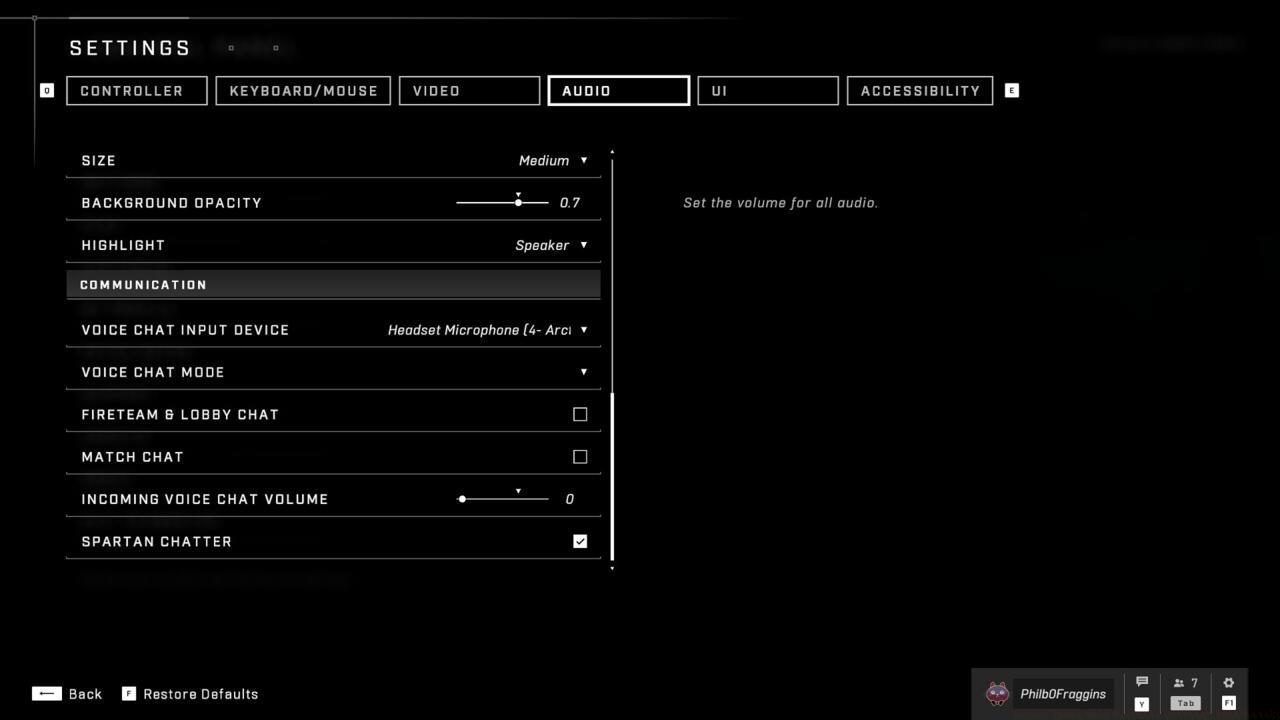
Strategic voice chat configuration eliminates distractions while preserving essential team coordination capabilities.
Weapon offset adjustments represent one of Halo Infinite’s most underutilized visual customization options. These settings control how weapons are positioned on your screen, directly impacting available visibility and aiming comfort.
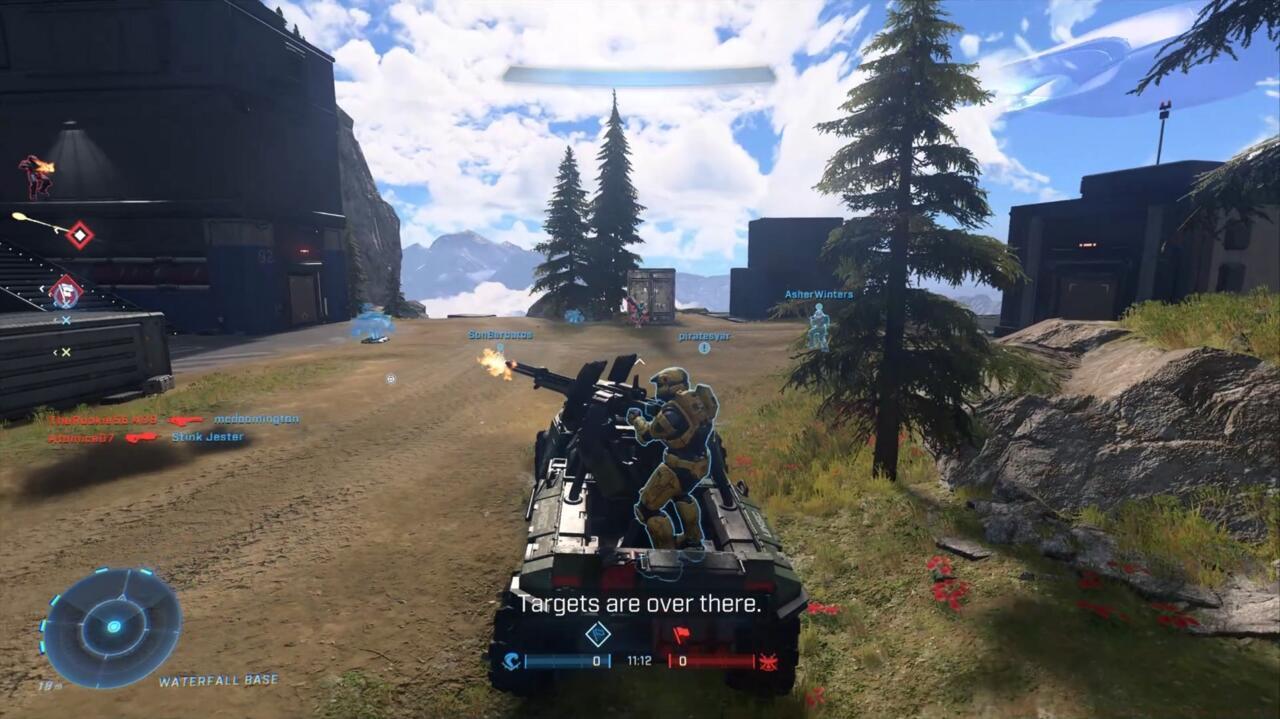
Vehicle handling receives noticeable improvement through movement assisted steering adjustments, particularly beneficial for new players.
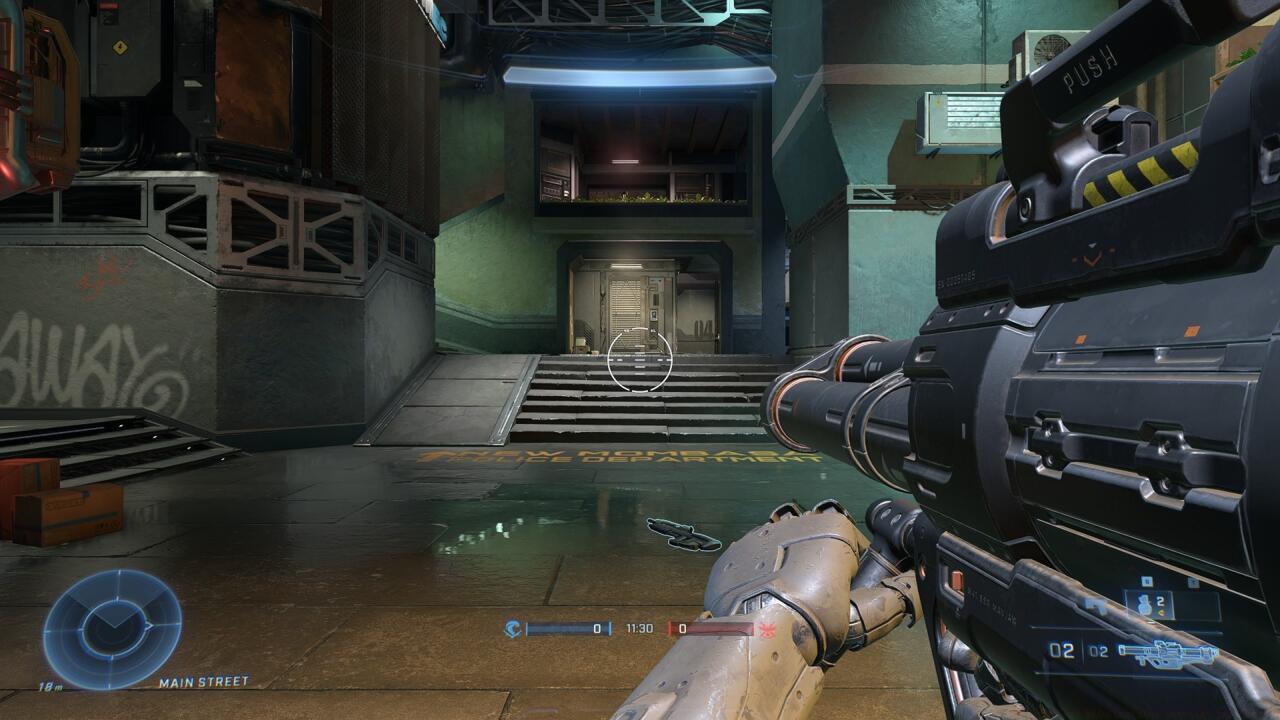
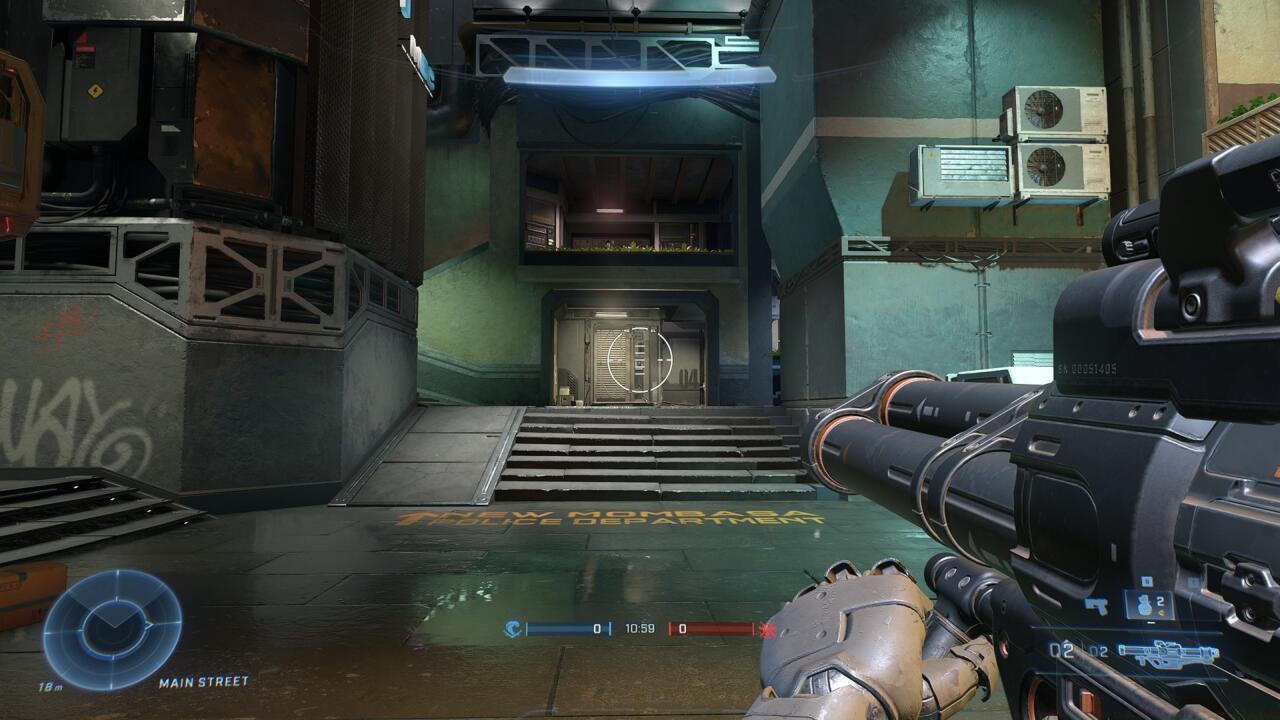
Weapon offset customization significantly increases usable screen space that would otherwise be obstructed by weapon models. The visual comparison between default and optimized configurations demonstrates the dramatic visibility improvement potential.
Proper weapon offset configuration can provide the visual clarity edge needed to spot enemy movement earlier and react more effectively. Like other advanced tactical configurations, these adjustments require careful testing to find your personal preference balance.
Action Checklist
- Configure Field of View between 95-110 degrees based on your display setup
- Reduce screen shake and motion blur in Video/Accessibility settings
- Test voice chat configurations in custom matches to ensure proper functionality
- Adjust weapon offsets to maximize screen visibility while maintaining weapon recognition
- Experiment with movement assisted steering for improved vehicle control
No reproduction without permission:SeeYouSoon Game Club » Adjust These Halo Infinite Settings Immediately Essential Halo Infinite settings adjustments to enhance gameplay performance and competitive advantage