
TL;DR
- Calibrate your TV using Xbox’s built-in tools for optimal visual performance
- Configure HDMI-CEC for seamless device control and instant-on functionality
- Set your console as Home Xbox to enable game sharing and offline access
- Customize accessibility options and controller settings for personalized comfort
- Optimize capture settings for high-quality screenshots and gameplay recordings
Unboxing your new Xbox Series X or S brings genuine excitement, but diving straight into gaming without proper setup could mean missing out on significant performance enhancements. The initial configuration phase is crucial for unlocking your console’s full potential.
Congratulations on securing Microsoft’s latest gaming hardware during this competitive launch period. You’re likely anticipating immersive experiences with titles like Assassin’s Creed Valhalla’s expansive worlds or Watch Dogs: Legion’s detailed urban environments. However, proper setup ensures you’re experiencing these games exactly as developers intended.
Modern displays vary significantly in capabilities, and Xbox’s advanced video processing can maximize your specific TV’s performance. Many users overlook calibration steps that dramatically improve visual fidelity and reduce input lag.
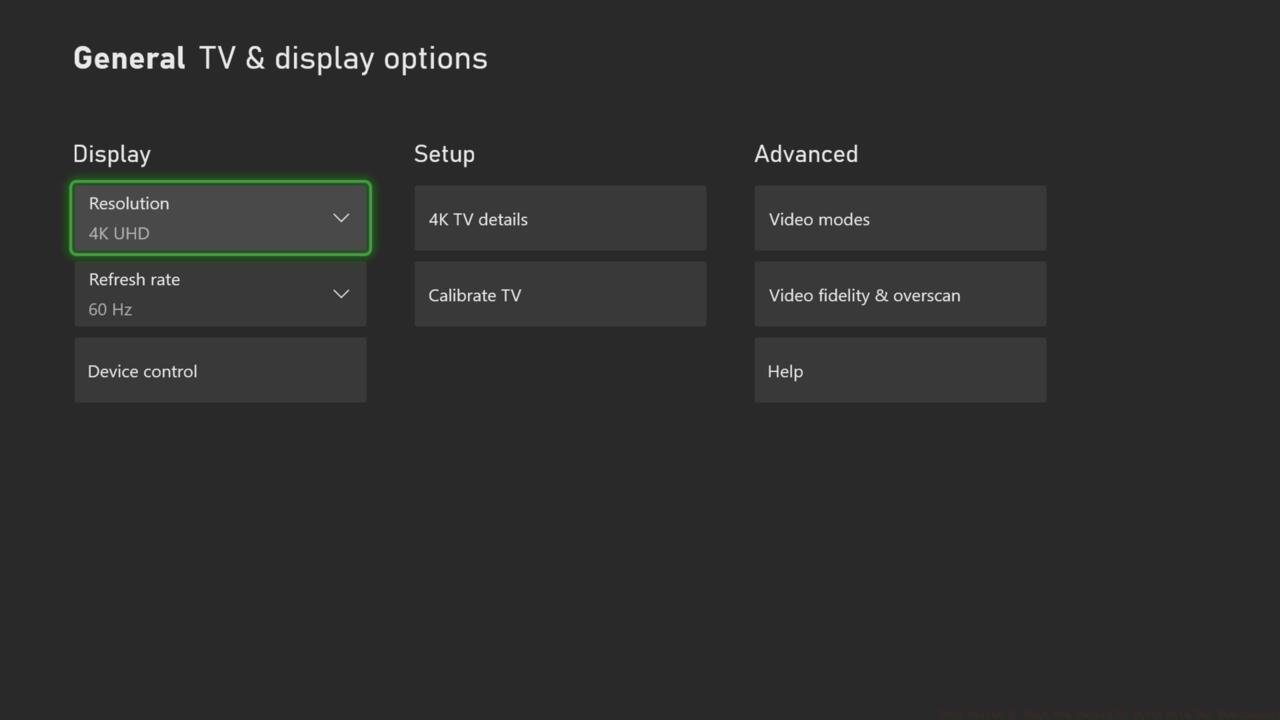
Check Your TV Settings Through Xbox
Navigate to Settings > General > TV & display options > Calibrate HDR for gaming. This tool guides you through brightness, contrast, and color adjustments specific to HDR content. Pro tip: Perform calibration in your normal gaming environment lighting conditions for accurate results.
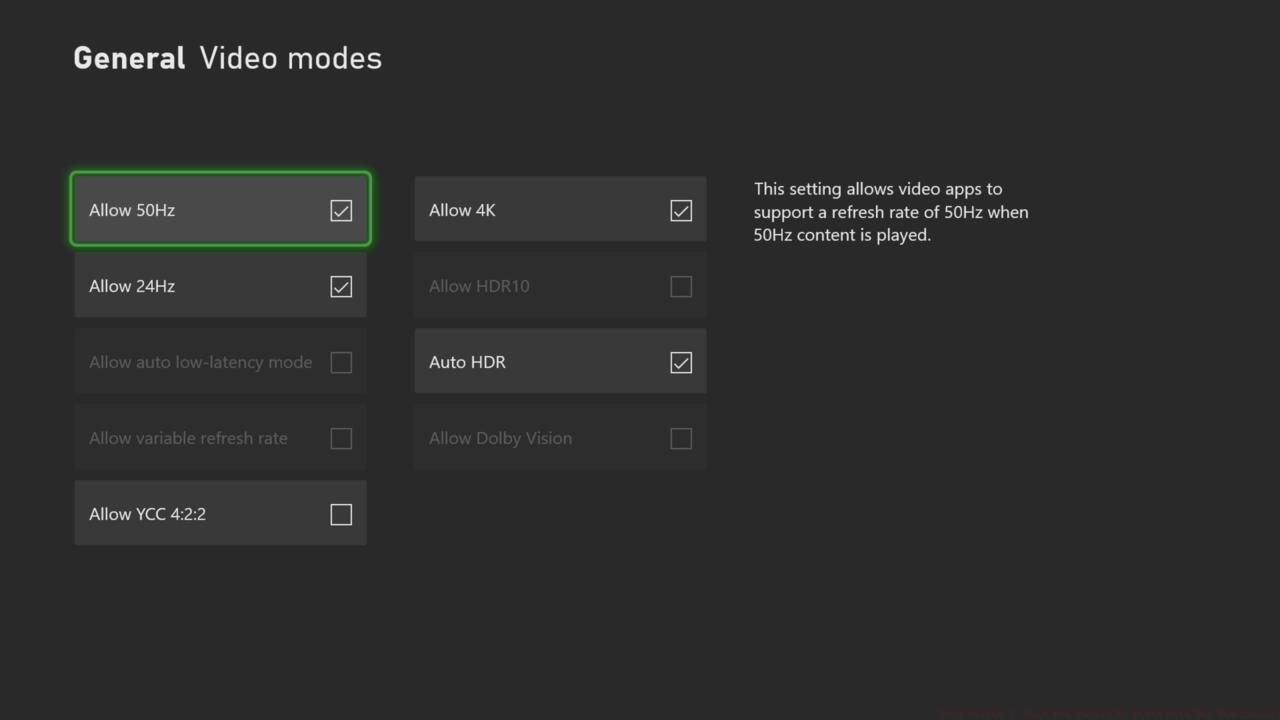
The Different Video Capabilities On Xbox
Your Series X|S supports multiple video modes: 4K UHD, 1440p, and 1080p with up to 120Hz refresh rates. Enable ‘Allow 4K’ and ‘Allow HDR10’ for compatible displays. For competitive gaming, consider 120Hz mode which reduces motion blur significantly.
Common Mistake: Many gamers enable all video features simultaneously, which can cause compatibility issues. Instead, test each setting individually to ensure stability.
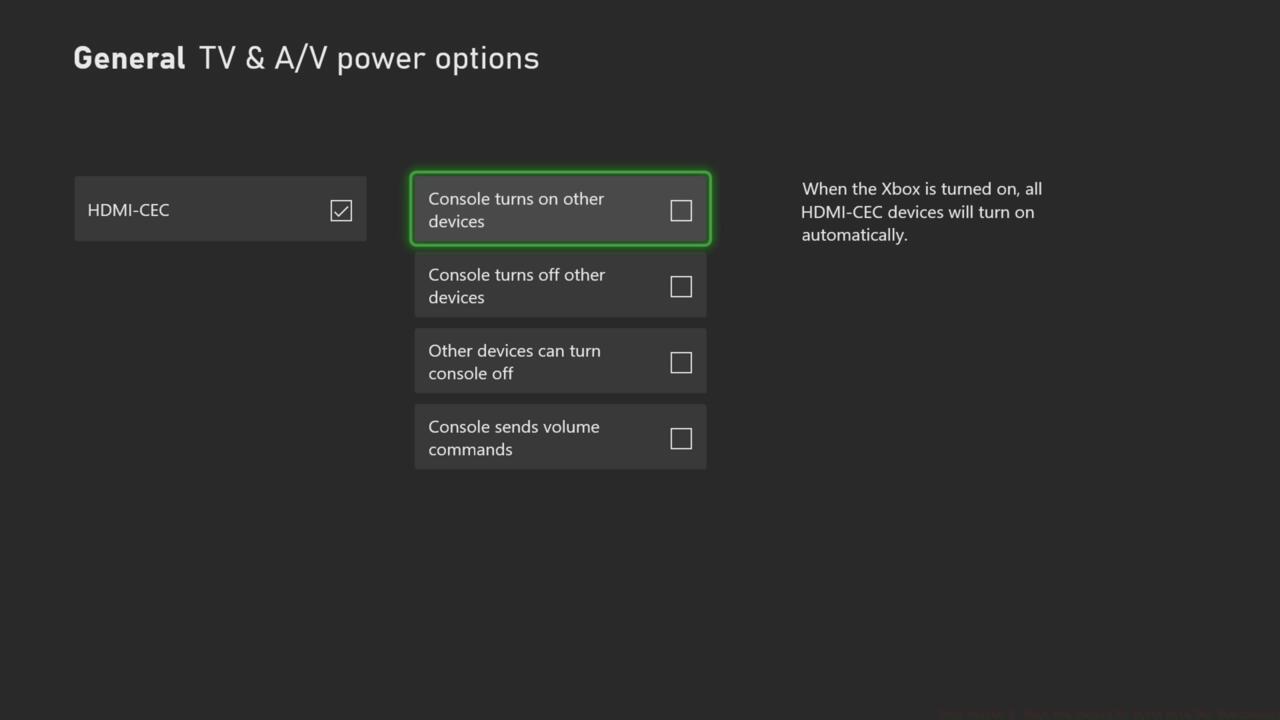
HDMI-CEC Options And Power Modes
HDMI-CEC allows single-remote control of multiple devices. Enable ‘Device control’ in Settings > General > TV & display options > Device control. This lets your Xbox turn your TV on/off automatically and control volume through compatible sound systems.
Power modes offer ‘Instant-on’ for quick resume functionality versus ‘Energy-saving’ for reduced power consumption. Instant-on enables background updates and game resume features but uses more standby power.
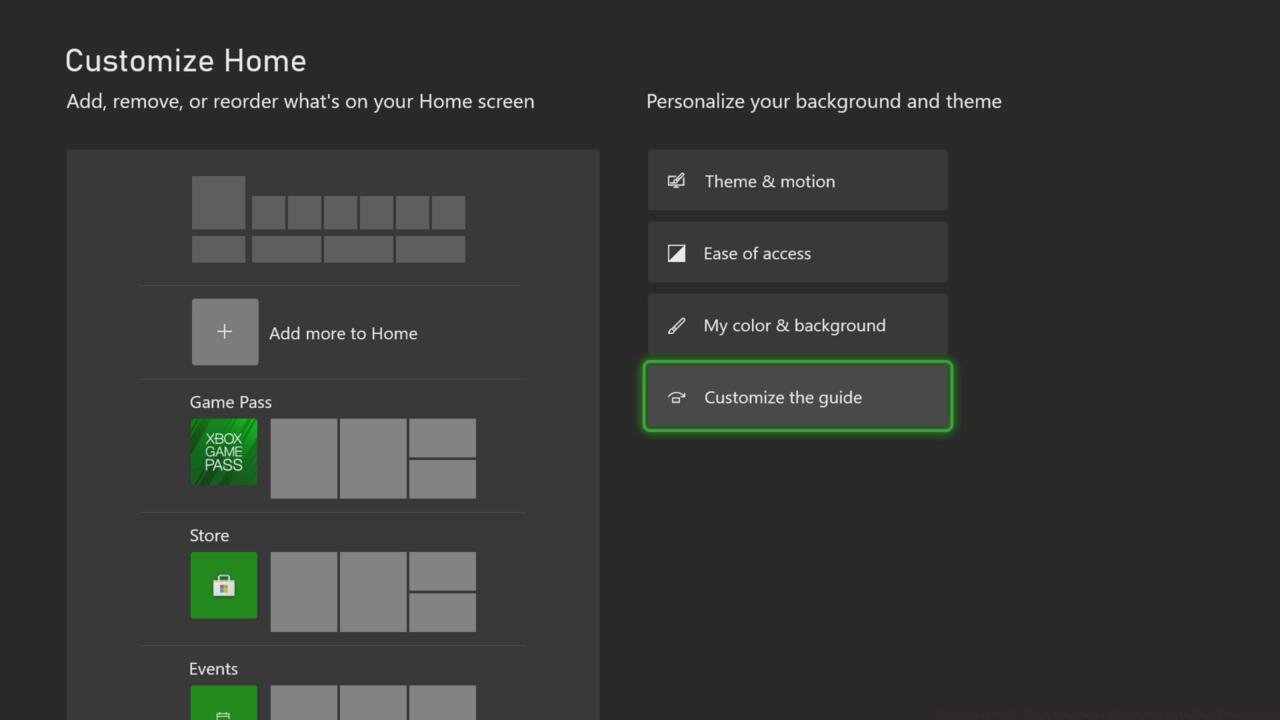
Set Your Series X|S As Your Home Xbox
Designating your primary console as ‘Home Xbox’ in Settings > General > Personalization > My home Xbox enables crucial benefits: game sharing with family members, access to your digital library offline, and automatic license verification.
Pro Strategy: If you own multiple Xbox consoles, set your most frequently used system as Home Xbox for optimal convenience. This setting affects digital purchases and subscription access patterns.
Customizing To Your Liking
Personalization extends beyond aesthetics to functional improvements. Adjust controller button mapping in Settings > Devices & connections > Accessories. Create custom profiles for different game genres – for example, separate layouts for shooters versus RPGs.
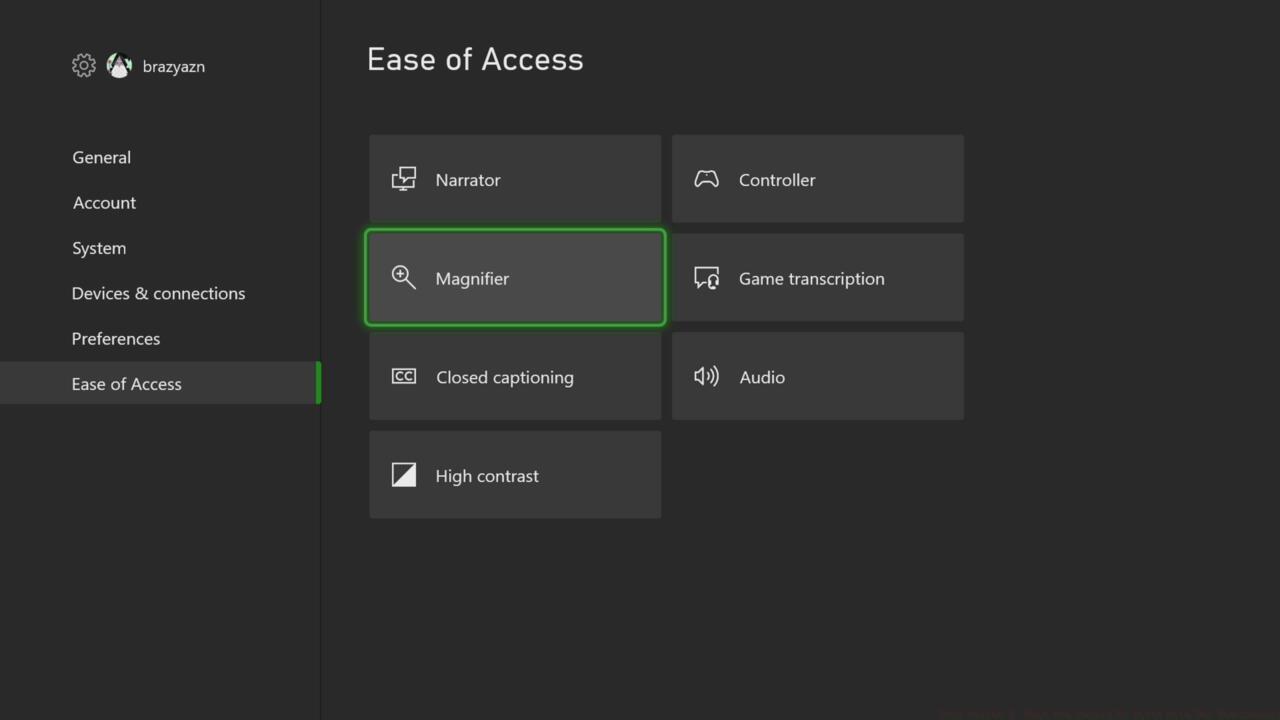
Accessibility Options
Microsoft’s accessibility features are among the industry’s most comprehensive. Explore Settings > Ease of Access for options like: Narrator for visual impairment support, high contrast themes for reduced eye strain, and copilot mode for assisted gameplay.
Advanced Tip: Combine multiple accessibility features for customized experiences. For instance, use chat transcription with larger text sizes for improved communication clarity.
These settings transform gaming experiences for players with different needs and can even enhance gameplay for all users through quality-of-life improvements.
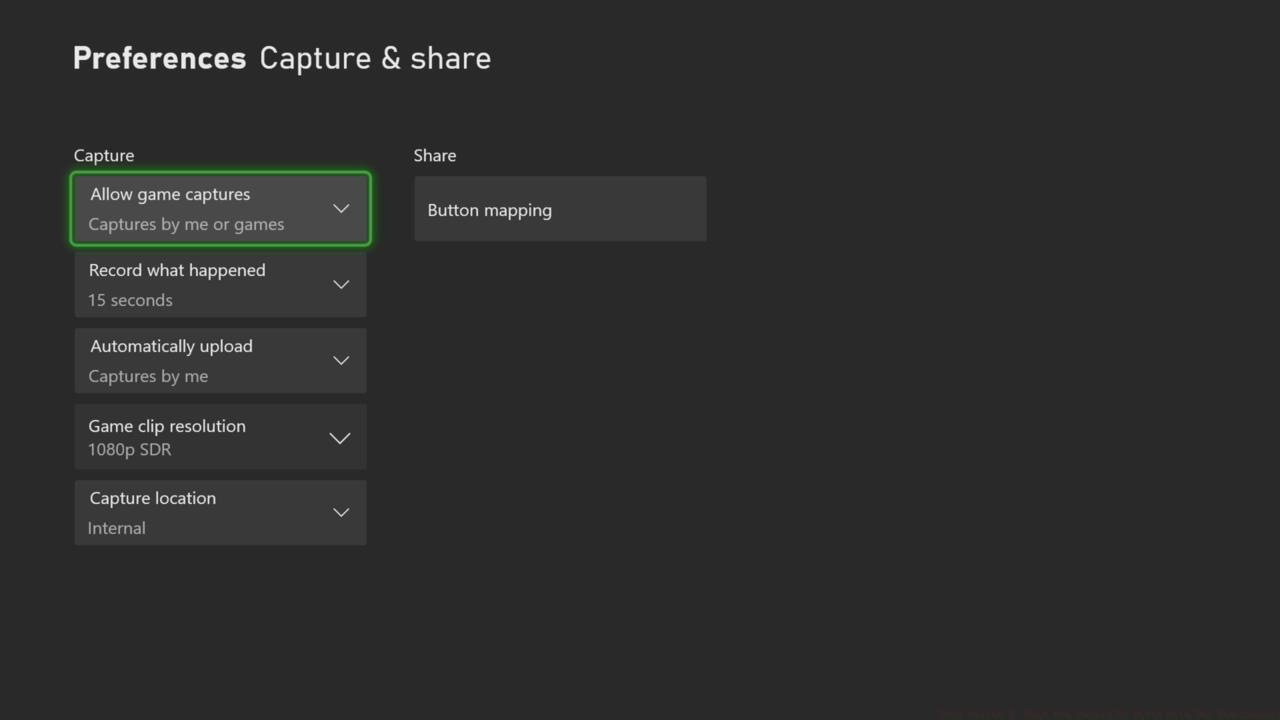
Settings For Capturing Screenshots And Clips
Configure capture preferences in Settings > Preferences > Capture & share. Adjust resolution (1080p vs 4K), recording length (15 seconds to 5 minutes), and audio capture settings. Enable ‘Record what happened’ for automatic clip saving of memorable moments.
Storage management is crucial – set automatic upload to Xbox Live for cloud backup. Monitor local storage allocation to prevent capture interruptions during crucial gameplay sequences.
Optimization Strategy: For content creators, prioritize 4K HDR captures despite larger file sizes. Casual users may prefer 1080p SDR for faster sharing and smaller storage requirements.
Understanding these foundational settings ensures your Xbox Series X|S delivers premium performance from day one. Proper configuration prevents common issues and maximizes your investment in next-generation gaming. For more comprehensive gaming guides, check out our Complete Guide to mastering modern titles.
Action Checklist
- Calibrate HDR using Xbox’s built-in tool in optimal lighting conditions
- Configure HDMI-CEC for unified device control and select preferred power mode
- Set console as Home Xbox for game sharing and offline access
- Customize controller layouts and explore accessibility features
- Optimize capture settings based on your content creation needs
No reproduction without permission:SeeYouSoon Game Club » Xbox Series X: What You Should Do First With The New Console Essential Xbox Series X|S setup guide: Optimize display, customize settings, and maximize gaming performance