
TL;DR
- Enable system-level 30fps cap for immediate 1-2 hour battery gains in most games
- Reduce anti-aliasing and shadow quality first for minimal visual impact with significant power savings
- Set TDP limits between 8-12W for balanced performance and extended play sessions
- Avoid static GPU clock speeds unless playing demanding titles to prevent unnecessary power drain
- Adjust screen brightness to 40-60% range for optimal visibility with reduced energy consumption
Master these essential battery optimization techniques for extended gaming sessions during travel, evening play, or outdoor gaming scenarios.
Valve’s Steam Deck offers variable battery performance ranging from approximately two to eight hours depending on game intensity. More demanding titles naturally consume additional power to drive the hardware components, though SteamOS provides effective dynamic load-balancing in the background. For gamers seeking enhanced control over power management, these advanced settings adjustments deliver measurable improvements.
The Steam Deck’s impressive 1200×800 resolution display operates at a native 60Hz refresh rate, which benefits less intensive games but consumes substantial power for both the screen and APU rendering each frame. SteamOS conveniently includes a system-wide 30fps frame rate limiter accessible through quick settings, allowing you to override inconsistent in-game frame rate controls.
This system-level feature provides immediate activation capability, typically delivering noticeable battery life extensions. Implementing this setting alone can recover 60-120 minutes when playing indie titles like Spelunky 2 or Celeste, with more modest gains in demanding games such as God of War where 30fps represents the standard target anyway.
Pro Tip: Combine 30fps cap with medium graphics settings for optimal balance between visual quality and extended gameplay duration.
Graphics configuration adjustments complement framerate management effectively. Similar to traditional gaming PCs, the Steam Deck consumes less energy when games don’t demand maximum graphical fidelity. Strategic settings modifications can yield substantial battery improvements with surprisingly minimal visual degradation.
Despite the relatively high 1200×800 resolution, the compact 7-inch screen size makes subtle detail reductions less noticeable compared to larger desktop monitors. Reducing computationally expensive options like anti-aliasing and shadow quality demands less processing power while maintaining satisfactory visual presentation. Experimentation with individual game settings helps identify the perfect equilibrium for your preferences.
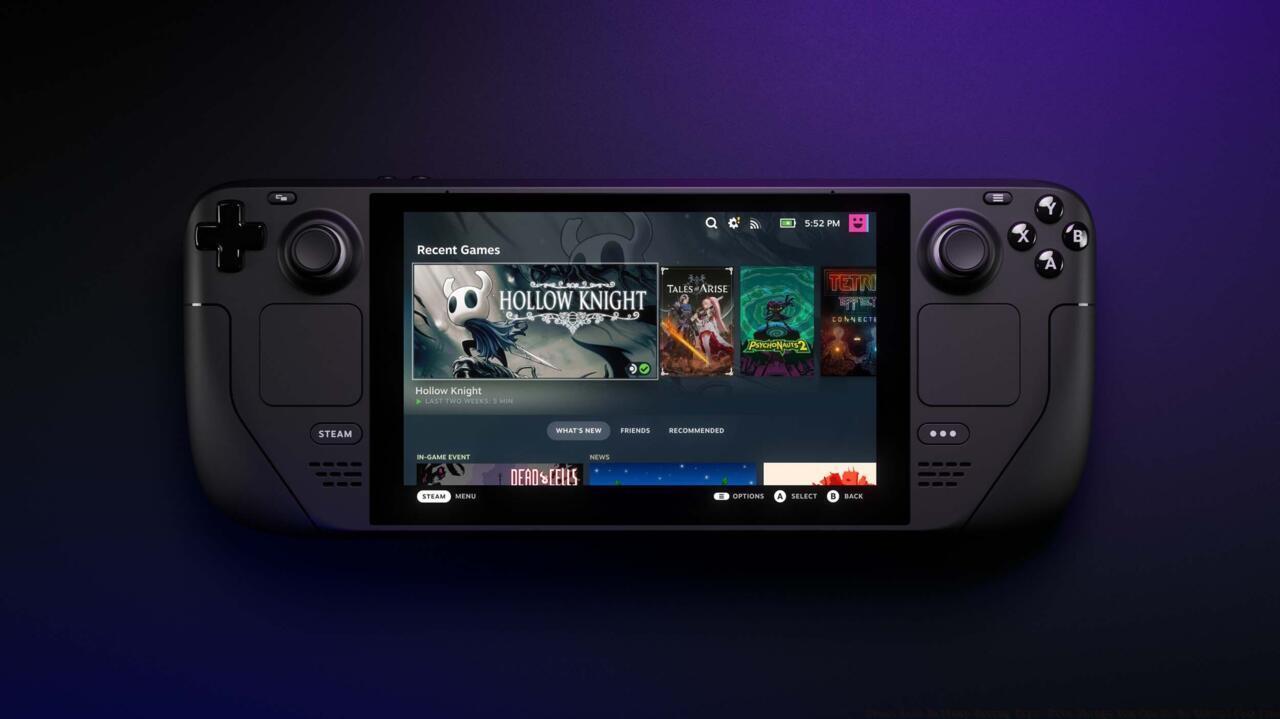
The Steam Deck’s battery life varies quite a lot depending on a number of factors.
Common Mistake to Avoid: Don’t automatically set all graphics to minimum—some settings like texture quality have minimal power impact but significant visual improvement.
For players interested in broader gaming optimization, our Complete Guide offers comprehensive performance strategies applicable across multiple titles.
For gamers preferring direct power management approaches, establishing a maximum TDP (Thermal Design Power) threshold through system settings provides granular control. TDP represents processor thermal performance characteristics and serves as a reliable power consumption indicator. Higher wattage consumption correlates directly with increased heat generation and energy usage. Lowering the maximum TDP compels the APU to adjust accordingly, reducing base operating clock speeds relative to available power allocation.
The Steam Deck’s battery performance fluctuates significantly based on numerous influencing factors.
Exercise caution when implementing TDP restrictions—excessively low values can severely degrade performance and potentially cause game instability. However, for enthusiasts desiring precise operational control, this represents one of two primary methods for achieving customized performance profiles.
Advanced Technique: Start with 12W TDP limit for demanding games, then gradually reduce to 8W for less intensive titles while monitoring performance stability.
Complement your power management knowledge with our Weapons Unlock guide to maximize your gaming efficiency across different scenarios.
The secondary power management approach involves establishing a fixed GPU base clock speed, eliminating the APU’s dynamic frequency scaling. This technique can paradoxically decrease battery efficiency if implemented carelessly, potentially forcing the processor to maintain elevated speeds unnecessarily for simpler games.
Performance Insight: Dynamic clock speeds typically optimize power consumption automatically—only use static settings when playing consistently demanding titles that benefit from sustained performance.
Understanding how different components interact helps optimize overall system performance. For comprehensive character optimization strategies, explore our Class Guide for specialized gaming approaches.
Monitor your frame time consistency when implementing static clock speeds—sudden fluctuations indicate the setting may be too aggressive for current gameplay demands.
Screen illumination represents another significant power consumption factor often overlooked by gamers. The Steam Deck’s vibrant display delivers excellent visibility even at reduced brightness levels, providing additional battery extension opportunities.
Practical Adjustment: Reduce brightness to 50% as a starting point, then incrementally adjust based on ambient lighting conditions and personal preference.
Implementing a combined approach—moderate brightness with optimized graphics settings and framerate limits—delivers the most substantial battery life improvements across diverse gaming scenarios.
Action Checklist
- Enable system-level 30fps cap in Quick Settings menu
- Reduce anti-aliasing and shadow quality to medium settings
- Set TDP limit to 10W for balanced performance testing
- Adjust screen brightness to 50% and fine-tune based on environment
- Monitor battery drain rates and adjust settings accordingly
No reproduction without permission:SeeYouSoon Game Club » Steam Deck Battery Saving Tips: Five Things You Can Do To Extend Playtime Expert strategies to maximize Steam Deck battery life with practical settings adjustments and performance optimization